
Clicky

What Is Optimized Battery Charging & How It Works

Optimized battery charging is a feature that protects your phone's battery. It's smart about how it charges, especially when you plug it in overnight. Instead of rushing to 100% and staying there for hours, it pauses the charging around 80%. Then, it finishes charging to full just before you usually wake up. This simple trick helps your battery last much longer.

What Is Optimized Battery Charging and How Does It Work?
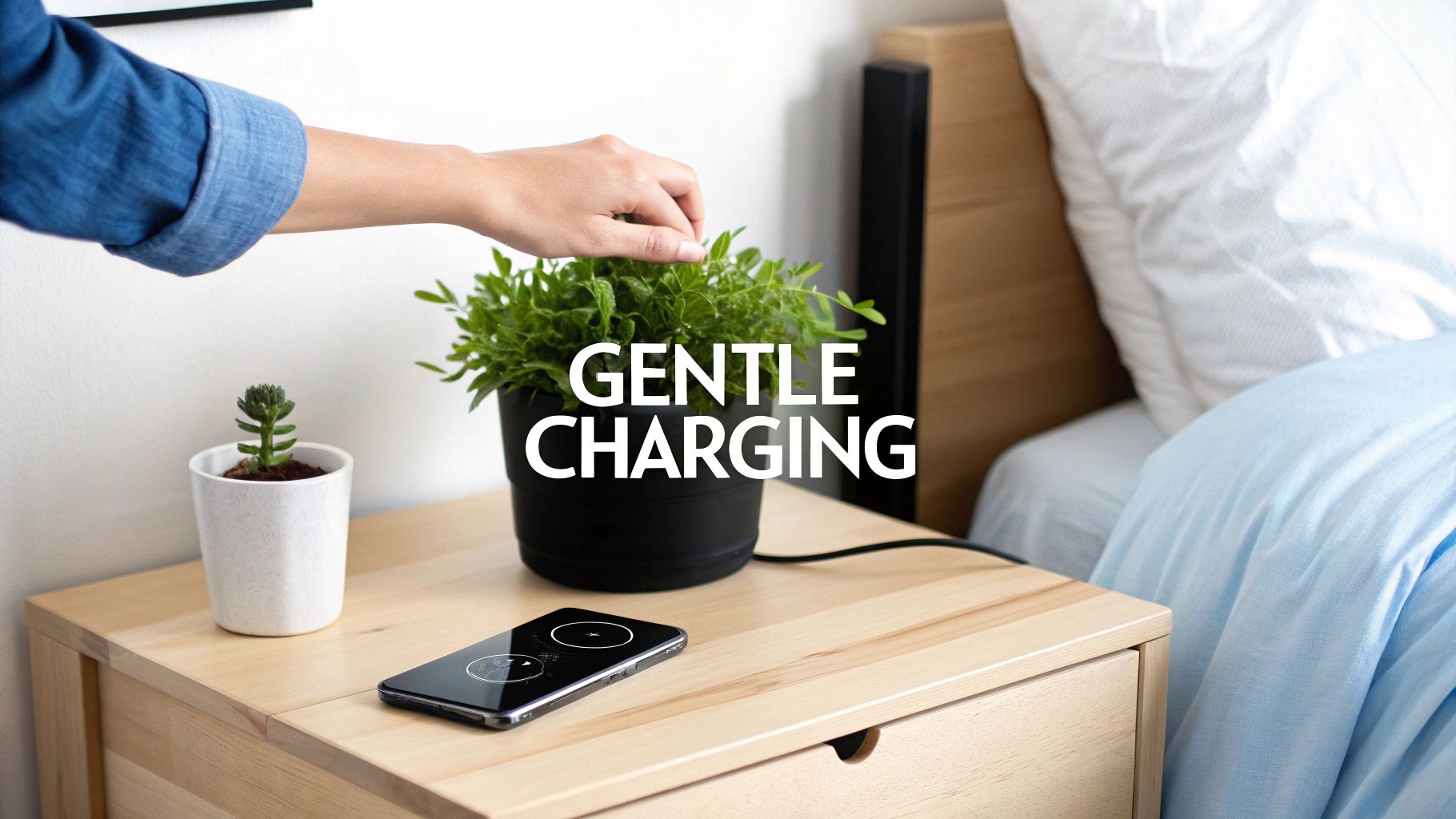
A person touches a plant while a smartphone wirelessly charges on a bedside table, promoting gentle charging.

Think of your phone’s battery like a muscle. If you hold a heavy weight for hours, your muscle gets tired and strained. Leaving your phone's battery at a full 100% charge does something similar—it puts the battery under constant stress, causing it to wear out much faster.

Optimized battery charging acts like a personal trainer for your phone. It learns your daily habits, especially when you plug it in for the night and when you grab it in the morning.

The 80% Rule

The secret behind this technology is avoiding the most stressful part of charging. For the batteries in our phones, that final push from 80% to 100% creates the most heat and strain.

Optimized charging avoids this by pausing at the 80% mark for most of the night. This lets the battery rest in a comfortable, low-stress state for hours. Then, based on your morning routine, it figures out the perfect time to start charging again, making sure it hits 100% right as your alarm goes off.

To give you a quick idea, here’s how normal charging compares to this smarter method.

Standard Charging vs Optimized Charging At A Glance

This table shows the main differences between just plugging your phone in and letting it charge smartly.

Feature Standard Charging Optimized Battery Charging
Charging Goal Reach 100% as fast as possible. Make the battery last longer.
Overnight Behavior Stays at 100% for hours, causing stress. Pauses at 80% and finishes just before you wake up.
Heat Generated Higher, especially during the last 20%. Lower, because charging is managed and timed.
Battery Lifespan Wears out faster due to long-term stress. Slows down aging, making the battery last longer.

Basically, optimized charging trades a little bit of speed for a lot more battery life.

Optimized battery charging is a protective step. It doesn't charge your phone faster; it charges it smarter to keep it healthy and extend its overall life.

This kind of smart technology is becoming more important. The demand for solutions that make our devices last longer is clear. The global market for battery chargers, including these smart systems, was valued at USD 26.9 billion in 2024. It's expected to grow to USD 39.8 billion by 2033, which shows how much people want to protect their devices. You can learn more about the growing battery charger market on imarcgroup.com.

The Main Goals of Smart Charging

At its heart, this smart approach has a few key goals:

  • Spending Less Time at 100%: It greatly reduces the time your battery spends at its most stressful, fully charged state.
  • Creating Less Heat: Slower, more careful charging for the final stage makes less heat, which is a big enemy of battery health.
  • Slowing Down Battery Aging: By handling both high-charge stress and extra heat, it slows down the natural breakdown inside the battery.

So, what is optimized battery charging? It’s a simple, automatic system built to make your battery last a lot longer—all without you having to do anything.

Understanding Why Your Phone Battery Wears Out

Have you ever noticed how a new rubber band is super stretchy, but after you use it a lot, it gets a little saggy? It loses its springiness. Your phone’s battery goes through a similar process, slowly losing its ability to hold a strong charge with every use.

This slow decline is a totally normal process called aging. It happens to every battery in the world. But here's the catch: some of our daily habits can speed up this process. Figuring out those habits is the first step to understanding why a smarter way of charging is so important.

The Main Things That Age Your Battery

Three things are especially bad for your battery's health. Each one puts a lot of strain on the sensitive parts inside, causing it to wear out way faster than it should.

  • Too Much Heat: Heat is the absolute worst enemy. Leaving your phone on a hot car dashboard or playing a demanding game while it's plugged in creates heat that messes up the battery's insides. That damage is permanent.

  • High-Charge Stress: Keeping your battery at 100% is like holding that rubber band stretched to its limit for hours. This high-charge state puts a ton of strain on the battery’s parts, leading to much faster wear and tear. Plugging it in overnight is the most common way this happens.

  • Running it Down to 0%: On the other hand, constantly letting your battery die is also a bad idea. Draining it completely can make the battery unstable, shortening its total lifespan.

Often, these problems happen together. Think about fast-charging your phone all the way to 100%. That creates both high heat and high-charge stress, creating a perfect storm for early battery aging. You can learn more about these factors that influence phone battery life on chargie.org.

Why Charge Cycles Aren't the Whole Story

You’ve probably heard that phone batteries are good for a certain number of "charge cycles"—usually around 500. A single cycle is counted every time you use up 100% of the battery's power. That could be one long use from 100% down to 0%, or it could be two separate uses, like going from 75% down to 25% twice.

But here’s the thing: it’s not just about the number of cycles, but how you use them.

A battery that lives its life mostly between 20% and 80% will last much longer than one that’s constantly pushed from 100% all the way down to 0%. The real damage comes from the stress of hitting those high and low extremes.

This is exactly where the idea of optimized battery charging comes in. It’s all about smartly managing those cycles by avoiding the most damaging levels of charge. By simply keeping the battery out of that high-stress zone above 80% for long periods, you can seriously slow down the aging process.

In the end, your daily charging habits have a direct and powerful impact on how long your phone’s battery stays useful. By avoiding the big three—heat, high charge, and running it to zero—you can keep it healthy and get a lot more life out of your device.

How Optimized Charging Works: Software vs. Hardware

When we talk about "optimized charging," we're not talking about one single thing. It’s a clever strategy that comes in two main types.

The first, and most common, is the software approach that’s already built into your phone. Think of it as a quiet guardian inside your phone's system, making smart decisions about how and when to fill up your battery.

The second approach uses an external hardware device—a physical gadget that manages the flow of electricity. This gives you much more direct, hands-on control. Both methods have the same goal—to slow down battery aging—but they get there in different ways.

The Software Approach: Learning Your Routine

Built-in features like Apple’s Optimized Battery Charging and Android’s Adaptive Charging are perfect examples of the software method. These systems work by watching your daily habits. They learn when you usually go to bed, when your alarm goes off, and when you grab your phone to start the day.

Using this information, the software makes a smart guess. For instance, if you plug in at 11 PM and your alarm is set for 7 AM, it will quickly charge your battery to 80% and then pause. It holds the charge at this "happy" level for most of the night, only starting again to top it off to a full 100% just before you wake up. To get this timing right, many of these systems use tools like predictive analytics to guess what you'll do next.

This is all designed to fight the main battery killers: heat, sitting at a full charge, and being completely empty.
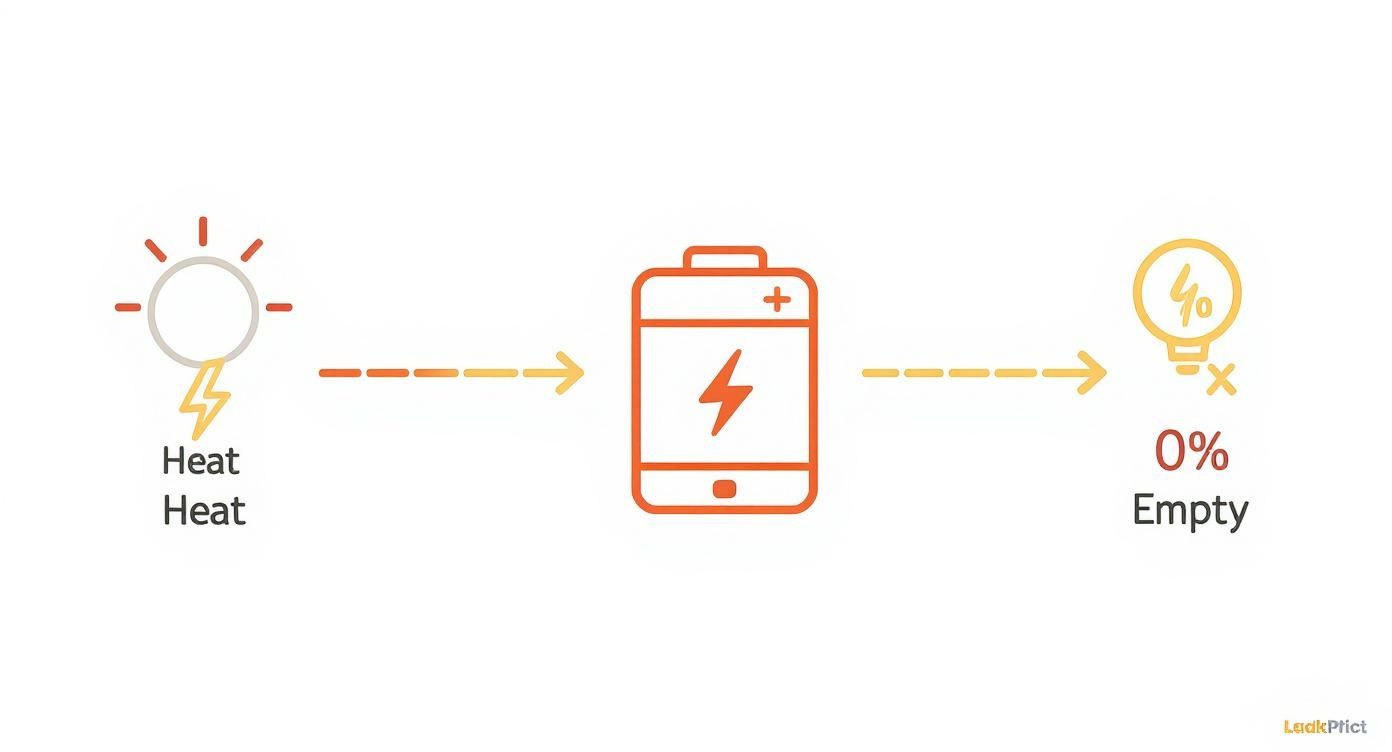
Diagram illustrates heat energy affecting a battery, leading to a 0% empty and discharged state.

As you can see, the whole point is to keep the battery out of these high-stress states for as long as possible. That’s the key to its long-term health.

The Hardware Approach: Taking Direct Control

While the software approach is smart and easy, it has one big limit: it’s all based on guesses, and it can’t physically stop the electricity. It just asks the charger to stop. This is where hardware solutions like Chargie come in. A hardware device acts like a smart gatekeeper between your charger and your phone, giving you exact, direct command over the power.

Instead of your phone’s software politely asking for a pause, a hardware device simply cuts the power once a limit you’ve set is reached. No questions asked. This offers a much more reliable and guaranteed way to prevent your battery from sitting at 100%.

Software makes suggestions based on routines, but hardware enforces rules. A physical battery charge limiter provides a definite stop to the charging process, offering a level of protection that software alone cannot guarantee.

This direct control is incredibly powerful. You can set a strict limit—say, 85%—and the hardware will ensure your device never goes over, no matter your routine or how long you leave it plugged in. It puts you back in charge.

A Deeper Look Into Hardware-Based Solutions

While the optimized charging features built into your phone are a good first step, they’re more like a polite suggestion than a strict rule. They rely on learning your habits, which is clever, but not always perfect. When you want absolute, rock-solid control over your battery's health, nothing beats a physical hardware solution.

Let's look at a real-world example like Chargie. Instead of software simply asking the battery to stop taking power, a hardware limiter acts like a physical switch on the power cord. Once your battery hits the charge level you’ve set, the hardware simply cuts the electricity. It's a complete stop.

It’s the difference between asking the power to stop and literally turning off the faucet. This gives you a level of accuracy and reliability that software alone can't ever quite match.

Setting Firm Charging Limits

One of the most powerful things a hardware solution lets you do is set firm charging limits. Imagine drawing a "do not fill past this line" mark on your battery. You get to decide exactly how full it gets—whether that’s 80%, 85%, or another level that keeps it out of the high-stress zone where batteries age the fastest.

Once you pick a limit in the app, the hardware takes over. It watches the charge level, and the moment it hits your target, it completely disconnects the power from the charger. This simple but incredibly effective action prevents your battery from ever sitting at a damaging 100% for hours, no matter how long you leave it plugged in.

Hardware-based charging limits provide a guaranteed stop. They enforce your charging rules by physically cutting the power, ensuring the battery never goes above the safe, low-stress levels you set.

This kind of control is key if you're serious about managing battery health. If you want to dive deeper into the tech that makes this possible, you can learn more about what a Battery Management System (BMS) is and why it matters.

Using a Smart Top-Up Scheduler

The other huge advantage of a hardware system is smart scheduling that works around your life without hurting your battery. Chargie’s Top-Up Scheduler, for example, is like a smart alarm clock for your battery.

You can set it to hold your phone at a healthy, low-stress level (say, 60%) for most of the night. Then, you just tell it what time you need a full charge. The system does the math and figures out the perfect moment to start charging again, making sure your phone hits 100% right as you're about to wake up.

This approach gives you the best of both worlds:

  • Maximum Protection: The battery spends most of the night relaxing in a safe, non-stressful state.
  • Total Convenience: You still wake up to a fully charged phone, ready for the day.

It completely gets rid of the hours of damaging "trickle charging" that happens when a phone stays plugged in all night after it's already full. This kind of just-in-time power management is what makes hardware-based optimized charging so effective. By physically controlling the flow of electricity, it gives you a much deeper layer of protection and the final say over your device's long-term health.

To make it even clearer, let's look at how Chargie’s key features help your battery.

Chargie's Key Features And Their Benefits

Chargie Feature What It Does (Simple Explanation) Main Benefit
Charging Limits Lets you set a maximum charge level (e.g., 80%) and physically stops power when it's reached. Prevents high-charge stress, which is a major cause of battery aging.
Top-Up Scheduler Charges to a safe level overnight (e.g., 60%) then tops up to 100% just before you wake up. Reduces time spent at 100%, avoiding hours of damaging trickle charging.
Smart Pause & Resume Allows a small, natural drop in charge (e.g., from 80% to 77%) before starting to charge again. Stops the constant, tiny "mini-charges" that wear out the battery when left plugged in.
Physical Power Cut-off The hardware itself disconnects the electricity, it doesn't just rely on software commands. Provides a 100% reliable, guaranteed way to enforce your charging rules.

Ultimately, each feature is designed to fight a specific cause of battery wear, giving you a complete system for preserving your device's lifespan.

Where Optimized Charging Really Shines
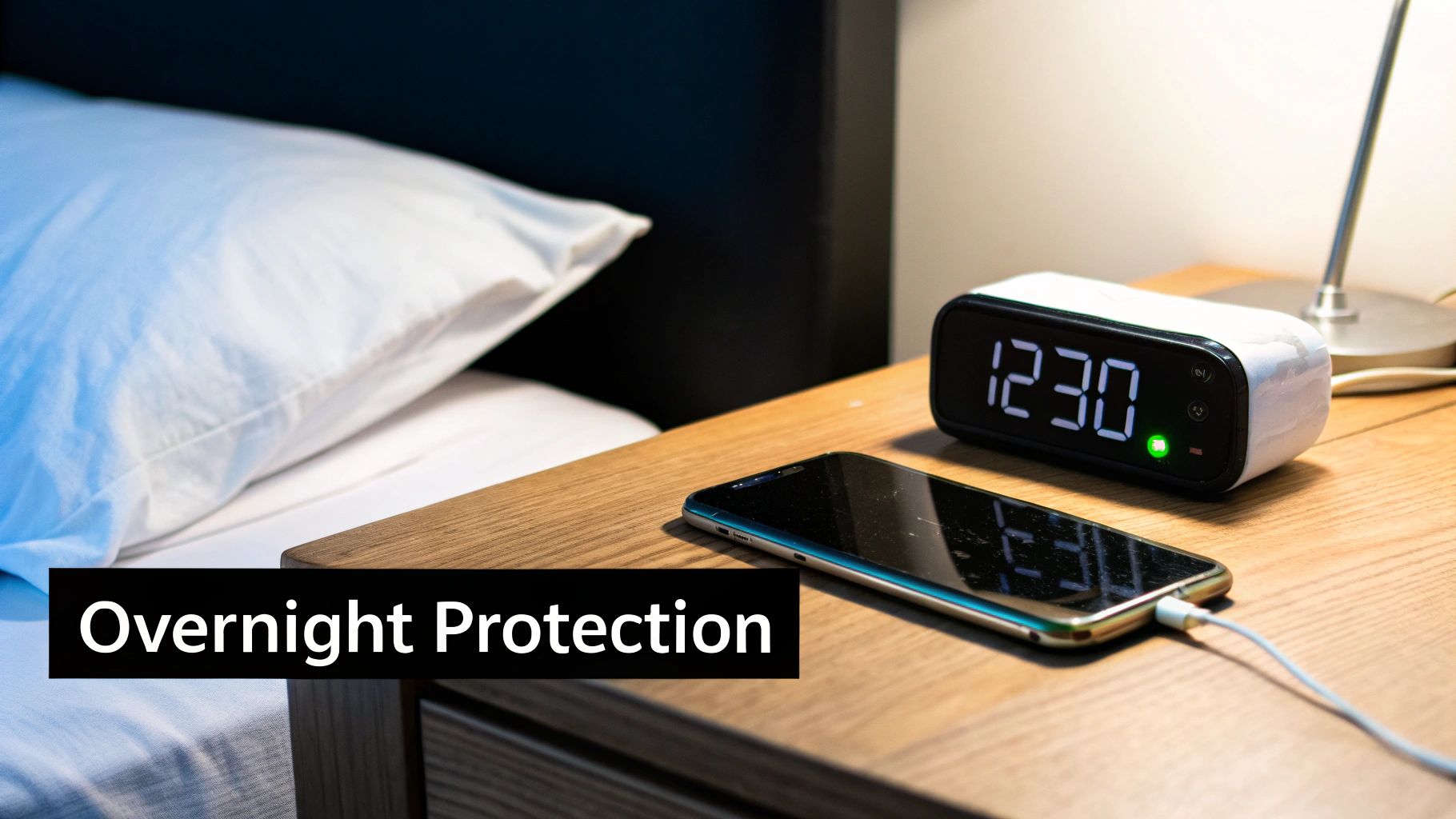
A bedside table with a digital clock showing 12:30, a smartphone charging, and a white pillow.

The idea behind all this is solid, but where does it actually make a difference in our daily lives?

The most common example is something millions of us do every single night: overnight charging. We plug our phones in before bed and don't touch them again for seven or eight hours. That's a long time for a battery to be under stress.

Instead of letting the phone sit at a damaging 100% all night long, an optimized system steps in. It keeps the battery in a much safer, low-stress state for most of that time, preventing the slow damage that kills batteries early. You wake up to a full charge, but without having quietly harmed your device for hours.

Beyond the Bedside Table

But this goes way beyond just our personal smartphones. Think about all the devices in our lives that are always plugged in. These are perfect for optimized charging, since they're constantly being stressed at a high charge level.

  • Home Hubs and Smart Displays: Those tablets or smart screens that act as the brain for your smart home? They're always on and always charging.
  • Retail and Kiosk Systems: Point-of-sale tablets in a coffee shop or self-service kiosks at the airport are plugged in 24/7. Their batteries need help.
  • Fleet and Delivery Vehicles: The phones and tablets used for navigation in company vehicles are constantly plugged into a power source, leading to short device lifespans and high replacement costs for businesses.

For every one of these, optimized battery charging is a practical tool that turns a disposable item into a long-lasting one. It saves money and cuts down on electronic waste. By preventing these always-on devices from sitting at 100%, you can greatly extend their useful life. A hardware limiter with a feature like Chargie's new top up scheduler is a perfect fix for these situations.

Powering the Future of Transportation

The rules of optimized charging are most important in the electric vehicle (EV) world. An EV's battery isn't just another part; it's the heart of the vehicle, affecting its range, performance, and how much it's worth later.

The global shift to EVs makes this clear. In 2023, nearly 14 million electric vehicles were sold worldwide, making up 18% of total car sales. These numbers show just how important battery life has become in the car world. You can dig deeper into the rise of battery management systems on grandviewresearch.com.

Just like your phone, leaving an EV plugged in at 100% for long periods can seriously damage its expensive battery. That’s why smart charging systems in EVs often let owners set a charging limit—usually around 80%—for daily driving, saving a full charge only for long road trips.

This single strategy protects the most valuable part of the car.

From the phone in your pocket to the EV in your driveway, optimized charging isn't a gimmick. It’s a key technology for a more sustainable electronic future.

Got Questions About Optimized Charging? Let's Clear Things Up.

Even after you get the main idea of what optimized battery charging is, a few practical questions always seem to pop up. That's totally normal. We're talking about changing a habit as old as the smartphone itself—plugging it in and forgetting about it.

So, let's clear up the confusion and answer some of the most common questions people have. My goal is to explain how all this works in the real world so you can feel confident you're doing the right thing for your phone's battery.

Should I Just Leave Optimized Charging On All the Time?

For most of us, the answer is a big, loud yes. The whole point is to slow down battery aging, and who doesn't want that? If you have a fairly regular daily routine, and especially if you charge your phone overnight, leaving the feature on is an easy choice. You get serious long-term protection without doing a thing.

But there are exceptions. If your schedule is unpredictable or you often need to charge your phone as fast as possible, you might want to turn it off sometimes. For everyday, normal use, though? Keeping it on is the smartest move for your battery's health.

Is This Going to Make My Phone Charge Slower When I’m in a Rush?

This is probably the biggest worry people have, but you can relax. The answer is almost always no. Optimized charging is smart enough to know when to slow down. It's designed to turn on during those long, predictable charging times, like when you plug in before bed.

If you plug your phone in for a quick top-up in the middle of the afternoon, the system is clever enough to know this isn't a long charging session. It will let the power flow at the fastest speed your phone and charger can handle.

Optimized battery charging doesn't just slow down every charge. It specifically targets those long, idle periods where your battery would otherwise sit at a stressful 100% for hours.

This really gives you the best of both worlds: gentle, protective charging when it makes sense, and full-speed power when you're in a hurry.

Does It Matter What Kind of Charger I Use?

Nope! The software-based optimized charging built into your iPhone or Android phone works with pretty much any standard charger and cable. All the smarts are happening inside the phone's software; the phone itself is making the decisions, not the charger.

Now, when you use a hardware-based solution like Chargie, you get even more freedom and control. It works with any device that charges over USB, which is a lifesaver for gadgets that don't have a fancy built-in software feature. It gives you direct, physical control over the flow of electricity, no matter what charger you're using.


Ready to take real control over your device's long-term health? The Chargie hardware limiter gives you the power to set precise charging limits, schedule top-ups, and physically stop battery-damaging overcharging in its tracks. Extend your battery's life and cut down on e-waste by visiting https://chargie.org to get yours today.
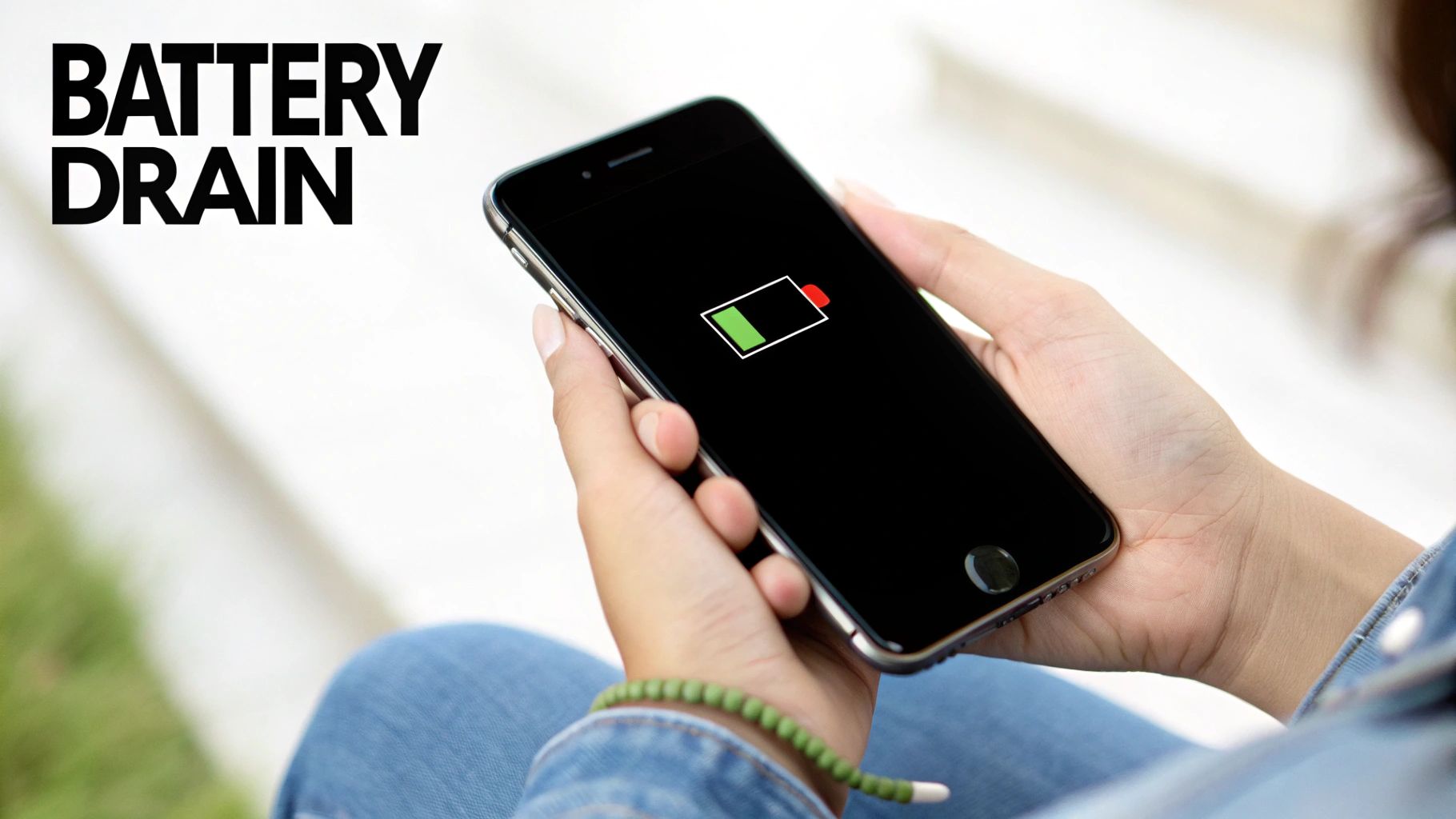
Practical iPhone Battery Saving Tips

Some of the best ways to save your iPhone's battery are surprisingly simple. It really boils down to changing a few settings and being aware of your daily habits. Things like turning down your screen brightness, using Low Power Mode when you need it, and stopping certain apps from running in the background can make an instant difference.

These small changes add up, stopping the biggest power hogs before they drain your battery dry.

Why Your iPhone Battery Drains So Quickly

An iPhone displaying its battery settings screen, symbolizing the user checking for battery drain culprits.

Ever look at your iPhone in the middle of the day and wonder where all the battery power went? It’s a common, frustrating moment. The problem usually isn't one single thing but a bunch of small things working against you behind the scenes. Think of your battery as a small fuel tank, with a dozen tiny straws constantly sipping from it.

By far, the biggest power user is often the screen itself. Keeping that bright, beautiful display lit up takes a ton of energy. Right behind that are all the apps that are always working, even when you’re not actively using them.

The Silent Energy Hogs

Many apps use a feature called Background App Refresh to get new information, making sure everything is up-to-date the second you open them. This is very convenient, but it means your social media, news, and email apps are always using power. It’s the same story with Location Services—apps for weather, maps, or ride-sharing are constantly checking where you are, which is another steady drain.

A few other common problems you might not think about:

  • Constant Notifications: Every single ping, buzz, and screen wake-up uses a tiny bit of energy. Over a full day, that adds up to a lot.
  • Poor Cell Signal: When your iPhone is struggling to find a good connection, it uses more power to search for a signal, burning through your battery much faster than you’d expect.
  • Streaming High-Quality Content: Watching videos or listening to music using your mobile data is much harder on your battery than doing it over Wi-Fi.

To give you a quick overview, here are the most common battery drainers at a glance.

Top 5 iPhone Battery Drainers at a Glance

Feature/App Why It Drains Battery Quick Fix
Screen Brightness The display is the #1 power user on your phone. Lower brightness or turn on Auto-Brightness.
Background App Refresh Apps constantly get data even when you're not using them. Turn it off for apps you don't need in Settings.
Location Services GPS tracking for maps, weather, etc., is a steady drain. Set apps to use location only "While Using."
Push Notifications Each notification wakes the screen and uses power. Turn off notifications for apps you don't need.
Poor Cell Signal The phone uses more power to find a signal. Switch to Airplane Mode in low-signal areas.

Getting a handle on these drains is the first step toward a healthier battery and a phone that lasts as long as you do.

It's no secret that a dying battery is a huge reason people upgrade their phones. In fact, studies show that people replace their smartphones every 2.4 years on average, and a whopping 42% of users say poor battery life is the main reason.

Daily Habits and Physical Factors

Besides the software side of things, physical factors and even accidents play a huge role. For instance, leaving your phone in a hot car or out in the freezing cold can permanently damage your battery's ability to hold a charge. And it's not just about settings and charging habits; physical damage, such as from liquid damage on your iPhone, can also seriously harm its performance over time.

It’s really important to be aware of the many factors that influence phone battery life to make smarter choices. Once you find these energy hogs, you can apply the right fixes and get much better results.

Tweak Your iOS Settings for Better Battery Life

An iPhone user adjusting the settings on their device to optimize battery life, with icons for brightness, location services, and notifications visible.

Think of your iPhone's Settings app as the control panel for its power. Your phone is packed with hidden switches and dials that control how its battery is used, and a few smart adjustments here can be the difference between lasting all day and hunting for an outlet by 3 PM.

Many of the most powerful battery-saving tricks are just sitting there, waiting to be used. Let's walk through the ones that make the biggest difference, so you can adjust them for the best results without losing the features you actually use.

Tame Your Notifications and Background Activity

Every little buzz, ping, and screen wake-up from a notification eats away at your battery. At the same time, apps constantly refreshing themselves in the background are some of the biggest silent energy hogs out there. It’s surprisingly easy to take back control.

First up is Background App Refresh. This feature lets apps get new information even when you're not actively using them. While it’s handy for a couple of apps, it's not needed for most.

  • Go to Settings > General > Background App Refresh.
  • You can turn it off completely, but a better idea is to scroll through the list and turn it off for apps that don't need to be constantly updated—think games or social media apps you only check once in a while.

Next, it's time to check your Location Services. So many apps ask for your location, but very few need it all the time.

  • Go to Settings > Privacy & Security > Location Services.
  • Go through the list app by app. Change their permission to While Using the App instead of Always. For any app that doesn't need to know where you are, just select Never.

In a more connected or work environment, these individual changes are part of a bigger picture. Applying principles of effective mobile device management can help balance all your iPhone's settings, leading to better performance and battery life across the board.

Use Low Power Mode Proactively

Most of us wait for that dreaded 20% battery warning before even thinking about Low Power Mode. But using it before you get that warning is a total game-changer. If you know you've got a long day ahead, just turn it on when your battery is at 80% or even 90%.

Low Power Mode is one of the smartest built-in tools for stretching out your battery. It automatically reduces background activities like checking for new mail, some visual effects, and automatic downloads, giving you an instant power boost with almost zero effort.

This feature has become a key part of Apple’s battery-saving plan since it was introduced. It smartly cuts down on the non-essential things right when you need it most.

Hunt Down the Worst Offenders in Your Battery Menu

Your iPhone literally tells you which apps are draining your battery the most. This is your personal check-up tool, and checking it every so often can reveal some surprising problems.

Here's how to play detective:

  1. Open up Settings.
  2. Scroll down and tap on Battery.
  3. Give it a moment to load the information.

You'll see a detailed list of battery usage by app for the last 24 hours or the last 10 days. If you see an app you barely open sitting near the top of that list, that's a huge red flag. It’s likely using too much power in the background.

From there, you can decide whether to limit its background activity, turn off its notifications, or just delete it entirely if it's not useful. This simple check is one of the most powerful ways to create a battery-saving plan that’s tailored specifically to you.

Smarter Charging Habits to Protect Your Battery

An iPhone on a wireless charger with a green battery icon, symbolizing healthy and efficient charging.

The settings you change in iOS are only half the battle. How you physically charge your iPhone every day has a massive impact on its battery health a year or two from now.

Forget the old myths you might have heard about needing to drain your battery completely. Modern batteries—like the one in your iPhone—are much happier and last longer when they avoid getting completely full or completely empty. It's all about finding a healthy balance.

The 40-80 Rule Sweet Spot

One of the best habits you can build is following the 40-80 rule. This isn't a strict command, but more of a guideline for ideal battery health. The idea is simple: try to keep your iPhone's charge level between 40% and 80% as much as possible.

Think of it like this: pushing a battery all the way to 100% or letting it die completely puts a lot of stress on its internal parts. Staying in that comfortable middle range is like a gentle cruising speed, slowing down the aging process that makes your battery hold less charge over time. You don't have to worry about the exact numbers, but if you can unplug your phone before it's full, you're doing it a huge favor.

Rethinking Overnight Charging

Plugging in your phone overnight is very convenient, but it can also be a silent killer for your battery. Leaving it at a stressful 100% charge for hours is one of the quickest ways to wear it out.

Luckily, Apple built a solution right into iOS.

Make sure Optimized Battery Charging is turned on. You can find it under Settings > Battery > Battery Health & Charging. This clever feature learns your daily routine, charges your iPhone to 80%, and then pauses. It waits to finish charging to 100% just before you normally wake up. This greatly cuts down the time your phone spends at a full charge. If you want to dive even deeper, you can explore whether you should charge your phone overnight and find strategies that work best for you.

Keeping a battery at 100% charge for a long time, especially when it's warm, is a major reason batteries age faster. Optimized charging directly addresses this problem by smartly managing that final 20% of the charging.

Keep Your iPhone Cool

Heat is the absolute worst enemy of battery health. High temperatures can permanently damage your battery's ability to hold a charge. This is especially important to remember while charging, since the process itself creates heat.

Here are a few simple ways to avoid overheating your battery:

  • Take the case off while charging. Some cases, especially thick ones, are great at trapping heat. Taking it off lets your iPhone cool down.
  • Don't charge it in direct sunlight. Avoid leaving your phone on a sunny windowsill or the dashboard of a hot car while it's plugged in.
  • Avoid heavy use while charging. Playing intense games or streaming 4K video while charging can cause your phone to heat up fast. It's best to let it rest while it charges.

To make it even simpler, here’s a quick-glance guide to what you should and shouldn’t be doing with your charging routine.

Charging Dos and Don'ts for a Healthy iPhone Battery

Do This Don't Do This
Unplug your phone around 80% when possible. Leave your phone plugged in at 100% for hours.
Keep your phone in a cool, well-aired area. Charge it under a pillow, in direct sun, or in a hot car.
Use Optimized Battery Charging for overnight power-ups. Let your phone die completely on a regular basis.
Remove a thick case before charging. Play demanding games or stream video while plugged in.
Charge in short bursts throughout the day. Always aim for a full 100% charge every single time.

These small, easy-to-follow habits might not seem like much on their own, but they add up. Over time, they can make a huge difference in ensuring your battery stays healthier for much, much longer.

While your iPhone’s built-in settings are a decent first step for looking after your battery, they don't give you a ton of real control. If you're serious about making healthy charging habits stick without having to constantly think about them, a dedicated tool like Chargie is a game-changer. Think of it as a smart gatekeeper for your battery, making sure it only gets the power it needs, exactly when it needs it.

It’s a tiny, simple device that sits between your charger and your iPhone. From there, you use its app to set the rules. This isn't just a software trick; it gives you direct, physical control over the entire charging process. That makes it a seriously powerful ally in the battle against battery wear.

Set It and Forget It Protection

The whole idea behind Chargie is to automate the healthy habits we’ve been talking about, like the 40-80 rule. Instead of watching your phone and unplugging it the second it hits 80%, you can just set that as a hard limit in the app. The moment your iPhone reaches that level, Chargie physically cuts the power.

This single feature prevents your phone from sitting at a stressful 100% charge for hours on end, which is one of the biggest causes of long-term battery damage. It’s a true set-it-and-forget-it solution.

By automatically stopping the charge at a healthier level like 80% or 90%, you greatly reduce the stress on the battery's parts. Over time, this consistent, gentle approach can help your battery hold its original power for much, much longer—potentially even doubling its useful lifespan.

Smart Scheduling for Overnight Charging

Plugging your phone in overnight is convenient, but we all know it’s terrible for battery health. This is where Chargie gets really clever with its scheduling feature. Instead of letting your phone shoot up to 100% and stay there all night, you can build a custom charging plan.

For instance, you could tell Chargie to:

  • Charge your iPhone to a safe 60% when you first plug it in at night.
  • Keep it at that stress-free level for most of the night.
  • Finish charging it an hour or so before your alarm goes off, so you still wake up to a full battery.

You get the best of both worlds: the convenience of a full morning charge without the battery-killing side effects of sitting at 100% for hours. This is a level of detailed control that the standard iOS settings just can't touch. You can see detailed walkthroughs and check out all the features by exploring the Chargie app's capabilities on their official site.

Ultimately, a tool like Chargie turns battery care from a chore into something that just happens automatically in the background. It’s one of the most effective moves you can make if you're serious about keeping your device healthy and avoiding that dreaded (and expensive) battery replacement down the line.

Everyday Tricks for Immediate Battery Savings

An iPhone on a home screen displaying various widgets and app icons, with a hand adjusting the screen's brightness.

While diving deep into your iPhone’s settings and building a perfect charging routine is fantastic for long-term battery health, sometimes you just need to stop the battery from draining right now. These are the simple, everyday changes you can make to squeeze an extra hour or two of power out of your phone when you need it most.

Think of these as the easy wins. They don’t require you to be a tech genius and can be done in seconds, but you'd be surprised at how much they help over a full day.

Master Your Screen and Display

Your iPhone’s screen is, without a doubt, its biggest power hog. Controlling it is the single fastest way to see an immediate boost in battery life. We’ve mentioned brightness, but pairing it with a couple of other display settings creates a powerful trio of battery-saving habits.

First up, go with Dark Mode. If you have an iPhone with an OLED screen (that’s the iPhone X and anything newer), Dark Mode is a game-changer. It actually turns off the individual lights in the screen to show black, which uses way less energy than lighting them up for the standard light mode. You’ll find it under Settings > Display & Brightness.

Next, shorten your Auto-Lock time. There’s no reason for your screen to be on if you’re not looking at it. Setting it to lock after just 30 seconds stops it from needlessly draining power when you set it down.

Finally, take a hard look at your widgets. Home Screen widgets are cool, but the ones that are constantly updating—like weather, news, or stocks—are always sipping a little bit of power in the background. Be honest about which ones you actually use and get rid of the rest.

Make Smarter Connectivity Choices

The way your iPhone connects to the outside world has a massive impact on its battery. A few conscious choices here can make a world of difference, especially when you're out and about.

The golden rule is simple: Wi-Fi is your battery’s best friend. Your phone’s mobile signal has to work much harder to find and hold onto a connection, especially in areas with poor service. Whenever you’re near a trusted Wi-Fi network, make sure you’re connected. Your battery will thank you.

Along the same lines, think about what you're streaming. Watching high-definition video or listening to high-quality audio over your mobile connection is very power-hungry. If you know you'll be away from Wi-Fi, try downloading playlists, podcasts, or videos ahead of time.

A simple restart is often the most underrated trick in the book. If you notice your battery draining way faster than usual for no clear reason, a quick power-off and on can clear out background glitches and problems that might be using up power.

The Overlooked Power of a Restart

It sounds almost too simple to work, but never underestimate what turning your iPhone off and on again can do. Over time, little software bugs and processes can get stuck running in the background, secretly sucking the life out of your battery.

A restart is like a system-wide refresh. It clears out the temporary memory and forces everything to start over cleanly. If your phone suddenly feels warm or the battery percentage is dropping fast, a restart is often the quickest and easiest fix. You don't need to do it every day, but making it a weekly habit can help keep everything running smoothly.

Answering Your Biggest iPhone Battery Questions

Even after you’ve learned all the best practices, some questions still seem to pop up again and again. Let's tackle a few of the most common myths and nagging worries about iPhone batteries so you can feel completely confident about how you're treating your device.

Does Force-Quitting Apps Actually Save Battery?

It feels like you're helping, doesn't it? That satisfying swipe-up to clear out every single app from your recent apps list. But believe it or not, this habit can actually hurt your battery life more than it helps.

Here’s the thing: iOS is incredibly smart about managing your phone's power. When you switch away from an app, it enters a paused state, using almost zero power. Constantly closing apps just makes your iPhone work harder, as it has to reload the entire app from scratch the next time you need it. That process uses way more energy than just waking it up from its paused state.

Unless an app is totally frozen or not working, just leave it alone. Your iPhone is better at managing its own memory than we are.

Is It Okay to Use My iPhone While It's Plugged In?

For the most part, yes. Sending a few texts or scrolling through a website while your phone is charging is perfectly fine. The real enemy isn't using your phone, but the heat that can build up.

When you do something intense—like playing a demanding game or streaming a 4K movie—your iPhone gets warm. Combine that with the heat created from charging, and you can easily push your battery into a temperature danger zone. Since heat is the #1 killer of long-term battery health, it’s a good rule of thumb to let your phone charge in peace when you're doing anything that makes it work hard.

How Often Should I Be Restarting My iPhone?

You don't need to schedule it, but making a habit of restarting your iPhone about once a week is a simple and effective way to keep it healthy. Think of it as a quick digital cleanse.

A simple restart can clear out temporary junk files, sort out minor software glitches, and shut down any stray background tasks that might be secretly draining your power. If you ever notice your battery percentage dropping fast for no good reason, a quick restart should be your first step. It's a surprisingly powerful fix for mysterious battery drain and one of the easiest iphone battery saving tips you can adopt.


For total peace of mind, Chargie automates these healthy battery habits so you don't even have to think about them. It automatically stops charging at the best levels and smartly schedules overnight top-ups, which can greatly extend your battery's lifespan. Protect your investment and skip the costly battery replacements by checking it out at https://chargie.org.

How to Extend Laptop Battery Life and Stay Unplugged

It’s that sinking feeling. You’re in the middle of something important, maybe wrapping up a report or on a crucial video call, and that dreaded low-battery warning pops up. We’ve all been there. The good news is you don’t need to be a tech expert to squeeze more life out of your laptop’s battery.

A few smart changes to your daily habits and settings can make a massive difference.

Your Quick Guide to a Longer-Lasting Laptop Battery

A person working on a laptop in a well-lit, modern space, focused on the screen.

The name of the game is using your laptop's power more efficiently. This doesn't just give you more time away from the outlet today—it also helps keep your battery healthy for a long time. Think about it: simple things like dimming the screen, closing apps you aren't using, and turning off Wi-Fi or Bluetooth when you don't need them all add up.

Most modern laptops use Lithium-ion batteries, and these little power packs work better when you manage power smartly. If you're curious about how notebook battery technology has changed over time, you can find a deep dive into its evolution on marketreportanalytics.com.

Immediate Actions for More Battery Power

Let's start with the easy stuff. These are the quick things you can do right now to see an immediate boost in how long your laptop lasts on a single charge. No technical skills required.

If you're in a pinch and need to save power fast, a few clicks can go a long way. Here’s a quick table of the most effective, instant actions you can take.

Instant Battery-Saving Actions

Action Impact on Battery How to Do It (Quick Tip)
Lower Screen Brightness High Use the function keys (often marked with a sun symbol) or the display settings.
Turn on Battery Saver Mode High Click the battery icon in your taskbar (Windows) or menu bar (Mac).
Unplug Extra Devices Medium Simply unplug any USB devices like mice, webcams, or external drives.
Turn Off Bluetooth/Wi-Fi Medium Use the quick settings menu to turn them off when not in use.
Close Background Apps Medium Check your Task Manager (Ctrl+Shift+Esc) or Activity Monitor for power-hungry apps.

These simple changes are your first line of defense against a rapidly draining battery. They take just a few seconds but can add precious minutes, or even hours, to your unplugged time.

  • Adjust Your Screen Brightness: I can't say this enough. Your screen is one of the biggest power users on your laptop. Simply turning down the brightness to a comfortable level is the fastest way to save power.
  • Disconnect Unused Devices: Everything you plug into your USB ports—an external mouse, a hard drive, even a webcam—draws power from your battery. If you aren't actively using it, unplug it.

Dive Into Your Laptop's Power Settings

An illustration showing a laptop with various power setting icons like brightness, battery saver, and processor speed floating around it.

Beyond the quick fixes, your laptop has a special control center for managing its energy use. These built-in power settings are where the real magic happens, but most people never even look at them. By creating your own power plan, you can tell your laptop exactly how to act when it's running on battery.

Think of it like the different driving modes in a modern car. You wouldn't keep it in "Sport Mode" for a quiet cruise; "Eco Mode" is the smart choice. It's the same idea here. You can create a "Low Power" setting that makes your battery last as long as possible for everyday tasks like writing emails or browsing the web.

Fine-Tuning Your Custom Power Plan

Instead of just using the default "Balanced" or "Power Saver" modes, creating your own plan lets you control the details. You can adjust specific parts of your laptop that are known to use a lot of battery.

Here are a few of the most important settings you'll find in the advanced power options:

  • Processor Power Management: This is a big one. It lets you put a speed limit on your computer's brain (the CPU). I’ve found that setting the maximum processor speed to 70-80% when on battery saves a lot of power without any noticeable slowdown for most tasks.
  • Display Timers: Be strict here. Shorten the time it takes for your screen to dim and then turn off when you step away. A few minutes saved each time really adds up over a full day.
  • Hard Disk Settings: If your laptop has an older spinning hard drive, you can tell it to power down sooner when it's not being used.

By making these small, careful changes, you’re not just getting back a few minutes of battery life. You're building a smarter habit that prevents wasted power every single day.

This level of control means your laptop can be very efficient when you're on the go, but it's ready to use its full power the moment you plug it back in.

If you're curious about the other side of things—how your charger actually delivers that power—you can learn all about how many watts it takes to charge a laptop in our detailed guide. Getting a handle on these settings is a massive step toward making your battery last longer.

Smart Habits That Make a Real Difference

Beyond just changing your system settings, the way you actually use your laptop day-to-day has a huge effect on its battery. Think about how you work. Most of us are guilty of keeping dozens of browser tabs open while juggling a handful of demanding apps. Each one of those programs is quietly sipping away at your battery, and that adds up fast.

Making a few simple changes to how you work can literally add hours to your daily battery life.

For example, instead of leaving that video editing program running all day just in case, close it when you’re done. That one simple action stops it from using up processing power and energy in the background. The same idea applies to your web browser—bookmark the tabs you'll need later and be strict about closing the rest.

Tame Your Digital Workspace

Learning how to extend your laptop's battery life is really about becoming the master of your digital space. A cluttered digital workspace is just as inefficient as a messy desk.

  • Choose a Lighter Browser: Some web browsers are known to use a lot of your computer's resources. It’s worth trying a few different options to see which one uses less memory and processing power. Less resource use means more battery power for you.
  • Limit Background Programs: Take a minute to check which apps start automatically when you turn on your computer. You’d be surprised what’s running silently in the background. Turn off anything you don’t need right away.
  • Focus on One Task: When you're really trying to stretch that last bit of power, focus on one thing at a time. It keeps your computer’s workload low and your battery level high. And if you need a boost on the go, it’s a good idea to know how to properly use a power bank for a safe and effective charge.

Your laptop's physical environment is just as important as its digital one. Too much heat is the silent killer of battery health, making it wear out faster over time.

This is why working in a cool, well-ventilated space is so important. You'll want to avoid using your laptop on soft surfaces like a bed or a couch, since the fabric can easily block the air vents and trap heat. It’s a simple habit, but keeping your device cool is incredibly powerful.

In fact, getting both your usage habits and your charging patterns right is the key. Studies have shown that making these kinds of adjustments can extend your daily battery runtime by 20-30% and even double its overall lifespan. You can dig deeper into these insights on the laptop battery market to see the long-term impact.

Adopting a Smarter Way to Charge

How you charge your laptop has a huge effect on its battery's long-term health, but it's something most of us never think about. It seems simple enough, right? Just plug it in.

The common habit is to leave our laptops plugged in for hours, often overnight. While easy, this keeps the battery at 100%, which creates stress from high voltage and extra heat. That constant pressure slowly damages the battery's insides, reducing its ability to hold a good charge. The same thing happens at the other extreme—letting your battery die completely also causes serious wear.

A few small changes to your routine can make a world of difference. It's not just about charging, but also about how you use the machine day-to-day.

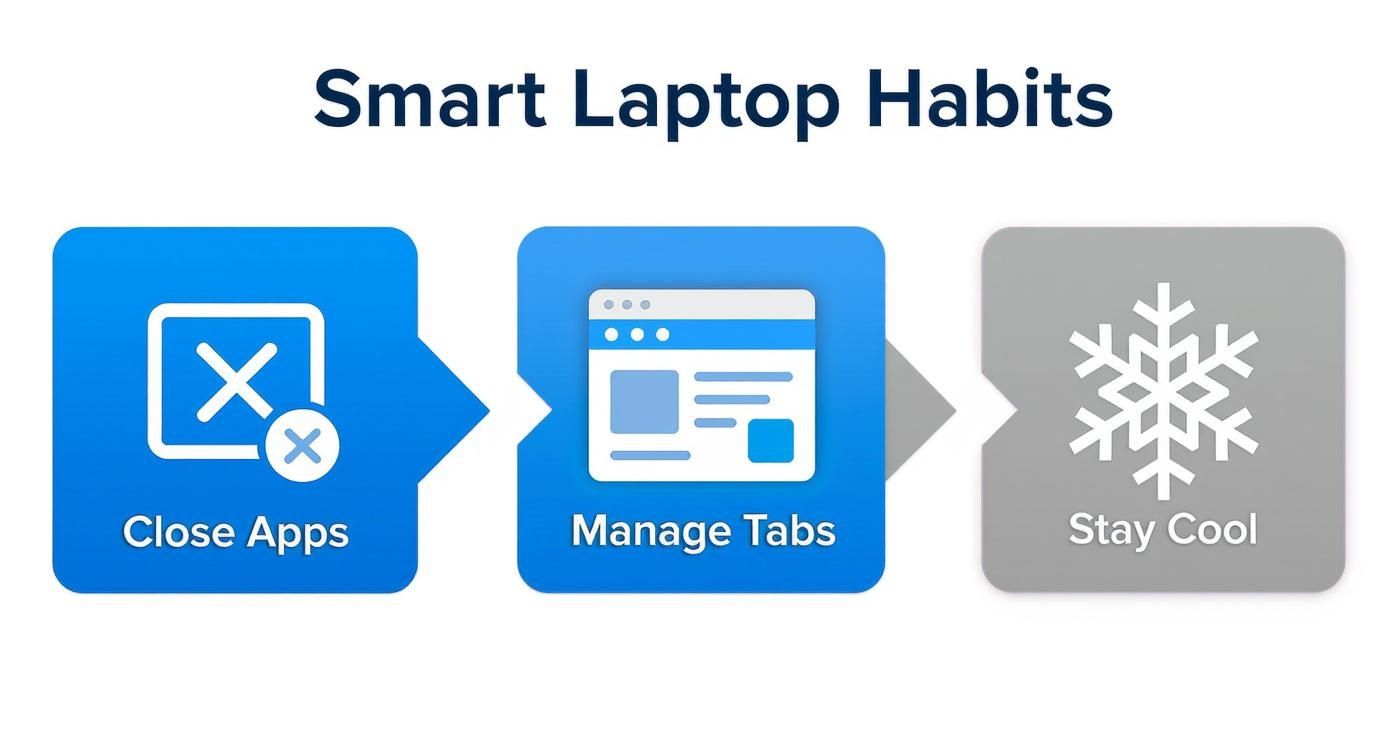
Infographic showing a 3-step process for Smart Laptop Habits with icons for closing apps, managing tabs, and keeping the device cool.

As you can see, things like managing your open tabs and making sure your laptop isn't overheating are basic steps. When you combine these good habits with a smarter charging strategy, you're really setting your battery up for a long life.

The 20-80 Rule and How to Automate It

For modern laptop batteries, the ideal range is keeping the charge level somewhere between 20% and 80%. Staying in this zone puts far less stress on the battery and can dramatically slow down the aging process. The big problem, of course, is that nobody wants to watch their laptop, ready to unplug it the second it hits 80%. It’s just not practical.

This is where a special tool completely changes the game. A hardware device like Chargie is designed to handle this whole process for you. It's a small gadget that sits between your charger and your laptop, acting like a smart gatekeeper for the power. You just open the app and set your desired charge limit—say, 80%.

Once the battery reaches that level, Chargie simply cuts off the power. It's the ultimate 'set it and forget it' solution. Your laptop can stay plugged in, running on wall power, without constantly stressing the battery at a full charge.

I've put together a quick table to show just how different this approach is compared to standard charging habits.

Traditional Charging vs. Smart Charging with Chargie

Charging Method How It Works Long-Term Impact on Battery Health
Traditional Charging Plug in and leave connected, often charging overnight to 100%. Keeps the battery in a high-stress state, speeding up damage and significantly reducing its lifespan.
Smart Charging with Chargie Set a charge limit (e.g., 80%) in the app. Power is automatically cut off when the limit is reached. Reduces battery stress by avoiding high-voltage states, preserving its capacity and extending the battery's useful life by years.

The difference is night and day. With traditional charging, you're unintentionally aging your battery faster. With a smart limiter, you’re actively preserving its health every single time you plug in.

This strategy is all about keeping that day-one performance for years to come. You can learn more about how a battery charge limiter works to protect your devices. A little bit of smart tech goes a long way in making sure your laptop's battery doesn't give up on you when you need it most.

Keep Your Software and System Healthy

Think of your laptop's software as its engine. When it's messy and out of date, it has to work a lot harder, burning through more fuel—or in this case, your precious battery. One of the easiest wins for better battery life is simply keeping your system and apps up-to-date.

Developers are always finding ways to make their software run better, and these updates often include serious power-saving improvements. You might be surprised to find that installing the latest system update or a new version of your browser could squeeze an extra 30 minutes of life out of a single charge, all thanks to smarter programming.

Tidy Up Your Startup Programs

Have you ever noticed how many apps seem to launch themselves the moment you turn on your laptop? While it can be handy for a few key programs, each one is quietly using your memory and processing power in the background. It's a constant, low-level drain on your battery.

The good news is you can take back control. Both Windows and macOS have simple tools that let you see exactly what’s launching at startup and shut down anything you don’t need right away.

  • On Windows: Open the Task Manager (Ctrl+Shift+Esc) and go to the "Startup" tab.
  • On macOS: Go to System Settings > General > Login Items to see your list.

Just disabling a couple of apps you rarely use can make a real difference you can feel.

A clean system is a secure system. Nasty malware can drain your battery by running hidden programs you'd never know about. Taking a few minutes to learn about preventing Trojan horse viruses is a smart move for keeping your laptop both safe and efficient.

It also pays to do a little digital spring cleaning now and then. Getting rid of old files and uninstalling software you never touch helps your system run smoother. A clean machine doesn't have to waste energy digging through clutter, and that's another small but important piece of the puzzle when you're figuring out how to extend laptop battery life.

You've Got Questions About Laptop Batteries? We've Got Answers.

The world of battery care is full of myths and "expert" advice that often contradict each other. It's confusing. Let's cut through the noise and answer the questions I hear all the time, so you know exactly what your laptop needs.

"Can I just leave my laptop plugged in all the time?"

This is probably the number one question people have. Your modern laptop is smart enough to stop pulling power once it hits 100%, so you're not going to "overcharge" it. That's the good news.

The bad news? Keeping a battery at 100% is like holding a muscle in a tensed position for days. It creates high-voltage stress that slowly but surely wears down the battery's insides, causing it to age much faster.

"Okay, So When Is It Time to Replace My Battery?"

You'll know it when you feel it. The most obvious sign is when a full charge barely gets you through a meeting or half a movie. That's your battery telling you it's getting old.

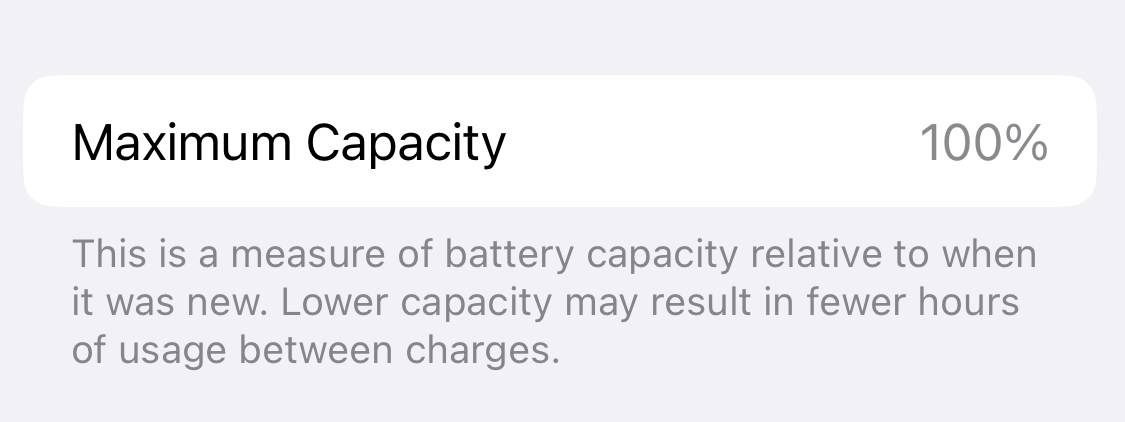
For a more technical check, your computer can actually create a battery health report. This little-known feature shows you its current maximum capacity compared to what it was when it was new.

Once your battery's maximum capacity drops below 80% of its original design, the drop in real-world performance becomes impossible to ignore. That's usually the point where a replacement starts to make a lot of sense.

"Is Fast Charging Secretly Killing My Battery?"

Fast charging is a modern miracle when you're in a hurry, no doubt. But that convenience comes at a cost.

Pushing that much power into the battery that quickly creates a lot of heat and puts a real strain on its internal parts. Doing it once in a while is totally fine, but making it your daily routine will absolutely speed up the aging process. For the long-term health of your machine, a slower, gentler charge is always the better option.


Ready to stop guessing and start smart charging? The Chargie device takes all the manual work out of it. It automatically manages your laptop's charge levels, protecting it from the stress of sitting at 100% and helping that battery last for years. Protect your investment by checking out the details at https://chargie.org.

Battery Degradation: Impact of Temperature and Charging Rates on Lithium-Ion Cell

Lithium-ion batteries, the cornerstone of modern mobile devices and electric vehicles (EVs), are subject to a variety of factors that influence their lifespan. Among these, temperature and charging rates play a pivotal role in determining how quickly a battery degrades. Understanding these factors is essential for optimizing battery life and ensuring the longevity of devices powered by these batteries.

Read more about battery degradation in this comprehensive study.

The Role of Temperature in Battery Degradation

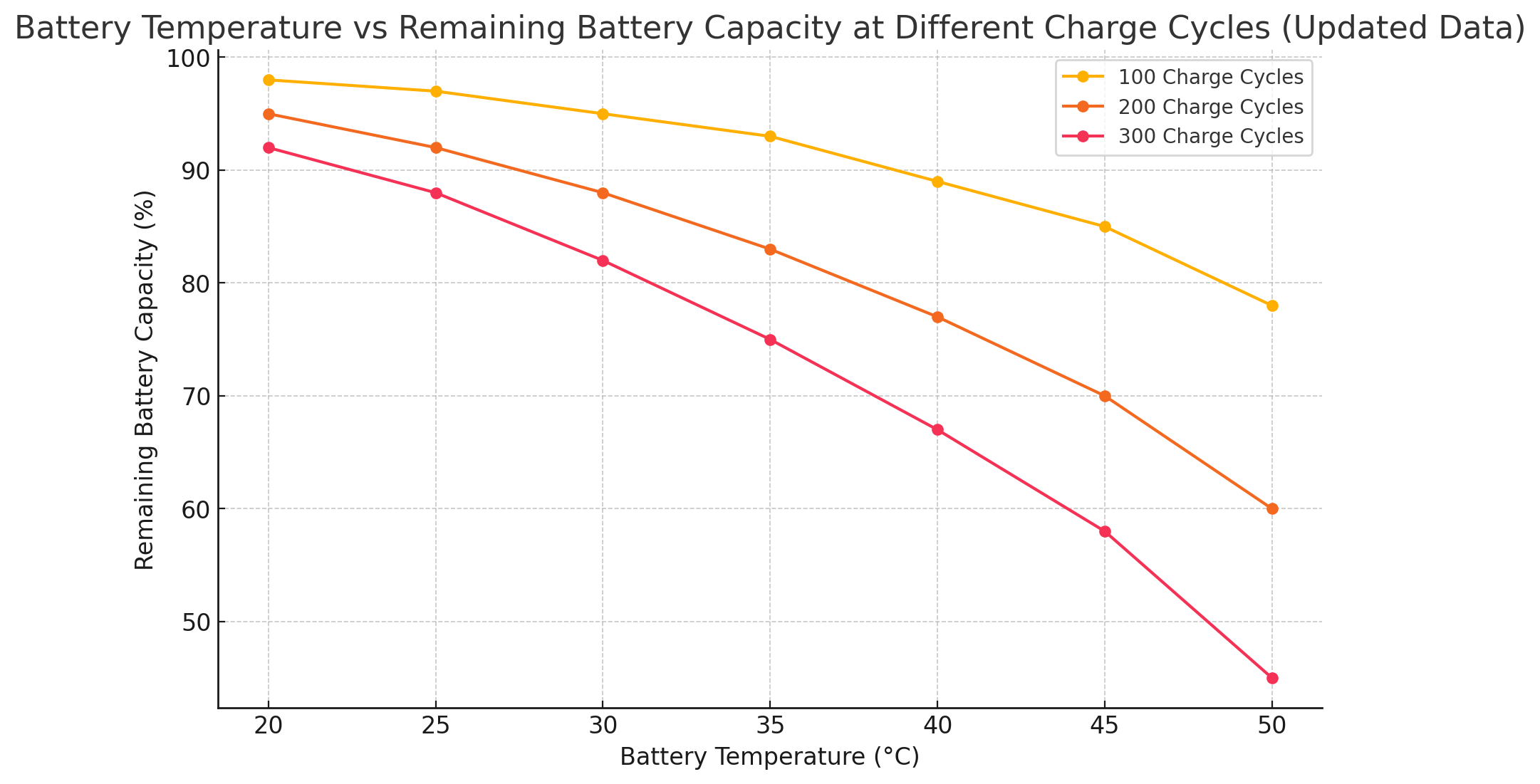
Temperature has a significant impact on the rate at which lithium-ion batteries degrade. Higher temperatures accelerate the chemical reactions inside the battery, leading to faster degradation. As shown in the chart below, the remaining capacity of a battery decreases significantly as the temperature increases, particularly after multiple charge cycles.

Read more “Battery Degradation: Impact of Temperature and Charging Rates on Lithium-Ion Cell”

When Nokia Labs Met Chargie: A Tale of a Bulging Battery and an Unexpected Hero

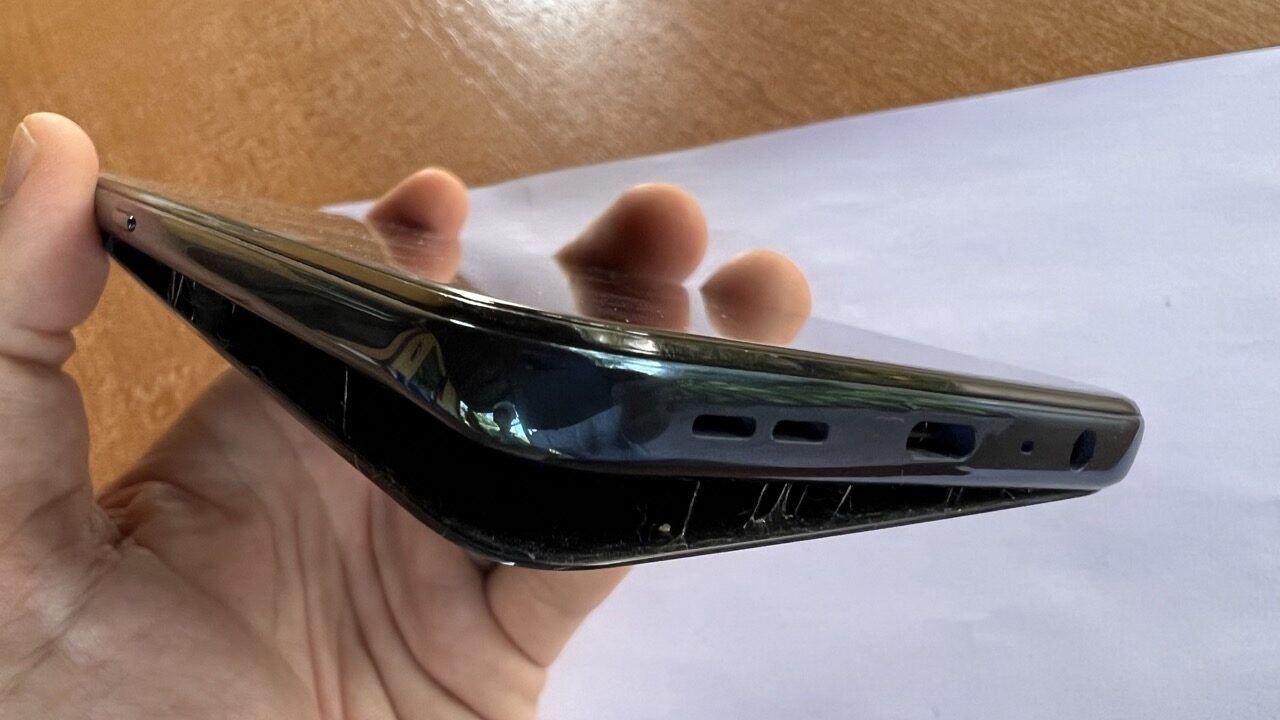
Here’s a Nokia 8.3 phone with its case popping off like an overfilled suitcase. The battery inside is looking like it’s ready to burst out. This particular phone comes straight from our friends over at Nokia Labs, the tech wizards who once were the #1 phone makers. Now phonemaking is not their #1 priority anymore, but they excel at other areas of mobile innovation, like 5G network development.

Read more “When Nokia Labs Met Chargie: A Tale of a Bulging Battery and an Unexpected Hero”

iPhone Battery Life: How Chargie Pays for Itself in Only 29 Days

Introduction:

As an iPhone owner, you’re no stranger to the frustration of battery degradation, especially when it affects your overall user experience or forces you to replace your device sooner than you’d like. Chargie, our overnight charging limiter, significantly slows down battery degradation, helping you get the most out of your iPhone’s battery life. In this article, we’ll dive into realistic best and worst-case scenarios and crunch the numbers to demonstrate how much you could potentially save by using Chargie.

Best-Case Scenario:

Let’s start with a scenario where an iPhone user experiences relatively minor battery degradation (10% per year). Without Chargie, the battery will lose 10% capacity each year. Assuming that you would consider replacing your $1500 iPhone when the battery capacity drops below 50%:

Read more “iPhone Battery Life: How Chargie Pays for Itself in Only 29 Days”

Why Battery Health is a Personal Safety Issue

As smartphones become an increasingly integral part of our daily lives, it is crucial to ensure that we have a fully charged and healthy phone battery at all times. A healthy phone battery is not only necessary for staying connected to the outside world, but it can also play a vital role in our safety and well-being.

One of the most obvious reasons why a healthy phone battery is essential for our safety is that it allows us to call for help in an emergency. Whether it’s calling 911 or a loved one, having a dead phone can be a terrifying and potentially dangerous situation. In the event of a car accident, medical emergency, or other crisis, having a charged phone can be the difference between getting assistance and being stranded without help.

However, a healthy phone battery is also important in other emergency situations. For example, if there is a natural disaster or other emergency situation in your area, having a charged phone can help you stay connected to the outside world and get important updates and information. This can be especially crucial if you are in an unfamiliar location or are unable to access television or radio.

A healthy phone battery is also important when you are out and about in general. If your phone dies while you are in an unfamiliar place, it can be challenging to find your way back home or get in touch with loved ones. GPS and map apps can be invaluable in these situations, but they are useless if your phone is dead.

Additionally, a healthy phone battery is essential for staying in touch with loved ones and friends. Whether you’re checking in with family members or receiving important messages from friends, having a dead phone can make it difficult to stay connected to the people you care about.

So, how can you ensure that your phone battery stays healthy and charged? One solution is to use Chargie, a phone charging limiter. Chargie helps you maintain a healthy phone battery by limiting the amount of time you spend charging your phone. By reducing the amount of time your phone spends plugged in, Chargie helps to prevent overcharging and can extend the life of your phone battery. This way, you can be sure that your phone is always ready for use when you need it most.

In summary, a healthy phone battery is crucial for our safety and well-being in a variety of situations. Whether we need to call for help, stay connected to the outside world in an emergency, find our way home, or stay in touch with loved ones, a charged phone can make all the difference. By using a product like Chargie, we can ensure that our phone batteries stay healthy and charged at all times, giving us the peace of mind and security we need to navigate the world around us.

You can order yours here: https://chargie.org/shop.

My iPhone 13 Pro’s Battery Capacity After 8½ Months of Regular Usage

Three years ago, I had no idea what Chargie was going to become – world’s #1 phone battery protection system. I knew the basic principles of charge limiting and the positive outcomes it has on battery health, but at that point in 2019 they were only theoretical, or based on what others had studied.

Now, there are over 27,000 Chargie devices out there and countless testimonials of people using it and telling us (publicly or over email) how Chargie had changed the entire course of their battery life and how it saved them money, time and effort.

Read more “My iPhone 13 Pro’s Battery Capacity After 8½ Months of Regular Usage”

How to Automatically and Immediately Start the Chargie app on iOS devices

For those of you who’ve been using the Chargie app on iOS, you know that there’s a 15-minute delay from the moment you plug it in to the moment the Chargie device actually starts managing the connection. Sometimes it’s shorter, sometimes it’s longer. But that’s the way it was until today.

Generally, this works out just fine – the phone is going to stay connected to the charger for more than that. And it generally works well if you don’t want the app to show up every time you plug your phone.

But today I received an email from Chargie user Dirk in Germany who found out another way of starting the Chargie app by using the automations present in iOS’s Shortcuts app.

I won’t embed any screenshots except for the Shortcuts app because they’d clutter the post a lot. The following guide is pretty straightforward (adapted from Dirk’s email):

– open the Shortcuts app

– go to Automation (in the middle at the bottom)

– click on “+” in the upper right corner

– select “Create Personal Automation”

– scroll down and tap on “Charger”

– “When charger is attached” (left side) should be selected

– press “Next” in the upper right corner

– select “Is Connected”, then Next

– select “Add Action”

– select “Scripting”

– select “Open App”

– tap on the word “App” in the “open app” text field

– select “Chargie – phone charge limiter”

– click on “Next” in the upper right

– deselect “Ask before running”

– click on “Done” in the upper right

This way, every time you plug your phone, the Chargie app gets brought up to the front and the connection is immediate.

Thank you, Dirk Drews (https://dirk-drews.de), for the tip, and hope you have a wonderful time with your Chargie device!

When you SHOULD let your phone battery charge to 100%

For the past three years, I’ve been preaching to people to not fully charge their phones, or do it as rarely as possible. Well, all this time it seemed obvious to me (and some other battery-obsessed freaks) that you also shouldn’t let your phone discharge to 0, because it also causes harm to the battery (maybe even more than briefly letting it go to full).

Read more “When you SHOULD let your phone battery charge to 100%”

Chargie is a smart charging device designed to extend the lifespan of your phone's battery by limiting overnight charging.

Company

Lighty Electronics SRL
42 Viorelelor st
305500 Lugoj, Romania

EU VAT: RO35245011

© 2019-2026 Lighty Electronics SRL. All Rights Reserved.

Add to cart