

Clicky

Battery Use Android Tips That Actually Work

Android battery issues often come from a few apps and settings that use a lot of power. A few simple changes can add hours to your battery life.

Understanding Battery Use On Android

Watching your phone’s battery use is like shining a light in dark corners—you see what’s using power. In my tests, changing just a couple of settings helped someone double their standby time in a day.

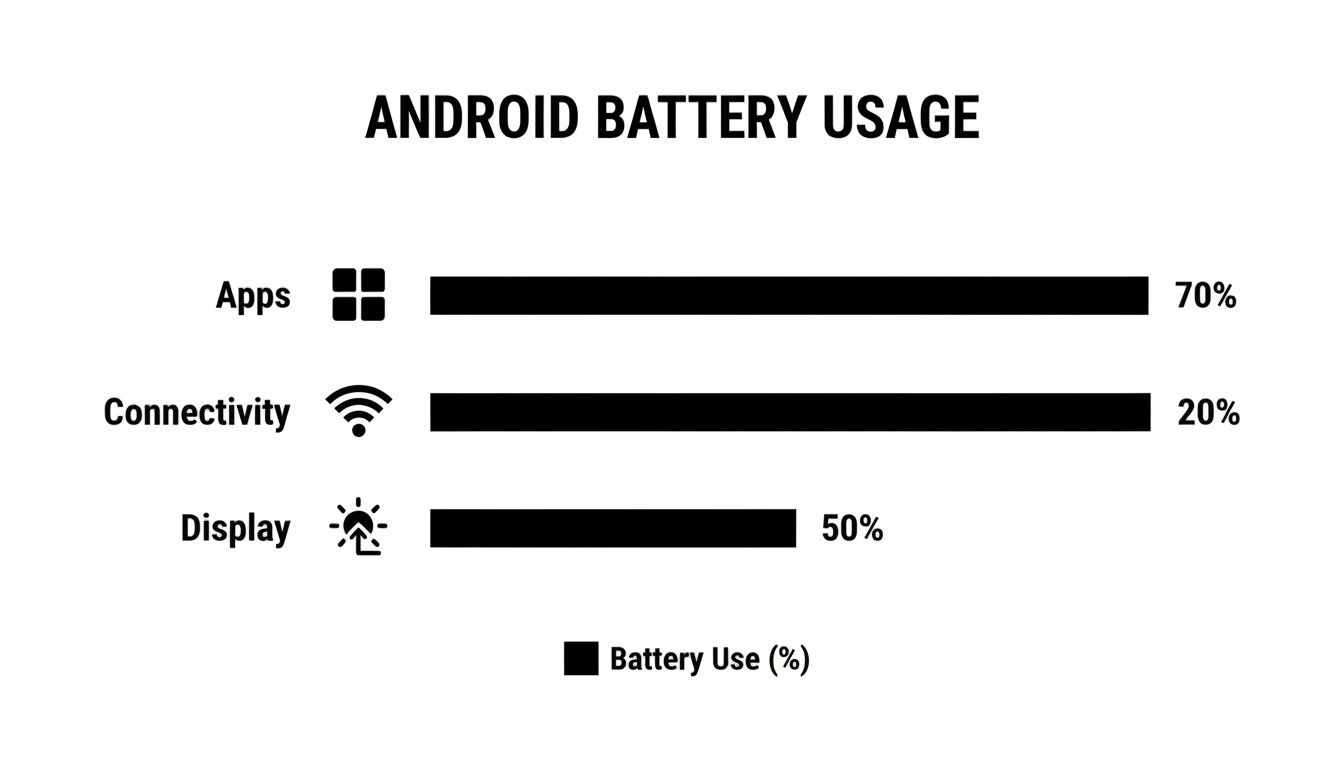
Here’s where most of the power goes:

  • Apps can use 15–30% of your battery when they run or sync in the background.
  • Wi-Fi and mobile data can drain power when they keep searching for a signal.
  • The screen can eat up 25–40% of your battery, especially with high brightness or a fast refresh rate.

Cutting screen brightness by 20% or checking for new data less often can boost video play time by up to 30%. One friend turned on adaptive brightness and got two extra hours of use in the evening.

Reducing background sync from every 15 minutes to every hour gained nearly 50% more standby time for one commuter.

Fix one big battery drain at a time—that way you see results without feeling overwhelmed.

Real World Scenarios

People who travel a lot and tech fans say routine battery checks cut down on “will it last?” worries.

You might also like our guide on factors that influence phone battery life to see what else affects your Android battery.

Stack these tweaks and you could see:

  • 20–30% longer video sessions after dimming the screen and slowing background sync
  • Up to twice the standby time by turning off unused radios and checking less often
  • An extra 10–15% saved with adaptive brightness in mixed light

Results vary by device and habits. Start with the biggest power user in your battery stats and watch your Android last longer.

Checking And Interpreting Battery Usage

Before you change settings, look at real data. Without that, you’re guessing which apps use the most power.

Go to Settings > Battery > Battery Usage to see which apps and services are draining your phone.
Screenshot from https://developer.android.com/images/ui/battery_usage_report.png

This chart shows power use over the last 24 hours and highlights your top power users.

Reading Battery Graphs

The timeline view shows your battery level against time. It helps you match app use to battery drops.

Key parts of the chart:

  • Foreground Usage: Activities when the screen is on (like videos or games)
  • Background Drain: Apps running while the screen is off
  • Idle Behavior: How well your phone sleeps when you’re not using it

I once saw my messaging app lose 15% overnight. Turning off its background activity fixed it.

Analyzing Idle Behavior

Your phone should rest when the screen is off. If it still uses power, an app is keeping it awake.

One user found a sync service using 5% battery every hour while idle. Turning off that service cut the idle drain by half.

Interpreting Usage Patterns

Your daily routine sets real battery goals. Focus on your biggest power users to make those goals happen.

  • Lower screen brightness a bit
  • Turn off Wi-Fi or Bluetooth when not needed
  • Use Airplane Mode in areas with poor signal

In one test, these steps cut total use by nearly 30%. Small changes add up fast.

For a look at phone battery trends over time, see insights on smartphone battery trends from SQ Magazine.

Learn how to check your battery’s overall health in our guide on battery health.

Best Practices For Routine Checks

Quick battery checks every few days help you spot new power hogs.

Keep this list handy:

  • Restart your phone or clear app caches weekly
  • Compare this week’s battery use with last week’s
  • Watch for spikes after installing new apps and adjust permissions

Regular checks catch battery issues before they ruin your day.

Android Battery Life Trends

Here’s a quick look at recent battery improvements. Use it to track your own phone’s progress.

Year Runtime Increase (%) Efficiency Gain (%)
2023 0% 0%
2024 12% 9%
2025 23% 19%

These numbers help you see how much better phones get each year.

Identifying And Fixing Common Battery Drains

Not all apps use power the same way. Some keep the phone awake, while others sync data too often.

Turning off location for apps you rarely use freed over an hour of battery for one commuter. Another friend lowered his screen refresh rate and cut his use by 10%.

A fitness app kept the camera on all night. Turning off its background camera access stopped a 12% overnight drain.
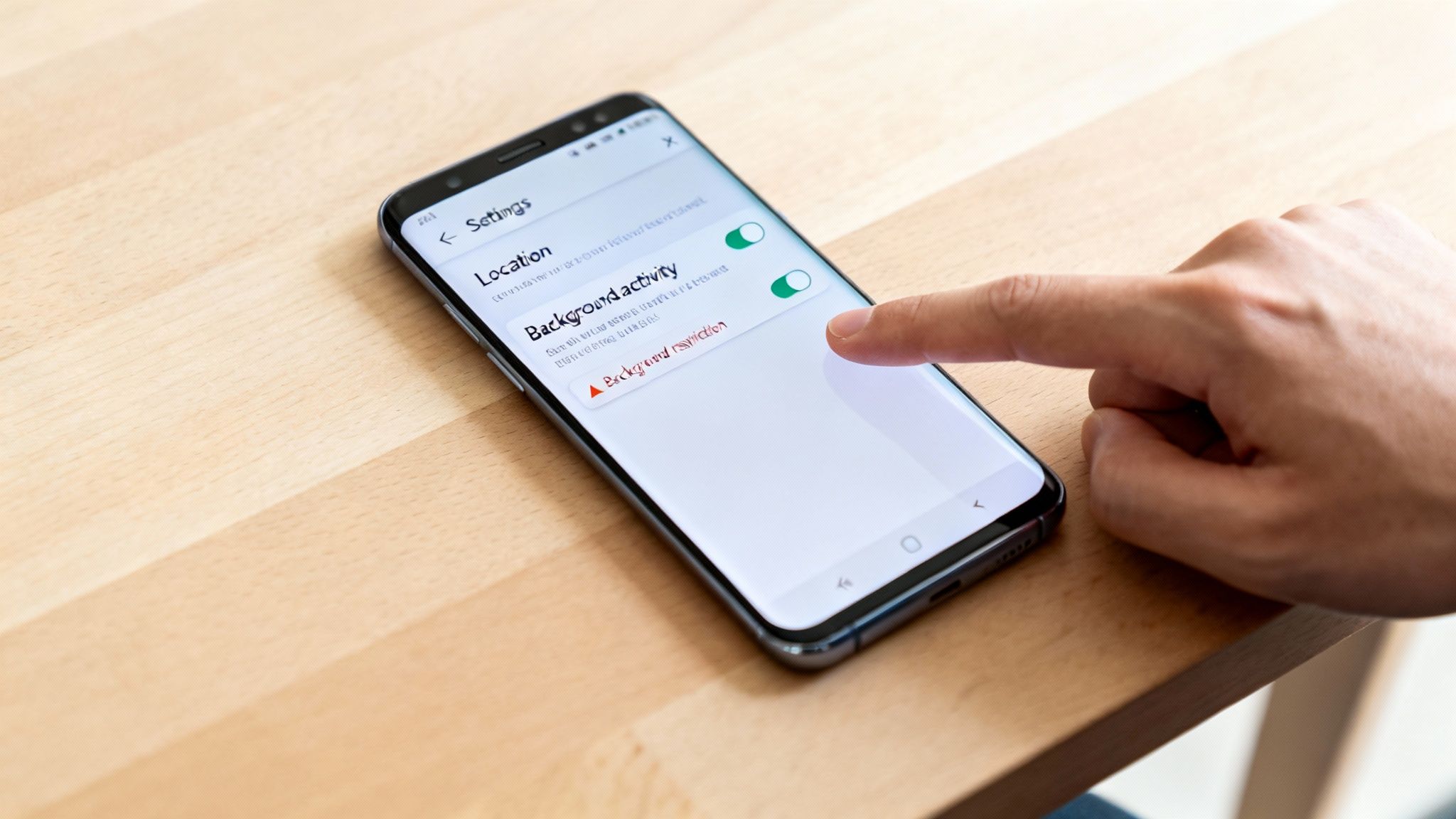
Common Battery Drains

Rogue Apps Holding Wake Locks

Some apps stop your phone from going to sleep. In Settings > Battery > Battery Usage, look for apps using a lot of power in the background. If one stands out, force-stop or uninstall it.

Android now warns you when apps keep your phone awake too long.

Curbing Aggressive Sync Operations

Apps that check for new data too often can drain 10% or more per hour. Here’s a better balance:

  • Set sync intervals to 30 or 60 minutes in app settings
  • Turn off push sync for less important accounts
  • Do big uploads or downloads only when on Wi-Fi

You stay up to date without waking your phone constantly.

Handling Power Hungry Sensors

GPS and Bluetooth are handy, but they use power in the background. One user turned off GPS in a navigation app and cut idle drain by 50%. Another saves 5–8% overnight by turning off Bluetooth.

Try this:

  • Turn off GPS when you’re not using maps
  • Use Bluetooth only for things like speakers or headphones
  • Let apps use location only while you’re using them

When To Update Or Uninstall Misbehaving Apps

Old apps can have bugs that drain power. Look for updates in the Play Store that say “performance improvements” or “bug fixes.” If that doesn’t help, delete the app or switch to a lighter one.

High memory use can cause extra work for your phone. In your battery report, watch for apps using lots of memory and take action.

App Name Version Background Drain Action Required
ChatPlus 2.3.1 15% per hour Update to 2.4.0 or uninstall
MapExplorer 4.1.0 8% per hour Lower GPS use or disable BG
MusicStream 5.2.2 10% per hour Stop it when not playing music

Fix these drains now to get real extra battery time. Next, let’s look at power settings and safe charging.

Configuring Power And Background Settings

Android gives you simple controls to get more from your battery. Below we cover power saver, screen tweaks, background data limits, and habits that make a difference for battery use android.

Adjust Battery Saver And Brightness

The biggest power users are the processor and screen. Turning on Battery Saver slows your phone and stops some tasks. Adaptive Brightness learns your lighting and lowers the screen when you don’t need full brightness.

  • Go to Settings > Battery > Battery Saver
  • Turn on Battery Saver at 50% or lower
  • In Display settings, enable Adaptive Brightness
  • Try different brightness levels in bright and dim light

One user saw 25% more runtime on a long flight by using these settings.

Throttle Background Data Per App

Apps that sync in the background all the time can drain your battery. Turning off background data for apps you rarely open can save hours.

  • Open Settings > Apps
  • Pick an app and tap Mobile data & Wi-Fi
  • Turn off Background data
  • Do this for low-priority apps

“Turning off background sync on my second email account added two hours of standby,” says a traveler.

Manage Always On Display And Power Profiles

Always On Display is useful for quick checks but uses extra power. Turning it off saved another user 10% battery in a day. Android’s power profiles let you switch between Performance, Balanced, and Ultra-Battery modes.

  • In Lock screen settings, turn off Always On Display
  • Swipe down and choose a Power Profile
  • Use Ultra-Battery when you need your phone to last

Profiles change how fast your phone runs, how often it checks for data, and how bright the screen is.

Must-Have Settings Checklist

Setting Recommended Option Benefit
Battery Saver On at 50% or lower Up to 30% extra runtime
Adaptive Brightness Enabled Screen adjusts itself
Background Data Restricted selectively Cuts idle drain by 10–15%
Always On Display Off Saves 5–10% per hour
Power Profile Balanced/Ultra-Battery Adjusts CPU and data checks

Try each tweak in your daily life to see what works best.

Quick Tips And Best Practices

  • Check sync settings whenever you add a new app
  • Use Wi-Fi when you have a good signal
  • Do big uploads or downloads on Wi-Fi only

“I recharge half as often after adopting these habits,” says a delivery driver.

Try these tips and watch your phone last longer between charges.

Safe Charging Practices And Hardware Integration

Notice how your battery seems weaker after a year? It often comes from how you charge. Charging to 100% and letting it drop too low wears out the battery faster. Small changes can help a lot.

One friend stops charging at 80% each morning. Another sets their phone to top off at 70% before the alarm goes off.

  • Part charging eases stress and slows capacity loss
  • Slow charging overnight keeps temperatures low
  • Staying between 20% and 80% can extend battery life by up to 30%

Understanding Partial Charging Benefits

Batteries don’t like being full or empty. Charging only to 80% and not letting it drop below 20% keeps cells in a healthy range.

If you have a short flight, a 30% quick charge at a moderate speed can avoid the rush to find an outlet. Over time, your battery stays more reliable and lasts longer.

Check global battery capacity trends here: Next-Gen Battery Capacity by Country in 2025

Integrating Chargie For Smart Charging

Meet Chargie, a smart USB-C adapter and app that automates your charge limits. Plug it in, pair with the Android app, and set your lower and upper limits (like 20% to 80%).

  • Plug Chargie into your charger
  • Open the Chargie app on your Android device
  • Pair via Bluetooth and set your charge range
  • Turn on the scheduler for overnight charging
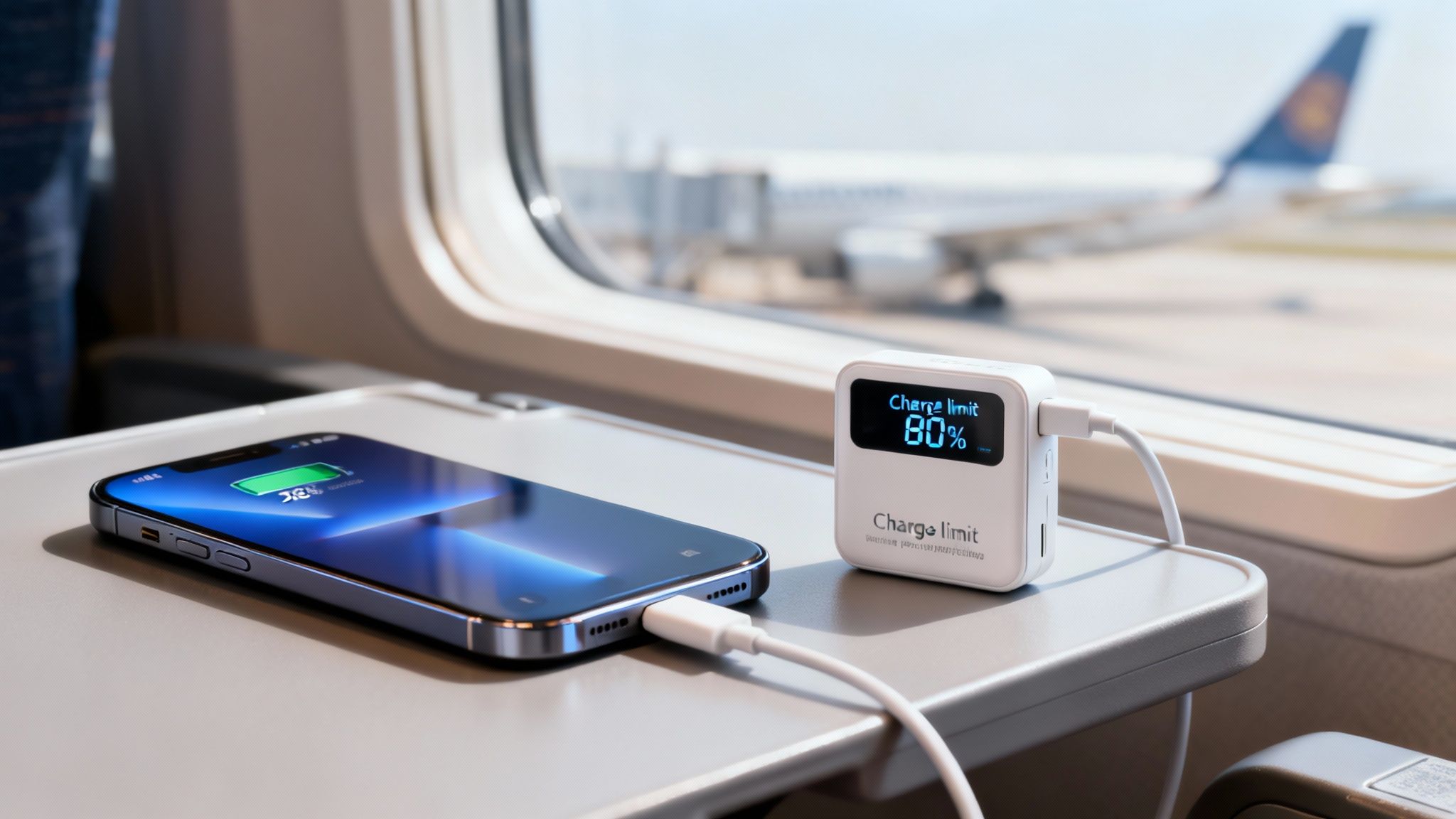
Screenshot from https://chargie.app/img/chargie-overview.png

The dashboard shows charge cycles, battery levels, and schedule. You get clear info, no guessing.

Comparing Charging Approaches

Method Charge Range Key Benefit
Standard Charger 0–100% Convenient but stresses battery
Manual Partial 20–80% Slows down battery wear
Chargie Hardware 20–80% Auto cutoff and timed charging

Chargie combines easy partial charging with automation to stop overcharging.

For more tips on charging, see how to charge your lithium-ion battery for a longer life.

Smart charging routines and tools like Chargie can extend your battery’s life and cut e-waste.

Additional Safe Charging Tips

Heat speeds up battery wear. Don’t charge on hot surfaces or under pillows.

  • Use your phone’s original cable for a steady charge
  • Unplug when your set limit is reached to avoid trickle charge
  • Use a charger with an overheat cut-off if possible
  • Combine partial charging with Android power-saving modes

Real World Charging Scenarios

Rachel, an eco blogger, went from replacing her phone battery every year to every four years by capping at 80%.

Raj, a taxi driver, used Battery Saver and Chargie to only charge twice in five days instead of every day.

“With Chargie’s scheduler, I wake up to 85%, not 100%, and my Pixel stays healthy.” —Long-haul driver

Little changes like these add up. Follow safe charging practices, try Chargie, and your Android will outlast the rest.

  • Keep your charger in a place with good airflow—no pillows or clothing covering it

Implement these safe charging steps and see how your battery use improves.

Frequently Asked Questions

Running out of battery too fast? Here are simple answers from real users.

How Do I Stop Apps Running In The Background From Draining My Battery?

Go to Settings > Battery > Battery Usage, pick the app, then:

  • Turn off Background Data
  • Restrict Background Activity
  • Force-stop or uninstall if it still drains power

Last week, my weather app used 15% overnight. Turning off its background data gave me 15% more charge by morning.

Does Adaptive Battery Really Improve Runtime?

Yes. Over time, Adaptive Battery learns which apps you barely use and slows them down. You won’t notice, but your battery will.

“Adaptive Battery cut my background drain by 25%,” says a commuter.

What’s The Best Way To Charge My Android Device For Long-Term Health?

Keeping your battery between 20% and 80% makes a big difference. Avoid full 100% charges and rapid chargers when you can.

  • Use a slow or smart charger
  • Set reminders to unplug at your target limit

This keeps your battery healthy over months and years.

Are Third-Party Battery Management Tools Worth It?

Android’s built-in features cover most needs. But if you want precise charge scheduling or your phone has no limit, reliable hardware-and-app combos can help. Always check reviews first.

Cutting background activity often recovers 20–30% of standby time.

Charging Best Practices

  • Use reminders or adapters to stop charging at 80%
  • Top up before you wake up with timers or apps
  • Keep your phone cool—high heat speeds up battery wear

For hands-off control, try a tool like Chargie. It automates charging so you focus on your day, not your phone.

A hardware charger can boost cycle life and cut replacement costs by up to 85%.

Follow these tips to keep your Android powered longer.


Ready to take control of your battery on Android? Protect your battery health and schedule smart charges with Chargie.
How to Check Battery Health on Any Device

You probably know how to find the battery percentage on your screen, but that’s just a snapshot of today's charge. Knowing where to find the real health stats is key. For an iPhone, you can go right into Settings > Battery > Battery Health & Charging. On Android, it's a bit of a mix—some phones have it in the Settings app, but you might need a separate app. Laptops are a mixed bag too; Windows can create a very detailed report with a quick command, while macOS tucks it away neatly in System Settings.

If you just need to find the right screen quickly, here's a little cheat sheet.

Quick Guide to Finding Battery Health by Device

Device Type Built-in Method
iPhone/iPad Settings > Battery > Battery Health & Charging
Android Varies by maker; often in Settings > Battery (or use a separate app)
Windows Laptop Create a report using the powercfg /batteryreport command in Command Prompt
macOS Laptop System Settings > Battery > Battery Health

This table should get you to the right place, but the numbers you find there are what really matter.

Why Battery Health Is More Than Just a Percentage

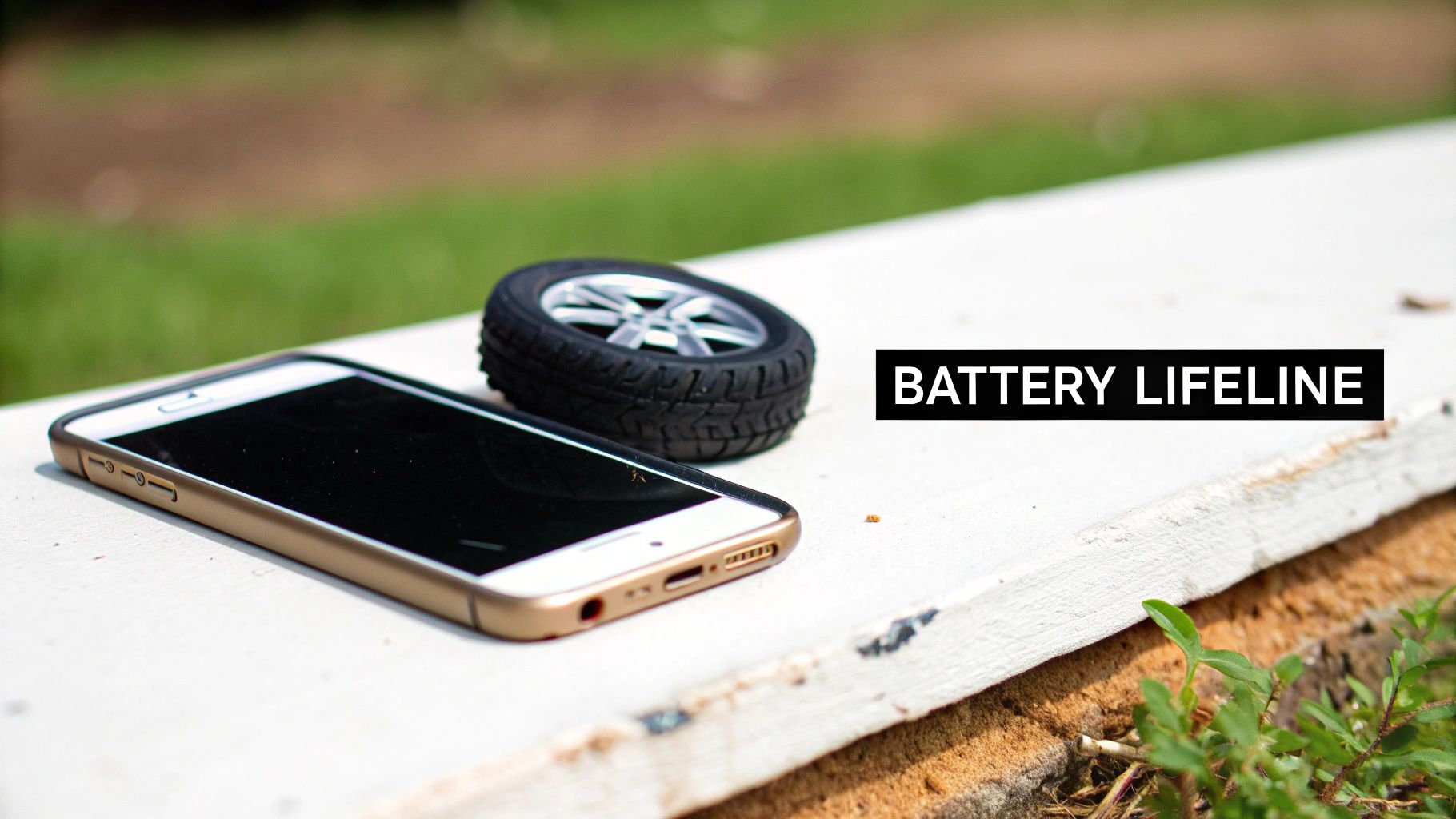
Your device's battery is its lifeline, but just like the tires on a car, it wears down over time. The percentage you see at the top of your screen only tells you how much juice you have left for the day. True battery health, on the other hand, reveals how much charge the battery can hold in total compared to when it was brand new. This is a far more important number for understanding your device's long-term performance.

Smartphone with miniature tire on pavement symbolizing battery lifeline and mobile device maintenance

Think of it this way: a new phone with 100% battery health has a full-size gas tank. A year later, its health might drop to 85%, meaning the "tank" itself has physically shrunk. Even when your screen says "100% charged," you're actually starting the day with 15% less fuel than you used to. It's the reason an older phone seems to die so much faster, even after a full overnight charge.

Understanding the Key Numbers

To really get what's going on inside your device, you need to look past that simple icon on your screen. Two key things tell the real story:

  • Maximum Capacity: This is the most direct measure of health, shown as a percentage. It tells you the battery's current full charge ability compared to when it was brand new.
  • Cycle Count: This number tracks how many full charge-and-recharge cycles the battery has been through. It’s like an odometer for your battery.

A "cycle" isn't just charging from 0 to 100. It’s counted as you go. For instance, if you use 60% of your battery one day and then recharge, and use another 40% the next, that adds up to one full cycle. Most modern device batteries are built to stay healthy for about 300 to 500 charge cycles before they start to weaken seriously. You can learn more about why this number is so important in our detailed guide on what a battery cycle count is.

A good rule of thumb: once a battery's maximum capacity drops below 80%, it's often considered "worn out." At this point, you'll definitely notice shorter battery life, and you might also see performance slowdowns as the device struggles to get enough power for hard tasks.

Knowing these numbers gives you the power to take control. Instead of just guessing why your phone dies by 3 PM, you can check its health and make a smart decision about what to do next.

Checking Battery Health on Your iPhone or Android

Your phone is probably the most-used gadget you own, so its battery health is a pretty big deal for your day-to-day life. Thankfully, both Apple and Android give you ways to look under the hood and see how your battery is holding up.

For iPhone users, the process is very simple. For the Android crowd, it might take a little more digging, depending on who made your phone.

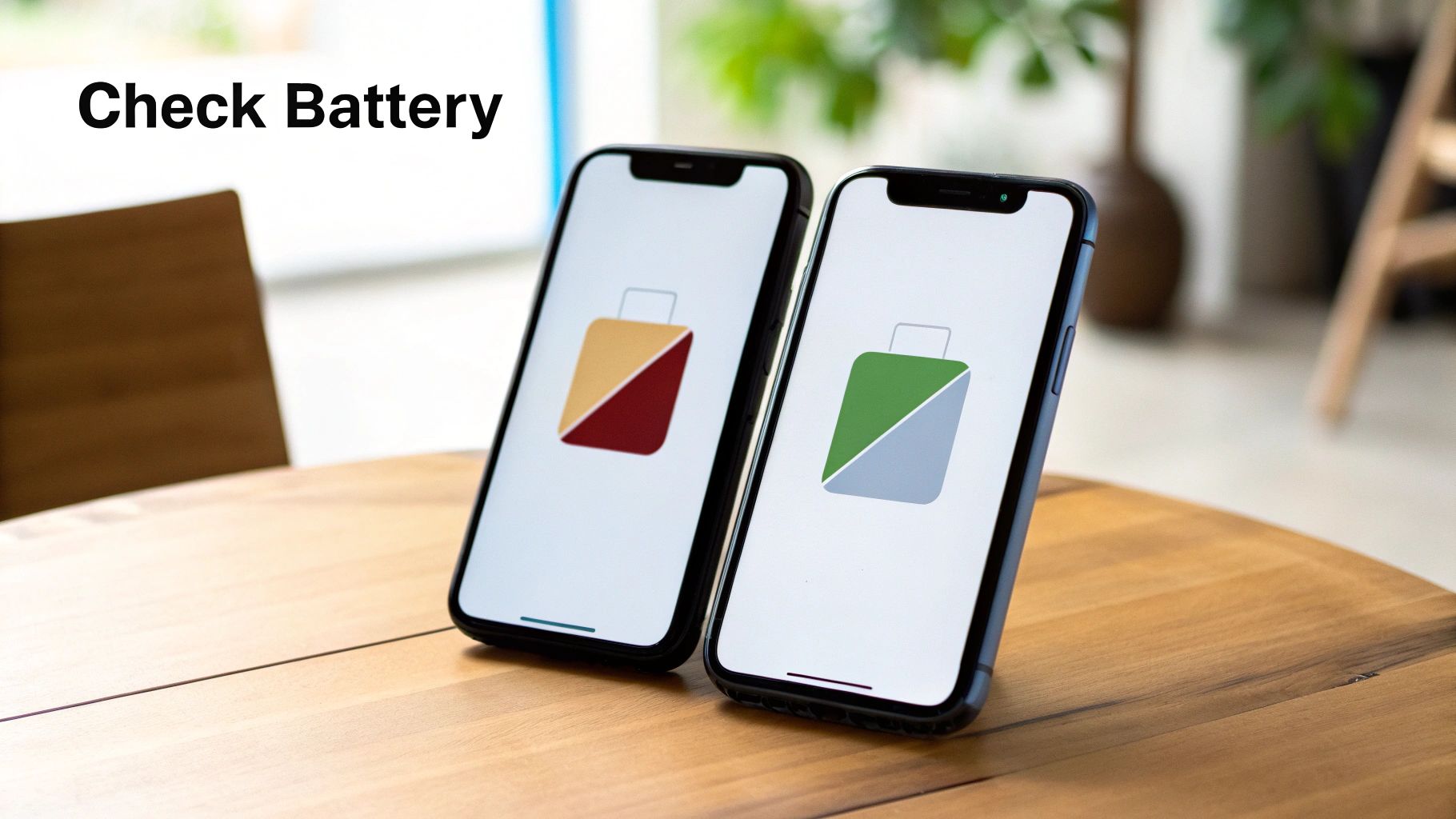
Two smartphones displaying battery status icons showing low and full charge levels on wooden table

Let's walk through how to find these numbers on your device so you can get a clear picture of its current condition.

Finding the Numbers on Your iPhone

Apple makes it incredibly easy to check your battery's status right from the settings menu. No extra apps needed—it's all built right in.

Just head over to Settings > Battery > Battery Health & Charging. Once you're there, you'll see a couple of key numbers that tell the whole story.

  • Maximum Capacity: This is the big one. It shows you how much charge your battery can hold compared to when it was brand new. A fresh-out-of-the-box iPhone will be at 100%, but this number will drop over time.
  • Peak Performance Capability: This little section lets you know if a worn-out battery is starting to slow down your phone. If everything is running smoothly, it'll say your battery is supporting normal peak performance.

If your capacity has taken a big hit, you might see a message about "performance management" being applied. That's just Apple's way of preventing your phone from shutting down unexpectedly by slowing its speed a bit. If you want to keep that capacity number high for as long as possible, some good iPhone battery-saving tips can make a real difference.

Keep a close eye on that Maximum Capacity percentage. Once it dips below 80%, Apple officially considers the battery "consumed." You'll definitely notice your phone doesn't last as long, and it’s probably a good time to think about a battery replacement.

Navigating Battery Health on Android Devices

Unlike the straightforward approach on iPhones, checking battery health on an Android can be a mixed bag. Some makers, like Samsung, have built-in tools, while others don't show you a specific health percentage at all.

If you have a Samsung phone, you can usually find this by going to Settings > Battery and device care > Diagnostics > Phone diagnostics and tapping on Battery status. It won't give you a percentage, but a simple "Life" reading like "Good" tells you the battery is still in decent shape.

But what if your phone doesn't have a built-in checker? Don't worry. You can grab a reliable app to get a much more detailed look. One of the best out there is AccuBattery.

Using AccuBattery for a Deeper Look

AccuBattery is a great app that watches your charging and usage habits to guess your battery's true health. It works by comparing the actual charge it measures against the battery's original design capacity.

Here’s what makes it so useful:

  1. Measures Real Capacity: After you've charged your phone a few times, the app calculates an estimated health percentage.
  2. Tracks Wear: It actually shows you how much "wear" each charge session puts on your battery, which is great for learning better charging habits.
  3. Provides Detailed Stats: You get a full screen with charging speeds, battery temperature, and how fast it's draining.

Using an app like this gives you the power to not just see your battery's current state but also understand how your daily habits are affecting its lifespan.

It’s easy to focus on your phone's battery health, but don't forget about your laptop. Its battery is the unsung hero of your productivity, and knowing its condition can save you from that dreaded "low battery" warning right in the middle of a big meeting.

Thankfully, both Windows and macOS have built-in ways to peek under the hood and see how your battery is holding up. Windows gives you a very detailed report, while Mac offers a quick, clean overview.

Digging Up the Battery Report on Windows

Windows has a great, slightly hidden feature that creates a full health report for your battery. It sounds a bit technical, but it's easy to do and the information you get is very valuable.

First, you need to open either Command Prompt or PowerShell. Just hit the Start button and search for either one. Once it's open, type in this little command: powercfg /batteryreport and press Enter.

That one command tells Windows to look through your battery's history and performance, then wrap it all up in a neat file. It will even tell you the exact file path where it saved the report, usually somewhere in your user folder.

Now, open that file. It might look like a lot of data, but you really only need to care about two numbers:

  • Design Capacity: Think of this as the battery’s original, brand-new maximum charge.
  • Full Charge Capacity: This is what it can hold now. It's totally normal for this number to go down over time as the battery gets older.

Just compare those two numbers. Let's say your laptop started with a Design Capacity of 50,000 mWh and its Full Charge Capacity is now 40,000 mWh. A little quick math tells you it's holding about 80% of its original charge. Simple as that.

When you see a big drop in the Full Charge Capacity, that's your clearest signal that the battery is on its way out. The report also gives you the cycle count and usage history, giving you a complete story of your battery's life so far.

Finding Battery Health on a Mac

Apple, in its usual style, makes checking your battery health very simple. It's built right into the system settings, no secret commands needed.

Just go to System Settings > Battery. You’ll see a little pop-up that shows the Battery Condition. Usually, it will just say "Normal." If you see "Service Recommended," however, that's Apple's polite way of saying your battery is getting tired and can't hold a charge like it used to.

If you want a few more details, click the little "i" icon next to the condition. This is where you'll find the good stuff:

  • Maximum Capacity: This is the same as on an iPhone. It’s a simple percentage showing how much charge your battery can hold compared to when it was brand new.
  • Cycle Count: This number tracks how many full charge-and-recharge cycles the battery has gone through. For most MacBooks, Apple designs the batteries to keep up to 80% of their capacity after 1,000 cycles.

Keeping an eye on these numbers helps you stay ahead of the game and know when you might need to think about a replacement. For some real, practical advice on making that battery last as long as possible, check out our guide on how to extend laptop battery life. Once you understand what these numbers mean, you're in a much better position to keep your machine running strong.

Decoding Your Battery Health Report

https://www.youtube.com/embed/Q8Cu_-yXlEk

Alright, so you've run the tests and now you're staring at a screen full of numbers. What does it all actually mean for your device day-to-day? Let's break down these stats into something you can actually use.

The two big players you need to understand are Maximum Capacity and Cycle Count. Think of them as the vital signs for your battery. They tell you just about everything you need to know about its current state and what to expect down the road.

What Is Maximum Capacity

Maximum Capacity is probably the easiest number to understand. It's a simple percentage that tells you how much juice your battery can hold today compared to the day it was made.

If your report says 90%, it means your battery now only holds 90% of the energy it could when it was fresh out of the box. A little bit of aging is perfectly normal, but there's a specific number you really want to keep an eye on.

Most makers, including Apple, consider a battery to be seriously worn out once its Maximum Capacity drops below 80%. When this happens, it's not just about shorter battery life. Your device might actually start to feel sluggish because the aging battery can't supply enough power for demanding apps or tasks.

Find yourself constantly looking for an outlet? Does your phone ever just die out of nowhere, even when it says it has 20% left? A low Maximum Capacity is almost always the reason why.

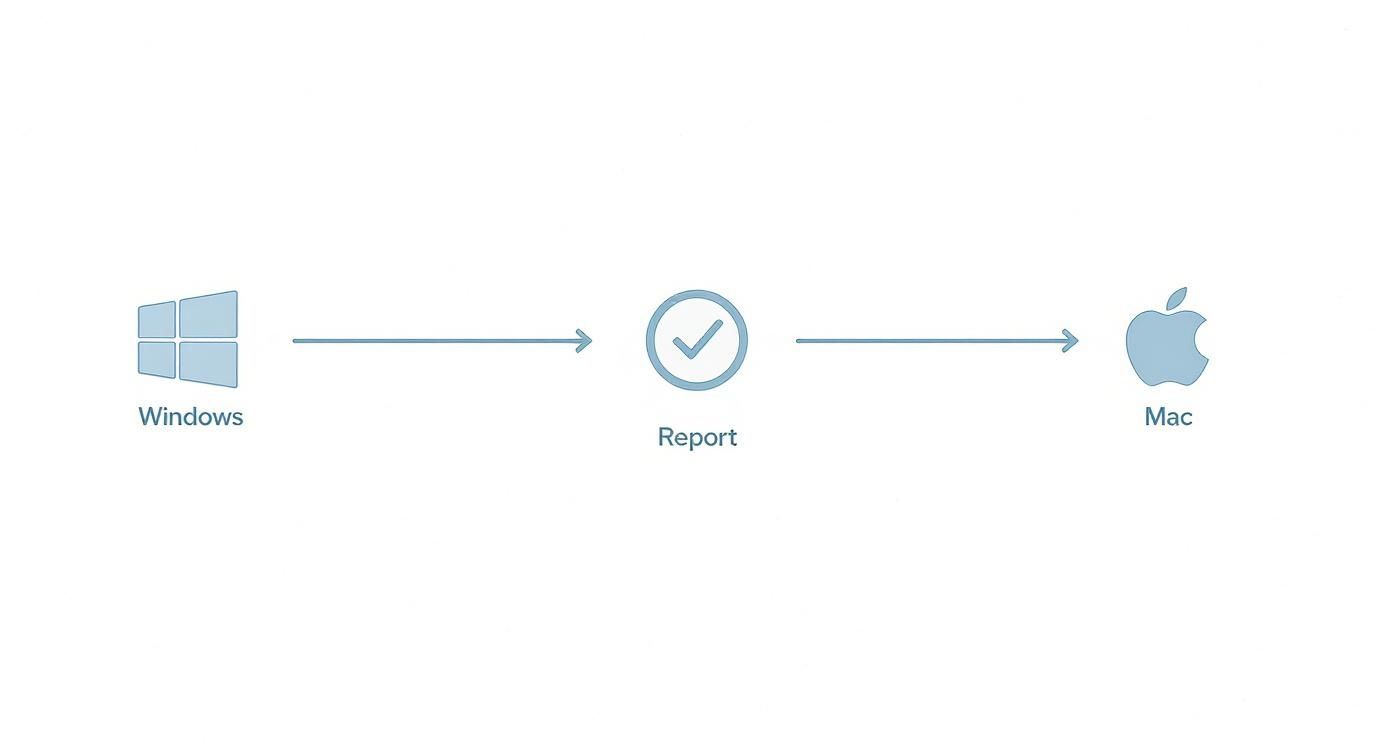
This little workflow shows just how simple it is to get these reports on your laptop.

Workflow diagram showing data transfer from Windows through Report validation to Mac system

As you can see, whether you're working on a Windows machine or a Mac, you're only a few clicks away from getting a detailed look at your battery's health.

Why Cycle Count Matters

Next up is Cycle Count. This is basically the odometer for your battery. It keeps a running tally of how many times you've used and recharged the total of 100% of your battery's capacity.

Now, a "cycle" isn't just charging from 0 to 100. It's added up over time. For instance, if you use 50% of your battery today, plug it in overnight, and then use another 50% tomorrow, that adds up to one full cycle.

Here's why this number is so important:

  • It’s a measure of physical wear: Every single charge and discharge cycle causes a tiny, permanent amount of wear and tear on the battery's insides.
  • It helps predict the future: Most modern phone and laptop batteries are made to keep at least 80% of their original capacity for around 500 cycles. A high cycle count is one of the strongest clues that your battery is getting old.

Keeping an eye on battery health is becoming a big deal, extending far beyond our personal gadgets. The market for EV battery health tools was valued at a whopping USD 2.2 billion in 2024 and is set to grow rapidly, partly because new rules will require electric vehicles to display this info. For anyone curious about how these reports work in the car world, it's worth reading up on the truth about battery health reports on used EVs.

Simple Habits to Extend Your Battery Lifespan

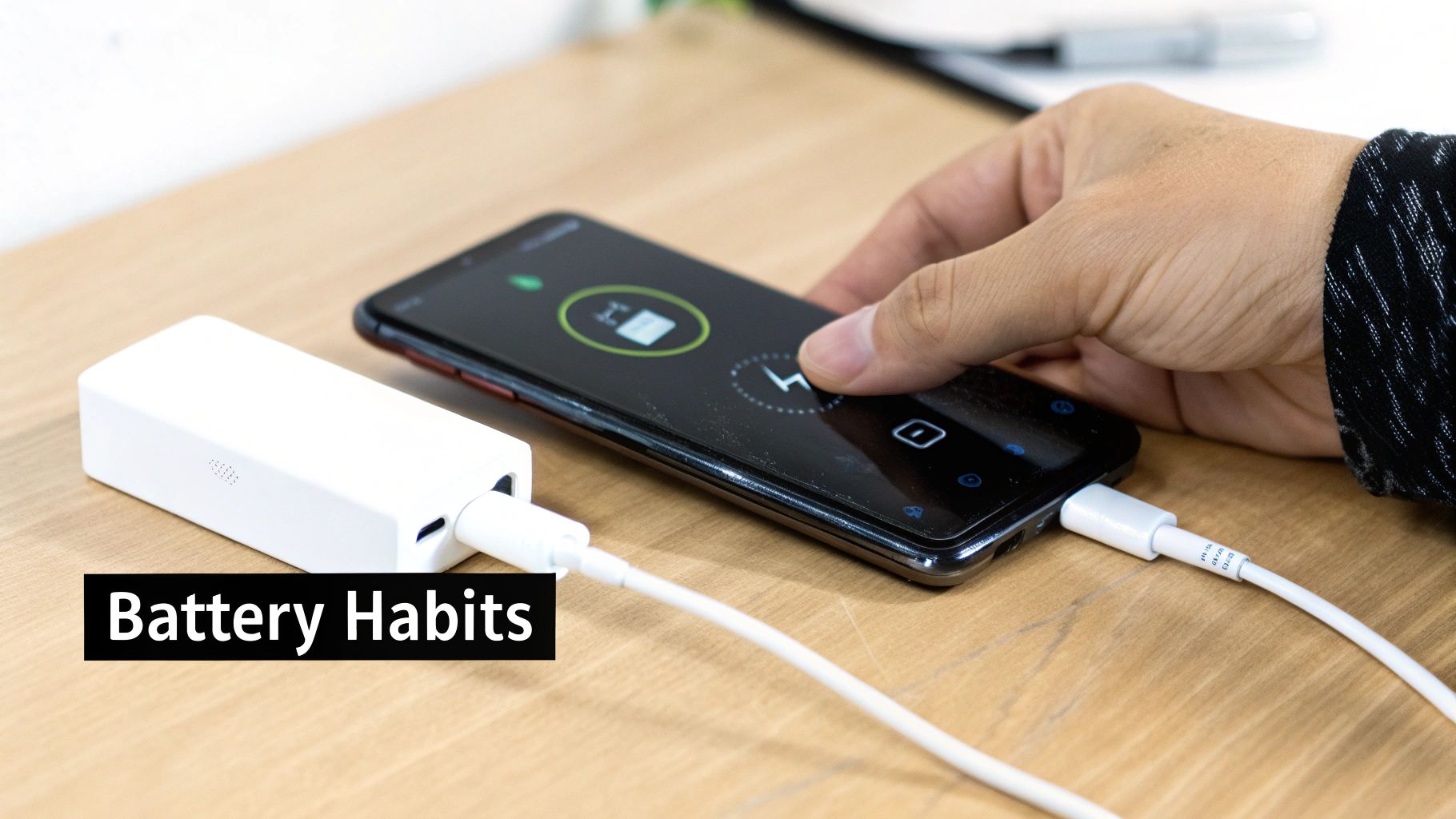
Person placing smartphone on wireless charging pad with power bank and cable on wooden desk

Okay, so you know your battery's health stats. That's the first step. But the real goal is making that battery last as long as possible.

The good news? You don't need to be a tech expert to slow down battery wear. A few small, consistent habits can make a huge difference, keeping your device running smoothly for years and saving you a trip to the repair shop.

It's all about reducing the stress on the battery. Over time, this gentler approach pays off by keeping your maximum capacity from dropping too fast.

Avoid Extreme Temperatures

One of the biggest enemies of any battery is extreme temperature—we're talking both blistering heat and freezing cold. Ever left your phone on the car dashboard on a sunny day? Or used it outside in the dead of winter? That puts a lot of stress on its internal parts and can permanently damage its ability to hold a charge.

Think of it this way: high heat is like forcing your battery to run a marathon it didn't train for, while a deep freeze makes its insides sluggish.

  • Heat: Anything over 95°F (35°C) can permanently weaken your battery's capacity.
  • Cold: Using your device in freezing temps can temporarily zap your battery life, though it's usually less damaging long-term than heat.

The sweet spot for most devices is somewhere between 62°F and 72°F (16°C to 22°C). Just being mindful of where you leave your gear can have a surprisingly big impact.

Master the 20-80 Rule

Forget what you might have heard about old-school batteries. You shouldn't always charge your modern devices to 100% or let them drain to empty. Today's batteries are happiest when they’re kept somewhere in the middle of their charge range. Constantly pushing them to the absolute limits—full or empty—is just asking for trouble.

This is where the 20-80 rule comes in. Try to keep your battery level between 20% and 80% as much as you can. It's one of the single most effective things you can do. Plug in when it gets low, but unplug it before it hits the top. This is exactly what smart charging tools like Chargie were built for—they can handle the whole process so you don't even have to think about it.

Leaving a device plugged in overnight to sit at 100% is particularly bad. It keeps the battery in a high-stress state for hours, which speeds up its aging. Your phone's built-in "Optimized Charging" feature is a good start, but actively managing the charge levels yourself is even better.

This isn't just a trick for phones; it's a key idea in industries that depend on long-lasting batteries. Take the electric vehicle world. A recent study of 10,000 EVs revealed that modern batteries now weaken at only 1.8% per year on average—a big improvement from 2.3% just a few years ago. You can dig into the data yourself in this EV battery health research. By adopting the same smart habits, you can give your personal devices a much longer, healthier life.

Common Questions About Battery Health

Even after digging into your battery’s stats, you probably have a few questions floating around. Let's tackle some of the most common ones, so you can get a clearer picture of what's really going on inside your device.

Getting a handle on these details helps you make smarter calls, like knowing when it's truly time for a replacement versus just dealing with a software issue.

When Should I Get a New Battery?

The magic number for most companies is 80% maximum capacity. Once your battery health drops below this point, it’s officially considered worn out. You’ll definitely notice it doesn't last as long, but other weird issues can start popping up, too.

Keep an eye out for these tell-tale signs:

  • Sudden shutdowns, even when the battery meter says you have plenty of juice left.
  • Noticeable slowness when you're opening apps or switching between them.
  • The device feels surprisingly warm to the touch, even when you're not doing anything intense.

If your main complaint is that your phone isn't charging as fast as it used to, that's not always a battery health problem. Sometimes, the issue is the charging process itself. If that sounds familiar, it's worth taking a moment to troubleshoot slow phone charging just to rule out other causes.

Can Battery Health Go Back Up?

I get this question all the time, and the short answer is no. The wear and tear on a battery is a physical process that you just can't reverse. Once that capacity is gone, it’s gone for good.

So, why do people sometimes see their battery health percentage tick up a point or two? It almost always comes down to the software re-checking its numbers. Your phone’s operating system is constantly estimating the battery’s health. After a software update or a full charge-and-drain cycle, it sometimes corrects its own math, resulting in a more accurate—and occasionally higher—reading.

Think of it like adjusting the fuel gauge in your car, not magically adding more gas to the tank. The reading changed, but the actual size of your tank (your battery's real-world capacity) hasn't grown.

Are Third-Party Battery Apps Safe?

For the most part, yes—but you have to stick with well-known apps. Apps like AccuBattery on Android have been around for years, are highly trusted, and give you a ton of useful data without asking for strange permissions.

When you're picking an app, look for a high number of positive reviews and a clear, easy-to-find privacy policy. A good battery app simply reads the data your device is already collecting; it has no business asking for access to your contacts or photos. They're a great way to check battery health on devices that don't give you deep-dive stats out of the box.


Extending your battery's life means fewer replacements and less e-waste. Chargie is a smart device designed to do just that by preventing the damaging effects of overnight charging. It intelligently manages your device's charge levels, which can extend its lifespan by up to four times. Join over 50,000 users and protect your battery at https://chargie.org.

Chargie is a smart charging device designed to extend the lifespan of your phone's battery by limiting overnight charging.

Company

Lighty Electronics SRL
42 Viorelelor st
305500 Lugoj, Romania

EU VAT: RO35245011

© 2019-2026 Lighty Electronics SRL. All Rights Reserved.

Add to cart