
Clicky

How to Reset iPhone Battery Health and Recalibrate Your Device

If your iPhone suddenly shuts down at 20% or the battery percentage seems to jump around, you're likely dealing with a reporting problem. The first and easiest thing to try is a full recalibration. This just means letting the battery run all the way down and then charging it all the way back up in one go.

This process helps the phone's software relearn the battery's true empty and full points, giving you a much more accurate reading. It's a software fix, not a hardware miracle, but for strange battery behavior, it’s often the perfect solution.

What a Battery "Reset" Really Does for Your iPhone

Has your iPhone ever died on you, even when the battery icon showed plenty of power left? It’s a very common problem. People often look for a magic "reset" button, hoping to bring their battery back to its brand-new performance.

The truth is, you can't magically add life back to an old, worn-out battery. A "battery reset" is all about recalibrating the software that shows you the charge level. Think of it like fixing a broken fuel gauge in your car. The amount of gas in the tank doesn't change, but now the gauge is telling you the truth again.

This simple process helps your iPhone get a fresh, accurate measurement of the battery's true high and low points. Over time, things like your charging habits and software updates can cause the system to get confused, which leads to those strange percentages you see on screen.

Why Your Battery Percentage Can Be So Deceiving

That percentage you see in the corner of your screen? It’s just a software estimate, and a few things can easily throw it off.

  • Weird Charging Habits: Constantly charging your phone from 40% to 70% and never letting it charge fully or die can confuse the software about its true range.
  • Software Updates: A big iPhone update can sometimes mess up the battery reporting system. It’s like it gets temporary amnesia.
  • An Aging Battery: As a battery gets older, its maximum capacity shrinks. If the software hasn't been recalibrated, it might still think the battery is bigger than it actually is.

The whole point of a battery reset, or recalibration, is to get the software's understanding back in sync with the battery's actual physical state. This makes the percentage you rely on trustworthy again, preventing those sudden, unexpected shutdowns.

Is It a Software Glitch or a Worn-Out Battery?

Knowing the difference here is key. If you’re dealing with a software issue, recalibration can feel like magic. But if the battery itself is physically worn out, no software trick is going to bring it back.

A helpful tip: Apple designs iPhone batteries to keep up to 80% of their original capacity after 500 full charge cycles. Once a battery drops below that, its ability to hold a charge drops quickly, and recalibration won't do much.

Apple even released a special update for iPhone 11 models that recalibrated the battery health system to fix very inaccurate estimates some users were seeing. You can read up on how Apple handles battery health and reporting on their official support page.

Before you jump into the how-to steps, it helps to figure out what you're dealing with. A software problem usually shows different signs than a genuinely failing battery.

Software Glitch vs. Failing Battery: What's the Difference?

Use this quick table to figure out if you're dealing with a software issue that recalibration can fix or a hardware problem that needs a new battery.

Symptom Likely a Software Problem Likely a Failing Battery
Sudden Shutdowns Dies unexpectedly at 10%, 20%, or even higher percentages. Dies at very low percentages (1-2%) or won't turn on at all.
Jumping Percentage Drops from 50% to 20% in an instant, or jumps up when plugged in. Drains very quickly and predictably, but doesn't jump around.
Battery Health Reading "Maximum Capacity" in Settings is still high (e.g., above 85%). "Maximum Capacity" is below 80% or shows a "Service" warning.
Performance Phone is generally fast, but the battery meter is just unreliable. Phone feels sluggish, apps crash, and it may get unusually hot.
Physical Appearance The phone looks perfectly normal. The screen might be slightly lifted or the case bulging (serious!).

By figuring out the main cause now, you can set realistic expectations. You'll know if you’re on the right path with a simple recalibration, or if you need to start thinking about a battery replacement.

How to Recalibrate Your iPhone Battery the Right Way

When your iPhone's battery percentage feels more like a random number than a reliable guide, it's time to force a reset. We're not talking about a factory reset that wipes your data, but a manual recalibration. This process essentially teaches your iPhone the true top and bottom limits of your battery all over again, wiping its faulty memory and replacing it with accurate data.

Think of it like resetting the trip counter in your car. By forcing one complete charge cycle—draining the battery completely and then filling it back up without stopping—you’re giving the software a fresh start. This is the key to getting a percentage you can actually trust.

This process takes your battery reading from confusing to accurate. It's a simple, but effective fix.
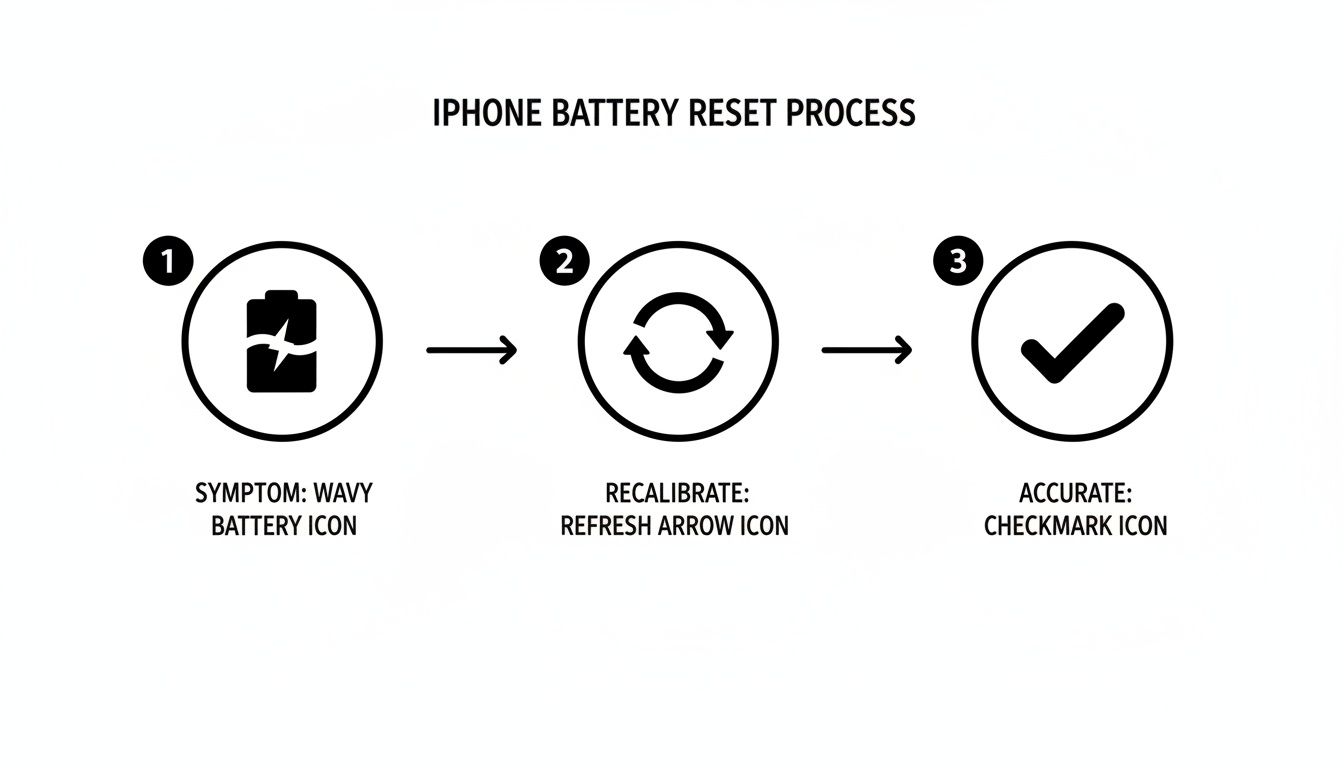
A three-step diagram illustrating the iPhone battery reset process, from wavy icon to a checkmark.

As you can see, you start with a problem (an unreliable battery), perform the recalibration, and end up with a dependable percentage.

The Full Drain Method Explained

First things first: you have to completely drain the battery. And I mean completely. Use your phone until it shuts itself off. Don't be tempted to plug it in when you see that 1% warning. You need to let it go all the way to zero on its own.

To speed things up, you can do things that use a lot of power. Try turning the screen brightness to max, streaming a long YouTube video, or playing a graphics-heavy game. The goal is to make the phone work hard until it powers down.

Once it’s off, the job isn't quite done. A tiny bit of power can still be left, so it’s important to let the phone sit, unplugged, for at least three to four hours. This step makes sure every last drop of power is gone, giving the system a true "empty" starting point to learn from.

Charging Your Way to Accuracy

After the phone has had a good rest, it's time to charge it. This part of the process is just as important as the draining part, and you have to follow a few rules to get the best results.

  • Use an Official Charger: Stick with an official Apple charger and cable or a certified MFi (Made for iPhone) accessory. This ensures your phone gets a stable, correct charge, which is important for both calibration and long-term battery health.
  • Charge Without Interruption: This is a big one. Plug your iPhone in and let it charge all the way to 100% without using it. Answering a text or scrolling through Instagram can disrupt the charging cycle and mess up the recalibration.
  • Let It "Soak" Charge: Once the screen shows 100%, don't unplug it just yet. Leave it connected to the charger for another one to two hours. This is sometimes called a "soak" or "trickle" charge, and it makes sure the battery is truly, completely full.

This uninterrupted cycle—from absolute zero to a fully soaked 100%—gives your iPhone the new, accurate data it needs. The ideas are surprisingly similar for other devices; in fact, you can learn more about how to calibrate a laptop battery using a similar process.

Key Takeaway: The whole point of recalibration is to erase the old, inaccurate battery data and replace it with a fresh measurement. You do this by forcing the battery through one complete, uninterrupted cycle from a true empty state to a true full state.

Finalizing the Recalibration Process

Once your iPhone has had its soak charge, there's one last quick step to help lock in the new calibration data. A simple restart can help the system fully register the changes you’ve just made.

The method for a restart varies slightly depending on your iPhone model:

  • For iPhones with Face ID (iPhone X and newer): Quickly press and release the Volume Up button, then quickly press and release the Volume Down button. Finally, press and hold the Side button until you see the Apple logo.
  • For iPhones with a Home Button (iPhone 8, SE): Press and hold both the Home button and the Side (or Top) button at the same time. Keep holding them until the Apple logo appears on the screen.

After the phone reboots, your battery percentage should be much more reliable. This single recalibration cycle is often all it takes to fix those strange readings and prevent frustrating, unexpected shutdowns.

Alright, if a full battery recalibration didn't fix your problems, your next stop is the iPhone’s own internal health report. This is where the phone tells you what it thinks is going on with the physical battery inside.

Head over to Settings > Battery > Battery Health & Charging. This screen gives you a surprisingly honest look at the condition of your battery, going beyond the simple percentage you see in your status bar.
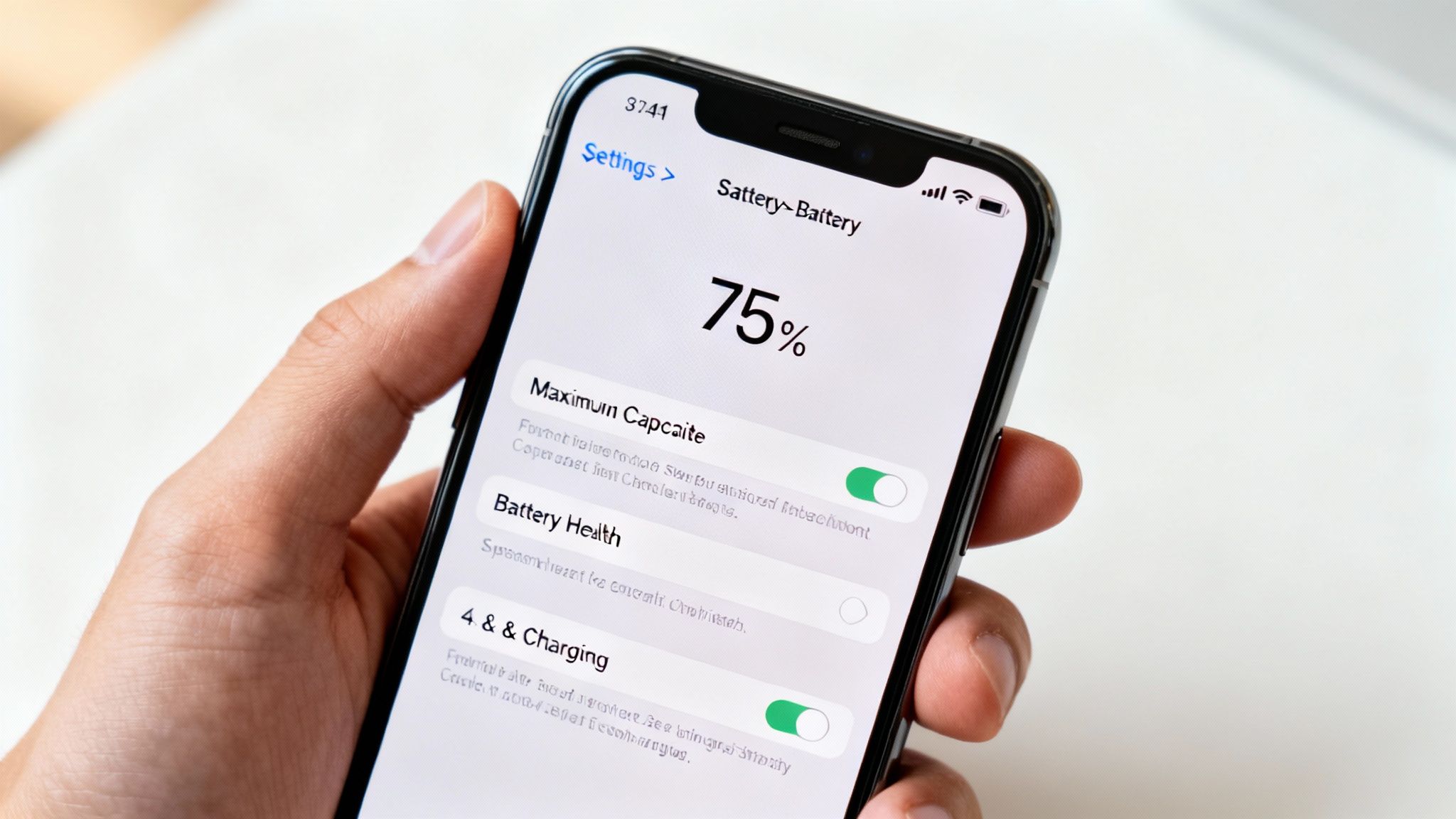
A hand holding an iPhone displaying its battery settings with 75% charge and options.

Understanding what these numbers and messages really mean is key. It helps you decide if a software fix is still possible or if it's time to think about more serious options.

What “Maximum Capacity” Actually Means

The first thing you'll see is the Maximum Capacity percentage. This isn't about your current charge level—it's a direct measure of your battery's health compared to the day it was new. A brand-new iPhone proudly shows 100%.

Over time, with every charge, that number naturally drops.

Think of it like a water bottle. When it’s new, it holds a full liter. After a few years of use, maybe it only holds 850ml. The bottle still works, but its total capacity has permanently shrunk. That’s exactly what this percentage is showing you.

Don't panic if it's not at 100%. Seeing 90% after a year of heavy use, or even 85% after two, is completely normal. It’s not a sign of a faulty battery; it's just how lithium-ion batteries work. We have a more detailed guide that digs deeper into how to check your iPhone's battery health and make sense of these numbers.

The Real Story: "Peak Performance Capability"

Just below the capacity number, you'll find the Peak Performance Capability section. Honestly, this is where the real story is. This message tells you if your battery can still supply enough power for demanding tasks like shooting 4K video or playing intense games.

Here’s a quick rundown of what you might see:

  • Your battery is currently supporting normal peak performance. This is the best message. It means that no matter its maximum capacity, your battery can still handle anything you throw at it.
  • Performance management has been applied. If you see this, it means your iPhone has unexpectedly shut down in the past. To prevent it from happening again, the phone is slowing down certain parts, like the main processor. It’s a safety feature.
  • This iPhone has experienced an unexpected shutdown… This is a warning. It’s your phone telling you the battery is struggling to deliver the power needed for heavy tasks.

This entire screen exists to give you a clear, honest view of your battery's health and how it's affecting your phone's speed.

You might remember the "Batterygate" scandal. Apple was found to be secretly slowing down older iPhones to prevent shutdowns caused by aging batteries. After admitting to it in late 2017, they added this detailed battery health screen to be more open. That controversy led to a huge $500 million settlement and proved how much this information matters. If you're curious, the full history of the Batterygate scandal is on Wikipedia.

By looking at both the capacity and the performance message, you get the full picture. A phone at 82% capacity that’s still supporting normal peak performance is in far better shape than one at 88% that has performance management turned on. This is the knowledge you need to decide if a simple battery reset is enough, or if it’s finally time to consider a replacement.

What to Do When Recalibration Fails

So, you’ve patiently run your iPhone through a full drain-and-charge cycle, but the battery meter is still acting up. What now?

When a manual recalibration doesn't work, it’s a strong sign the problem is deeper in the software, not necessarily a sign that your battery is dead. Before you think about a trip to the Apple Store, there are a few more software fixes we can try, from simplest to most powerful.

First, Always Check for an iOS Update

Before you reset anything, your first move should be to check for a software update. Just head over to Settings > General > Software Update.

Apple is constantly releasing updates with bug fixes, and many of these are aimed at fixing battery drain bugs. What feels like a major hardware failure could just be a known software glitch that Apple has already patched. A quick update can save you a lot of trouble.

This is especially true right after a major iOS release. Big updates can cause temporary battery drain for many people. Apple has even confirmed this is expected, as the new software has to do heavy background work like re-organizing all your files and photos.

One survey showed that while 78% of users saw faster battery drain right after an update, 92% said their battery life was back to normal within three days. It just goes to show that a little patience after an update can go a long way. You can read more about how big iOS updates impact battery life at the Economic Times.

Next, Try Resetting All Settings

If your iPhone has the latest software and the battery meter is still wrong, it’s time to try Reset All Settings.

This option sounds scarier than it is. It does not delete any of your personal data—your photos, apps, messages, and contacts are all safe.

What it does do is wipe all your system settings back to their original defaults. This means things like Wi-Fi passwords, Bluetooth connections, screen brightness, and notification settings will be cleared out. It’s a great way to fix strange software conflicts that might be causing battery reporting issues, all without touching your important data.

Here’s where to find it:

  • Go to Settings > General > Transfer or Reset iPhone.
  • Tap Reset, then Reset All Settings.

You’ll need to enter your passcode to confirm. Once your iPhone restarts, you'll have to reconnect to your Wi-Fi and change a few of your settings again, but it's a small price to pay for a big potential fix.

The Final Software Fix: A Factory Reset

If you’ve tried everything else, the factory reset is your last resort. Think of this as the "nuclear" option. It completely erases your iPhone, returning it to the fresh, out-of-the-box state it was in when you first got it.

Warning: This step cannot be undone and will delete everything—apps, photos, messages, settings, all of it. Before you even consider this, you absolutely must have a complete, recent backup of your iPhone, either on iCloud or on your computer.

Once you’re sure your backup is complete and safe, head to Settings > General > Transfer or Reset iPhone > Erase All Content and Settings.

After the reset is done, you'll set up your iPhone as if it were new and then restore your data from that backup. This clean-slate approach is often the only way to get rid of deep-seated software problems. If even this doesn't solve the issue, then you can be pretty sure the problem is with the battery itself, and it’s time to look into getting it replaced.

Simple Habits for Better Long-Term Battery Health

Okay, so you’ve successfully recalibrated your iPhone's battery. That's a great feeling, but the real win is learning how to avoid battery problems in the first place.

Building a few simple habits can make a huge difference in your battery's lifespan. We're talking about keeping its performance strong and avoiding an expensive replacement for as long as possible. These are just small tweaks to your daily routine that protect your battery from the very things that wear it down the fastest.
An iPhone, charger, clear case, and a 'Battery Habits' notebook on a wooden table.

Embrace Your iPhone’s Built-in Protections

Apple knows battery health is a big deal, so they've built some smart features right into the software to help out. Your first and easiest step? Just turn them on.

Go to Settings > Battery > Battery Health & Charging. Think of this as your battery’s control center. The most important setting for most people is Optimized Battery Charging.

When you turn this on, your iPhone starts learning your daily charging routine. It will charge to 80% and then wait. It finishes off that last 20% right before you typically unplug it in the morning. This simple trick cuts down on the time your battery spends sitting at the stressful, high-power state of 100%.

If you have an iPhone 15 or newer, Apple gives you an even more powerful option: the 80% Limit. This setting does exactly what it sounds like—it stops the battery from charging past 80%. You lose a bit of daily runtime, but it’s the single best way to slow down the battery's aging process.

By using these built-in tools, you're letting the software do the heavy lifting. It’s a set-it-and-forget-it approach to better battery health that requires zero extra effort from you.

Avoid Extreme Hot and Cold Temperatures

Your iPhone’s battery has a comfort zone. It’s happiest between 32° and 95° F (0° and 35° C). Pushing it outside this range can cause permanent damage.

  • Scorching Heat: Leaving your phone on a car dashboard in the summer or in direct sunlight at the beach is very bad for your battery. Heat speeds up the chemical reactions inside, causing it to wear out much faster.
  • Frigid Cold: Cold weather isn't great, either. While the effects are often temporary, using your phone in freezing temperatures can reduce its ability to hold a charge until it warms up.

The takeaway here is simple: treat your iPhone like you'd treat a pet. Don't leave it in a hot car, and when it’s freezing outside, keep it in an inside pocket. This little bit of care goes a long way.

Master Your Charging Habits

Beyond the automatic software tricks, your own charging habits play a huge part. Let's bust the biggest myth right now: you do not need to drain your battery to 0%. That was true for old-style batteries, but for modern lithium-ion batteries, it’s actually harmful.

The sweet spot for a lithium-ion battery is keeping it between 20% and 80%. Think of it as giving it small, frequent snacks rather than a huge meal. Short top-ups are much healthier than deep, full charges from empty to full. This is where tools like Chargie can help by automating this process for you.

And please, use high-quality, MFi-certified (Made for iPhone) chargers and cables. Those cheap, uncertified gas station chargers can deliver unstable power, stressing and damaging your battery over time. It’s a classic case of "you get what you pay for." For a deeper dive into these ideas, you can learn more about what Optimized Battery Charging is and how it all works.

Hunt Down Battery-Draining Apps

Finally, not all apps are created equal. Some are known for using power in the background, even when you're not using them.

Head over to Settings > Battery. Scroll down, and you'll see a list of which apps have used the most power in the last 24 hours or the last 10 days.

If you spot an app you barely use sitting near the top of that list, that’s a huge red flag. It’s often an app that’s constantly using your location or getting data in the background. You can fix this by turning off its background activity (Settings > General > Background App Refresh) or, if you don't really need it, just delete it. Regularly removing these power-hungry apps ensures your battery life is being spent on things you actually care about.

A Few Lingering Questions About iPhone Battery Health

Even after going through the whole process, you might still have a few questions. That's totally normal. Figuring out battery issues can feel a bit like detective work, but the answers are usually pretty simple.

Let's clear up some of the most common questions that pop up when people try to get their iPhone battery reporting straight. The idea is to get rid of any confusion so you can feel confident managing your battery from here on out.

Why Does My iPhone Battery Percentage Still Drop So Fast?

If you’ve done a full recalibration and the battery is still draining very quickly, that’s a big clue. It tells you the problem isn't the software reporting the charge anymore—it's the physical battery itself. Think of it this way: you fixed the "fuel gauge," but you can't magically add more fuel to a smaller tank.

A battery with a Maximum Capacity below 80% is getting old. It has physically worn down, meaning it just can't hold the same amount of energy it could when it was new. No amount of software tweaking can change that physical reality. It's the clearest sign you'll get that it’s time to look into a professional battery replacement.

Can I Damage My iPhone by Draining the Battery to 0%?

This is a great question. While making a habit of running your battery completely flat is a bad idea for its long-term health, doing it just once for a specific recalibration is perfectly safe.

Here's how to think about it:

  • As a Daily Habit: Constantly draining your battery to zero is like running a marathon every single day. It puts a ton of stress on the battery and makes it wear out faster.
  • As a One-Time Fix: Draining it once as part of a controlled process is more like a necessary stress test. It's a specific action to fix a specific problem, and it won't cause any lasting harm.

Your iPhone is smart enough to protect itself. It has built-in safety features to stop the battery from draining to a level that would cause real damage. When it finally shuts down at "0%," there's still a tiny, safe reserve of power left.

How Often Should I Recalibrate My iPhone Battery?

Honestly, you shouldn't have to do this very often. If your battery percentage seems to be working correctly, just leave it alone. There's no benefit to recalibrating a battery that's already working properly.

A good rule of thumb is to only perform a recalibration when you see clear signs that something's off—like the phone suddenly dying at 30% or the percentage jumping around.

For most people, this might be something you do once a year at most. You might consider it after a major software update if you notice strange battery behavior. Over-calibrating is just unnecessary work that puts extra wear on your battery for no good reason.

Will a Factory Reset Improve My Battery Health?

No, a factory reset won't do anything to improve your battery's physical health. That Maximum Capacity percentage you see in Settings is a hardware measurement. It’s a direct reflection of the battery's age and physical condition. Wiping the software and starting from scratch can't reverse that.

What a factory reset can do, however, is fix severe battery drain caused by a deep software problem or a misbehaving app that other troubleshooting couldn't fix. It's the "nuclear option" for software problems, not a magical battery-rejuvenation tool. If you go through a full reset and your battery life is still terrible, you can be almost certain the hardware is the problem.


Of course, protecting your battery from day one is the best way to avoid these issues entirely. Chargie is designed for exactly that, automatically managing your charging to keep your battery in that sweet spot between 20-80%. By preventing the stress of overnight charging to 100%, it can extend your battery's lifespan by up to 4x, saving you from pricey replacements and cutting down on e-waste. Learn how Chargie can safeguard your device's battery health.
When to Charge iPhone: The Best Way to Keep Your Battery Healthy

If you’re looking for the simplest answer on when to charge your iPhone, here it is: try to keep the battery between 20% and 80%. Seriously. Avoiding the extremes—letting it die completely or leaving it plugged in at 100% for hours—is the single best habit you can adopt. It reduces stress on the battery, helping it live a much longer, healthier life.

The Ideal Charging Range for Your iPhone

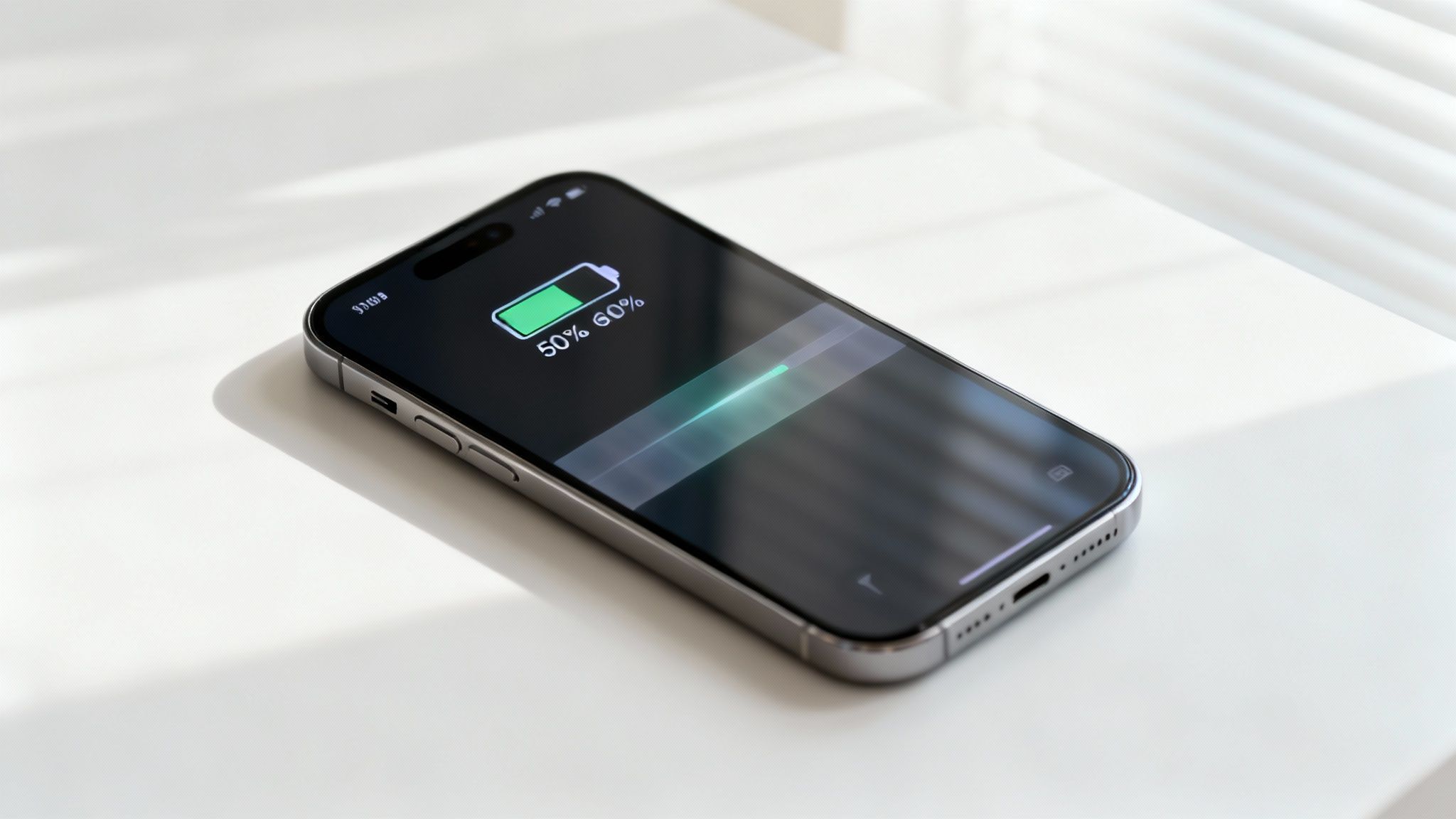
An iPhone showing 50% battery life and a charging animation on a white table.

Think of your iPhone's battery like a muscle. You can push it to its absolute limit or run it until it's completely exhausted, but doing that over and over again causes a lot of strain. Eventually, that muscle gets worn down and just can't perform like it used to.

It’s the same story with the battery in your phone. It’s happiest and works best when it's not sitting at those extreme ends of its power. That 20% to 80% range is the "sweet spot" that slows down the aging process, helping your battery hold a strong charge for years, not just months.

And this isn't just some internet myth; it's based on how these batteries work. Research and user reports show that simply limiting your charge to 80% can slow down battery aging by a lot. That means a stronger battery for longer, just by changing when you plug in and unplug. As explained in this UNILAD article on battery technology, this small change pays off in a big way.

Why the 20 to 80 Rule Matters

Following the "20 to 80" rule isn't just a suggestion; it’s an active way to get the most out of your device. By making this a habit, you’re taking direct control over how well your battery ages.

Here's a look at some common charging habits and how they can impact your iPhone’s battery over time.

How Different Charging Habits Affect Your iPhone

Charging Habit Impact on Battery Health Our Recommendation
Charging to 100% and leaving it plugged in High. Keeping the battery at full charge for a long time causes stress and extra heat, which leads to a lot of wear. Avoid. Unplug once it hits 80-90% if you can.
Frequently draining to 0% High. Letting the battery die completely can mess up its internal parts, causing it to lose its strength quickly. Avoid. Start charging when it drops to around 20-30%.
Keeping it between 20-80% Low. This "sweet spot" reduces stress and heat, which slows down battery aging a lot. Highly Recommended. This is the ideal daily habit.
Small, frequent top-ups during the day Very Low. This is much gentler on the battery than one long charge from empty to full. Good Practice. Don’t be afraid to top up when it's easy to do.

Ultimately, adopting better habits is the key to preserving your device. Here’s why that 20-80 approach is so effective:

  • It Reduces Stress. When a battery sits at 100%, it's in a high-stress state that puts a strain on its internal parts. Capping the charge at 80% keeps it in a much more stable, less stressful condition.

  • It Prevents Deep Drains. Letting the battery fall below 20% too often can mess with its chemistry. Consistently running it down to 0% is one of the quickest ways to permanently weaken its ability to hold a charge.

  • It Minimizes Heat Buildup. Heat is the number one enemy of battery health. Charging from a very low level all the way to full generates a lot more heat than smaller, more frequent top-ups within that sweet spot.

Adopting the 20-80 rule is the single most effective change you can make to preserve your iPhone's battery. It’s a small adjustment to your daily routine that delivers significant long-term benefits.

Understanding Why Your iPhone Battery Gets Weaker

Ever notice how a brand-new iPhone feels like it could last forever, but a year or two down the line, you're constantly hunting for a charger? It's not in your head. Every rechargeable battery, including the one tucked inside your iPhone, slowly loses its ability to hold a full charge. This is called battery aging, and it's a completely natural part of its life.

The great news is that you have a surprising amount of say in how fast this happens. The secret is knowing what really stresses out your battery. Forget the complicated science for a second; let's use a simpler analogy.

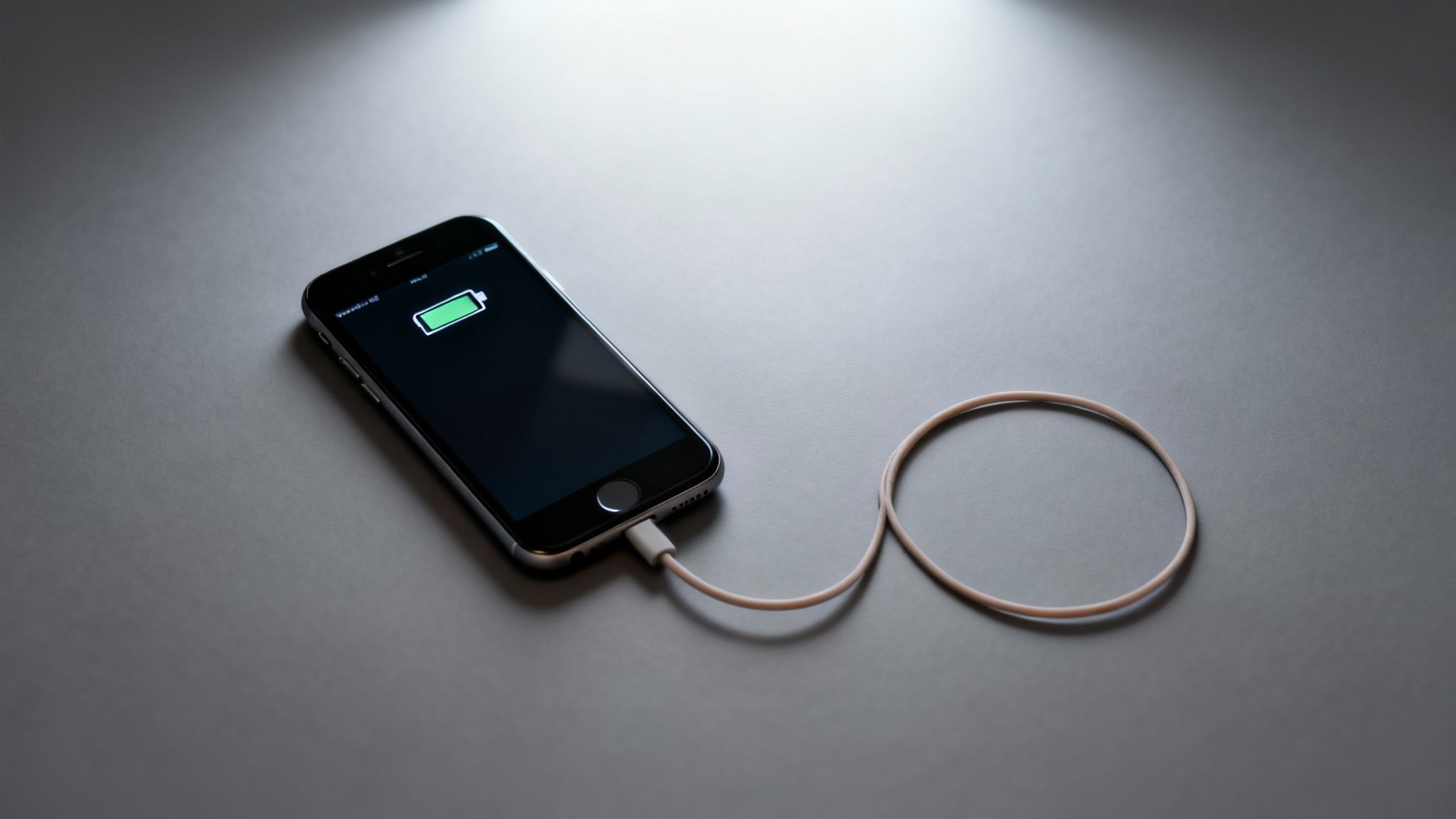
A black iPhone is charging with a white cable, displaying a green battery icon on a dark grey surface.

The Rubber Band Analogy

Think of your iPhone's battery as a new, stretchy rubber band. When you charge it all the way to 100%, you're stretching that band to its absolute limit. Let it drain down to 0%, and you’re letting it go completely slack. While it can handle this, doing it over and over puts a ton of strain on the rubber band.

Eventually, it loses its stretchiness. It gets brittle, worn out, and just can't snap back like it used to. This is exactly what’s happening inside your battery. Consistently pushing it to the extremes of 0% and 100% dramatically speeds up its aging process, permanently reducing its ability to hold a charge.

Every time you charge and use up your phone's power, you complete what’s known as a "charge cycle." Each cycle adds a tiny, almost unnoticeable bit of wear. But how much you charge and drain it—how far you stretch that rubber band—is what really matters.

A small top-up, say from 40% to 70%, is like a gentle stretch. It causes very little wear. A full charge, from 0% all the way to 100%, is a massive pull that does way more damage. The real key to long-term battery health is simply to avoid those stressful extremes as much as you can.

Your Daily Habits and Battery Health

How you use and charge your phone every single day directly impacts how long its battery will perform at its best. It's not about one bad charge; it's the combined effect of hundreds of charging sessions over months and years.

Think about these common scenarios:

  • Leaving It Plugged in Overnight: Your phone hits 100% around 2 AM but stays connected to the charger for another five hours. This keeps that "rubber band" stretched tight, causing constant stress and generating heat—another major enemy of battery health.
  • Running It Until It Dies: You often use your phone until it shuts itself off. This is like letting the rubber band go completely limp, which can harm its internal parts over time.
  • Charging in a Hot Car: Leaving your phone to charge on the dashboard in the sun is like stretching the rubber band while also leaving it out in harsh weather. That combination of high heat and high stress is incredibly damaging.

Just like a rubber band, your iPhone's battery is healthiest when it's kept in a comfortable, relaxed state—not fully stretched and not completely slack. This is why the 20-80% rule is so effective; it avoids the points of highest stress.

What Is a Charge Cycle, Really?

Understanding charge cycles helps make sense of why these habits matter so much. Apple defines one charge cycle as using an amount equal to 100% of your battery’s power—but not necessarily all at once. For example, if you use 60% one day, charge it back up, and then use 40% the next, you’ve completed one full charge cycle over those two days.

Your iPhone battery is designed to hold up to 80% of its original power after 500 full charge cycles. Past that point, you’ll really start to notice a drop in how long it lasts. By avoiding deep drains and full charges, you make each of those cycles far less stressful, effectively slowing down that countdown to 500. This simple shift helps you get way more life out of your device before its performance starts to fade. The goal isn't to stop using your phone, but to start charging it smarter.

Busting the Big iPhone Charging Myths

When you ask how to best charge your iPhone, you're bound to get a ton of conflicting advice. A lot of what people think they know is actually ancient history, leftover from the days of flip phones and those chunky old batteries.

That old advice doesn't just miss the mark for modern iPhones; it can actually hurt their advanced batteries. It's time to clear the air and separate the myths from what really keeps your battery healthy.

Once you see where these myths came from and why they don't apply today, you'll be able to charge your phone with confidence, knowing you're doing it right.

Myth 1: You Have to Drain Your Battery to 0% Before Charging

This is probably the most common—and most damaging—myth out there. The whole idea of "training" your battery by running it completely dead comes from old batteries, which suffered from a strange "memory effect." If you didn't fully drain them, they'd start to "forget" they could hold a full charge.

Modern iPhone batteries have no memory effect. Zero. In fact, doing the opposite is what keeps them happy. Constantly draining your iPhone to 0% puts a massive amount of stress on its internal parts, which makes it age much faster.

Seriously, letting your battery die all the time is one of the fastest ways to weaken it. It's so much better to plug it in when it gets down to around 20-30%.

Myth 2: Charging Your iPhone Overnight Will Destroy the Battery

The fear of leaving your phone plugged in all night is a classic. You can just picture it overcharging and frying itself, right? While keeping a battery at 100% for hours isn't great for it, your iPhone is a lot smarter than people give it credit for.

iPhones have built-in safety features that stop the flow of power once the battery hits 100%. It doesn't keep cramming electricity in. The real enemy here isn't overcharging; it's the long time your battery spends in that high-stress, fully charged state.

Thankfully, Apple has a trick up its sleeve for this.

Your iPhone’s Secret Weapon: Optimized Battery Charging

Apple built a clever feature called Optimized Battery Charging to tackle this exact problem. Once you turn it on, your iPhone starts learning your daily routine. It’ll charge up to 80% relatively quickly and then just… wait. It pauses the charging process and only tops off that last 20% right before you usually wake up.

This little feature is a game-changer. It drastically cuts down on the time your phone spends sitting at that stressful 100% mark. Think of it as your phone’s own built-in defense system against overnight charging damage.

Here's why it works so well:

  • Less Stress: It keeps the battery out of that high-stress 100% state for most of the night.
  • Cooler Temps: Less time actively charging means less heat builds up, and heat is a major battery killer.
  • It’s Automatic: You just flip a switch in your settings, and it does the rest.

Myth 3: You Should Only Ever Use Official Apple Chargers

Look, using a certified charger is always a smart move, but you definitely don't have to stick only to Apple's own white bricks. What really matters is using high-quality cables and chargers that are MFi (Made for iPhone) certified.

MFi certification is basically Apple's seal of approval. It means the product has been tested to meet their safety and performance standards. Those super-cheap, no-name chargers you find at gas stations? That's where you get into trouble. They can deliver uneven power, lack proper safety controls, and potentially damage your iPhone’s charging port or even the battery itself.

So, the myth has a grain of truth—you absolutely should avoid junk chargers. But you’ve got plenty of great, safe options from other reputable brands. Just make sure you see that MFi logo on the box.

Finding Your Perfect Charging Rhythm

Knowing the science behind smart charging is great, but what really saves your battery is building a practical, real-world routine. Let's be honest, there's no single "best" time to charge your iPhone because everyone's day is different. The key isn't to become obsessed with your battery percentage, but to find a simple rhythm that keeps your device in that happy 20-80% zone without you even thinking about it.

The goal is to make smart charging an effortless habit, not another chore. So, let's get practical and see how different lifestyles can adopt a healthy charging rhythm. Just find the profile that sounds most like you, and you'll see how easy it is to fit these tips into your day.

The 9-to-5 Professional

If you spend most of your day at a desk with a charger nearby, you're in a great position to keep your battery healthy. Your environment gives you total control over when and how long you charge.

Your main goal is to stop leaving your phone plugged in at 100% all day. That constant, high-power state is a major source of battery stress. It's like holding a muscle in a tensed position for hours on end. Instead, try this:

  • Morning Coast: If you charged overnight, your phone is likely full. Let it run down naturally through the morning.
  • Post-Lunch Boost: By mid-afternoon, you might be hovering around 40-50%. Perfect. Plug it in for an hour or so until it hits about 75-80%, then unplug it.
  • Ride It Out: That single top-up should easily get you through the rest of the workday and your commute home.

For desk workers, the biggest hurdle is just remembering to unplug the thing. A simple timer on your phone or computer works wonders. Think of it as "charge snacking"—much gentler than leaving it plugged in for eight straight hours.

The On-the-Go Commuter

Always on the move? Whether you're driving for work, running errands, or just have a long commute, that car charger can feel like a lifeline. It’s convenient, for sure, but it requires a slightly different strategy to avoid constantly maxing out your battery.

Car chargers, especially the fast-charging kind, can generate a ton of heat—battery health's public enemy number two (right after being at full power). The trick is to use them for quick, strategic boosts, not as a permanent power source.

A quick 20-minute charge in the car can give you a 20-30% bump. That's usually more than enough to get you through the next part of your journey without over-stressing the battery.

Here’s a rhythm that works well for anyone who spends a lot of time on the road:

  • Charge Before You Go: If you can, give your phone a little juice before leaving home so you aren’t starting your trip in the red.
  • Use Drive Time Wisely: Don't leave it plugged in for the whole drive. Instead, charge in short bursts. Plug it in for 15-30 minutes, then let it be.
  • Avoid the Dashboard Sun-Bath: Never, ever leave your phone charging in direct sunlight on the dash. The combined heat from the sun and the charger is a recipe for battery damage.

The Power User

Are you a gamer, a content creator, or just someone who is glued to their phone for demanding tasks? Power users burn through their batteries way faster than average, which makes smart charging habits even more crucial. Your focus should be on frequent, small top-ups to keep up with your high usage.

Practically speaking, daily iPhone battery life has come a long way. Newer models like the iPhone 15 series can deliver 8 to 9 hours of typical use, but older models like the iPhone 8 were closer to 5 hours. As you can see from this data on how iPhone battery life has changed over the years on Vegerpower.com, a daily charging plan is essential for everyone, especially power users who need to stay above that 20% floor.

Here’s a practical schedule for the power user:

  • Plan Around Activity: Know you have a long gaming session coming up? Plug your phone in beforehand and get it to around 70-80%. And try to avoid gaming while it's actively charging—that combo creates a ton of heat.
  • Embrace "Opportunity Charging": Whenever you take a break, plug your phone in for just 10-15 minutes. These little micro-charges are perfect for keeping you in that ideal 20-80% range without needing a long, dedicated charging session.

Ultimately, your perfect rhythm comes down to your unique needs, and you might even switch between these profiles on different days. Once you get the core ideas, you can adapt on the fly. This is especially true when it comes to overnight charging. If you're wondering how to apply this thinking after dark, you can learn all about how to safely charge your iPhone overnight in our detailed guide.

Avoiding Heat: The Silent Battery Killer

Let's talk about something that kills iPhone batteries just as fast, if not faster, than bad charging habits: heat. Heat is the silent assassin of phone batteries. You can follow the 20-80% rule perfectly, but if your phone is constantly getting hot while charging, you're still doing serious damage.

Think of your battery like a person—it’s most comfortable at room temperature. When things get too hot, the chemical reactions inside go haywire, causing permanent harm to its ability to hold a charge. This is why knowing when to charge your iPhone is also about knowing where and how to charge it to keep things cool.

Common Heat Culprits During Charging

Most of the time, we’re the ones turning up the heat without even realizing it. A few simple, everyday habits can turn a normal charging session into a battery-destroying sauna.

Here are some of the biggest offenders:

  • Gaming While Plugged In: Firing up a powerful game makes your phone's brain work overtime, generating a ton of internal heat. Add the heat from charging into the mix, and you've created a perfect storm for battery stress.
  • Leaving it in a Hot Car: A car's interior can feel like an oven, especially in direct sunlight. Charging your iPhone on the dashboard is one of the quickest ways to cook its battery.
  • Using Bulky Cases: Many thick or poorly designed cases act like a winter jacket, trapping the heat that naturally builds up when you charge. This prevents the phone from cooling itself down properly.
  • Charging on Soft Surfaces: Tossing your phone on a bed, couch, or blanket while it charges is a bad idea. It blocks air from getting around the phone and traps heat right underneath it.

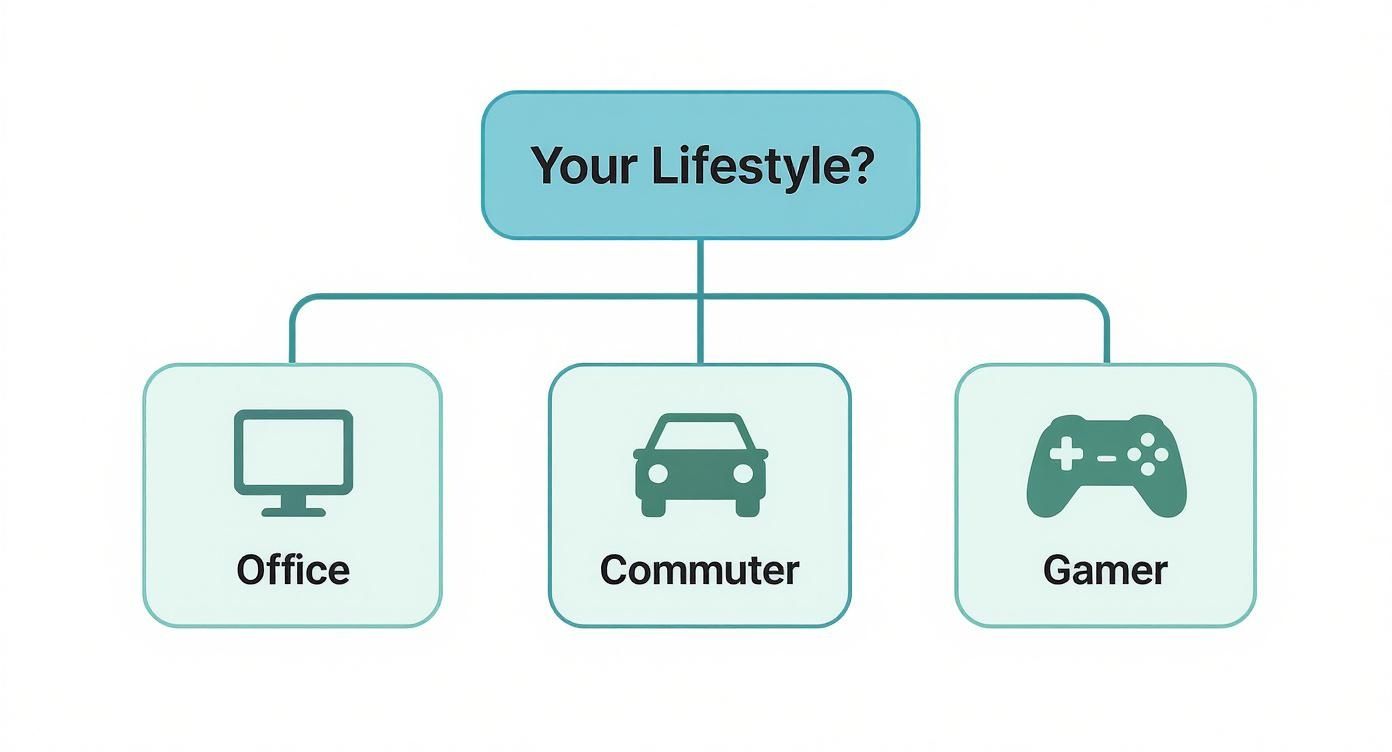
To figure out the best charging approach for your daily grind, this little flowchart can point you in the right direction.

A flowchart titled 'Your Lifestyle?' with branches for Office, Commuter, and Gamer.

As you can see, whether you're at a desk all day, constantly on the move, or a power user, your routine is the key to a smarter charging strategy.

What About Fast Charging and Wireless Charging?

Convenience usually comes with a catch. Fast charging and wireless charging are both fantastic, but they almost always generate more heat than a standard, slow-and-steady wired connection. This isn't to say you should ditch them entirely, but it's something to be aware of.

The impact of heat is a huge factor in battery aging. Studies show that high temperatures can dramatically speed up a battery's decline, while cooler conditions keep it healthy. Wireless charging, in particular, is known for generating extra heat, especially if the phone isn't lined up perfectly on the pad or is stuck inside a thick case.

Keeping your iPhone cool while it charges is just as important as managing the battery percentage. A cool battery is a happy, long-lasting battery.

The good news is that simple habits make a big difference. Take the case off before a long charge. Place your phone on a hard, flat surface like a desk. And for goodness' sake, keep it out of direct sunlight. The relationship between temperature and charging is a deep topic, and you can learn more about the deep impact of heat on battery degradation in our detailed analysis. By getting a handle on heat, you add another powerful tool to your battery-saving arsenal.

How to Automate Smarter Charging Habits

Trying to manually manage your iPhone’s battery can feel like just another chore on an already long to-do list. The good news is you don't have to. You can put smart charging on autopilot and let your phone and a few clever tools do the heavy lifting for you. It's never been easier to make great battery health a "set it and forget it" part of your routine.

Your first line of defense is built right into your iPhone. Apple gives you a couple of powerful, no-fuss features designed to protect your battery from the stress of sitting at full charge.

  • Optimized Battery Charging: This is Apple's clever, hands-off approach. It learns your daily habits, charges your iPhone to 80%, and then waits. It only tops it off to 100% just before it thinks you'll unplug it in the morning.
  • 80% Limit (iPhone 15 models): If you want more direct control, this setting is as straightforward as it gets. It simply tells your iPhone to stop charging once it hits 80%. Period. This keeps your battery out of that high-stress red zone.

Just by flipping on Apple's built-in features, you’re already taking a huge step toward better battery health without any extra effort. They just work quietly in the background, saving your battery from unnecessary wear and tear.

Taking Automation to the Next Level

Apple’s tools are a fantastic start, but what if you want more precise control over your charging schedule? This is where special hardware solutions come into play, offering a physical safeguard that works separately from your phone's software. One of the best-known tools for the job is Chargie.

For those who really want to get into the details, you can learn more about how Apple’s Optimized Battery Charging works in our detailed guide and see how it stacks up against external solutions.

This screenshot from the Chargie app shows you just how precise this kind of physical control can be.

You can see right in the app how you can set a specific percentage, and the hardware will physically cut the power once your phone reaches that level.

Unlike a software-only solution, a hardware device like this acts as a smart gatekeeper for the electricity itself. It doesn’t just tell the phone to stop; it physically stops the charge at your chosen level—say, 75%. This gives you a foolproof way to prevent your phone from sitting at 100% for hours. It’s a powerful guarantee that you’re always keeping your battery in its happy place, making smart charging truly effortless.

Alright, we've gone through the science behind your iPhone's battery and the best ways to charge it. Still, you probably have a few specific scenarios nagging at you. Let's tackle some of the most common questions I hear, so you can plug in with total confidence.

Is It Better To Charge My iPhone in Small Bursts?

Absolutely. Charging in smaller bursts throughout the day is one of the best habits you can adopt. Think of it as "topping up." This keeps your battery humming along in that ideal 20-80% range.

A quick boost from 40% to 70% puts way less strain on the battery than a marathon session from nearly dead to completely full. It's like snacking instead of eating one massive meal—it's just easier on the system. Modern batteries don't have a "memory effect," so these frequent, partial charges are actually great for their long-term health.

Should I Use a Fast Charger with My iPhone?

You can, but it's a trade-off: speed for a longer battery life. Fast charging is a lifesaver when you're in a pinch, but that extra power generates more heat, and heat is the number one enemy of a healthy battery.

For your daily routine or overnight charging, a standard, slower charger is the much gentler choice. If you do need to charge up quickly, just make sure your phone is in a cool place and you're not trying to run a graphics-heavy game at the same time.

Key Takeaway: Slow and steady wins the battery health race. Save the fast charger for emergencies and stick to slower charging for the day-to-day.

Does Leaving My iPhone Plugged in at 100% Damage the Battery?

It sure does. Holding your iPhone's battery at 100% for a long time is one of the most stressful things you can do to it. That high-power state speeds up its aging process. Your iPhone has built-in protections to stop it from overcharging, but just sitting at full capacity is damaging all on its own.

This is the exact problem Apple's "Optimized Battery Charging" feature tries to solve by pausing the charge at 80% for most of the night. But for the ultimate protection, it's always better to unplug it or, even better, use a tool that physically cuts the power at a healthier level.

How Can I Check My iPhone's Battery Health?

It’s super easy to get a report card on your battery's health right from your settings. Just a few taps:

  1. Open up the Settings app.
  2. Scroll down and tap on Battery.
  3. Choose Battery Health & Charging.

You'll see a "Maximum Capacity" percentage here. This number shows you how your battery is holding up compared to when it was brand new. If you see a number below 80%, it's a sign that it has worn down a lot. This is also where you can turn on "Optimized Battery Charging" to help slow down any more aging.


Want to take complete, automated control of your charging habits? That's what Chargie was built for. By physically stopping the charge at the perfect level, Chargie makes it effortless to extend your iPhone's battery life by up to 4x. Get your Chargie today and make battery worries a thing of the past.

How to Check Battery Health on Any Device

You probably know how to find the battery percentage on your screen, but that’s just a snapshot of today's charge. Knowing where to find the real health stats is key. For an iPhone, you can go right into Settings > Battery > Battery Health & Charging. On Android, it's a bit of a mix—some phones have it in the Settings app, but you might need a separate app. Laptops are a mixed bag too; Windows can create a very detailed report with a quick command, while macOS tucks it away neatly in System Settings.

If you just need to find the right screen quickly, here's a little cheat sheet.

Quick Guide to Finding Battery Health by Device

Device Type Built-in Method
iPhone/iPad Settings > Battery > Battery Health & Charging
Android Varies by maker; often in Settings > Battery (or use a separate app)
Windows Laptop Create a report using the powercfg /batteryreport command in Command Prompt
macOS Laptop System Settings > Battery > Battery Health

This table should get you to the right place, but the numbers you find there are what really matter.

Why Battery Health Is More Than Just a Percentage

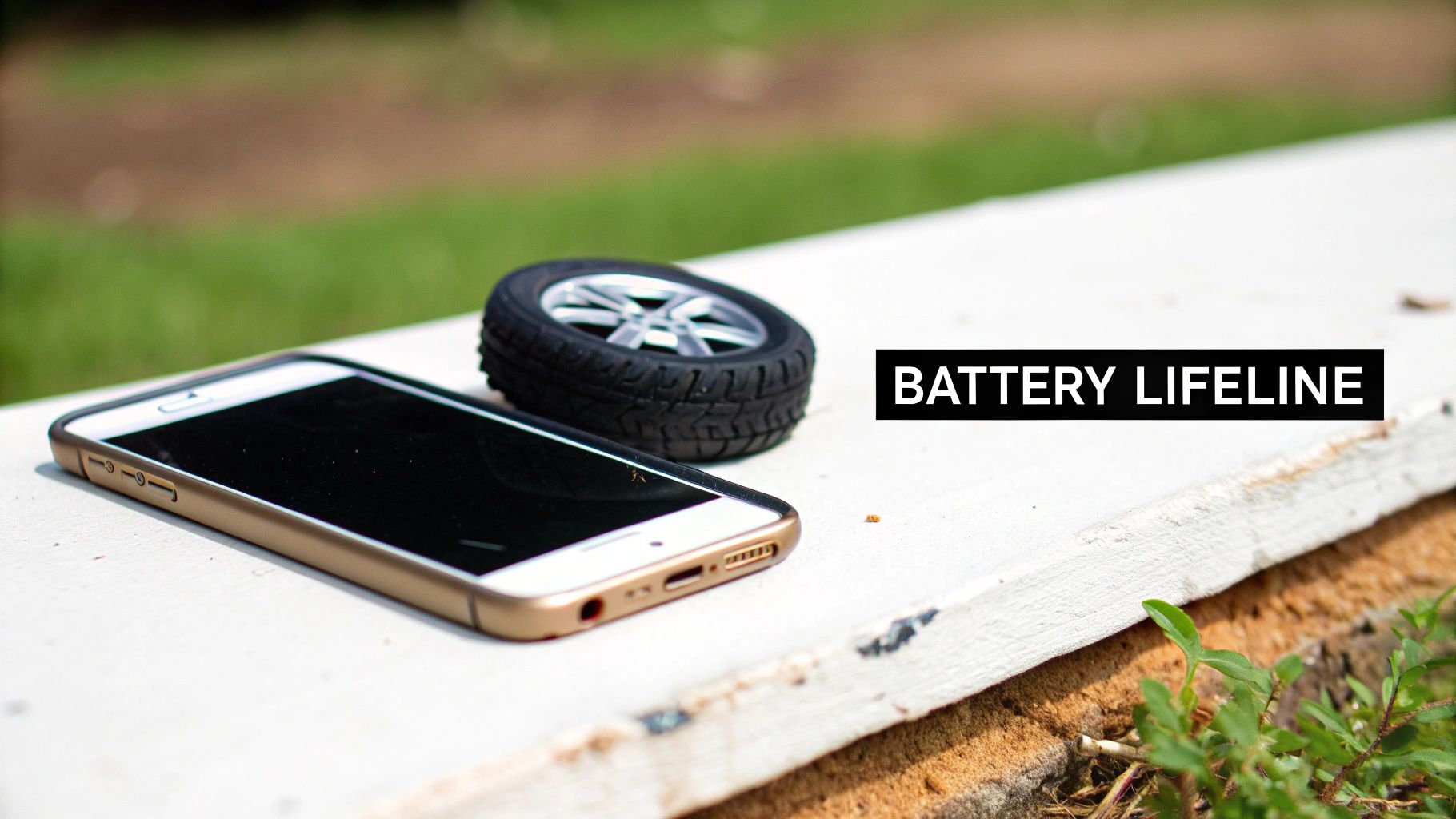
Your device's battery is its lifeline, but just like the tires on a car, it wears down over time. The percentage you see at the top of your screen only tells you how much juice you have left for the day. True battery health, on the other hand, reveals how much charge the battery can hold in total compared to when it was brand new. This is a far more important number for understanding your device's long-term performance.

Smartphone with miniature tire on pavement symbolizing battery lifeline and mobile device maintenance

Think of it this way: a new phone with 100% battery health has a full-size gas tank. A year later, its health might drop to 85%, meaning the "tank" itself has physically shrunk. Even when your screen says "100% charged," you're actually starting the day with 15% less fuel than you used to. It's the reason an older phone seems to die so much faster, even after a full overnight charge.

Understanding the Key Numbers

To really get what's going on inside your device, you need to look past that simple icon on your screen. Two key things tell the real story:

  • Maximum Capacity: This is the most direct measure of health, shown as a percentage. It tells you the battery's current full charge ability compared to when it was brand new.
  • Cycle Count: This number tracks how many full charge-and-recharge cycles the battery has been through. It’s like an odometer for your battery.

A "cycle" isn't just charging from 0 to 100. It’s counted as you go. For instance, if you use 60% of your battery one day and then recharge, and use another 40% the next, that adds up to one full cycle. Most modern device batteries are built to stay healthy for about 300 to 500 charge cycles before they start to weaken seriously. You can learn more about why this number is so important in our detailed guide on what a battery cycle count is.

A good rule of thumb: once a battery's maximum capacity drops below 80%, it's often considered "worn out." At this point, you'll definitely notice shorter battery life, and you might also see performance slowdowns as the device struggles to get enough power for hard tasks.

Knowing these numbers gives you the power to take control. Instead of just guessing why your phone dies by 3 PM, you can check its health and make a smart decision about what to do next.

Checking Battery Health on Your iPhone or Android

Your phone is probably the most-used gadget you own, so its battery health is a pretty big deal for your day-to-day life. Thankfully, both Apple and Android give you ways to look under the hood and see how your battery is holding up.

For iPhone users, the process is very simple. For the Android crowd, it might take a little more digging, depending on who made your phone.

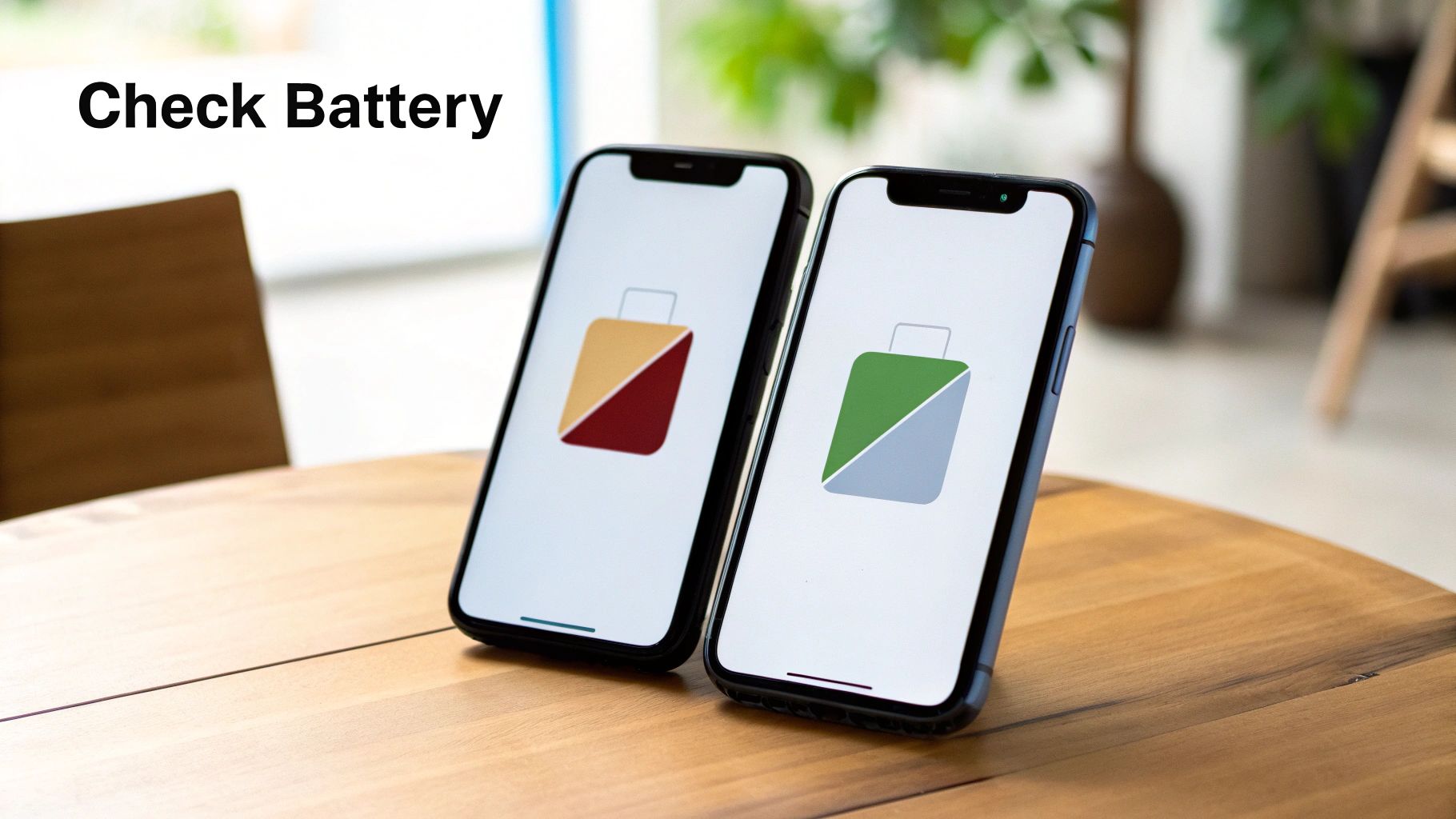
Two smartphones displaying battery status icons showing low and full charge levels on wooden table

Let's walk through how to find these numbers on your device so you can get a clear picture of its current condition.

Finding the Numbers on Your iPhone

Apple makes it incredibly easy to check your battery's status right from the settings menu. No extra apps needed—it's all built right in.

Just head over to Settings > Battery > Battery Health & Charging. Once you're there, you'll see a couple of key numbers that tell the whole story.

  • Maximum Capacity: This is the big one. It shows you how much charge your battery can hold compared to when it was brand new. A fresh-out-of-the-box iPhone will be at 100%, but this number will drop over time.
  • Peak Performance Capability: This little section lets you know if a worn-out battery is starting to slow down your phone. If everything is running smoothly, it'll say your battery is supporting normal peak performance.

If your capacity has taken a big hit, you might see a message about "performance management" being applied. That's just Apple's way of preventing your phone from shutting down unexpectedly by slowing its speed a bit. If you want to keep that capacity number high for as long as possible, some good iPhone battery-saving tips can make a real difference.

Keep a close eye on that Maximum Capacity percentage. Once it dips below 80%, Apple officially considers the battery "consumed." You'll definitely notice your phone doesn't last as long, and it’s probably a good time to think about a battery replacement.

Navigating Battery Health on Android Devices

Unlike the straightforward approach on iPhones, checking battery health on an Android can be a mixed bag. Some makers, like Samsung, have built-in tools, while others don't show you a specific health percentage at all.

If you have a Samsung phone, you can usually find this by going to Settings > Battery and device care > Diagnostics > Phone diagnostics and tapping on Battery status. It won't give you a percentage, but a simple "Life" reading like "Good" tells you the battery is still in decent shape.

But what if your phone doesn't have a built-in checker? Don't worry. You can grab a reliable app to get a much more detailed look. One of the best out there is AccuBattery.

Using AccuBattery for a Deeper Look

AccuBattery is a great app that watches your charging and usage habits to guess your battery's true health. It works by comparing the actual charge it measures against the battery's original design capacity.

Here’s what makes it so useful:

  1. Measures Real Capacity: After you've charged your phone a few times, the app calculates an estimated health percentage.
  2. Tracks Wear: It actually shows you how much "wear" each charge session puts on your battery, which is great for learning better charging habits.
  3. Provides Detailed Stats: You get a full screen with charging speeds, battery temperature, and how fast it's draining.

Using an app like this gives you the power to not just see your battery's current state but also understand how your daily habits are affecting its lifespan.

It’s easy to focus on your phone's battery health, but don't forget about your laptop. Its battery is the unsung hero of your productivity, and knowing its condition can save you from that dreaded "low battery" warning right in the middle of a big meeting.

Thankfully, both Windows and macOS have built-in ways to peek under the hood and see how your battery is holding up. Windows gives you a very detailed report, while Mac offers a quick, clean overview.

Digging Up the Battery Report on Windows

Windows has a great, slightly hidden feature that creates a full health report for your battery. It sounds a bit technical, but it's easy to do and the information you get is very valuable.

First, you need to open either Command Prompt or PowerShell. Just hit the Start button and search for either one. Once it's open, type in this little command: powercfg /batteryreport and press Enter.

That one command tells Windows to look through your battery's history and performance, then wrap it all up in a neat file. It will even tell you the exact file path where it saved the report, usually somewhere in your user folder.

Now, open that file. It might look like a lot of data, but you really only need to care about two numbers:

  • Design Capacity: Think of this as the battery’s original, brand-new maximum charge.
  • Full Charge Capacity: This is what it can hold now. It's totally normal for this number to go down over time as the battery gets older.

Just compare those two numbers. Let's say your laptop started with a Design Capacity of 50,000 mWh and its Full Charge Capacity is now 40,000 mWh. A little quick math tells you it's holding about 80% of its original charge. Simple as that.

When you see a big drop in the Full Charge Capacity, that's your clearest signal that the battery is on its way out. The report also gives you the cycle count and usage history, giving you a complete story of your battery's life so far.

Finding Battery Health on a Mac

Apple, in its usual style, makes checking your battery health very simple. It's built right into the system settings, no secret commands needed.

Just go to System Settings > Battery. You’ll see a little pop-up that shows the Battery Condition. Usually, it will just say "Normal." If you see "Service Recommended," however, that's Apple's polite way of saying your battery is getting tired and can't hold a charge like it used to.

If you want a few more details, click the little "i" icon next to the condition. This is where you'll find the good stuff:

  • Maximum Capacity: This is the same as on an iPhone. It’s a simple percentage showing how much charge your battery can hold compared to when it was brand new.
  • Cycle Count: This number tracks how many full charge-and-recharge cycles the battery has gone through. For most MacBooks, Apple designs the batteries to keep up to 80% of their capacity after 1,000 cycles.

Keeping an eye on these numbers helps you stay ahead of the game and know when you might need to think about a replacement. For some real, practical advice on making that battery last as long as possible, check out our guide on how to extend laptop battery life. Once you understand what these numbers mean, you're in a much better position to keep your machine running strong.

Decoding Your Battery Health Report

https://www.youtube.com/embed/Q8Cu_-yXlEk

Alright, so you've run the tests and now you're staring at a screen full of numbers. What does it all actually mean for your device day-to-day? Let's break down these stats into something you can actually use.

The two big players you need to understand are Maximum Capacity and Cycle Count. Think of them as the vital signs for your battery. They tell you just about everything you need to know about its current state and what to expect down the road.

What Is Maximum Capacity

Maximum Capacity is probably the easiest number to understand. It's a simple percentage that tells you how much juice your battery can hold today compared to the day it was made.

If your report says 90%, it means your battery now only holds 90% of the energy it could when it was fresh out of the box. A little bit of aging is perfectly normal, but there's a specific number you really want to keep an eye on.

Most makers, including Apple, consider a battery to be seriously worn out once its Maximum Capacity drops below 80%. When this happens, it's not just about shorter battery life. Your device might actually start to feel sluggish because the aging battery can't supply enough power for demanding apps or tasks.

Find yourself constantly looking for an outlet? Does your phone ever just die out of nowhere, even when it says it has 20% left? A low Maximum Capacity is almost always the reason why.

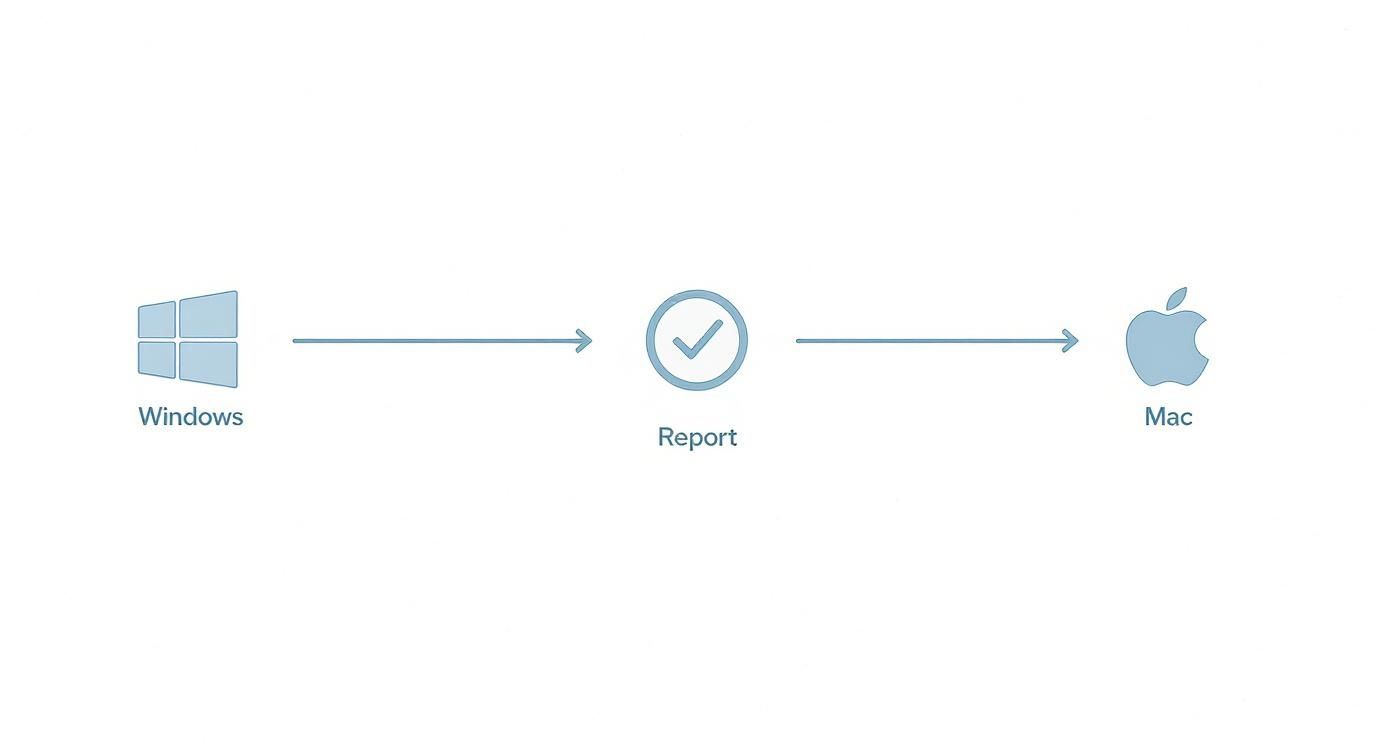
This little workflow shows just how simple it is to get these reports on your laptop.

Workflow diagram showing data transfer from Windows through Report validation to Mac system

As you can see, whether you're working on a Windows machine or a Mac, you're only a few clicks away from getting a detailed look at your battery's health.

Why Cycle Count Matters

Next up is Cycle Count. This is basically the odometer for your battery. It keeps a running tally of how many times you've used and recharged the total of 100% of your battery's capacity.

Now, a "cycle" isn't just charging from 0 to 100. It's added up over time. For instance, if you use 50% of your battery today, plug it in overnight, and then use another 50% tomorrow, that adds up to one full cycle.

Here's why this number is so important:

  • It’s a measure of physical wear: Every single charge and discharge cycle causes a tiny, permanent amount of wear and tear on the battery's insides.
  • It helps predict the future: Most modern phone and laptop batteries are made to keep at least 80% of their original capacity for around 500 cycles. A high cycle count is one of the strongest clues that your battery is getting old.

Keeping an eye on battery health is becoming a big deal, extending far beyond our personal gadgets. The market for EV battery health tools was valued at a whopping USD 2.2 billion in 2024 and is set to grow rapidly, partly because new rules will require electric vehicles to display this info. For anyone curious about how these reports work in the car world, it's worth reading up on the truth about battery health reports on used EVs.

Simple Habits to Extend Your Battery Lifespan

Person placing smartphone on wireless charging pad with power bank and cable on wooden desk

Okay, so you know your battery's health stats. That's the first step. But the real goal is making that battery last as long as possible.

The good news? You don't need to be a tech expert to slow down battery wear. A few small, consistent habits can make a huge difference, keeping your device running smoothly for years and saving you a trip to the repair shop.

It's all about reducing the stress on the battery. Over time, this gentler approach pays off by keeping your maximum capacity from dropping too fast.

Avoid Extreme Temperatures

One of the biggest enemies of any battery is extreme temperature—we're talking both blistering heat and freezing cold. Ever left your phone on the car dashboard on a sunny day? Or used it outside in the dead of winter? That puts a lot of stress on its internal parts and can permanently damage its ability to hold a charge.

Think of it this way: high heat is like forcing your battery to run a marathon it didn't train for, while a deep freeze makes its insides sluggish.

  • Heat: Anything over 95°F (35°C) can permanently weaken your battery's capacity.
  • Cold: Using your device in freezing temps can temporarily zap your battery life, though it's usually less damaging long-term than heat.

The sweet spot for most devices is somewhere between 62°F and 72°F (16°C to 22°C). Just being mindful of where you leave your gear can have a surprisingly big impact.

Master the 20-80 Rule

Forget what you might have heard about old-school batteries. You shouldn't always charge your modern devices to 100% or let them drain to empty. Today's batteries are happiest when they’re kept somewhere in the middle of their charge range. Constantly pushing them to the absolute limits—full or empty—is just asking for trouble.

This is where the 20-80 rule comes in. Try to keep your battery level between 20% and 80% as much as you can. It's one of the single most effective things you can do. Plug in when it gets low, but unplug it before it hits the top. This is exactly what smart charging tools like Chargie were built for—they can handle the whole process so you don't even have to think about it.

Leaving a device plugged in overnight to sit at 100% is particularly bad. It keeps the battery in a high-stress state for hours, which speeds up its aging. Your phone's built-in "Optimized Charging" feature is a good start, but actively managing the charge levels yourself is even better.

This isn't just a trick for phones; it's a key idea in industries that depend on long-lasting batteries. Take the electric vehicle world. A recent study of 10,000 EVs revealed that modern batteries now weaken at only 1.8% per year on average—a big improvement from 2.3% just a few years ago. You can dig into the data yourself in this EV battery health research. By adopting the same smart habits, you can give your personal devices a much longer, healthier life.

Common Questions About Battery Health

Even after digging into your battery’s stats, you probably have a few questions floating around. Let's tackle some of the most common ones, so you can get a clearer picture of what's really going on inside your device.

Getting a handle on these details helps you make smarter calls, like knowing when it's truly time for a replacement versus just dealing with a software issue.

When Should I Get a New Battery?

The magic number for most companies is 80% maximum capacity. Once your battery health drops below this point, it’s officially considered worn out. You’ll definitely notice it doesn't last as long, but other weird issues can start popping up, too.

Keep an eye out for these tell-tale signs:

  • Sudden shutdowns, even when the battery meter says you have plenty of juice left.
  • Noticeable slowness when you're opening apps or switching between them.
  • The device feels surprisingly warm to the touch, even when you're not doing anything intense.

If your main complaint is that your phone isn't charging as fast as it used to, that's not always a battery health problem. Sometimes, the issue is the charging process itself. If that sounds familiar, it's worth taking a moment to troubleshoot slow phone charging just to rule out other causes.

Can Battery Health Go Back Up?

I get this question all the time, and the short answer is no. The wear and tear on a battery is a physical process that you just can't reverse. Once that capacity is gone, it’s gone for good.

So, why do people sometimes see their battery health percentage tick up a point or two? It almost always comes down to the software re-checking its numbers. Your phone’s operating system is constantly estimating the battery’s health. After a software update or a full charge-and-drain cycle, it sometimes corrects its own math, resulting in a more accurate—and occasionally higher—reading.

Think of it like adjusting the fuel gauge in your car, not magically adding more gas to the tank. The reading changed, but the actual size of your tank (your battery's real-world capacity) hasn't grown.

Are Third-Party Battery Apps Safe?

For the most part, yes—but you have to stick with well-known apps. Apps like AccuBattery on Android have been around for years, are highly trusted, and give you a ton of useful data without asking for strange permissions.

When you're picking an app, look for a high number of positive reviews and a clear, easy-to-find privacy policy. A good battery app simply reads the data your device is already collecting; it has no business asking for access to your contacts or photos. They're a great way to check battery health on devices that don't give you deep-dive stats out of the box.


Extending your battery's life means fewer replacements and less e-waste. Chargie is a smart device designed to do just that by preventing the damaging effects of overnight charging. It intelligently manages your device's charge levels, which can extend its lifespan by up to four times. Join over 50,000 users and protect your battery at https://chargie.org.

Practical iPhone Battery Saving Tips

Some of the best ways to save your iPhone's battery are surprisingly simple. It really boils down to changing a few settings and being aware of your daily habits. Things like turning down your screen brightness, using Low Power Mode when you need it, and stopping certain apps from running in the background can make an instant difference.

These small changes add up, stopping the biggest power hogs before they drain your battery dry.

Why Your iPhone Battery Drains So Quickly

An iPhone displaying its battery settings screen, symbolizing the user checking for battery drain culprits.

Ever look at your iPhone in the middle of the day and wonder where all the battery power went? It’s a common, frustrating moment. The problem usually isn't one single thing but a bunch of small things working against you behind the scenes. Think of your battery as a small fuel tank, with a dozen tiny straws constantly sipping from it.

By far, the biggest power user is often the screen itself. Keeping that bright, beautiful display lit up takes a ton of energy. Right behind that are all the apps that are always working, even when you’re not actively using them.

The Silent Energy Hogs

Many apps use a feature called Background App Refresh to get new information, making sure everything is up-to-date the second you open them. This is very convenient, but it means your social media, news, and email apps are always using power. It’s the same story with Location Services—apps for weather, maps, or ride-sharing are constantly checking where you are, which is another steady drain.

A few other common problems you might not think about:

  • Constant Notifications: Every single ping, buzz, and screen wake-up uses a tiny bit of energy. Over a full day, that adds up to a lot.
  • Poor Cell Signal: When your iPhone is struggling to find a good connection, it uses more power to search for a signal, burning through your battery much faster than you’d expect.
  • Streaming High-Quality Content: Watching videos or listening to music using your mobile data is much harder on your battery than doing it over Wi-Fi.

To give you a quick overview, here are the most common battery drainers at a glance.

Top 5 iPhone Battery Drainers at a Glance

Feature/App Why It Drains Battery Quick Fix
Screen Brightness The display is the #1 power user on your phone. Lower brightness or turn on Auto-Brightness.
Background App Refresh Apps constantly get data even when you're not using them. Turn it off for apps you don't need in Settings.
Location Services GPS tracking for maps, weather, etc., is a steady drain. Set apps to use location only "While Using."
Push Notifications Each notification wakes the screen and uses power. Turn off notifications for apps you don't need.
Poor Cell Signal The phone uses more power to find a signal. Switch to Airplane Mode in low-signal areas.

Getting a handle on these drains is the first step toward a healthier battery and a phone that lasts as long as you do.

It's no secret that a dying battery is a huge reason people upgrade their phones. In fact, studies show that people replace their smartphones every 2.4 years on average, and a whopping 42% of users say poor battery life is the main reason.

Daily Habits and Physical Factors

Besides the software side of things, physical factors and even accidents play a huge role. For instance, leaving your phone in a hot car or out in the freezing cold can permanently damage your battery's ability to hold a charge. And it's not just about settings and charging habits; physical damage, such as from liquid damage on your iPhone, can also seriously harm its performance over time.

It’s really important to be aware of the many factors that influence phone battery life to make smarter choices. Once you find these energy hogs, you can apply the right fixes and get much better results.

Tweak Your iOS Settings for Better Battery Life

An iPhone user adjusting the settings on their device to optimize battery life, with icons for brightness, location services, and notifications visible.

Think of your iPhone's Settings app as the control panel for its power. Your phone is packed with hidden switches and dials that control how its battery is used, and a few smart adjustments here can be the difference between lasting all day and hunting for an outlet by 3 PM.

Many of the most powerful battery-saving tricks are just sitting there, waiting to be used. Let's walk through the ones that make the biggest difference, so you can adjust them for the best results without losing the features you actually use.

Tame Your Notifications and Background Activity

Every little buzz, ping, and screen wake-up from a notification eats away at your battery. At the same time, apps constantly refreshing themselves in the background are some of the biggest silent energy hogs out there. It’s surprisingly easy to take back control.

First up is Background App Refresh. This feature lets apps get new information even when you're not actively using them. While it’s handy for a couple of apps, it's not needed for most.

  • Go to Settings > General > Background App Refresh.
  • You can turn it off completely, but a better idea is to scroll through the list and turn it off for apps that don't need to be constantly updated—think games or social media apps you only check once in a while.

Next, it's time to check your Location Services. So many apps ask for your location, but very few need it all the time.

  • Go to Settings > Privacy & Security > Location Services.
  • Go through the list app by app. Change their permission to While Using the App instead of Always. For any app that doesn't need to know where you are, just select Never.

In a more connected or work environment, these individual changes are part of a bigger picture. Applying principles of effective mobile device management can help balance all your iPhone's settings, leading to better performance and battery life across the board.

Use Low Power Mode Proactively

Most of us wait for that dreaded 20% battery warning before even thinking about Low Power Mode. But using it before you get that warning is a total game-changer. If you know you've got a long day ahead, just turn it on when your battery is at 80% or even 90%.

Low Power Mode is one of the smartest built-in tools for stretching out your battery. It automatically reduces background activities like checking for new mail, some visual effects, and automatic downloads, giving you an instant power boost with almost zero effort.

This feature has become a key part of Apple’s battery-saving plan since it was introduced. It smartly cuts down on the non-essential things right when you need it most.

Hunt Down the Worst Offenders in Your Battery Menu

Your iPhone literally tells you which apps are draining your battery the most. This is your personal check-up tool, and checking it every so often can reveal some surprising problems.

Here's how to play detective:

  1. Open up Settings.
  2. Scroll down and tap on Battery.
  3. Give it a moment to load the information.

You'll see a detailed list of battery usage by app for the last 24 hours or the last 10 days. If you see an app you barely open sitting near the top of that list, that's a huge red flag. It’s likely using too much power in the background.

From there, you can decide whether to limit its background activity, turn off its notifications, or just delete it entirely if it's not useful. This simple check is one of the most powerful ways to create a battery-saving plan that’s tailored specifically to you.

Smarter Charging Habits to Protect Your Battery

An iPhone on a wireless charger with a green battery icon, symbolizing healthy and efficient charging.

The settings you change in iOS are only half the battle. How you physically charge your iPhone every day has a massive impact on its battery health a year or two from now.

Forget the old myths you might have heard about needing to drain your battery completely. Modern batteries—like the one in your iPhone—are much happier and last longer when they avoid getting completely full or completely empty. It's all about finding a healthy balance.

The 40-80 Rule Sweet Spot

One of the best habits you can build is following the 40-80 rule. This isn't a strict command, but more of a guideline for ideal battery health. The idea is simple: try to keep your iPhone's charge level between 40% and 80% as much as possible.

Think of it like this: pushing a battery all the way to 100% or letting it die completely puts a lot of stress on its internal parts. Staying in that comfortable middle range is like a gentle cruising speed, slowing down the aging process that makes your battery hold less charge over time. You don't have to worry about the exact numbers, but if you can unplug your phone before it's full, you're doing it a huge favor.

Rethinking Overnight Charging

Plugging in your phone overnight is very convenient, but it can also be a silent killer for your battery. Leaving it at a stressful 100% charge for hours is one of the quickest ways to wear it out.

Luckily, Apple built a solution right into iOS.

Make sure Optimized Battery Charging is turned on. You can find it under Settings > Battery > Battery Health & Charging. This clever feature learns your daily routine, charges your iPhone to 80%, and then pauses. It waits to finish charging to 100% just before you normally wake up. This greatly cuts down the time your phone spends at a full charge. If you want to dive even deeper, you can explore whether you should charge your phone overnight and find strategies that work best for you.

Keeping a battery at 100% charge for a long time, especially when it's warm, is a major reason batteries age faster. Optimized charging directly addresses this problem by smartly managing that final 20% of the charging.

Keep Your iPhone Cool

Heat is the absolute worst enemy of battery health. High temperatures can permanently damage your battery's ability to hold a charge. This is especially important to remember while charging, since the process itself creates heat.

Here are a few simple ways to avoid overheating your battery:

  • Take the case off while charging. Some cases, especially thick ones, are great at trapping heat. Taking it off lets your iPhone cool down.
  • Don't charge it in direct sunlight. Avoid leaving your phone on a sunny windowsill or the dashboard of a hot car while it's plugged in.
  • Avoid heavy use while charging. Playing intense games or streaming 4K video while charging can cause your phone to heat up fast. It's best to let it rest while it charges.

To make it even simpler, here’s a quick-glance guide to what you should and shouldn’t be doing with your charging routine.

Charging Dos and Don'ts for a Healthy iPhone Battery

Do This Don't Do This
Unplug your phone around 80% when possible. Leave your phone plugged in at 100% for hours.
Keep your phone in a cool, well-aired area. Charge it under a pillow, in direct sun, or in a hot car.
Use Optimized Battery Charging for overnight power-ups. Let your phone die completely on a regular basis.
Remove a thick case before charging. Play demanding games or stream video while plugged in.
Charge in short bursts throughout the day. Always aim for a full 100% charge every single time.

These small, easy-to-follow habits might not seem like much on their own, but they add up. Over time, they can make a huge difference in ensuring your battery stays healthier for much, much longer.

While your iPhone’s built-in settings are a decent first step for looking after your battery, they don't give you a ton of real control. If you're serious about making healthy charging habits stick without having to constantly think about them, a dedicated tool like Chargie is a game-changer. Think of it as a smart gatekeeper for your battery, making sure it only gets the power it needs, exactly when it needs it.

It’s a tiny, simple device that sits between your charger and your iPhone. From there, you use its app to set the rules. This isn't just a software trick; it gives you direct, physical control over the entire charging process. That makes it a seriously powerful ally in the battle against battery wear.

Set It and Forget It Protection

The whole idea behind Chargie is to automate the healthy habits we’ve been talking about, like the 40-80 rule. Instead of watching your phone and unplugging it the second it hits 80%, you can just set that as a hard limit in the app. The moment your iPhone reaches that level, Chargie physically cuts the power.

This single feature prevents your phone from sitting at a stressful 100% charge for hours on end, which is one of the biggest causes of long-term battery damage. It’s a true set-it-and-forget-it solution.

By automatically stopping the charge at a healthier level like 80% or 90%, you greatly reduce the stress on the battery's parts. Over time, this consistent, gentle approach can help your battery hold its original power for much, much longer—potentially even doubling its useful lifespan.

Smart Scheduling for Overnight Charging

Plugging your phone in overnight is convenient, but we all know it’s terrible for battery health. This is where Chargie gets really clever with its scheduling feature. Instead of letting your phone shoot up to 100% and stay there all night, you can build a custom charging plan.

For instance, you could tell Chargie to:

  • Charge your iPhone to a safe 60% when you first plug it in at night.
  • Keep it at that stress-free level for most of the night.
  • Finish charging it an hour or so before your alarm goes off, so you still wake up to a full battery.

You get the best of both worlds: the convenience of a full morning charge without the battery-killing side effects of sitting at 100% for hours. This is a level of detailed control that the standard iOS settings just can't touch. You can see detailed walkthroughs and check out all the features by exploring the Chargie app's capabilities on their official site.

Ultimately, a tool like Chargie turns battery care from a chore into something that just happens automatically in the background. It’s one of the most effective moves you can make if you're serious about keeping your device healthy and avoiding that dreaded (and expensive) battery replacement down the line.

Everyday Tricks for Immediate Battery Savings

An iPhone on a home screen displaying various widgets and app icons, with a hand adjusting the screen's brightness.

While diving deep into your iPhone’s settings and building a perfect charging routine is fantastic for long-term battery health, sometimes you just need to stop the battery from draining right now. These are the simple, everyday changes you can make to squeeze an extra hour or two of power out of your phone when you need it most.

Think of these as the easy wins. They don’t require you to be a tech genius and can be done in seconds, but you'd be surprised at how much they help over a full day.

Master Your Screen and Display

Your iPhone’s screen is, without a doubt, its biggest power hog. Controlling it is the single fastest way to see an immediate boost in battery life. We’ve mentioned brightness, but pairing it with a couple of other display settings creates a powerful trio of battery-saving habits.

First up, go with Dark Mode. If you have an iPhone with an OLED screen (that’s the iPhone X and anything newer), Dark Mode is a game-changer. It actually turns off the individual lights in the screen to show black, which uses way less energy than lighting them up for the standard light mode. You’ll find it under Settings > Display & Brightness.

Next, shorten your Auto-Lock time. There’s no reason for your screen to be on if you’re not looking at it. Setting it to lock after just 30 seconds stops it from needlessly draining power when you set it down.

Finally, take a hard look at your widgets. Home Screen widgets are cool, but the ones that are constantly updating—like weather, news, or stocks—are always sipping a little bit of power in the background. Be honest about which ones you actually use and get rid of the rest.

Make Smarter Connectivity Choices

The way your iPhone connects to the outside world has a massive impact on its battery. A few conscious choices here can make a world of difference, especially when you're out and about.

The golden rule is simple: Wi-Fi is your battery’s best friend. Your phone’s mobile signal has to work much harder to find and hold onto a connection, especially in areas with poor service. Whenever you’re near a trusted Wi-Fi network, make sure you’re connected. Your battery will thank you.

Along the same lines, think about what you're streaming. Watching high-definition video or listening to high-quality audio over your mobile connection is very power-hungry. If you know you'll be away from Wi-Fi, try downloading playlists, podcasts, or videos ahead of time.

A simple restart is often the most underrated trick in the book. If you notice your battery draining way faster than usual for no clear reason, a quick power-off and on can clear out background glitches and problems that might be using up power.

The Overlooked Power of a Restart

It sounds almost too simple to work, but never underestimate what turning your iPhone off and on again can do. Over time, little software bugs and processes can get stuck running in the background, secretly sucking the life out of your battery.

A restart is like a system-wide refresh. It clears out the temporary memory and forces everything to start over cleanly. If your phone suddenly feels warm or the battery percentage is dropping fast, a restart is often the quickest and easiest fix. You don't need to do it every day, but making it a weekly habit can help keep everything running smoothly.

Answering Your Biggest iPhone Battery Questions

Even after you’ve learned all the best practices, some questions still seem to pop up again and again. Let's tackle a few of the most common myths and nagging worries about iPhone batteries so you can feel completely confident about how you're treating your device.

Does Force-Quitting Apps Actually Save Battery?

It feels like you're helping, doesn't it? That satisfying swipe-up to clear out every single app from your recent apps list. But believe it or not, this habit can actually hurt your battery life more than it helps.

Here’s the thing: iOS is incredibly smart about managing your phone's power. When you switch away from an app, it enters a paused state, using almost zero power. Constantly closing apps just makes your iPhone work harder, as it has to reload the entire app from scratch the next time you need it. That process uses way more energy than just waking it up from its paused state.

Unless an app is totally frozen or not working, just leave it alone. Your iPhone is better at managing its own memory than we are.

Is It Okay to Use My iPhone While It's Plugged In?

For the most part, yes. Sending a few texts or scrolling through a website while your phone is charging is perfectly fine. The real enemy isn't using your phone, but the heat that can build up.

When you do something intense—like playing a demanding game or streaming a 4K movie—your iPhone gets warm. Combine that with the heat created from charging, and you can easily push your battery into a temperature danger zone. Since heat is the #1 killer of long-term battery health, it’s a good rule of thumb to let your phone charge in peace when you're doing anything that makes it work hard.

How Often Should I Be Restarting My iPhone?

You don't need to schedule it, but making a habit of restarting your iPhone about once a week is a simple and effective way to keep it healthy. Think of it as a quick digital cleanse.

A simple restart can clear out temporary junk files, sort out minor software glitches, and shut down any stray background tasks that might be secretly draining your power. If you ever notice your battery percentage dropping fast for no good reason, a quick restart should be your first step. It's a surprisingly powerful fix for mysterious battery drain and one of the easiest iphone battery saving tips you can adopt.


For total peace of mind, Chargie automates these healthy battery habits so you don't even have to think about them. It automatically stops charging at the best levels and smartly schedules overnight top-ups, which can greatly extend your battery's lifespan. Protect your investment and skip the costly battery replacements by checking it out at https://chargie.org.

Chargie is a smart charging device designed to extend the lifespan of your phone's battery by limiting overnight charging.

Company

Lighty Electronics SRL
42 Viorelelor st
305500 Lugoj, Romania

EU VAT: RO35245011

© 2019-2026 Lighty Electronics SRL. All Rights Reserved.

Add to cart