

How to Preserve Laptop Battery for Longer Life
Keeping your laptop battery healthy isn't a secret—it just comes down to a few good habits. If you can get the hang of smart charging, keep it from getting too hot, and use a few simple settings, you'll be set. The biggest wins come from keeping the charge level between 20% and 80%, making sure it doesn't overheat, and using the power-saving modes built right into your laptop.
Your Quick Guide to Better Laptop Battery Health
Think of your laptop's battery like a good tool. You wouldn't leave a power drill out in the rain, right? It's the same idea. It needs a bit of care to stay strong. Many of us have habits that slowly wear down the battery, like leaving it plugged in at 100% all day or using it on a blanket that blocks the air vents.
The goal is simple: reduce the stress on the battery.
Luckily, you don't need to be a tech genius to make a real difference. Small, steady changes to your daily routine can easily add months, or even years, of good performance to your device. This guide is all about helpful advice you can start using right away.
Core Strategies at a Glance
To get you started, let's jump straight to the most important things you can do. Each of these tips fights a common cause of battery wear, from chemical strain to heat damage. We'll go into more detail later, but this gives you a powerful starting point.
If you remember just one thing, make it this: avoid extremes. Extreme heat and extreme charge levels (both 0% and 100%) are the two biggest enemies of your battery.
By getting these core ideas in your head, you can switch from just reacting—plugging in when you see that scary low-battery warning—to actively protecting its health. It’s a change in thinking that helps your laptop stay the reliable, portable tool you need it to be for as long as possible.
Here’s a quick breakdown of these basic strategies, explaining what to do and why it matters for your device's long-term health.
Core Laptop Battery Preservation Strategies
This table sums up the best things you can do to preserve your laptop's battery, the simple steps to take, and the long-term benefit for your device.
| Strategy | Action Required | Expected Benefit |
|---|---|---|
| Smart Charging | Try to keep the battery between 20% and 80%. Avoid leaving it plugged in at 100% for long periods. | Reduces stress on the battery, which can make its useful life last up to 50% longer. |
| Temperature Control | Keep the laptop cool. Avoid direct sunlight and make sure air vents aren't blocked (for example, by blankets or pillows). | Prevents permanent damage caused by heat, which is a leading cause of battery problems. |
| Software Optimization | Turn on your laptop's built-in "Battery Saver" or "Low Power Mode" and lower your screen brightness. | Uses less power right away, letting you get more done on a single charge and cutting down the total number of times you need to charge it over time. |
Getting these three things right will put you way ahead of the game in keeping your battery in top shape.
Master Your Charging Habits for a Longer Lifespan
How you plug in your laptop is probably the single biggest factor in how long its battery will last. Most of us grew up thinking we should always charge our devices to 100% and keep them full. It just feels right. But for the kind of batteries inside our laptops, that habit is actually doing more harm than good.
Imagine a rubber band stretched as far as it can go. If you hold it there for a long time, it starts to lose its stretch. A fully charged battery is a lot like that. Keeping it at 100% puts its inner parts under constant stress, causing it to wear out much faster than it should.
Thankfully, there’s a simple change you can make that has a huge impact.
Embrace the 20 to 80 Rule
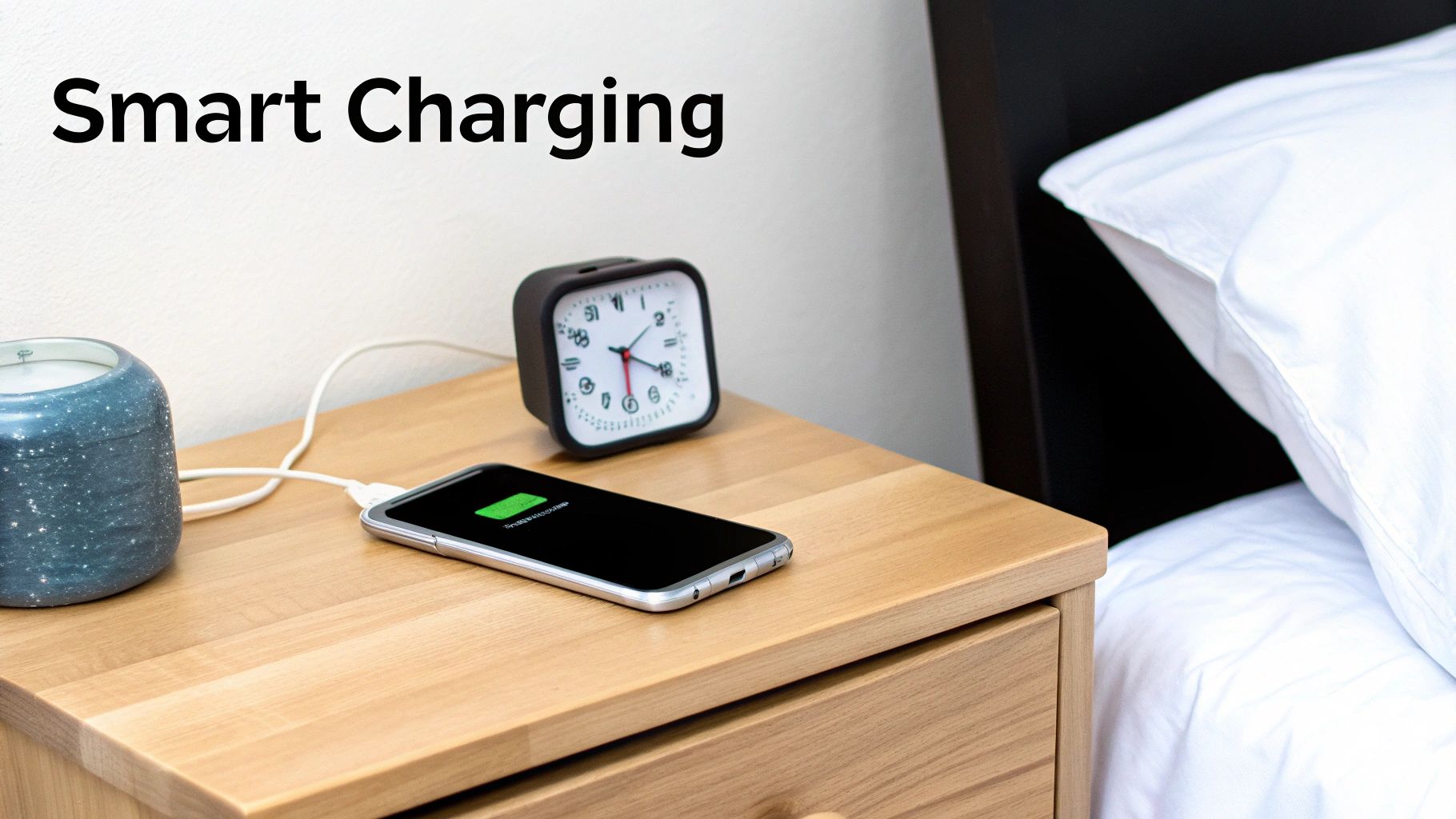
The "20-80 rule" is the best piece of advice for anyone looking to preserve their laptop battery. The goal is simple: try to keep your battery's charge somewhere between 20% and 80%. This is the sweet spot where the battery is most comfortable and under the least amount of strain.
So, instead of waiting for the low-battery warning to send you rushing for a charger, plug it in when it gets close to 20%. On the other hand, unplugging it once it hits 80% makes a huge difference. You're simply avoiding the high-stress conditions of a completely full or totally empty battery.
The core idea is simple: smaller charges are much healthier for your battery than full ones. It might feel a little strange at first, but this small change to your routine can add years to your device's usable life.
The facts back this up over and over. Keeping your charge in that middle zone really pays off. A study by battery experts showed that batteries constantly charged to full and drained completely wore out much more quickly. In fact, batteries left plugged in at 100% saw a 20-30% faster drop in their ability to hold a charge over two years compared to those kept in the 20-80% range. You can learn more about these best practices for charging lithium-ion batteries in our detailed guide.
Why You Should Avoid Leaving It Plugged In All The Time
I get it. A lot of us use our laptops like desktop computers, so they stay plugged into the wall for days. Modern laptops have features to prevent "overcharging," but that doesn't solve the main problem. Holding the battery at that high-power 100% state speeds up its aging process, permanently reducing how much charge it can hold.
A great habit to get into is just unplugging your machine when you're done for the day. If you know you won't be using it for a few hours, unplug it. This simple act gives the battery a much-needed break from that high-stress state.
Automating Smart Charging with Built-In Tools
Let's be honest, nobody wants to watch their battery percentage all day. The good news is that most laptop makers know this is a problem and have started building tools right into their software to help you out.
Look in your system's power settings for anything that lets you set a maximum charge limit. It goes by a few different names, so here's what to look for:
- Dell Laptops: Open the "Dell Power Manager" app and find the "Custom" battery setting. You can set your own charge limit, and they usually suggest a limit around 80% or 85%.
- Lenovo Laptops: The "Lenovo Vantage" app has a great feature called "Conservation Mode." It stops the battery charge at around 60%, which is perfect for when you're plugged in for long periods.
- HP Laptops: Many HP models have a "Battery Care Function" or something similar in the BIOS settings. This lets you set a hard limit on the maximum charge.
- Apple MacBooks: macOS has a clever feature called "Optimized Battery Charging." It learns your daily routine and will often hold the charge at 80%, only filling it up right before it thinks you'll need it.
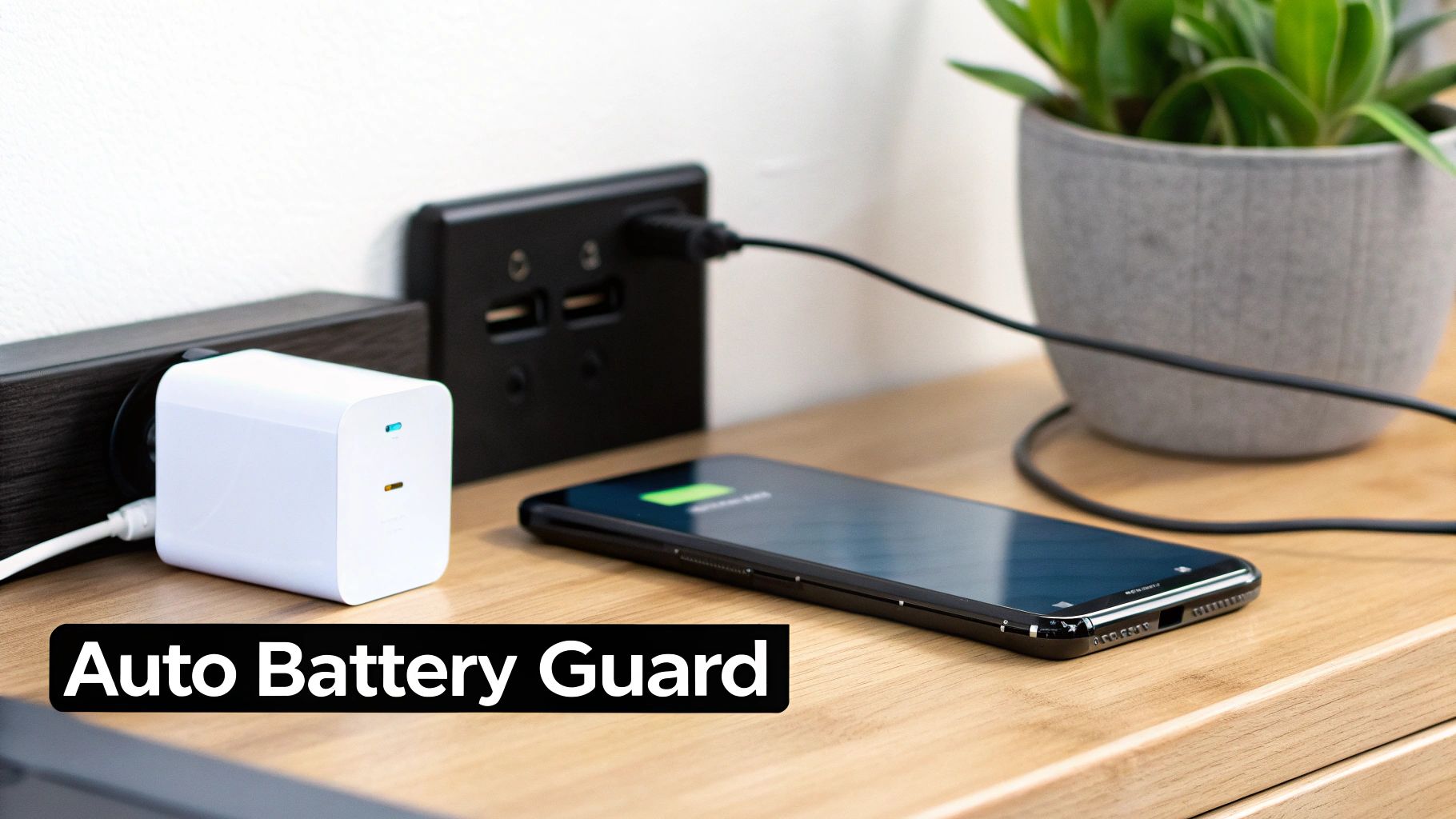
Turning on one of these settings is one of the easiest wins you can get. It puts the 20-80 rule on autopilot, taking all the guesswork out of it and keeping your laptop's battery healthy for a long time.
Why Charge Cycles and How Much You Drain Matter
Beyond the simple 20-80% rule, it's helpful to understand how your battery keeps track of its use. You've probably heard the term charge cycle, and it’s a key measure of your battery's lifespan. Think of it as your battery having a limited number of "lives" before it starts to get weaker and hold less charge.
So, what counts as one cycle? A single charge cycle is counted every time you use a total of 100% of your battery's power. The key word here is total. It doesn't have to happen all at once. For example, if you use 60% of your battery today, charge it, and then use another 40% tomorrow, you've completed one full cycle. If you're curious, you can find out how to check the number of charge cycles your battery has already been through.
This brings us to another idea: Depth of Discharge (DoD). It’s just a way of saying how much battery you use before you recharge. Running your laptop down to 10% is a deep discharge, while only using it until it hits, say, 60% before plugging it in is a shallow one.
Shallow vs. Deep Discharges
It turns out, your battery really doesn't like being pushed to its limits. It's much happier with smaller, more frequent sips of power than being drained dry and then filled up with a huge charge. Every time you run the battery way down, you're putting more stress on its inner parts, which causes it to wear out faster.
It's like the difference between running a marathon and going for a few short jogs during the week. Deep discharges are the marathon for your battery—very tough. Shallow discharges are the easy jogs that keep it healthy without the strain.
This isn't just a theory. A study of over 10,000 student laptops found that devices that were always charged with shallow discharges still had 80% of their original battery life after 500 charge cycles. In contrast, laptops that went through deep discharges hit that same 80% mark after only 350 cycles. That's a huge difference in lifespan from just a simple change in habit.
A Real-World Scenario
Let's see how this works in a typical day. Your laptop is at 80%.
- Scenario A (Shallow Discharge): You work for a few hours, and by lunchtime, your battery is down to 50%. You plug it in while you eat, and it tops back up to 75%. This is a small, low-stress recharge.
- Scenario B (Deep Discharge): You work all day on battery power, ignoring the warnings until it's barely alive at 10%. You finally plug it in, forcing it to do the hard work of a massive recharge from nearly empty.
Over time, making a habit of Scenario A will do wonders for your laptop's battery health.
This chart makes the point clear, showing how different charging styles affect your battery’s lifespan.
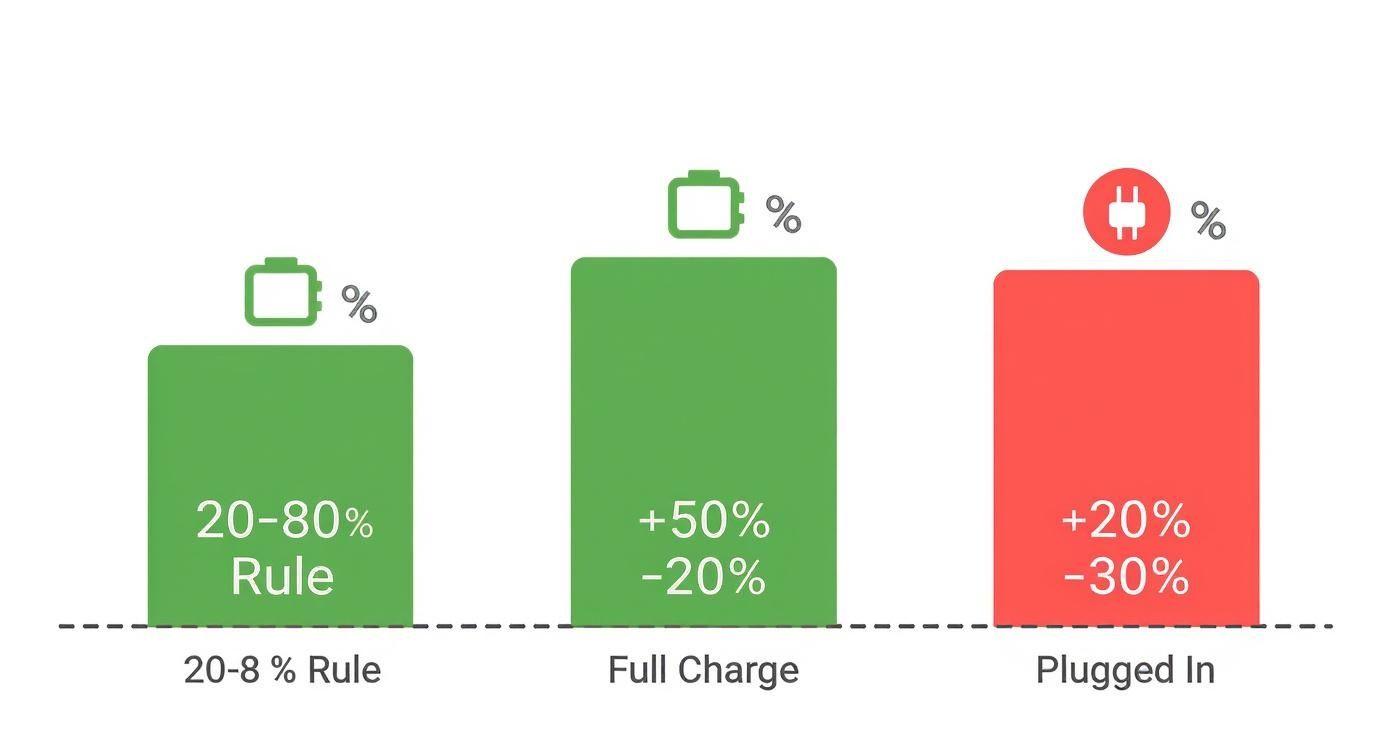
As you can see, sticking to that 20-80% sweet spot gives you a major advantage. Both constantly charging to full and leaving it plugged in all the time speed up wear and tear. The takeaway is simple: small, mindful changes to when you plug in and unplug have a powerful, combined effect on how long your battery will last.
Keeping Your Cool: Why Temperature Is Your Battery's Worst Enemy
It's not just your charging habits that decide how long your laptop battery will last. There's a silent killer that can completely ruin its lifespan: heat.
Think of your battery like an athlete. It performs best at a comfortable, normal temperature. Forcing it to work in extreme heat is like making that athlete run a marathon in the desert. It leads to quick exhaustion and, worse, permanent damage.
When a battery gets too hot, the chemical reactions inside speed up, but not in a good way. This causes permanent damage that reduces the battery's ability to hold a charge. This isn't a temporary problem that fixes itself once things cool down; the damage adds up over time.
You might be putting your laptop through this kind of stress without even realizing it. Leaving it in a hot car, using it in direct sunlight, or even just playing a demanding game can push the internal temperature into the danger zone.
The Real-World Impact of High Temps
The data on heat damage is pretty serious. Consistently using or even just storing a laptop above 30°C (86°F) can seriously shorten its life.
One study found that a battery stored at 40°C for a single year lost a massive 25% of its total ability to hold a charge. Compare that to a battery kept at a more reasonable 25°C, which lost only 4% over the same time. Every degree matters. The warmer the environment, the faster your battery's limited lifespan is used up.
Simple Habits to Beat the Heat
The good news is that keeping your laptop cool doesn't require any special skills. It really just comes down to good habits and being aware of where you are.
Here are a few practical tips you can start using today:
- Avoid Soft Surfaces: Please, stop using your laptop on your bed, couch, or a blanket. These surfaces completely block the air vents, trapping heat and forcing the fans to work harder. Stick to a hard, flat surface like a desk.
- Give It Breathing Room: Keep the area around your laptop clear. Piling books or papers next to it can block airflow and cause heat to build up.
- Dodge Direct Sunlight: The sun can turn your laptop's case into a little oven. If you're working outside or by a sunny window, find some shade.
- Clean Your Vents: Dust is the enemy of cool. Every few months, a quick blast of compressed air into the vents can clear out lint and dust, making a huge difference in cooling.
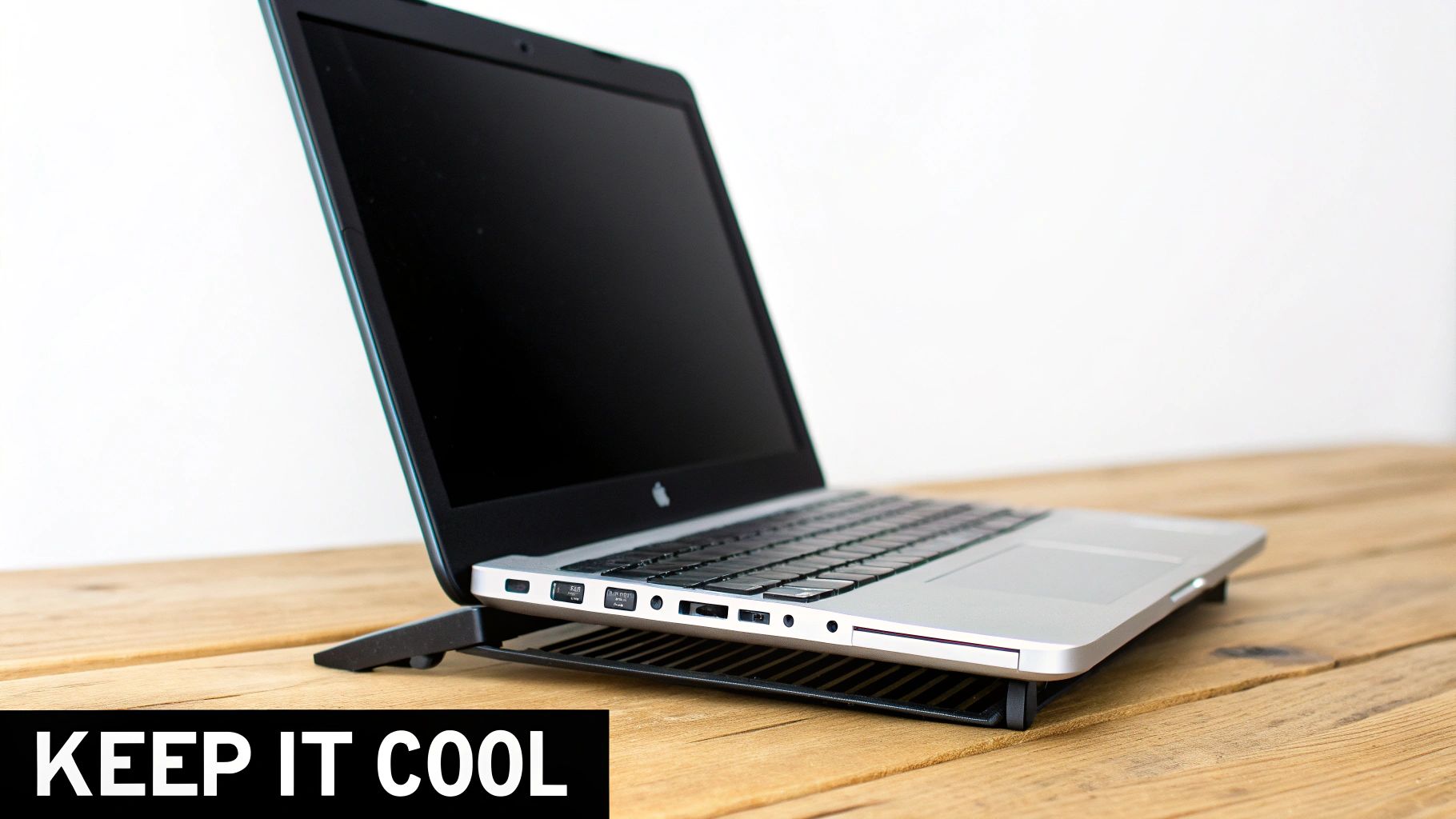
The easiest win here? Get a laptop stand. Just lifting your device allows for 360-degree airflow underneath, which can lower its temperature by several degrees without any extra effort from you.
What About the Cold?
While heat is the main problem, extreme cold isn't great for your battery either. If you've ever left your laptop in a car overnight during winter, you might have noticed it has less charge or struggles to even turn on.
Luckily, this effect is mostly temporary. The cold simply slows down the chemical reactions, reducing the battery's ability to provide power. Once it warms back up to room temperature, performance should return to normal. The key is to let a cold laptop warm up slowly before you start using or charging it.
Ultimately, it’s all about keeping a stable, normal temperature. By making a few small changes to how and where you use your laptop, you can protect it from one of its most damaging enemies. You can dig deeper into the impact of temperature and charging rates on battery degradation in our dedicated article.
Smart Software Settings to Extend Battery Life
While good charging habits and temperature control are key, your laptop’s own software is your secret weapon for protecting its battery. Both Windows and macOS have powerful, built-in tools designed to manage power use. You just need to know where to find them and how to use them.
These settings do more than just make a single charge last longer—they actually reduce the total number of charge cycles your battery has to go through. Think of it this way: every little adjustment that saves power means one less time you need to grab the charger, which adds up to better long-term health.
Activate Your Built-In Power Saving Modes
The single most effective software change you can make is to turn on your operating system's power-saving mode. It’s a one-click action that automatically adjusts a whole bunch of settings to cut down on energy use when you’re unplugged.
These modes work by slowing down performance just a bit, pausing background apps, and dimming your screen. Honestly, for everyday tasks like writing emails or browsing the web, you probably won't even notice the difference. But your battery definitely will.
- On Windows: Go to Settings > System > Power & battery and just turn on Battery saver. You can even set it to turn on automatically when your battery drops to a certain level, like 20%.
- On macOS: Open System Settings > Battery and enable Low Power Mode. This is great because it cuts down the system's energy use whether you're plugged in or on battery power.
Here’s a look at the kind of power management options you'll find built right into your operating system.
This screenshot shows how you can choose between different power plans like "Balanced," "Power saver," and "High performance," giving you direct control over how much power your laptop is using.
Tweak Your Display and Background Apps
Your laptop’s screen is one of its most power-hungry parts. A simple adjustment here can make a huge difference. Just lowering your screen brightness from 100% down to around 70% can make your battery last noticeably longer without making you squint.
Besides the display, a lot of applications are quietly draining power in the background, even when you aren't actively using them. Luckily, both Windows and macOS give you the tools to find and manage these energy-draining apps.
A quick look at your system’s activity monitor can be a real eye-opener. You might find an app you haven't used in hours is still one of the top energy users, quietly syncing data or checking for updates in the background.
For example, on a Mac, you can open Activity Monitor and click the "Energy" tab to see a real-time list of which apps are using the most power. On Windows, the Task Manager gives you the same kind of information. If you see something you don’t need running, just close it.
Use Manufacturer-Specific Software for Advanced Control
Many laptop makers like Dell, Lenovo, and HP include their own power management software that offers more detailed control than the standard OS settings. These apps often come pre-installed and can be a big help for battery health.
The key feature to look for is a charge limit setting. This lets you stop the maximum charge at 80%, basically automating the 20-80 rule we talked about earlier. This is incredibly useful if you, like me, keep your laptop plugged in most of the time.
- Dell Power Manager: Look for a "Custom" or "Primarily AC Use" setting.
- Lenovo Vantage: You'll want to enable "Conservation Mode" to limit the charge.
- HP Battery Health Manager: This is often found in the BIOS and lets you set a maximum charge level.
These clever systems stop the battery from sitting at a stressful 100% charge for hours. It's a bit like how smart energy recovery systems in electric cars work, using smart design to get the most out of the battery. By using these simple software settings, you can do something similar for your laptop, helping it stay healthier for a whole lot longer.
Dealing With a Laptop You Won't Use for a While
Sometimes, you need to put a laptop away for a few weeks or even months. A little bit of prep before you store it can be the difference between a healthy battery and a dead one when you finally turn it back on. It's just like getting a car ready for winter storage—you don't just park it and hope for the best.
The single most important thing you can do is get the battery charge to the right level. Storing a laptop with a 100% full or completely drained battery is a recipe for disaster, as both states put a ton of stress on the battery. The sweet spot is right around 50% charge. This is the most stable state for this type of battery, which slows down its aging process a lot.
Once you've hit that 50% mark, shut the laptop down completely. Don't just close the lid and let it sleep. Find a cool, dry place away from sunlight, like a closet or a desk drawer, and leave it there. Keep it out of attics, garages, or cars, where big temperature changes will do serious damage.
The Truth About Battery Calibration
You've probably heard people talk about "calibrating" a laptop battery. It sounds complicated, but it's really just a term for re-syncing the battery's internal sensor with what your computer thinks is happening. The good news? With modern laptops, you almost never need to do this. The sensors they come with are very accurate from the start.
Calibration doesn't magically fix old batteries or give you more runtime. All it does is make sure the percentage you see on your screen is a true reflection of the power you have left. The only time you should even think about it is if your laptop starts acting strangely—like suddenly dying when the battery meter still says it has 30% left.
If your battery percentage drains evenly and seems accurate, there's absolutely no benefit to calibrating it. In fact, you're just forcing an unnecessary full charge and drain on the battery, which adds to its wear and tear.
When—and How—to Calibrate the Right Way
So, you're seeing those weird, sudden shutdowns or big percentage drops. A calibration might be needed. It's a simple process, but it does take some time. You’re basically just running the battery through one complete charge cycle from full to empty.
Here’s how it works:
- Charge it up to 100%: Plug in your laptop and let it charge all the way to 100%. To be safe, leave it plugged in for another hour or two after it hits the top.
- Run it down completely: Unplug it and use your laptop normally until it shuts itself off from a dead battery.
- Give it a rest: Leave the laptop powered down and unplugged for at least three to five hours. This lets the battery settle.
- Charge it back up: Plug it in again and charge it all the way back to 100% in one go, without interruptions.
Once that's done, your laptop's software should have a much more accurate read on the battery's true state. But remember, this is a tool for fixing problems, not regular maintenance. If you feel you absolutely must do it, once a year is more than enough.
A Few Common Laptop Battery Questions
Even when you follow all the best advice, some specific questions always seem to pop up. Let's run through a few of the most common ones to clear up any confusion.
"Is It Really That Bad to Leave My Laptop Plugged In All the Time?"
In a word, yes. It's not the best thing for your battery's long-term health.
Modern laptops are smart enough to stop charging once they hit 100%, so you don't have to worry about "overcharging" like in the old days. The real problem is keeping the battery stuck at that 100% mark. This high-power state puts the battery's internal parts under constant stress, which makes it age much faster. Think of it like holding a muscle in a tensed position for hours—it just causes unnecessary strain.
If your laptop spends most of its life on a desk, your best bet is to use a built-in battery care feature to stop the charge at 80%. Most major brands like Dell, HP, and Lenovo have this. If yours doesn't, just get into the habit of unplugging it when it's charged and plugging it back in when it drops to around 40%.
"Do I Need to Calibrate My Laptop Battery? And How Often?"
Probably not. This is an older practice that doesn't really apply to modern batteries in the same way. Calibration doesn’t actually improve the battery's physical health; it just helps your computer give you a more accurate percentage reading.
It's like re-syncing a clock. It doesn't magically add more hours to the day, it just makes sure the time you see is correct.
You should only really think about doing it if you notice your battery behaving strangely, like suddenly dropping from 40% to 5% out of nowhere.
If your battery percentage seems to drain evenly, there's absolutely no benefit to calibrating it. In fact, calibration forces a full charge-and-drain cycle, which adds a little extra wear and tear for no real gain. If you feel you absolutely must, once or twice a year is more than enough.
"Will a Cheap Third-Party Replacement Battery Wreck My Laptop?"
It's a gamble, plain and simple. While you can find some decent third-party batteries out there, many are made with lower-quality parts and might be missing the important safety features that an official battery has. This could not only give you poor performance but also be a real risk to your device.
For peace of mind and the best performance, I always recommend getting a replacement directly from your laptop's maker.
If you do decide to take a chance on a third-party option, please stick to a well-known brand with a reputation for quality. Read the reviews carefully before you even think about buying.
For the ultimate control over your charging, a hardware solution like Chargie can automatically limit your charge to healthier levels, schedule top-ups when you need them, and protect your battery from overheating. You can learn more about how it works over at https://chargie.org.