
Clicky

Battery Health Windows: Quick Guide to Checking Your Laptop Battery

If you've ever felt that sinking feeling when your laptop battery just doesn't last like it used to, you're not alone. The good news is, Windows has a great built-in tool that can give you a full battery check-up in less than a minute.

Think of it as a report card for your battery. It tells you exactly how it's doing now compared to the day you first got your laptop. The two numbers you really want to look at are the 'Design Capacity' (how much power it could hold when brand new) and the 'Full Charge Capacity' (how much it can hold today).

How To Generate Your First Windows Battery Health Report

The difference between those two numbers tells the whole story of your battery's wear and tear. Best of all, you don't need any special software. Windows has a simple but powerful tool that creates a detailed report, giving you a clear snapshot of your battery's condition right away.
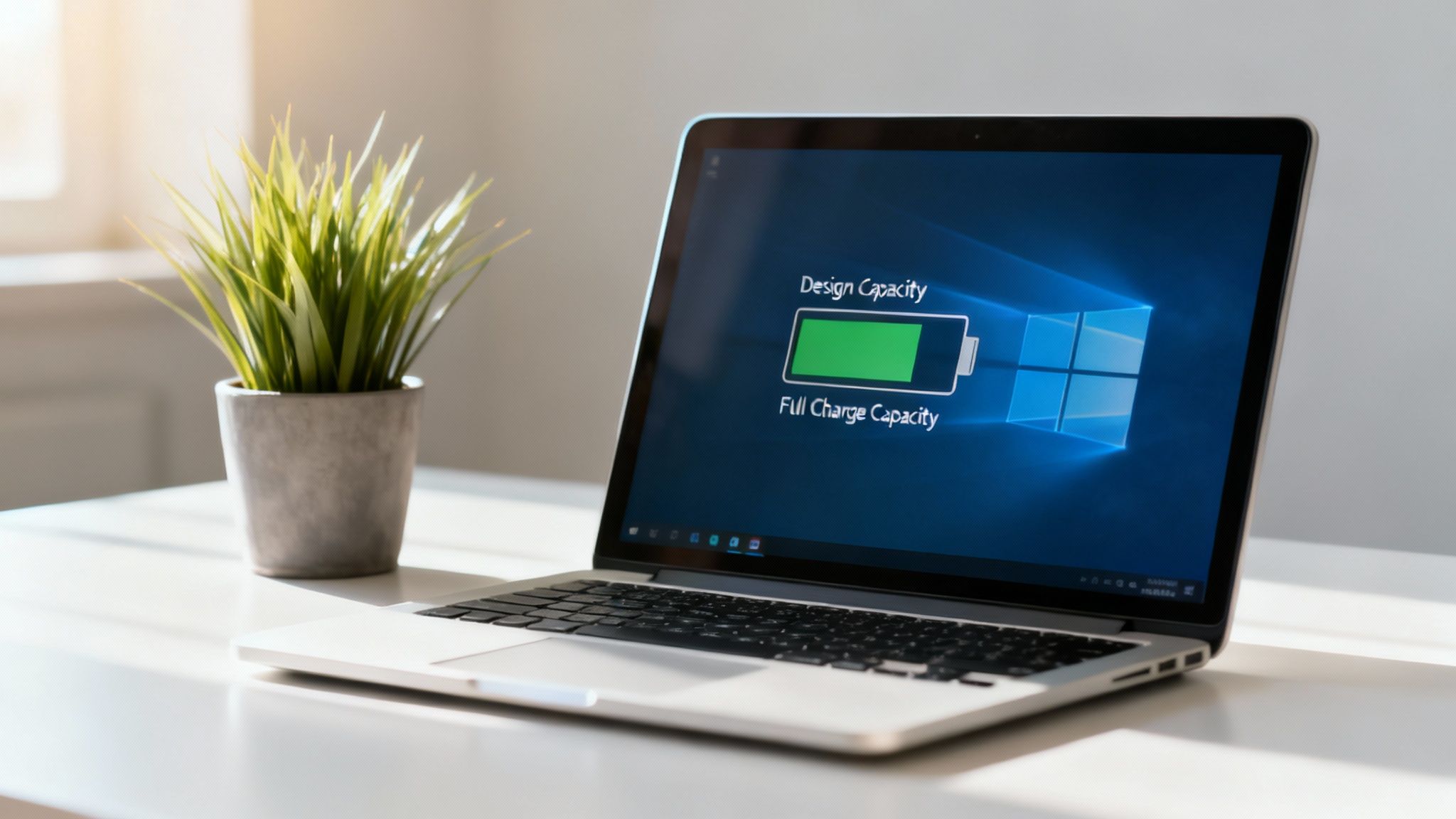
Laptop on a desk displaying Windows battery health status next to a small green plant.

Running this report is the most important first step. Without it, you’re just guessing. With this information, you can start making smart decisions about your power settings, charging habits, and whether it might be time for a replacement.

Creating the Report With One Simple Command

To get started, you'll need to use either Command Prompt or Windows PowerShell. Don't worry if you've never used them before—it’s as simple as typing one line of text.

When you run the command, you’re telling Windows to look at your battery's history and performance and put it all into an easy-to-read file.

The magic happens with the built-in powercfg command. For example, a report from a Windows 11 laptop might show a 'Design Capacity' of 38,912 mWh. If the 'Full Charge Capacity' is also 38,912 mWh, congratulations! That's a perfect 100% health score, meaning your battery hasn't worn down at all.

This is the best way to check battery health on Windows, and it works for both laptops and tablets. It's a key skill for any Windows user wanting to get the most out of their device. You can find more general info in our guide on how to check battery health.

Understanding the Key Metrics

Once you open the report, you’ll see a lot of information. It can seem like a lot at first, but you only need to focus on a few key things to understand what's going on.

Here’s a quick breakdown of the most important terms you'll find.

Key Battery Report Metrics at a Glance

Metric What It Means for You
Design Capacity This is the battery's original, factory-rated capacity. Think of this as its "brand new" state.
Full Charge Capacity This is the maximum charge your battery can currently hold. It naturally goes down over time as the battery ages.
Cycle Count This number shows how many times your battery has been fully drained and recharged. Most laptop batteries are good for 300-500 cycles.
Recent Usage This section provides a 3-day log of your battery's activity, showing when it was on, asleep, and plugged in.
Battery Life Estimates This part gives you an estimate of how long your battery should last now versus how long it lasted when it was new.

This table gives you the basics, but the full report has a lot more data if you want to look deeper.

Locating and Opening Your New Report

After you run the command, Windows tells you exactly where it saved the file. It's usually placed in your main user folder on the C: drive, making it easy to find.

Just look for the confirmation message in the command window.

From there, simply go to that folder, find the "battery-report.html" file, and double-click it. The report will open in your web browser, ready for you to look at.

Alright, you’ve made the battery report. Now what? It probably looks like a wall of technical words, but don't worry—it’s actually telling you a pretty simple story about your battery's life. Let's break down what all those numbers and graphs really mean.
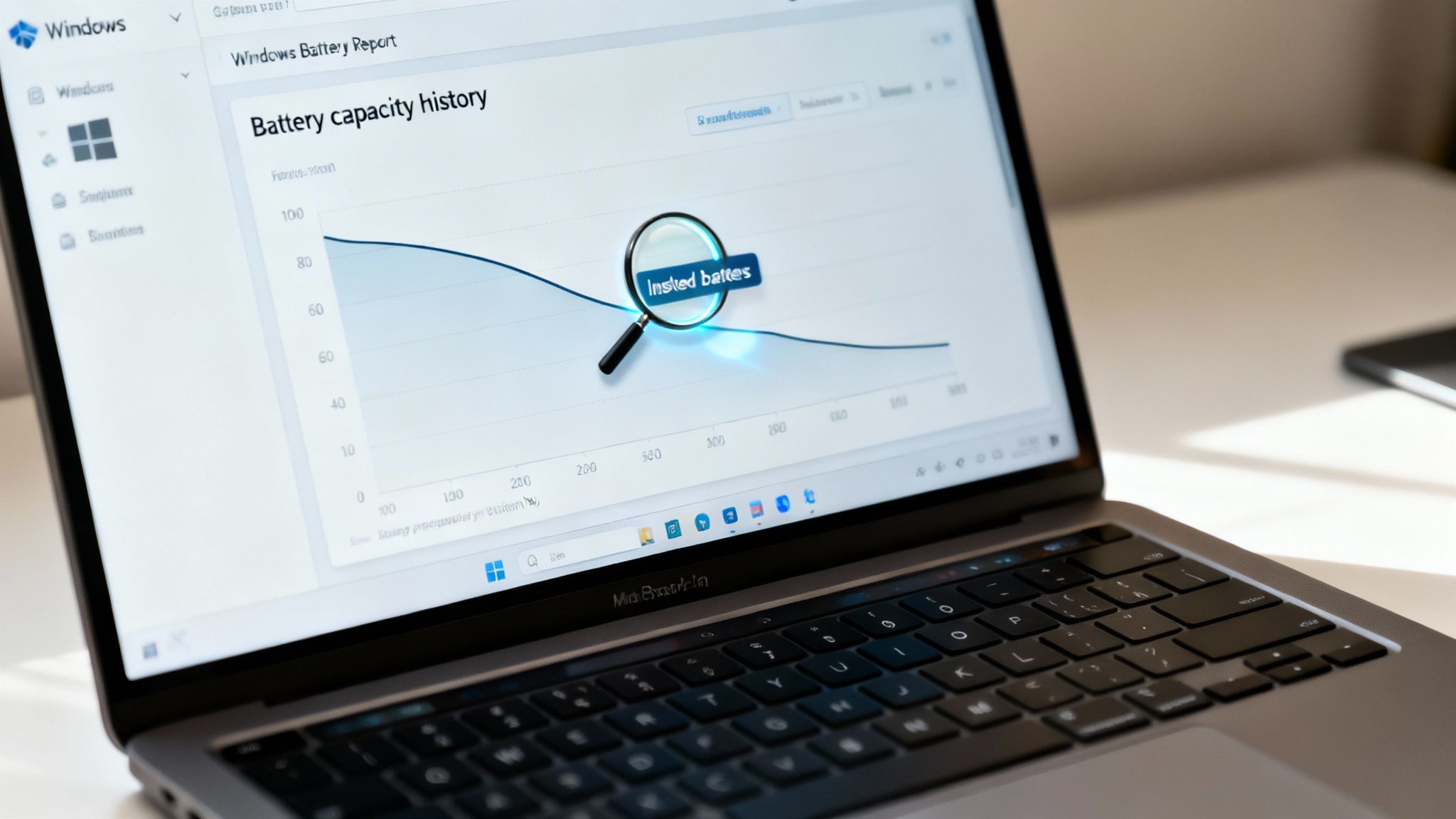
A laptop displays a Windows Battery Report showing a 'Battery capacity history' graph with a magnifying glass.

The very first section you’ll see, "Installed batteries," gets straight to the point with two key numbers: Design Capacity and Full Charge Capacity. As we've mentioned, the difference between these two is the best snapshot of your battery's health. Just below that, you'll find another important piece of info: the Cycle Count.

What Your Battery’s Age and Usage History Reveals

The Cycle Count is a big one. It tells you exactly how many full charge-and-drain cycles your battery has been through, giving you a clear look at its wear and tear over time.

It's pretty predictable. After about 300 cycles, a battery usually holds around 90% of its original charge. But after 500-1,000 cycles, that number can drop to as low as 70-80%. I recently saw a four-year-old laptop where the capacity had dropped to almost 50%. An 8-10 hour runtime had turned into only 3-4 hours. If you want to learn more about how charging habits affect this, this article explains what a battery cycle count really means.

Key Takeaway: Start with the "Installed batteries" section. It gives you an instant read on your battery's condition by showing its current health and a log of its workload (the cycle count).

Scroll down a bit, and you’ll find the "Recent usage" section. This is a log of your battery’s activity for the past three days—when it was active, sleeping, or plugged in. It's perfect for spotting any recent habits that might be secretly draining your battery.

Seeing the Decline with Your Own Eyes

Now for my favorite part: the "Battery capacity history" graph. This is where the report really shines because it turns all those numbers into a simple visual story. It shows how your Full Charge Capacity has dropped over time compared to its original Design Capacity.

  • What's normal? A slow, steady decline over time.
  • What's a red flag? A sudden, sharp drop. This could point to a faulty battery cell or even a problem caused by a bad software update.

This graph makes it easy to see what’s going on. A steep drop is a clear signal that something is wrong and your battery is wearing out faster than it should.

Finally, there’s the "Battery life estimates" section. This is where you see the real-world impact. It shows you how much the capacity loss affects your daily use by comparing your laptop’s original estimated runtime to its current one. For instance, it might show that your laptop, which was rated for 8 hours and 30 minutes when new, now only gets about 4 hours and 15 minutes. Seeing the loss in hours you can no longer use makes the data more meaningful.

Simple Windows Settings to Boost Battery Life

You don’t need to be a tech expert to get more life out of your laptop. Some of the biggest improvements for battery health on Windows come from simple software changes that take just a few minutes. These adjustments control how your computer uses power, and they add up to a real, noticeable difference in how long your battery lasts each day.
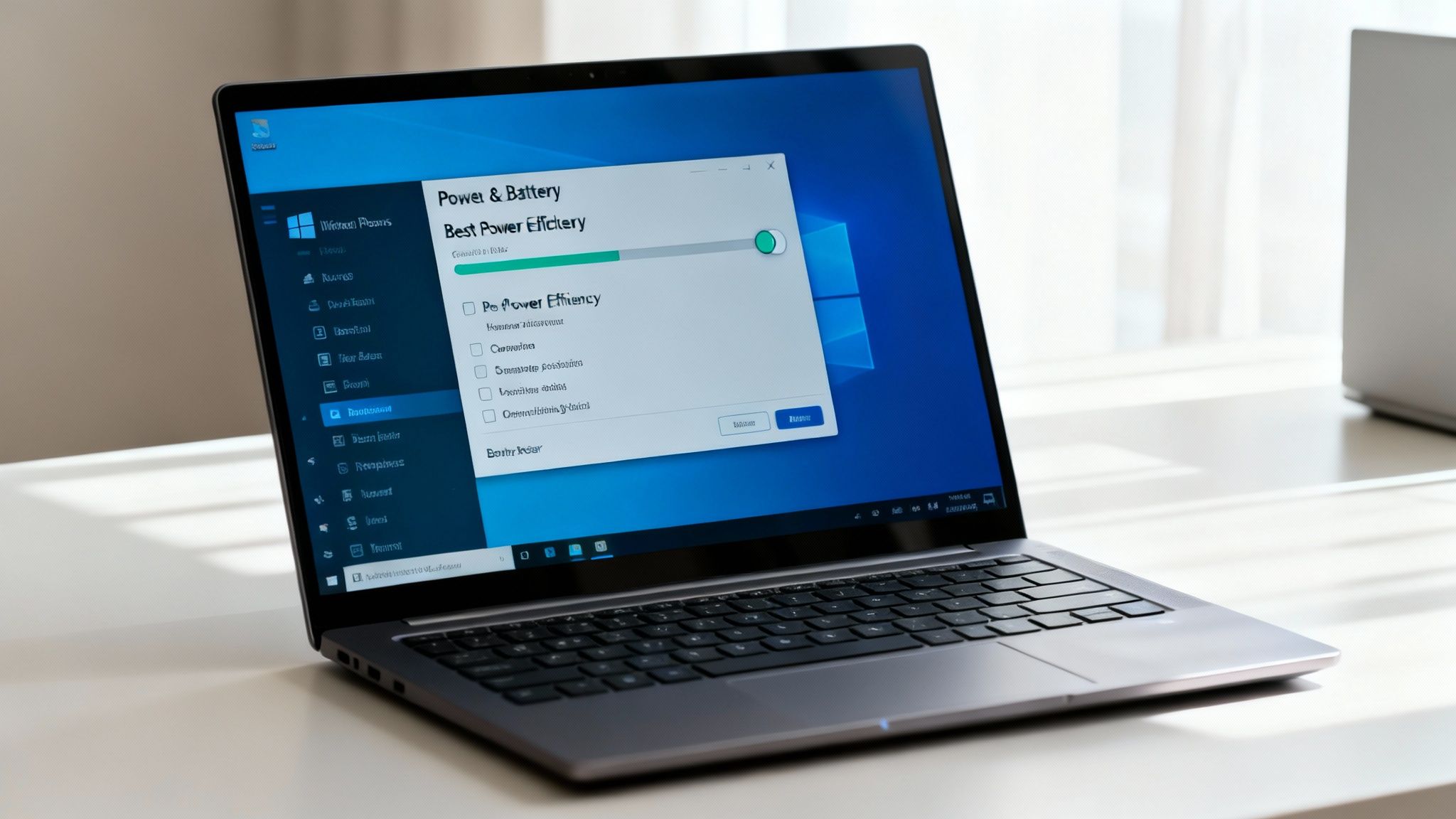
Laptop screen displaying Windows Power & Battery settings for optimizing power efficiency and battery health.

Let's start with the most important setting you can change: the Windows Power Plan. This one setting tells your laptop whether it should focus on speed or on saving energy. Picking the right one is key for when you're not plugged in.

Find Your Ideal Power and Performance Balance

Windows gives you direct control over its power use through a simple slider. You can usually find this by clicking the battery icon in your taskbar or by going to Settings > System > Power & battery. Once you’re there, you'll see a few options that change your experience a lot.

  • Best performance: This mode runs your laptop at full speed, using maximum power for tough tasks like video editing or gaming. It’s great when you're plugged in, but it will burn through your battery quickly.
  • Best power efficiency: This is your battery's best friend. It slows down your computer and cuts back on background activity to save as much power as possible. It's perfect for writing documents or just browsing the web.
  • Balanced: This setting is a middle ground, automatically adjusting performance based on what you’re doing. It’s a good default, but switching to efficiency mode yourself is much better for long periods away from a power outlet.

My personal tip is to switch to "Best power efficiency" the moment I unplug my laptop. The performance difference for everyday tasks is often hard to notice, but the extra battery life is a huge win.

Automate Savings with Battery Saver Mode

Besides the power plan, Windows has a great feature called Battery Saver. This mode automatically turns on when your battery level drops to a certain point—usually 20%. When it activates, it dims your screen, stops emails from syncing, and pauses some background notifications.

You can even change when it turns on. For example, setting it to activate at 30% or 40% gives you a bigger safety net, making sure you have enough power to find an outlet without rushing. It’s a set-it-and-forget-it tool that protects your charge when you need it most. For more ways to save your charge, check out our complete guide on how to extend laptop battery life.

Hunt Down Power-Hungry Apps

Ever wondered where all your battery life is going? Windows can actually tell you. In the same Power & battery settings menu, you can find a list of apps and see exactly how much power they have used over the last 24 hours or 7 days.

If you see an app you barely use eating up a huge chunk of power, it's probably running in the background. You can click on that app and manage its background activity, stopping it from draining your power when you aren't using it. Keeping your computer's software updated also helps, as companies often release updates that improve power use and fix battery-draining bugs.

Building Habits for a Longer-Lasting Battery

Software changes can give you a bit more power for your day, but it's your daily habits that really decide your battery's long-term health. Think of it this way: settings are a temporary boost, while good habits are the key to keeping your battery healthy on Windows for years.

Getting into a good routine is easier than you might think. It really just comes down to avoiding extremes—both in charging and temperature—that put stress on the sensitive materials inside your laptop's battery.

Embrace the 20-80 Percent Rule

One of the best habits you can build is keeping your battery charge out of the red zones. Constantly charging it to 100% or letting it drain completely puts the most strain on the battery. The sweet spot is a comfortable middle ground, somewhere between 20% and 80%.

This isn't just a myth; Microsoft themselves recommend this to slow down battery aging. Keeping your charge in this zone reduces stress on the battery and can make it last up to 50% longer compared to someone who constantly does full charge cycles. You can read more of their official advice on caring for your Windows battery.

A Practical Tip: Get into the habit of unplugging your laptop when it hits around 80% and plugging it back in when it drops near 20%. It’s a small change that makes a big difference over the life of your device.

Keep It Cool and Avoid Extreme Temperatures

Heat is the number one enemy of any battery. Leaving your laptop in a hot car or using it on a soft surface like a bed or blanket that blocks the air vents is a recipe for faster aging. In fact, being in temperatures above 35°C (95°F) for a long time can cause permanent damage to your battery's capacity.

  • Do this: Always work in a space with good airflow. Use a hard, flat surface like a desk or a lap desk to make sure air can move underneath your laptop.
  • Avoid this: Using your laptop directly on your lap for long periods or, even worse, on a couch or bed where heat gets trapped.

Extreme cold isn't great, either. It can temporarily reduce your battery's performance until it warms back up. The goal is simple: keep your laptop comfortable—not too hot, not too cold.

To make things even clearer, here’s a quick guide to the most important dos and don'ts.

Battery Care Dos and Don'ts

Do This Avoid This
Keep the charge between 20% and 80% for daily use. Constantly charging to 100% or letting it die completely.
Work on a hard, flat surface to ensure good airflow. Using your laptop on a bed, couch, or blanket that blocks vents.
Store the laptop in a cool, dry place. Leaving your device in a hot car or in direct sunlight.
Reset your battery every few months for accurate readings. Forgetting to reset it, which can lead to surprise shutdowns.
Keep your system updated for better efficiency. Running outdated software that might drain the battery faster.
Unplug accessories when you're not using them. Leaving multiple power-hungry devices connected all the time.

Following these simple rules is the best way to prevent your battery from aging too quickly and keep your laptop running strong.

Calibrate Your Battery for Accurate Readings

Ever had your laptop suddenly die on you even when it showed 10% battery left? That’s a classic sign that your battery needs to be reset, or "calibrated." Over time, the software that shows your battery percentage can get out of sync with the battery's actual power level.

Resetting your battery every two to three months is the fix. It's a simple process: just charge your battery all the way to 100%, leave it plugged in for another hour or two, then use your laptop until it completely drains and shuts itself off. After that, charge it back up to 100% in one go without using it.

This simple reset helps the software and the battery get back on the same page, making sure the percentage you see on your screen is a true reflection of the power you have left. Beyond simple hardware care, remember that keeping your whole system in good shape is important. For instance, consistent patch management ensures your operating system is running the latest, most efficient power management software available.

Knowing When It's Time for a Replacement

No matter how well you take care of it, every laptop battery has a limited lifespan. You’ll eventually reach a point where no amount of software changes or careful charging can fight against the simple fact that the battery is old. The trick is knowing when you’ve reached that point, so you can avoid the frustration of a sudden shutdown when you need your laptop most.

While there isn't one magic number for every device, a major red flag is when your battery's Full Charge Capacity consistently drops below 60% of its original Design Capacity. When it gets this low, you’ll notice your runtime drops suddenly. The battery might even die without warning, even when Windows says you still have power left.

The Telltale Signs of a Dying Battery

Besides the numbers in your battery report, your laptop will give you some pretty clear real-world hints that it's time for a change.

You might notice the laptop getting unusually hot when charging. Or maybe you've seen the battery percentage drop in huge, unpredictable chunks—like going from 40% to 10% in just a few minutes. That's a classic symptom.

The most serious warning sign, though, is physical swelling. If your laptop case is bulging, or the trackpad becomes stiff and hard to click, that's a serious safety issue. It means the battery inside is failing and expanding. You should stop using it immediately and get it replaced.

This little flowchart breaks down how you should adjust your charging habits depending on whether you're plugged in at a desk or out and about.
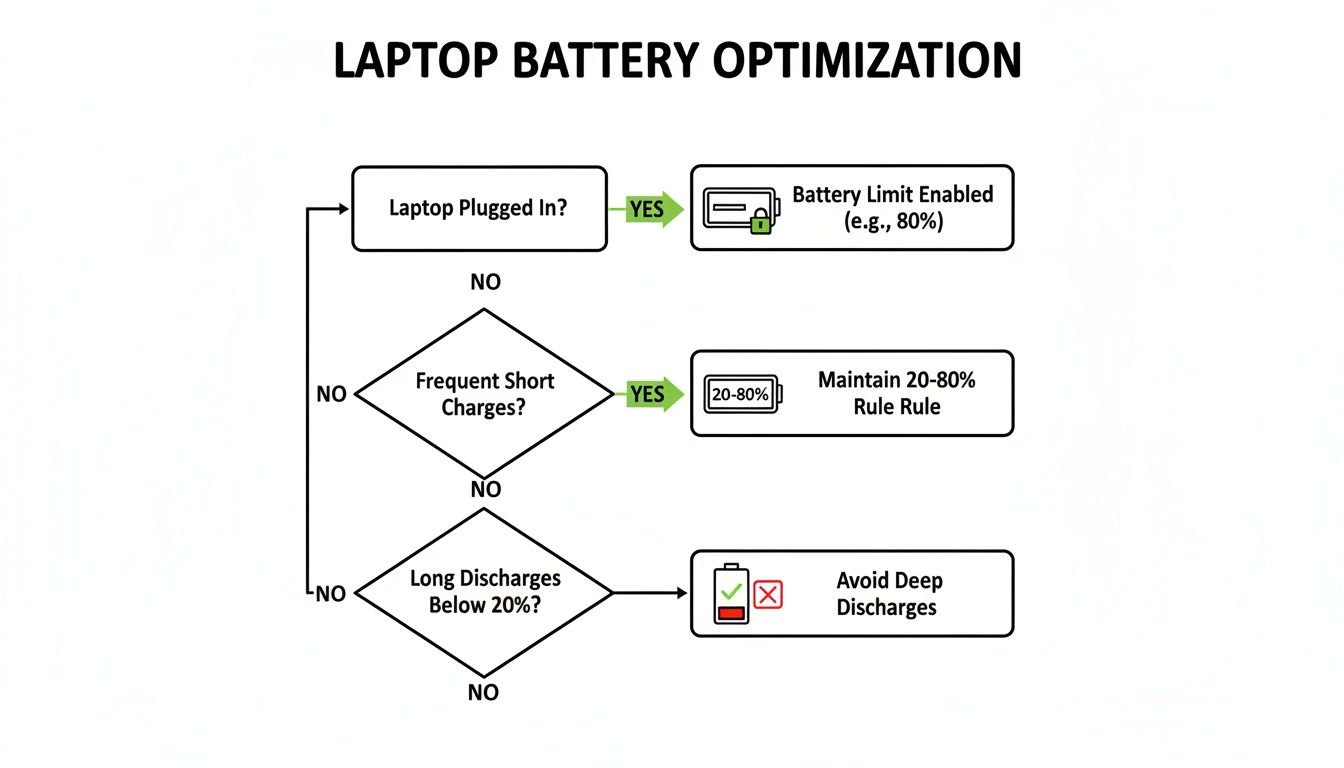
Flowchart illustrating laptop battery optimization tips, including charging limits, 20-80% rule, and avoiding deep discharges.

The key takeaway here is that there’s no one-size-fits-all strategy. You limit the charge when you're at a desk and stick to the 20-80% rule when you're on the move. Both are important for long-term battery health.

Plan Ahead with Smart Charging

Most modern laptops come with some form of "smart charging" or "battery limit" mode. These features are great because they automatically stop charging at around 80%, which is perfect for keeping the battery health on Windows devices good when they spend most of their time plugged in. If your laptop has this feature, turn it on. It's one of the best things you can do to prevent wear.

For those managing a bunch of devices, like in a small business, it’s a smart move to schedule battery checks. A simple quarterly review of battery reports can help you spot failing units ahead of time and get replacements ordered before a user’s laptop dies in the middle of a big project.

At the end of the day, replacing a battery isn't about giving up; it's just good maintenance. A fresh battery can make your laptop feel brand new again, giving you back the portability and performance it had on day one.

Frequently Asked Questions About Battery Health

Learning about laptop batteries can feel a bit confusing. Even with all the tools and settings Windows gives you, you might still have questions about how to best care for your machine day-to-day. Let’s clear up some of the most common things people wonder about.

Here are some direct, simple answers to help you understand your laptop's power system without needing to be an expert.

How Often Should I Check My Laptop Battery Health?

I'd suggest creating a Windows battery report every two or three months. This is a good schedule to keep an eye on its natural, gradual decline without worrying about it too much.

But, if you suddenly notice your laptop dying way faster than it used to, run a report right away. It’s a great first step to see if a recent update or a new app is causing trouble before it does more damage.

Expert Insight: Think of these regular check-ups like preventative care for your car. Spotting a sudden drop in capacity early can help you find a problem, like a rogue app or a bad software update, before it permanently harms your battery.

What Does "Cycle Count" Actually Mean?

A cycle count is just a count of how many times your battery has gone through one full 100% drain and recharge. This doesn’t have to happen all at once. For example, if you use 50% of your battery today, plug it in overnight, and use another 50% tomorrow, that adds up to one complete cycle.

Most modern laptop batteries are designed to last for 500 to 1,000 cycles before you see a serious drop in performance. A low number, like anything under 300, tells you the battery is still in good shape. A high count, say over 800, is a clear sign that it’s been used a lot and is likely near the end of its life.

Can I Reverse Battery Damage?

Unfortunately, no. Once a battery starts to age and its capacity starts to fade, there's no way to undo it. That lost capacity is gone for good.

What you can do, however, is slow down future damage. Adopting better habits—like keeping your charge level between 20-80% and avoiding high temperatures—will protect the health you have left for much longer. If your battery is already in really bad shape, the only real fix is to replace it.

Is Leaving My Laptop Plugged In All The Time A Bad Idea?

Yes, it can be. Keeping your laptop always plugged in at 100% puts constant stress on the battery, which makes it age faster. This problem gets even worse if your laptop gets warm while it's charging, because heat is the battery's worst enemy.

Many newer laptops have a "smart charging" or "battery limit" feature in their settings. This is a lifesaver. It automatically stops the charge at around 80% to protect the battery from the strain of being full. If your machine has this, turn it on. It's one of the best things you can do for its long-term health. If not, try to get in the habit of unplugging it and letting the battery drain a bit from time to time.


Stop worrying about your battery's lifespan and take control with Chargie. This smart device automates healthy charging habits, like the 20-80% rule, to drastically extend the life of your Windows laptop and other devices. Protect your investment and reduce e-waste by visiting https://chargie.org to learn more.

How to Extend Battery Life on Phones, Tablets, and Laptops

If you want to know the real secret to making your device's battery last longer, it's pretty simple: change how you charge it. The two biggest things that wear down the batteries in our phones, tablets, and laptops are leaving them plugged in to charge to 100% and letting them get too hot.

Your Quick Guide to a Longer-Lasting Battery

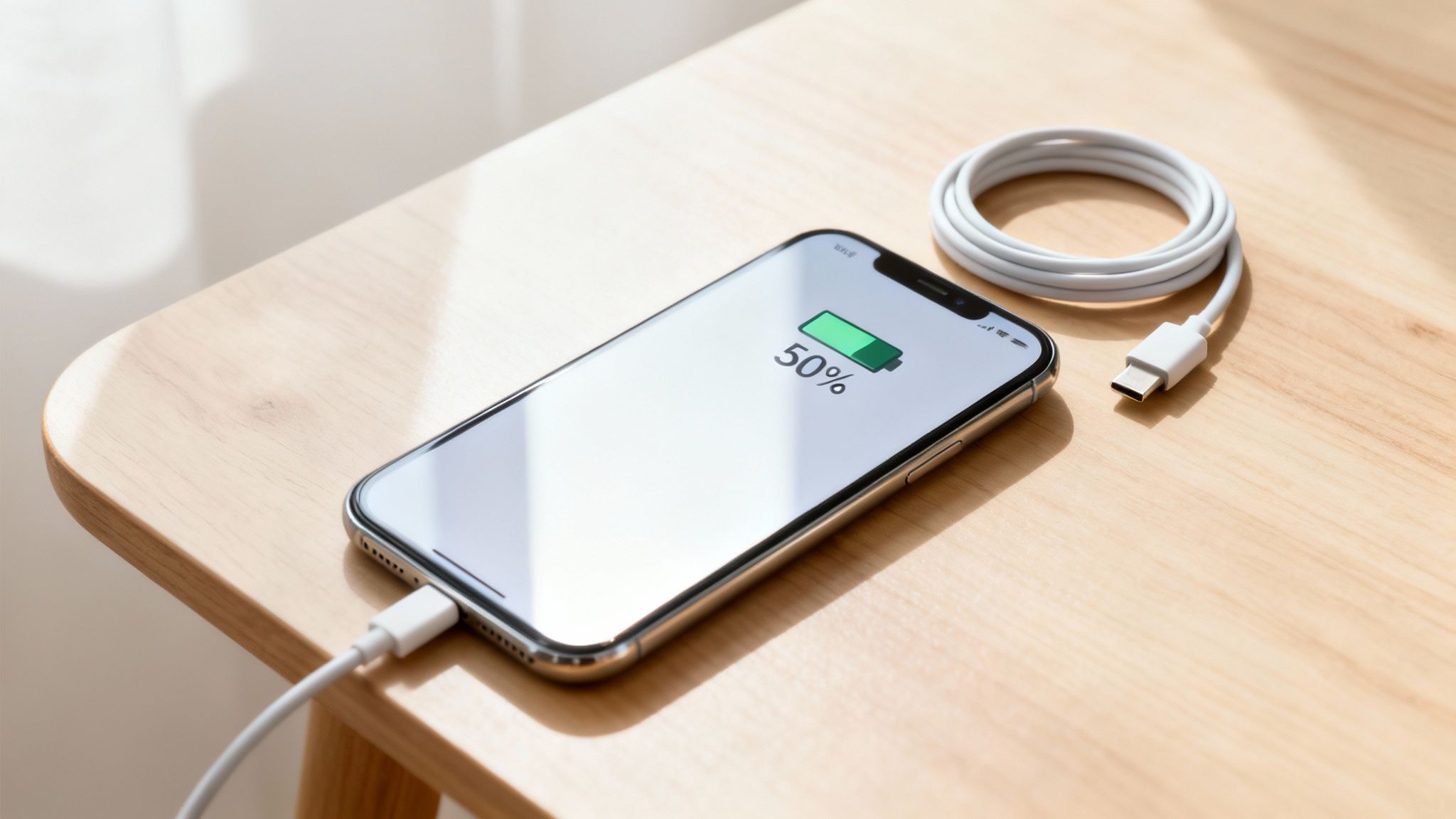
A smartphone charging with 50% battery displayed on its screen, next to a coiled white cable on a wooden table.

Does your phone's battery life feel like a constant countdown? You start the day fully charged, but by lunchtime, you're already looking for a charger. It's a frustrating problem, and it's a sure sign your battery is getting old faster than it should.

The good news is you have more control over this than you might think. By making a few small changes to your daily routine, you can seriously improve how long your battery lasts each day and how healthy it stays over time. This isn't about digging into confusing settings; it's about building smarter habits for your devices.

Small Habits, Big Impact

You don't need to be a tech expert to see a real difference. The best tips are usually the simplest ones because they fix the main causes of battery wear and tear. Think of it like taking care of your car—a little care now prevents big problems later on.

Here are the main ideas to keep in mind:

  • Don't always charge to 100%. Constantly charging your battery to full or letting it die completely puts a lot of stress on it.
  • Keep your device cool. Heat is the number one enemy of a healthy battery. Leaving your phone in a hot car or in direct sunlight can cause lasting damage.
  • Use the smart features you already have. Modern phones and laptops come with built-in tools like Optimized Charging and Low Power Mode. They’re made to protect your battery for you, so use them!

The goal isn't to worry about your battery percentage all day. It's about creating good conditions for your battery, reducing wear so it works better for longer.

To make this even easier, here's a quick list of the best changes you can make today.

Top 5 Quick Wins for Battery Health

Habit Why It Works Impact Level
Charge to 80%, not 100% Avoids the stress that makes batteries age faster. High
Don't let it drop below 20% Prevents strain on the battery when it has very little power left. High
Keep it cool Heat causes chemical changes that permanently damage the battery. High
Use slow, overnight charging Creates less heat and stress than fast charging, especially when managed. Medium
Turn on Optimized Charging Your device learns your routine and holds the charge at 80% until you need it. Medium

These simple changes, when you do them regularly, lead to a much healthier battery over the life of your device.

Learning from Bigger Batteries

It turns out the same rules that protect the little battery in your phone also work for much bigger ones—like those in electric cars. In fact, we can learn a lot from how electric cars manage their batteries.

Studies on electric car batteries show they only lose about 2.3% of their health per year. That's mainly because smart systems stop them from charging to 100% for daily driving. This lines up perfectly with what we know about our own devices: keeping your phone's charge between 20% and 80% can make it last much longer. For those who use electric bikes, you can find similar strategies for maximizing e-bike battery range that follow these same basic ideas.

Why Your Battery Fades and What You Can Do About It

Ever notice how a brand-new phone feels like it can last forever, but a year later, you're nervously watching the battery percentage by 3 PM? That’s a real thing. It's called battery aging, and it happens to every phone, tablet, and laptop out there.

The batteries in our devices are amazing, but they don't last forever. Think of them like a new water bottle. At first, you can fill it to the very top. But with every use, tiny, invisible cracks start to form inside. Over time, that bottle just can't hold as much as it used to. Your battery is going through the same process, losing a little bit of its total capacity every time you charge it.

What's a "Charge Cycle," Anyway?

You might hear the term "charge cycle," but what does it actually mean? It’s simpler than it sounds. One complete charge cycle is counted every time you use up a total of 100% of your battery's power.

This doesn't have to happen all at once. Maybe you use 75% of your battery during the day, charge it overnight, and then use another 25% the next morning. Just like that, you’ve finished one full cycle. Most phone batteries are made to last for around 500 full cycles before their health really starts to drop—usually down to about 80% of what it was when it was new.

The Three Main Villains of Battery Health

While a little aging is normal, some things can make your battery wear out much faster. If you want to keep your device running well for years, you need to know what you're up against.

These are the three things that put the most stress on your battery:

  • Extreme Heat: This is the worst enemy for your battery. Heat speeds up the chemical changes inside your battery that cause it to break down. Leaving your phone on a hot car dashboard or playing heavy games while it’s fast-charging under a pillow are sure ways to cause permanent damage.
  • Staying at 100%: Leaving your phone plugged in all night, every night, forces it to stay at 100% for hours. This keeps the battery under constant stress. It’s like stretching a rubber band as far as it can go and just holding it there for hours—eventually, it’s going to get weaker. That’s what’s happening inside your battery.
  • Dropping to 0%: On the other hand, letting your battery completely die is also a bad idea. Draining it to 0% can mess with its internal parts, making it harder for it to hold a good charge in the future.

The big takeaway here? Batteries are happiest in the middle. They don't like being too hot, too full, or too empty. Just avoiding those extremes is the single most powerful thing you can do for your battery's long-term health.

How Your Daily Habits Make All the Difference

It really comes down to this: your habits have a direct effect on how fast your battery ages. Someone who charges their phone to 100% overnight and always lets it drop to 1% will see their battery health drop way faster than someone who tries to keep it between 20% and 80%.

The difference is big, too. By consistently avoiding those stressful highs and lows, a battery can stay healthy for hundreds of extra charge cycles. That means your device doesn't just last longer through the day—it stays useful and keeps its value for years to come. These small changes aren't just about getting a little more screen time; they're about protecting the heart of your digital life.

Build Better Charging Habits for Lasting Battery Health

Forget all the small software settings for a minute. The single biggest thing you can do for your battery’s long-term health is to change how you charge it. By building a few simple, smarter charging habits, you can seriously slow down the aging process and keep your device feeling new for much longer.

It starts with throwing out some old, outdated advice. You might remember being told to let your battery drain completely before plugging it in. That was good advice for old types of batteries, but for the modern batteries in every phone, tablet, and laptop today, it’s one of the worst things you can do.

The Modern Sweet Spot: The 20-80 Rule

The new golden rule for battery health is the 20-80 rule. Simply put, your battery is happiest and under the least amount of stress when its charge level stays between 20% and 80%.

Think of it like this: filling a battery all the way to 100% is like over-inflating a tire. It puts everything under intense pressure. On the flip side, letting it drop to 0% is like letting all the air out, which can damage the tire's structure. That middle zone is the key.

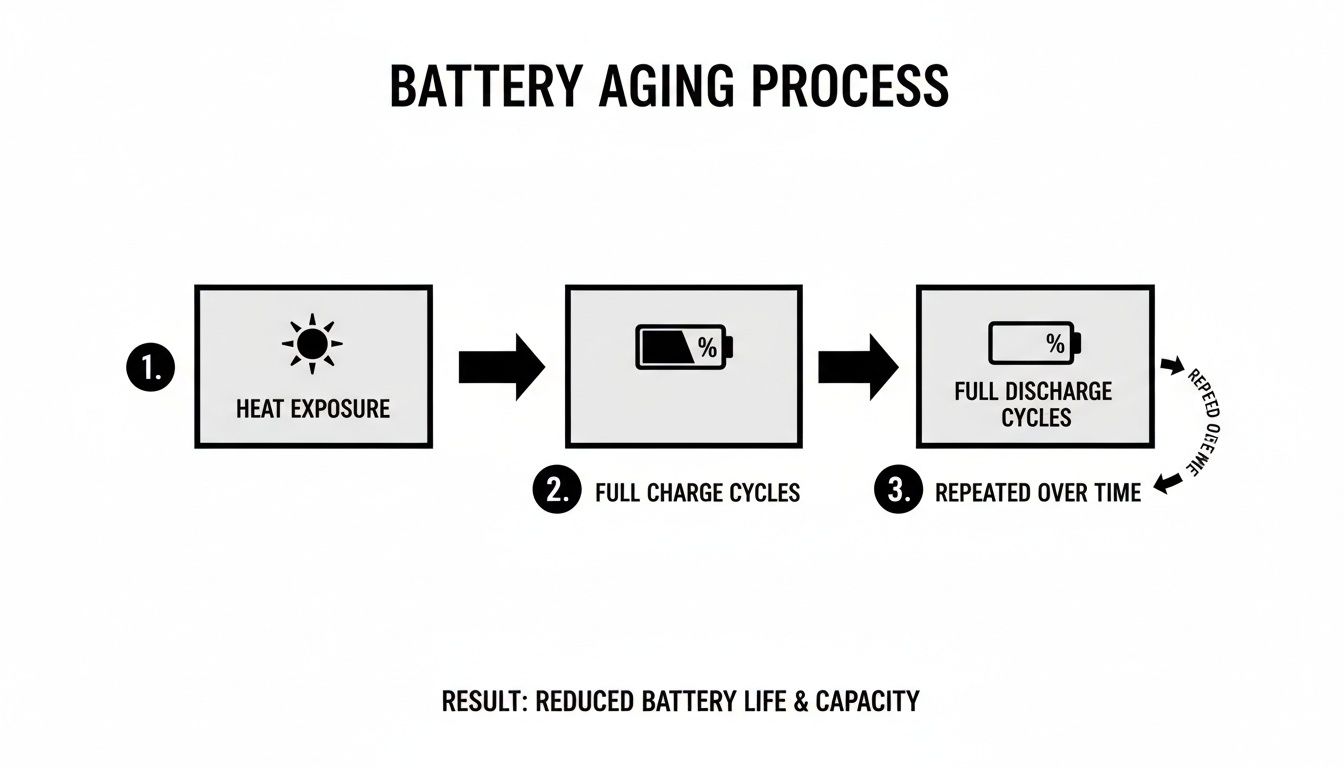
This diagram shows the main things that make a battery age faster. As you can see, heat and charging from empty to full are the biggest problems.

Diagram illustrating the battery aging process through heat exposure, full charge and discharge cycles, leading to reduced battery life.

Avoiding these extremes is the best way to protect your battery’s ability to hold a charge over time.

Now, don't get obsessed about hitting these numbers perfectly every day. The goal is to make partial charging your normal habit. Instead of one long overnight charge, try shorter, more frequent top-ups during the day when it’s easy.

This isn't just a theory for small gadgets. A similar thing happens with electric cars. A study on electric car batteries found that real-world driving habits—not constant, extreme charging or draining—actually made the batteries last nearly a third longer than lab tests predicted. It’s solid proof that moderate use is much healthier than a constant cycle of full-to-empty. You can read the full study about EV battery findings to see how this is changing things.

The Truth About Overnight Charging

This brings us to the big one: is leaving your phone plugged in overnight actually bad for it? The short answer is yes, but it's a little more complicated.

Leaving your device plugged in all night keeps it at 100% for hours. As we've learned, this creates stress and extra heat—two of the main things that ruin batteries.

Thankfully, device makers know this is a common habit. They’ve built some clever software features to protect your battery from your own routine.

Your device's built-in charging software is a powerful helper. By learning your daily schedule, it automatically stops the battery from sitting at 100% for long periods, which greatly reduces stress and wear overnight.

These features work by learning your sleep schedule. They'll quickly charge your phone to 80% and then pause, holding it there for most of the night. Then, just before your alarm goes off, the software starts again to add the final 20%, so you wake up to a full battery without the hours of unnecessary stress.

Here’s what these features are called on different devices:

  • For iPhones and iPads: It's called Optimized Battery Charging. Find it under Settings > Battery > Battery Health & Charging.
  • For Google Pixel Phones: Look for Adaptive Charging. It’s located in Settings > Battery > Adaptive Charging.
  • For Samsung Galaxy Devices: It’s known as Protect Battery. Turn it on in Settings > Battery and device care > Battery > More battery settings.

While these tools are a huge help, they aren't a perfect fix. They reduce the damage but don't get rid of it completely, since the device still eventually reaches that stressful 100% state. For the best long-term results, the ideal habit is still to unplug it before it gets full. But if you’re going to charge overnight, turning these features on is a must.

Adjust These Simple Settings to Save Battery Life

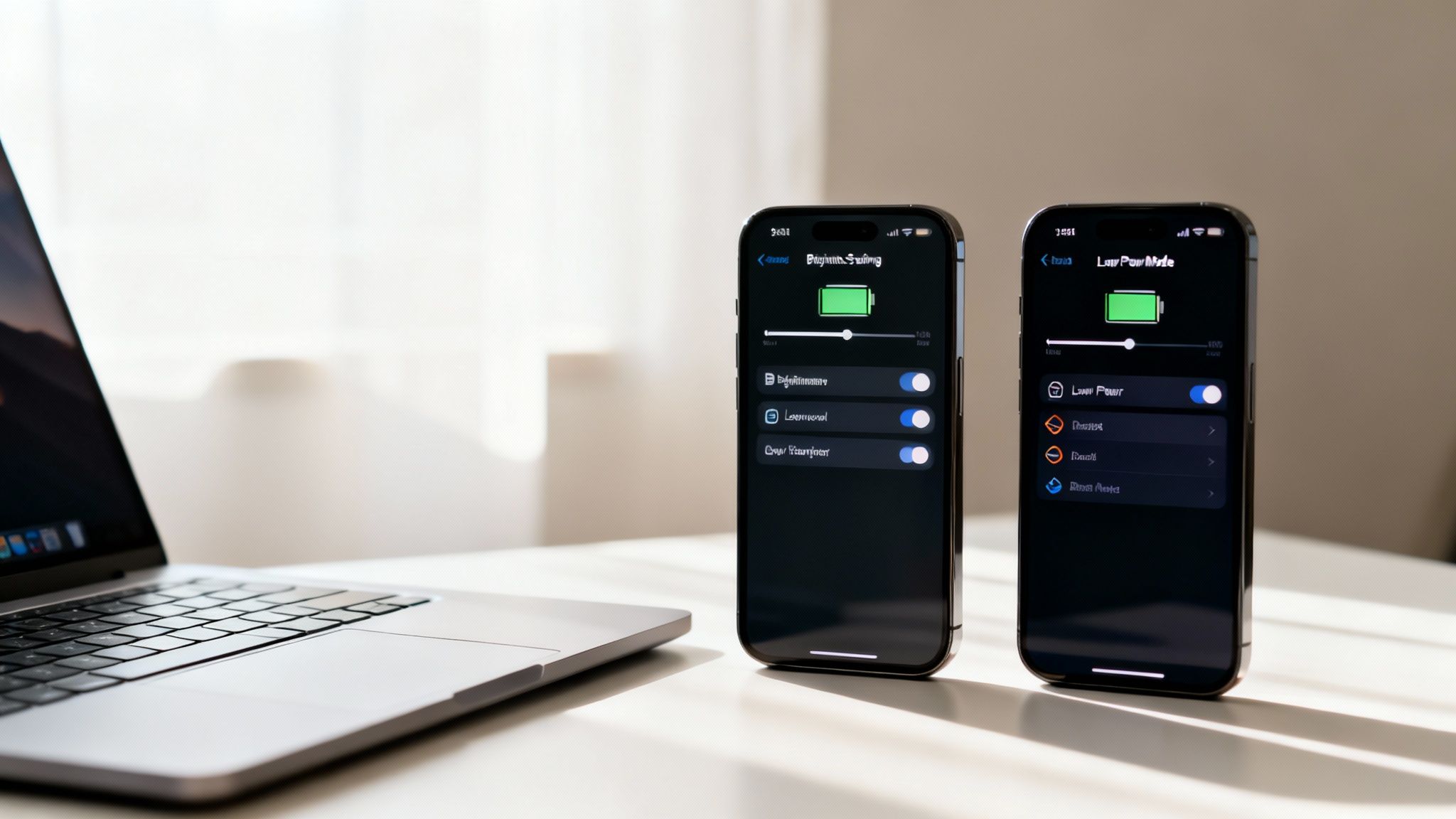
Two smartphones display battery saving settings, including Low Power Mode, next to a laptop.

While smart charging habits are your best tool for long-term battery health, your device's settings are your best friend for getting through a long day. Your phone, tablet, and laptop are already packed with simple but powerful tools made to save power when you need it most.

It can feel a little confusing trying to figure out which settings to change, but just a few key adjustments can make a huge difference. These changes are all about telling your device to stop wasting precious energy on things you aren't using.

Master Your Screen and Display

Your device’s screen is almost always the biggest power user. It’s a beautiful, bright window into your digital life, but it also uses a lot of battery. Taming it is the quickest and easiest win you can get.

Start by lowering your screen brightness. You really don't need it turned all the way up unless you're in direct sunlight. For most situations, keeping it around 30-50% is perfectly fine and saves a surprising amount of battery. Better yet, just turn on Auto-Brightness and let your device handle it for you.

Next, you'll want to use Dark Mode. If you have a device with an OLED or AMOLED screen (which includes most modern phones), Dark Mode is a game-changer. Unlike older screens that light up the whole display, an OLED screen turns off individual parts to create true black. That means a black background uses almost no power—a fantastic way to save battery life.

Tame Background App Activity

Ever close an app, only to get a notification from it minutes later? That's Background App Refresh at work. This feature lets apps check for new content and updates even when they're not on your screen.

It's useful for important apps like messaging or email, but it constantly drains a little battery for dozens of other apps that don't need to be running in the background.

  • On iOS/iPadOS: Go to Settings > General > Background App Refresh. You can turn it off completely or, the smarter move, turn it off for individual apps that don't need to be always on.
  • On Android: This is usually called "Background usage limits." Find it under Settings > Battery > Background usage limits and put any apps you don't need into "Deep sleeping" mode.

Taking just a few minutes to check your background app permissions can save a good amount of your daily battery life. If an app doesn't need to be on 24/7, put it to sleep.

The same idea applies to location services. Many apps ask for your location but don't actually need it to work. Go into your privacy settings and switch apps to "While Using the App" instead of "Always." For apps that have no reason to know where you are—like a simple game or photo editor—turn off location access completely.

The Power of Low Power Mode

When your battery percentage starts getting low, your device’s built-in power-saving mode is your emergency helper. It's a one-tap solution that automatically makes several smart changes to stretch whatever charge you have left.

These modes are very effective because they temporarily slow down features that use the most power.

  • Low Power Mode (iOS/iPadOS): This reduces background activity, automatic downloads, and some visual effects. It also dims the screen and can slow the device down slightly.
  • Battery Saver (Android): This limits background apps, turns on Dark Mode, and stops some network connections. You can find a detailed breakdown in this guide to Android's power-saving mode.
  • Battery Saver (Windows): Dims the screen brightness and limits background notifications and activity.
  • Low Power Mode (macOS): Reduces system speed and screen brightness, choosing battery life over top performance.

The best time to flip this switch is when your battery hits 20%. Don’t wait until you're at 5%—turning it on early gives you a much longer runway. Just don't get in the habit of keeping it on all the time, as it limits your device’s performance and background functions, meaning you'll miss out on the full experience you paid for.

Battery Saver Settings Across Different Operating Systems

Finding the settings menus on different devices can be confusing. This quick table shows you where to find these important battery-saving features on major devices.

Feature iOS/iPadOS Android Windows macOS
Power Saver Mode Settings > Battery > Low Power Mode Settings > Battery > Battery Saver Settings > System > Power & battery > Battery saver System Settings > Battery > Low Power Mode
Screen Brightness Control Center or Settings > Display & Brightness Quick Settings or Settings > Display Action Center or Settings > System > Display Control Center or System Settings > Displays
Background Refresh Settings > General > Background App Refresh Settings > Apps > [Select App] > Battery Settings > System > Power & battery Not directly user-controlled in the same way
Location Services Settings > Privacy & Security > Location Services Settings > Location Settings > Privacy & security > Location System Settings > Privacy & Security > Location Services

Ultimately, taking control of your device’s settings is all about making the software work for you. By adjusting how your screen behaves and which apps get to run in the background, you can easily squeeze more life out of every charge.

Automate Your Charging and Forget About It

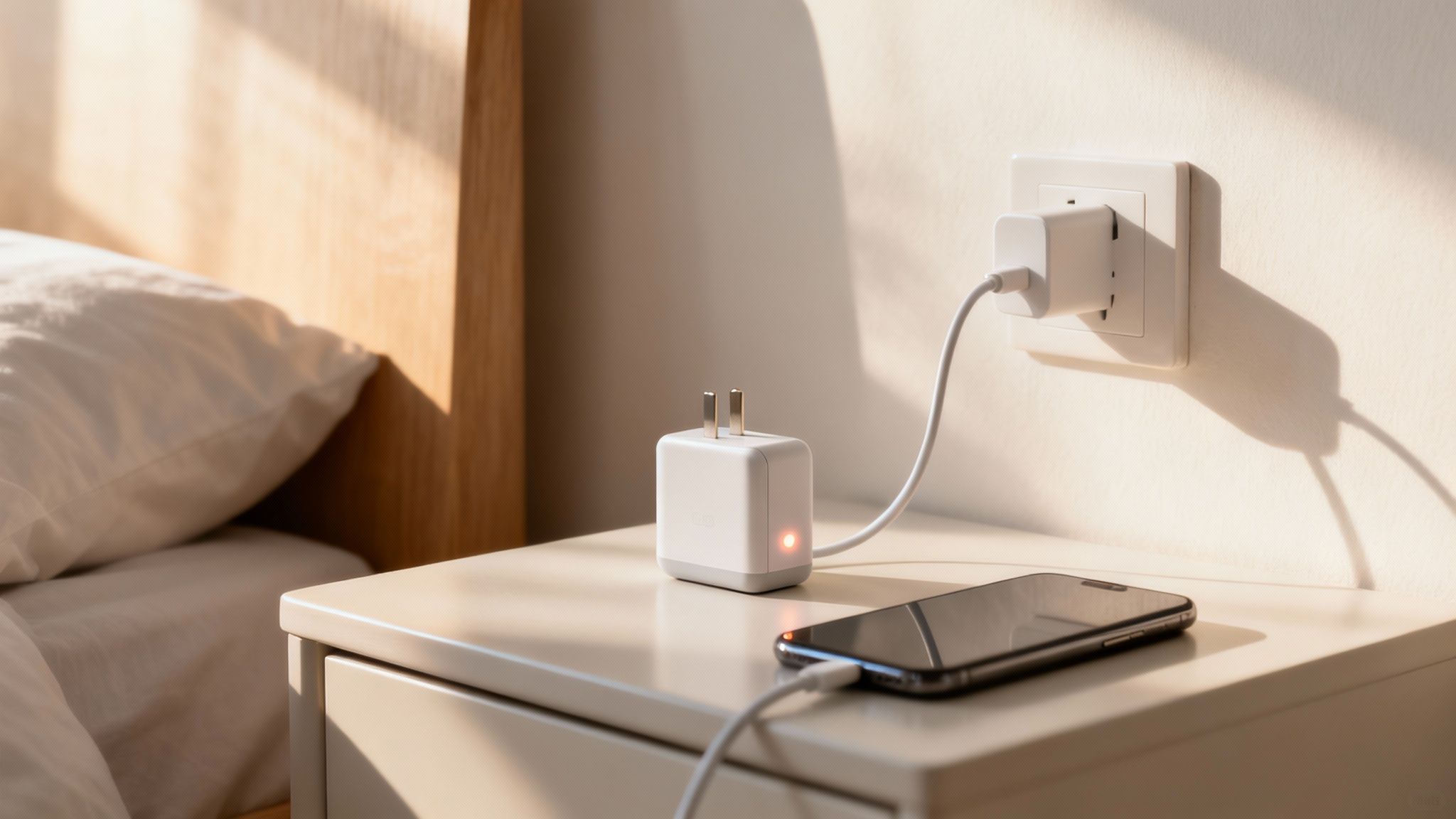
A smartphone charges on a nightstand with a white adapter, next to a bed.

Look, building better habits is great, but let's be real—remembering to grab your phone off the charger the second it hits 80% is a huge pain. Life is busy. It’s way too easy to plug in your phone overnight and not think about it again until your morning alarm goes off.

This is where automation becomes your best friend. It takes the stress out of smart charging. Instead of relying on willpower or setting annoying alarms, you can use a tool that does all the work for you.

Why Hardware Is the Real Deal

The most reliable way to automate this process is with a physical gadget that sits between your charger and your phone. This is a huge step up from software-only solutions. While built-in features like Optimized Charging on an iPhone are a good start, they still end up charging the battery to a full 100%, which is exactly the stress we want to avoid.

A hardware tool gives you direct, foolproof control. It doesn’t just manage the charge—it physically cuts the power.

Think of it like a smart light switch for your charger. It watches your battery level, and once it hits the limit you’ve set, it completely shuts off the flow of electricity. This is important because it prevents any extra charging and totally removes the stress that wrecks your battery over time.

This means your device never has to sit at that stressful 100% state for hours, which is one of the biggest causes of early battery aging.

Putting It Into Practice with Chargie

One of the best-known tools for this is a tiny device called Chargie. It’s a simple, set-it-and-forget-it solution that makes perfect charging totally easy. You just plug the Chargie into your USB charger, then plug your normal cable into the Chargie.

From there, its app lets you set your ideal charging limit. For example, you can tell it to stop charging your phone once it reaches 80%. The moment that level is hit, Chargie physically cuts the connection from the wall adapter. Your battery is safe.

The app gives you precise control, basically automating all the best practices we've been talking about.

For anyone who charges their phone overnight, this is a total game-changer. Here’s how it works in the real world:

  1. You set your limit. You decide 80% is your magic number and set it in the Chargie app.
  2. You plug in at night. Just like you always do. Chargie allows power to flow until your phone’s battery hits 80%.
  3. The power cuts off. The instant it reaches that limit, the hardware inside Chargie disconnects the power. No more electricity reaches your phone for the rest of the night.
  4. You wake up ready to go. Your phone is at a healthy, stress-free charge level. It never spent hours straining at 100%.

This simple, one-time setup automates the single most effective habit for long-term battery health. If you want to learn more about the tech, you can check out this guide on what a battery charge limiter is and how it all works.

By investing in a small piece of hardware, you take all the guesswork and discipline out of the equation. You no longer have to think about when to unplug—it’s handled for you, perfectly, every single time.

Thinking Long-Term: Battery Care and Maintenance

So, you’ve got your daily charging habits figured out. Great. But what about the bigger picture? To really get years, not just months, out of your battery, you need a long-term game plan. A little bit of smart maintenance can protect your device from the kind of slow damage you don’t see until it’s too late.

One of the most common mistakes is how people store their old devices. If you're putting a phone, tablet, or laptop away for a few weeks or months, never leave it at 100% or let it die completely. Storing a battery at either extreme is a sure way to kill its ability to hold a charge for good.

The best level for storage is right around 50% charge. Just get it there, power it down, and put it in a cool, dry place. It's a simple step that makes a world of difference.

The Right Tools for the Job

This brings me to another key point: your accessories matter. A lot. It’s incredibly tempting to grab that cheap, generic charging cable from a gas station when you’re in a hurry, but trust me, it’s a huge risk.

Those low-quality chargers and cables often lack the important safety features that prevent overheating and power surges. That’s a recipe for permanent battery damage. Do yourself a favor and stick with the charger that came with your device or one from a trusted, certified brand. It’s a small investment to make sure your battery gets a stable, safe charge every time.

Taking proper care of batteries has a positive effect far beyond our own devices. The same ideas that extend your phone's life are being used to give massive electric vehicle batteries a second life as power storage for the energy grid.

It's pretty amazing, actually. Research shows that with the right care, old electric car batteries can be reused for over 16 more years as power storage after they’re no longer fit for a car. It just goes to show you the incredible potential inside batteries when we treat them right. You can read more about these innovative battery reuse strategies.

Ultimately, all these little habits are about more than just saving a few hundred bucks on a new phone. When you make your battery last longer, you’re also doing the planet a favor.

Keeping our electronics running for as long as possible is one of the best ways to cut down on e-waste. By understanding the environmental impact of electronic waste, it's clear how these small, thoughtful choices can add up to a big, positive impact. And if you want to see the results of your efforts, you can learn how to check battery health and watch the numbers stay high.

Got a few more questions in your head? Good. Let's clear up some of the most common myths and concerns people have about their batteries.

Does Fast Charging Damage My Battery?

In a way, yes. It's a trade-off between convenience and a long battery life. Fast charging forces a lot of power into your battery very quickly, which creates a lot of heat. And as we've already covered, heat is the absolute worst enemy of a healthy battery.

While it won't kill your battery overnight, making a habit of fast charging every single time will definitely make it age faster compared to slower, cooler charging methods.

Think of it this way: fast charging is great when you're in a hurry and need a quick power boost. But for your regular, nightly charge? Slower is always, always better in the long run.

Should I Let My Battery Die Completely Before Charging?

Nope, absolutely not. That's advice from the old days of different batteries, and it's terrible for the modern batteries in our devices.

Draining your battery all the way to 0% puts a huge amount of stress on its internal parts. Doing this repeatedly can cause permanent damage and reduce the total amount of charge it can hold. A much better habit is to plug in your device before it drops below 20%. It's such a simple change, but it makes a huge difference.

How Do I Know When It’s Time for a New Battery?

Your phone or laptop will start giving you some pretty clear hints. The most obvious sign is that you just can't get through the day anymore on a single charge. You'll find yourself looking for a charger by mid-afternoon.

You might also notice it shutting down suddenly, even when the battery meter says you still have 20% or 30% left. That's a classic sign of an old battery that can't provide steady power anymore.

Most phones have a built-in health checker in the settings menu. Look for "Maximum Capacity." If that number has dropped to around 80% or less, you can be sure a new battery will make your device feel brand new again.


Ready to stop worrying about your charge levels and let technology do the hard work? Chargie automates all the best practices we've talked about. It physically cuts power at whatever limit you set, making sure your battery stays in top shape for years to come. Get your Chargie today and extend your battery life effortlessly.

Chargie is a smart charging device designed to extend the lifespan of your phone's battery by limiting overnight charging.

Company

Lighty Electronics SRL
42 Viorelelor st
305500 Lugoj, Romania

EU VAT: RO35245011

© 2019-2026 Lighty Electronics SRL. All Rights Reserved.

Add to cart