

What Is Battery Cycle Count Explained
You’ve probably heard the term "battery cycle count," but what does it actually mean for your phone or laptop?
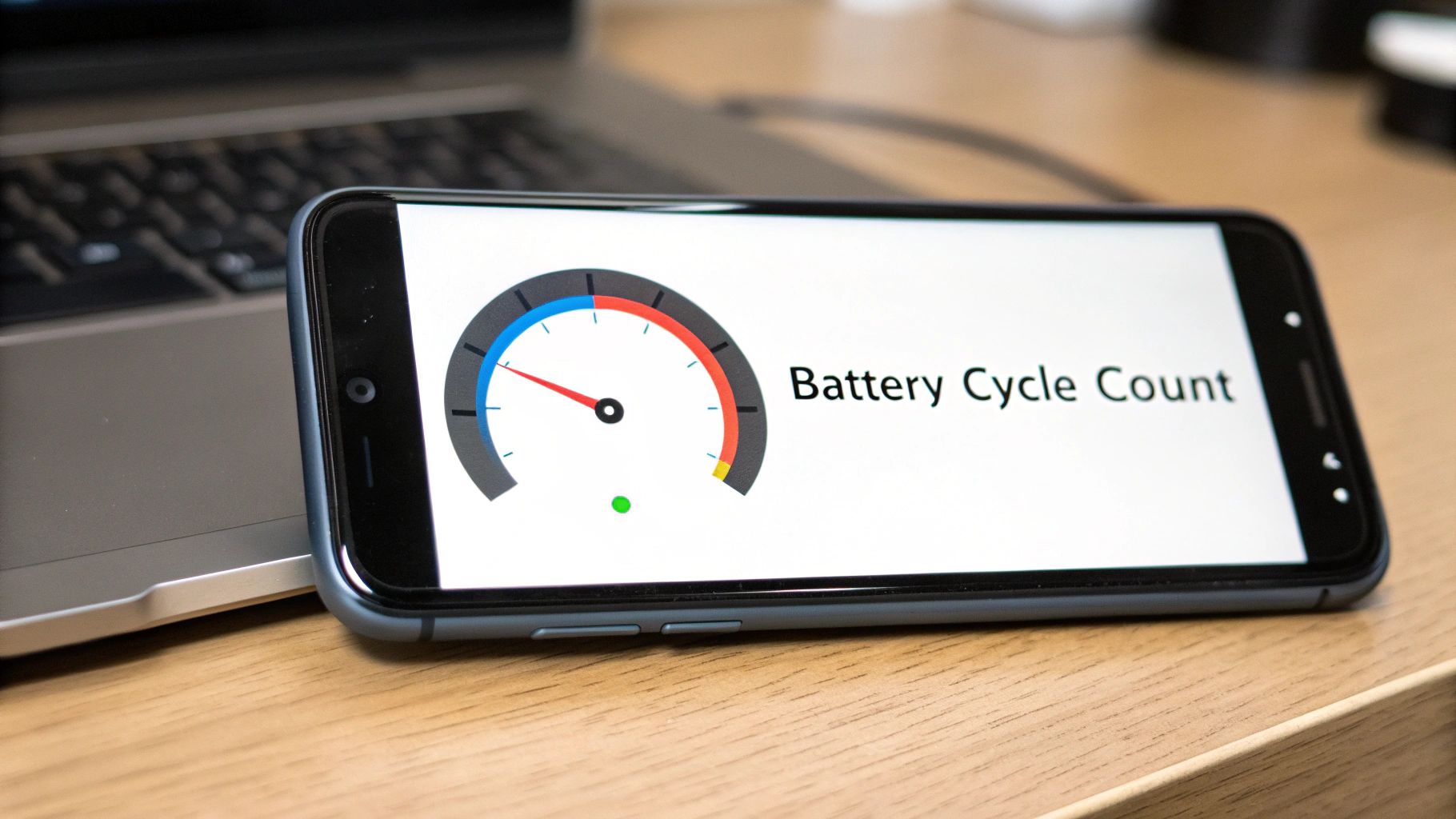
Think of it as an odometer for your battery. A single battery cycle count is logged every time you use up 100% of its power. This number is a simple way to track how much "mileage" your battery has, giving you a clear idea of its wear and tear.
Decoding the Battery Cycle Count
It’s easy to misunderstand this. A cycle isn't just one trip from the charger to empty. It’s not about how many times you plug your device in.
Instead, a cycle is one complete use of 100% of your battery's available power. Your device is smart enough to add up all your partial charges to figure this out.
So, you don’t need to drain your battery from a full 100% down to 0% in one go to complete a cycle. If you use 60% of your battery today and then another 40% tomorrow, those two uses combine to equal one full cycle.
How Partial Charges Add Up
There's a common myth that plugging your phone in often will ruin your cycle count. The truth is, it’s the total amount of energy you use that matters. One full cycle is simply the act of using up 100% of the battery's power, no matter how many separate sessions it takes.
Most modern batteries are built to handle between 300 and 500 of these full charge cycles before their ability to hold a charge starts to noticeably drop.
In simple terms, a higher battery cycle count means an older, more used battery—one that just won't last as long as it used to. Understanding this number is the first step toward better battery health.
Let's look at how your daily habits contribute to the overall cycle count. This is a key part of keeping your device’s battery in good shape.
How One Battery Cycle Is Counted
| Usage Scenario | Percentage Used | Total Cycles Used |
|---|---|---|
| Day 1: Use 75% Day 2: Use 25% |
100% (75% + 25%) | 1.0 Cycle |
| Day 1: Use 40% Day 2: Use 40% Day 3: Use 20% |
100% (40% + 40% + 20%) | 1.0 Cycle |
| One Day: Use 100% | 100% | 1.0 Cycle |
As you can see, it all adds up. Whether you use your battery in a single day or spread that usage across a few, once you've used a total of 100%, you’ve officially added another cycle to the count.
Why Your Battery Cycle Count Matters So Much

If you want to know the real story behind how long your device will last, you need to know its battery cycle count. Think of it like the tread on a car tire. A new tire has deep grooves and grips the road perfectly. But with every mile you drive, a tiny bit of that rubber wears away.
A battery cycle works the same way. Every time you use up 100% of your battery's power—a full cycle—its ability to hold a charge gets a little bit weaker. At first, you won't notice it. But after hundreds of cycles, that wear and tear adds up, and you'll find yourself reaching for a charger more often.
This number is one of the most honest measures of a battery's true condition. Forget the simple "battery health" percentage, which can sometimes look better than it is. The cycle count tells the real story of how much work that battery has done.
From Numbers to Real-World Impact
A high cycle count isn't just a number; it's the reason your phone dies before you get home from work. Remember when your phone was brand new and lasted all day? The slow decline you've noticed since then is the direct result of all those cycles adding up.
Knowing your device's cycle count is powerful. It helps you:
- Predict when your battery will weaken: It’s a good forecast for when your battery will start struggling.
- Assess resale value: A low cycle count is a huge selling point for a used device, proving the battery still has plenty of life left.
- Make smarter decisions: It gives you the info you need to decide if it's time for a battery replacement or if you should start saving for a new device.
Basically, each cycle brings your battery one step closer to retirement. For an idea, most smartphone batteries are built to keep around 80% of their original capacity after about 500 full cycles. Once you cross that number, the decline often gets more noticeable.
A high cycle count is the main reason a battery can't keep up anymore. It's the built-up wear from daily use, telling you exactly how much life your battery has left.
By keeping an eye on this number, you get a clear picture of your battery's past, present, and future. It turns the vague idea of "battery wear" into a solid number you can track, giving you the power to see problems coming before you're left with a dead phone.
How to Find the Cycle Count on Your Devices
Think of your battery's cycle count as a hidden health report. It tells you exactly how much "mileage" your battery has. The good news is, you don't need to be a tech expert to find this number.
With just a few clicks, you can get a clear picture of your device's battery health. It’s the first step to taking better care of your device. Let’s walk through how to do it on MacBooks, Windows laptops, iPhones, and Android phones.
Checking the Cycle Count on a MacBook
Apple makes finding your battery cycle count surprisingly easy. It's tucked away inside a detailed system report.
Here’s how to find it:
- Click the Apple menu in the top-left corner of your screen.
- Now, hold down the Option (⌥) key. You'll see "About This Mac" change to "System Information…". Click that.
- A new window will pop up. In the left-hand menu, look under the "Hardware" section and find "Power."
- Select "Power," and the main window will show you all the details about your battery. You'll find the "Cycle Count" listed under the "Health Information" heading.
This is what you'll see—a clear screen showing the cycle count and the overall condition of your battery.
What’s great is that Apple puts the cycle count right next to the battery's condition, giving you the full story in one look.
Finding the Cycle Count on a Windows Laptop
Windows makes you do a little more work. The cycle count isn't displayed out in the open, but you can create a detailed battery report with a single command. This report gives you the cycle count and a history of your battery's capacity over time.
- Open the Start Menu and type "cmd" to bring up the Command Prompt.
- Right-click on Command Prompt and choose "Run as administrator." This is important.
- A black window will appear. Type this exact command and hit Enter:
powercfg /batteryreport - The system will create a report and tell you exactly where it saved it, usually in your main user folder.
- Find that "battery-report.html" file and open it in any web browser. Look for the "Cycle Count" under the "Installed batteries" section.
This report is very useful. It doesn't just give you a number; it shows you the trend of your battery's health by tracking how its full charge capacity has gone down over time.
Uncovering the Cycle Count on iPhone and Android
When it comes to our phones, things can be tricky. Apple has made it easier with recent updates, but the Android world is less consistent.
-
For iPhone (iOS 17 and newer): Apple finally made this simple. Just go to Settings > Battery > Battery Health & Charging. The Cycle Count is listed right there. On older iPhones, this info was often hidden, making it nearly impossible for a regular person to find.
-
For Android Phones: Unfortunately, there's no single, universal method. Some phone makers hide it in a secret menu, but that rarely works. Your best bet is to use a trusted app like AccuBattery. It won't know your past history, but once installed, it will start tracking your usage to estimate cycles and monitor battery health from that point on.
What a Good Cycle Count Looks Like for Different Devices
Not all batteries are the same. A cycle count that's bad for your phone might be perfectly fine for an electric car. Understanding these differences is key to having realistic expectations for your devices.
Think about it: the battery in your iPhone doesn't need to be as tough as the one powering a Tesla. Manufacturers balance cost, weight, and lifespan to match how a device is used. Your phone is likely replaced every 2-3 years, while a car is a much longer-term investment.
This means a "good" battery cycle count is relative. What looks healthy on one gadget could be a major red flag on another.
Common Lifespans for Smartphones and Laptops
For the devices we use every day, the numbers are pretty straightforward. Most are designed to work well for a few years before the battery life takes a noticeable dive.
-
Smartphones: A typical iPhone or Android is generally designed for about 500 full charge cycles. After that, you can expect the battery to hold around 80% of its original capacity. Apple is improving this, though—newer models like the iPhone 15 are built to last longer, aiming for 1,000 cycles before hitting that same 80% mark.
-
Laptops: The standard is a bit higher for laptops. A modern MacBook, for instance, is designed for 1,000 cycles before it’s considered "consumed." Knowing this can help you make smarter charging choices. For more on that, check out our guide on how to extend laptop battery life.
Checking the cycle count on your device is easier than you might think. This graphic shows you where to look on the most common platforms.
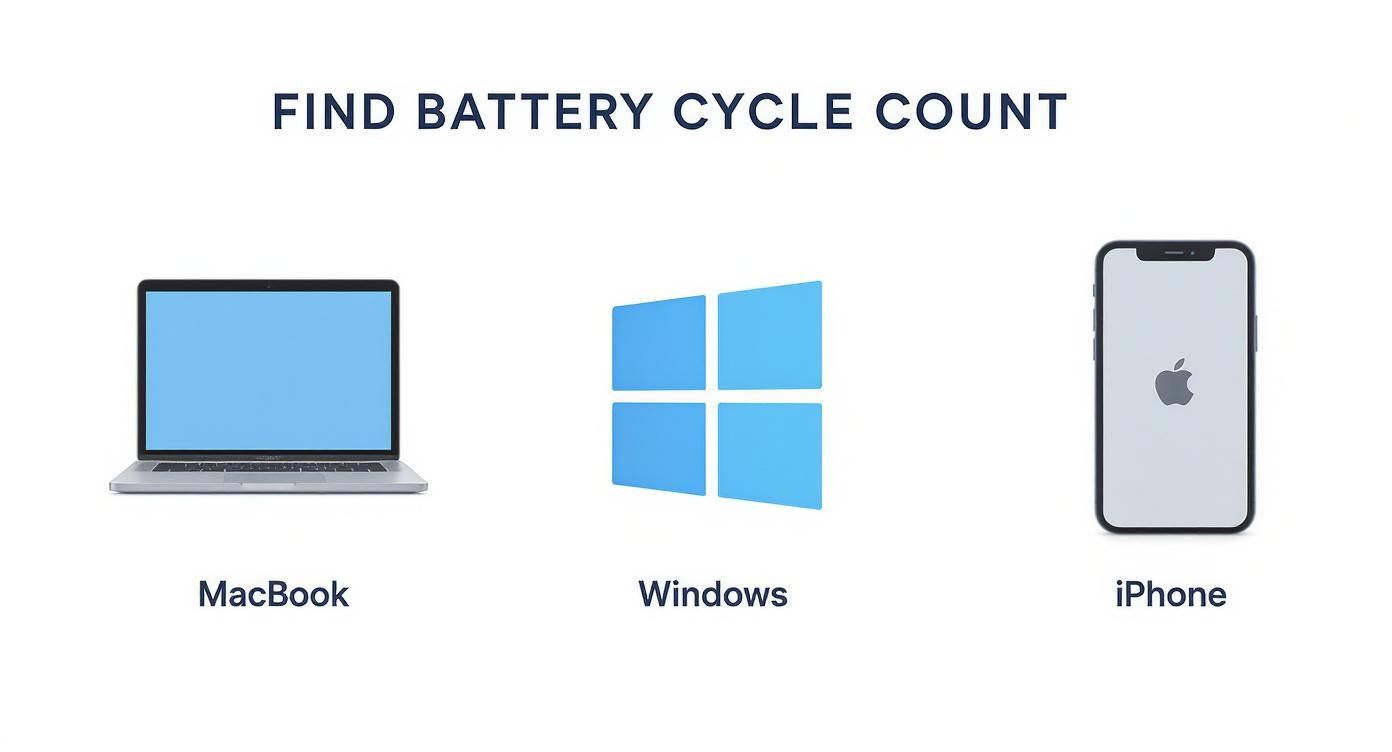
As you can see, the specific steps might be different, but the data is there for you on macOS, Windows, and iOS if you know where to look.
The World of High-Cycle Batteries
When you look beyond personal electronics, the engineering and expectations change a lot. Devices built for the long haul—things that need to endure heavy, repeated use—require batteries that can handle thousands of cycles.
Take electric cars. Battery lifespan is a huge selling point. A typical electric vehicle battery is designed to last somewhere between 1,000 and 1,500 full charge cycles before its capacity dips to the 70-80% range. To put that in perspective, Tesla's Model 3 and Model S batteries are rated for about 1,500 cycles, which translates to an incredible 300,000 to 500,000 miles of driving.
To get a sense of how these numbers compare, here’s a quick look at what you can generally expect from different types of devices.
Typical Battery Cycle Life by Device Type
| Device Type | Typical Cycle Count Lifespan (at ~80% Capacity) | Real-World Lifespan Estimate |
|---|---|---|
| Smartphones (Standard) | 500 cycles | 2-3 years |
| Smartphones (Premium) | 800-1,000 cycles | 3-4 years |
| Laptops (MacBook) | 1,000 cycles | 4-6 years |
| Electric Vehicles (EVs) | 1,000-1,500+ cycles | 8-15 years (or 300,000+ miles) |
| Power Tools | 500-1,000 cycles | Varies by use |
| E-Bikes | 700-1,000 cycles | 3-5 years |
This table shows that a battery’s expected lifespan is designed for its job. A smartphone's 500-cycle limit is perfectly fine for its typical 2-3 year life. An EV, on the other hand, needs a much stronger battery to stay on the road for a decade or more.
This is why you can't apply a one-size-fits-all rule to what makes a "good" cycle count. It all depends on the device.
Practical Ways to Preserve Your Battery Health
Once you understand what a battery cycle count is, you can take steps to slow that counter down. You can't stop it completely, but you can adopt simple habits that reduce strain on your battery and keep it healthier for longer.
The goal isn't to worry about every single charge. It's about building a few easy routines that protect your device. These practical strategies to extend battery life apply to almost any device you own and make a real difference.
Avoid the Extremes in Charging
One of the worst things for a modern battery is constantly draining it to 0% or leaving it plugged in at 100% for hours. It's best to think of your battery as having a "comfort zone."
The sweet spot for long-term battery health is between 20% and 80%. Staying in this range is the easiest way to reduce the stress that causes batteries to wear out.
Going from 0% to 100% all the time adds unnecessary wear and tear, aging the battery and racking up cycle counts faster than needed. If you want to make it easy, a hardware battery charge limiter can automatically keep your battery in this healthy range.
Manage Heat and Temperature
Heat is the silent killer of batteries. Exposing your phone or laptop to high temperatures—whether it’s direct sunlight, a hot car, or intense gaming while plugged in—causes it to wear out much faster.
You can save your battery from an early end with a few simple tricks:
- Take the case off when you charge. Some cases trap heat, so letting your device breathe can make a big difference.
- Don't fast charge unless you have to. It's convenient, but fast charging creates more heat. Stick with a standard charger when you're not in a rush, like overnight.
- Keep it out of the sun. Never leave your gadgets on a car dashboard or a sunny windowsill.
Use Smart Charging Features
Most modern phones and laptops have built-in software designed to protect their own batteries. Look for features like "Optimized Battery Charging" on iPhones or "Adaptive Charging" on Android devices.
These systems learn your daily routine. For example, your phone might charge to 80% quickly and then wait to top off the final 20% right before you wake up. This clever trick reduces the time the battery spends sitting at the stressful 100% level. Check your battery settings and make sure these features are turned on.
Still Have Questions? Let’s Clear Things Up
Even after you get the hang of what a battery cycle count is, a few common questions and myths tend to stick around. Let's tackle these head-on, so you can separate fact from fiction.
We'll cover everything from the debate about overnight charging to whether time or usage is the bigger battery killer.
Does Charging Overnight Rack Up Cycles?
This is a classic myth. The short answer is no. Modern devices are smart. Once the battery hits 100%, they stop charging. Leaving it plugged in all night doesn't add cycles, because a cycle only counts when you use the battery’s power.
The real downside of overnight charging is a little bit of heat. Staying at 100% while plugged in can generate warmth, which isn't great for long-term health. This is why many new phones have "Optimized Charging." They’ll charge to 80% and then wait to add the final 20% just before your alarm. It’s a much healthier routine.
Is a Low Cycle Count the Only Thing That Matters?
A low cycle count is a great sign, but it’s not the whole story. The other major factor is simply age.
A one-year-old battery with 150 cycles will almost always be healthier than a five-year-old battery with the same 150 cycles. Over time, the chemicals inside break down, whether you use the device or not.
On top of that, things like exposure to extreme heat and physical damage can hurt a battery’s performance, no matter how few cycles it has.
Do All Those Little Top-Ups Add Up to a Full Cycle?
Yes, they do. Your device keeps a running total of all the power you use. It doesn't care if you charge in one big session or a dozen small ones; it tracks your total usage.
Here’s how that works in the real world:
- Using 50% of your battery today and another 50% tomorrow? That’s one full cycle.
- Draining your battery by 25% four separate times before plugging it in? That also adds up to one full cycle.
The system is smart enough to measure the total amount of energy you’ve used.
So, When Should I Actually Replace My Battery?
There’s no single magic number, but manufacturers give us a good guideline. Apple, for instance, says a battery is "consumed" once it passes its rated cycle count (like 500 cycles for many iPhones) and its maximum capacity drops below 80%.
Honestly, the best time to replace it is when it just can't keep up with your day anymore. If you find yourself looking for a charger by mid-afternoon and your battery health screen shows a number below that 80% mark, it’s probably time for a new one.
Protecting your battery and making it last longer doesn't have to be a chore. With the right approach, you can build healthy charging habits without even thinking about it. Chargie is a smart little device that lets you set your own charging limits, keeping your battery in that optimal 20-80% zone and avoiding the stress of all-night charging sessions. Find out how you can get up to 4x more life from your batteries at https://chargie.org.