

Clicky

How to Extend Battery Life on Phones, Tablets, and Laptops

If you want to know the real secret to making your device's battery last longer, it's pretty simple: change how you charge it. The two biggest things that wear down the batteries in our phones, tablets, and laptops are leaving them plugged in to charge to 100% and letting them get too hot.

Your Quick Guide to a Longer-Lasting Battery
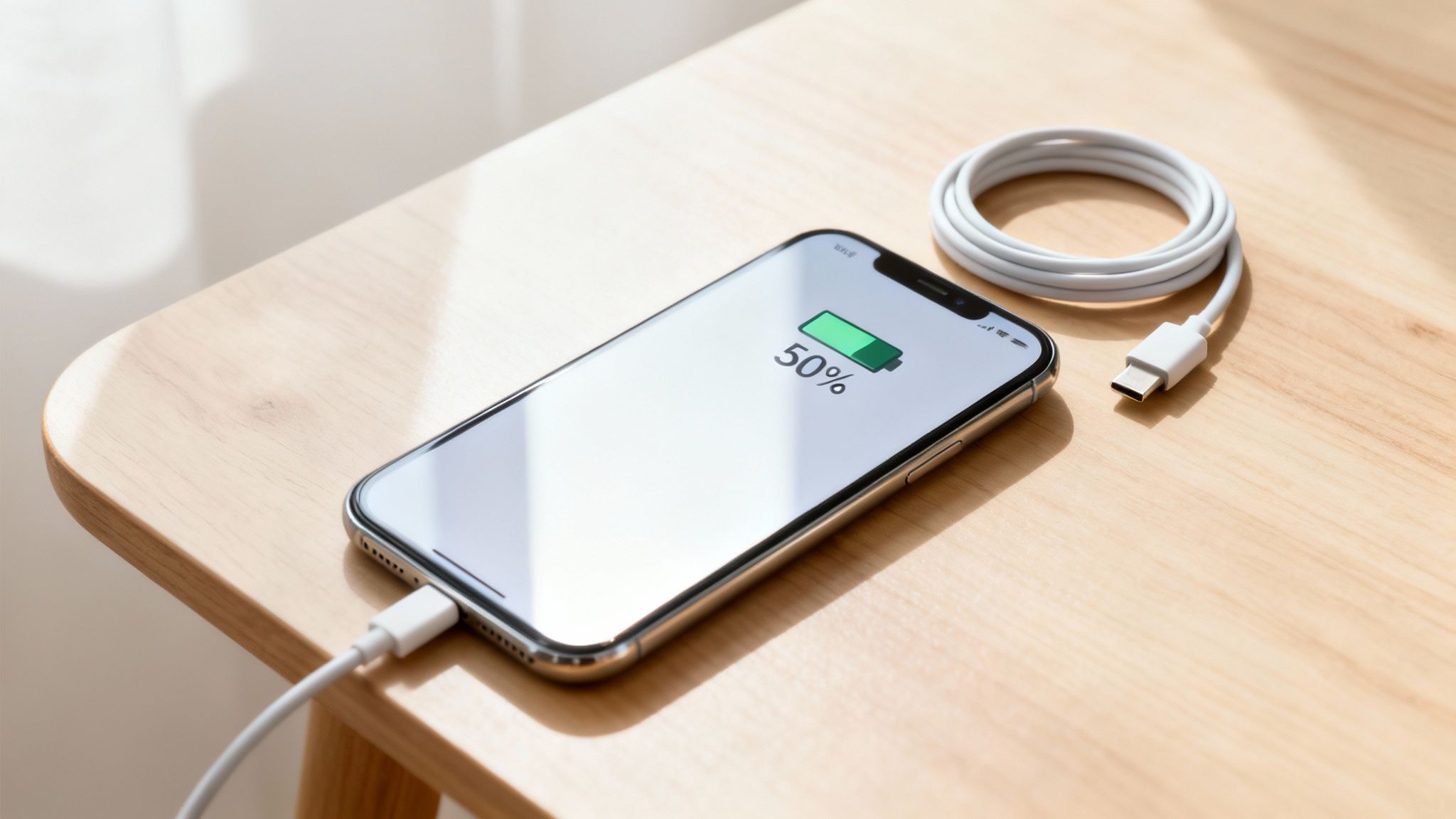
A smartphone charging with 50% battery displayed on its screen, next to a coiled white cable on a wooden table.

Does your phone's battery life feel like a constant countdown? You start the day fully charged, but by lunchtime, you're already looking for a charger. It's a frustrating problem, and it's a sure sign your battery is getting old faster than it should.

The good news is you have more control over this than you might think. By making a few small changes to your daily routine, you can seriously improve how long your battery lasts each day and how healthy it stays over time. This isn't about digging into confusing settings; it's about building smarter habits for your devices.

Small Habits, Big Impact

You don't need to be a tech expert to see a real difference. The best tips are usually the simplest ones because they fix the main causes of battery wear and tear. Think of it like taking care of your car—a little care now prevents big problems later on.

Here are the main ideas to keep in mind:

  • Don't always charge to 100%. Constantly charging your battery to full or letting it die completely puts a lot of stress on it.
  • Keep your device cool. Heat is the number one enemy of a healthy battery. Leaving your phone in a hot car or in direct sunlight can cause lasting damage.
  • Use the smart features you already have. Modern phones and laptops come with built-in tools like Optimized Charging and Low Power Mode. They’re made to protect your battery for you, so use them!

The goal isn't to worry about your battery percentage all day. It's about creating good conditions for your battery, reducing wear so it works better for longer.

To make this even easier, here's a quick list of the best changes you can make today.

Top 5 Quick Wins for Battery Health

Habit Why It Works Impact Level
Charge to 80%, not 100% Avoids the stress that makes batteries age faster. High
Don't let it drop below 20% Prevents strain on the battery when it has very little power left. High
Keep it cool Heat causes chemical changes that permanently damage the battery. High
Use slow, overnight charging Creates less heat and stress than fast charging, especially when managed. Medium
Turn on Optimized Charging Your device learns your routine and holds the charge at 80% until you need it. Medium

These simple changes, when you do them regularly, lead to a much healthier battery over the life of your device.

Learning from Bigger Batteries

It turns out the same rules that protect the little battery in your phone also work for much bigger ones—like those in electric cars. In fact, we can learn a lot from how electric cars manage their batteries.

Studies on electric car batteries show they only lose about 2.3% of their health per year. That's mainly because smart systems stop them from charging to 100% for daily driving. This lines up perfectly with what we know about our own devices: keeping your phone's charge between 20% and 80% can make it last much longer. For those who use electric bikes, you can find similar strategies for maximizing e-bike battery range that follow these same basic ideas.

Why Your Battery Fades and What You Can Do About It

Ever notice how a brand-new phone feels like it can last forever, but a year later, you're nervously watching the battery percentage by 3 PM? That’s a real thing. It's called battery aging, and it happens to every phone, tablet, and laptop out there.

The batteries in our devices are amazing, but they don't last forever. Think of them like a new water bottle. At first, you can fill it to the very top. But with every use, tiny, invisible cracks start to form inside. Over time, that bottle just can't hold as much as it used to. Your battery is going through the same process, losing a little bit of its total capacity every time you charge it.

What's a "Charge Cycle," Anyway?

You might hear the term "charge cycle," but what does it actually mean? It’s simpler than it sounds. One complete charge cycle is counted every time you use up a total of 100% of your battery's power.

This doesn't have to happen all at once. Maybe you use 75% of your battery during the day, charge it overnight, and then use another 25% the next morning. Just like that, you’ve finished one full cycle. Most phone batteries are made to last for around 500 full cycles before their health really starts to drop—usually down to about 80% of what it was when it was new.

The Three Main Villains of Battery Health

While a little aging is normal, some things can make your battery wear out much faster. If you want to keep your device running well for years, you need to know what you're up against.

These are the three things that put the most stress on your battery:

  • Extreme Heat: This is the worst enemy for your battery. Heat speeds up the chemical changes inside your battery that cause it to break down. Leaving your phone on a hot car dashboard or playing heavy games while it’s fast-charging under a pillow are sure ways to cause permanent damage.
  • Staying at 100%: Leaving your phone plugged in all night, every night, forces it to stay at 100% for hours. This keeps the battery under constant stress. It’s like stretching a rubber band as far as it can go and just holding it there for hours—eventually, it’s going to get weaker. That’s what’s happening inside your battery.
  • Dropping to 0%: On the other hand, letting your battery completely die is also a bad idea. Draining it to 0% can mess with its internal parts, making it harder for it to hold a good charge in the future.

The big takeaway here? Batteries are happiest in the middle. They don't like being too hot, too full, or too empty. Just avoiding those extremes is the single most powerful thing you can do for your battery's long-term health.

How Your Daily Habits Make All the Difference

It really comes down to this: your habits have a direct effect on how fast your battery ages. Someone who charges their phone to 100% overnight and always lets it drop to 1% will see their battery health drop way faster than someone who tries to keep it between 20% and 80%.

The difference is big, too. By consistently avoiding those stressful highs and lows, a battery can stay healthy for hundreds of extra charge cycles. That means your device doesn't just last longer through the day—it stays useful and keeps its value for years to come. These small changes aren't just about getting a little more screen time; they're about protecting the heart of your digital life.

Build Better Charging Habits for Lasting Battery Health

Forget all the small software settings for a minute. The single biggest thing you can do for your battery’s long-term health is to change how you charge it. By building a few simple, smarter charging habits, you can seriously slow down the aging process and keep your device feeling new for much longer.

It starts with throwing out some old, outdated advice. You might remember being told to let your battery drain completely before plugging it in. That was good advice for old types of batteries, but for the modern batteries in every phone, tablet, and laptop today, it’s one of the worst things you can do.

The Modern Sweet Spot: The 20-80 Rule

The new golden rule for battery health is the 20-80 rule. Simply put, your battery is happiest and under the least amount of stress when its charge level stays between 20% and 80%.

Think of it like this: filling a battery all the way to 100% is like over-inflating a tire. It puts everything under intense pressure. On the flip side, letting it drop to 0% is like letting all the air out, which can damage the tire's structure. That middle zone is the key.

This diagram shows the main things that make a battery age faster. As you can see, heat and charging from empty to full are the biggest problems.
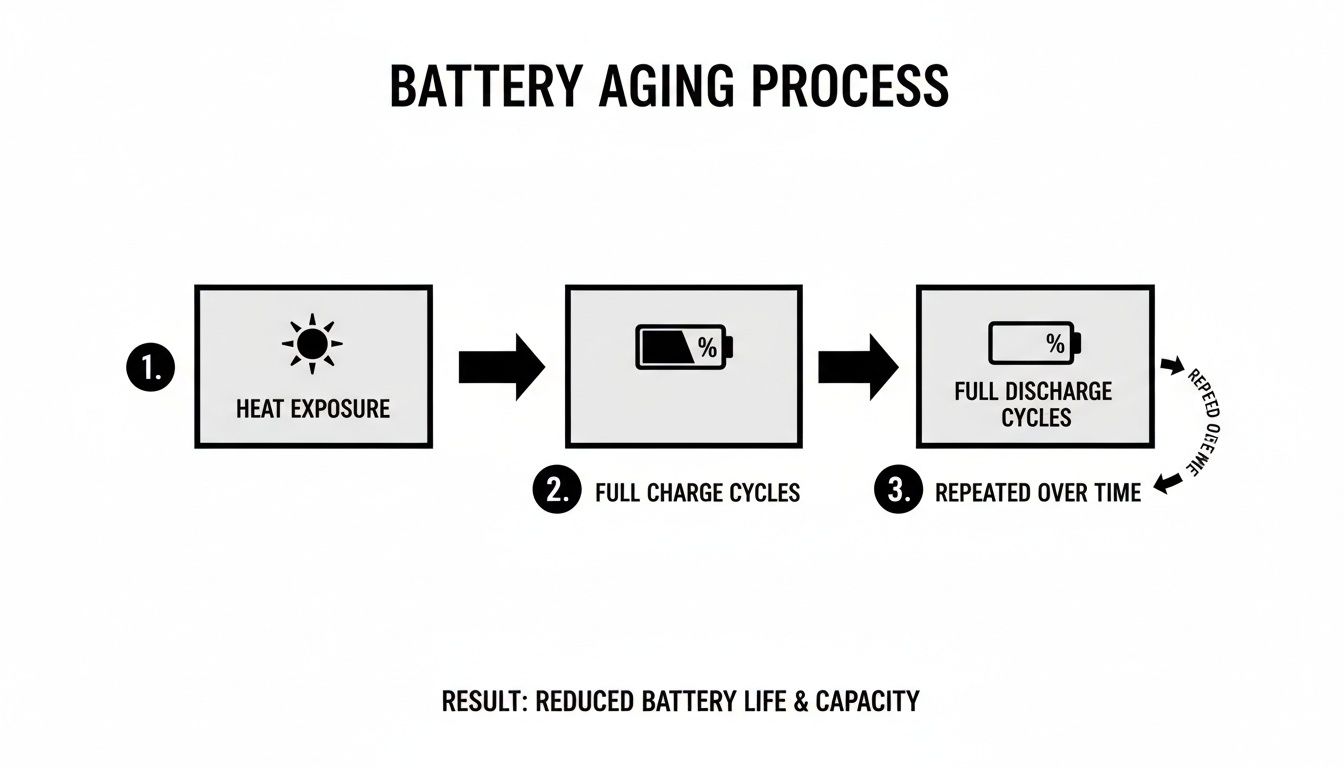
Diagram illustrating the battery aging process through heat exposure, full charge and discharge cycles, leading to reduced battery life.

Avoiding these extremes is the best way to protect your battery’s ability to hold a charge over time.

Now, don't get obsessed about hitting these numbers perfectly every day. The goal is to make partial charging your normal habit. Instead of one long overnight charge, try shorter, more frequent top-ups during the day when it’s easy.

This isn't just a theory for small gadgets. A similar thing happens with electric cars. A study on electric car batteries found that real-world driving habits—not constant, extreme charging or draining—actually made the batteries last nearly a third longer than lab tests predicted. It’s solid proof that moderate use is much healthier than a constant cycle of full-to-empty. You can read the full study about EV battery findings to see how this is changing things.

The Truth About Overnight Charging

This brings us to the big one: is leaving your phone plugged in overnight actually bad for it? The short answer is yes, but it's a little more complicated.

Leaving your device plugged in all night keeps it at 100% for hours. As we've learned, this creates stress and extra heat—two of the main things that ruin batteries.

Thankfully, device makers know this is a common habit. They’ve built some clever software features to protect your battery from your own routine.

Your device's built-in charging software is a powerful helper. By learning your daily schedule, it automatically stops the battery from sitting at 100% for long periods, which greatly reduces stress and wear overnight.

These features work by learning your sleep schedule. They'll quickly charge your phone to 80% and then pause, holding it there for most of the night. Then, just before your alarm goes off, the software starts again to add the final 20%, so you wake up to a full battery without the hours of unnecessary stress.

Here’s what these features are called on different devices:

  • For iPhones and iPads: It's called Optimized Battery Charging. Find it under Settings > Battery > Battery Health & Charging.
  • For Google Pixel Phones: Look for Adaptive Charging. It’s located in Settings > Battery > Adaptive Charging.
  • For Samsung Galaxy Devices: It’s known as Protect Battery. Turn it on in Settings > Battery and device care > Battery > More battery settings.

While these tools are a huge help, they aren't a perfect fix. They reduce the damage but don't get rid of it completely, since the device still eventually reaches that stressful 100% state. For the best long-term results, the ideal habit is still to unplug it before it gets full. But if you’re going to charge overnight, turning these features on is a must.

Adjust These Simple Settings to Save Battery Life
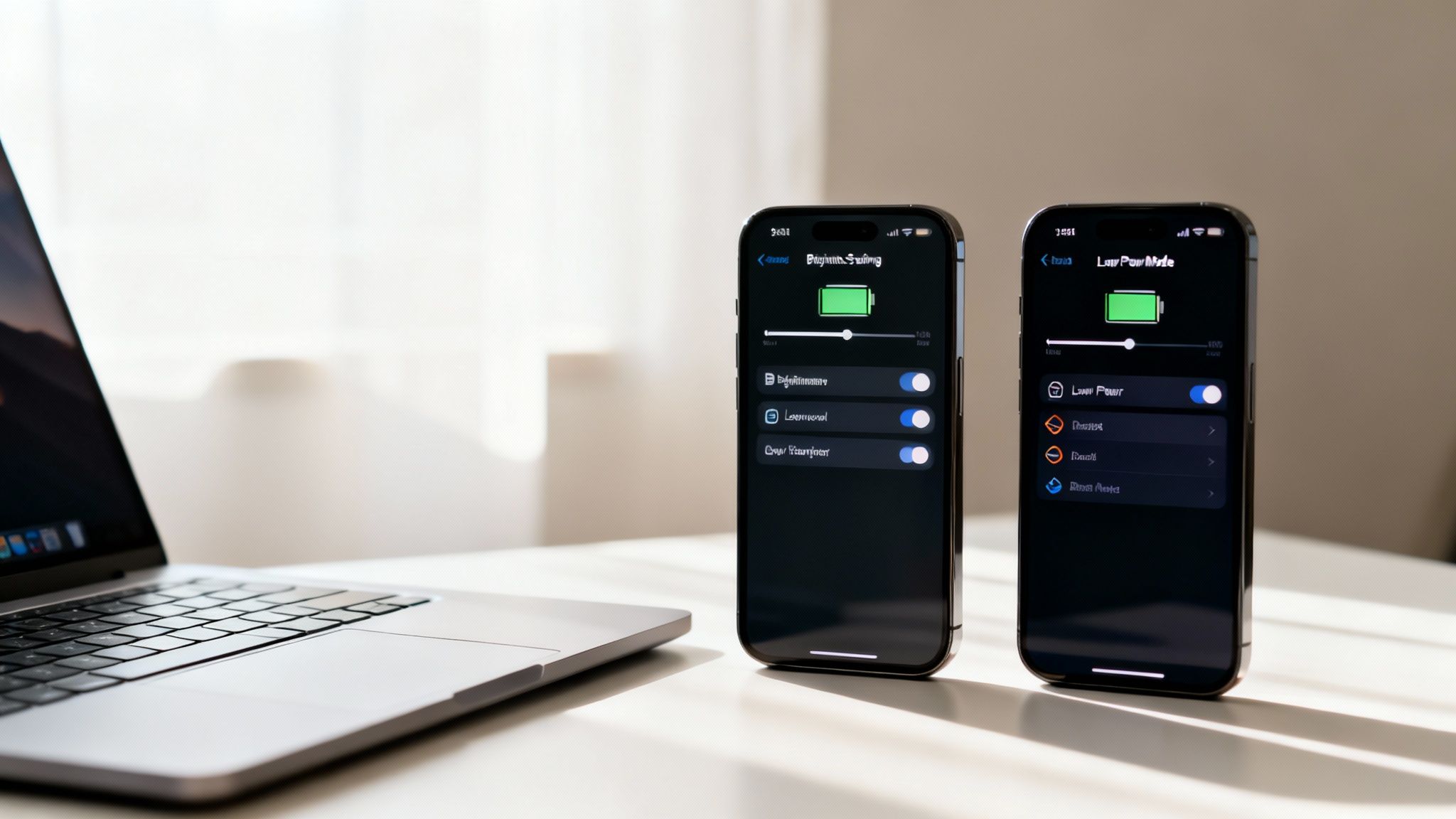
Two smartphones display battery saving settings, including Low Power Mode, next to a laptop.

While smart charging habits are your best tool for long-term battery health, your device's settings are your best friend for getting through a long day. Your phone, tablet, and laptop are already packed with simple but powerful tools made to save power when you need it most.

It can feel a little confusing trying to figure out which settings to change, but just a few key adjustments can make a huge difference. These changes are all about telling your device to stop wasting precious energy on things you aren't using.

Master Your Screen and Display

Your device’s screen is almost always the biggest power user. It’s a beautiful, bright window into your digital life, but it also uses a lot of battery. Taming it is the quickest and easiest win you can get.

Start by lowering your screen brightness. You really don't need it turned all the way up unless you're in direct sunlight. For most situations, keeping it around 30-50% is perfectly fine and saves a surprising amount of battery. Better yet, just turn on Auto-Brightness and let your device handle it for you.

Next, you'll want to use Dark Mode. If you have a device with an OLED or AMOLED screen (which includes most modern phones), Dark Mode is a game-changer. Unlike older screens that light up the whole display, an OLED screen turns off individual parts to create true black. That means a black background uses almost no power—a fantastic way to save battery life.

Tame Background App Activity

Ever close an app, only to get a notification from it minutes later? That's Background App Refresh at work. This feature lets apps check for new content and updates even when they're not on your screen.

It's useful for important apps like messaging or email, but it constantly drains a little battery for dozens of other apps that don't need to be running in the background.

  • On iOS/iPadOS: Go to Settings > General > Background App Refresh. You can turn it off completely or, the smarter move, turn it off for individual apps that don't need to be always on.
  • On Android: This is usually called "Background usage limits." Find it under Settings > Battery > Background usage limits and put any apps you don't need into "Deep sleeping" mode.

Taking just a few minutes to check your background app permissions can save a good amount of your daily battery life. If an app doesn't need to be on 24/7, put it to sleep.

The same idea applies to location services. Many apps ask for your location but don't actually need it to work. Go into your privacy settings and switch apps to "While Using the App" instead of "Always." For apps that have no reason to know where you are—like a simple game or photo editor—turn off location access completely.

The Power of Low Power Mode

When your battery percentage starts getting low, your device’s built-in power-saving mode is your emergency helper. It's a one-tap solution that automatically makes several smart changes to stretch whatever charge you have left.

These modes are very effective because they temporarily slow down features that use the most power.

  • Low Power Mode (iOS/iPadOS): This reduces background activity, automatic downloads, and some visual effects. It also dims the screen and can slow the device down slightly.
  • Battery Saver (Android): This limits background apps, turns on Dark Mode, and stops some network connections. You can find a detailed breakdown in this guide to Android's power-saving mode.
  • Battery Saver (Windows): Dims the screen brightness and limits background notifications and activity.
  • Low Power Mode (macOS): Reduces system speed and screen brightness, choosing battery life over top performance.

The best time to flip this switch is when your battery hits 20%. Don’t wait until you're at 5%—turning it on early gives you a much longer runway. Just don't get in the habit of keeping it on all the time, as it limits your device’s performance and background functions, meaning you'll miss out on the full experience you paid for.

Battery Saver Settings Across Different Operating Systems

Finding the settings menus on different devices can be confusing. This quick table shows you where to find these important battery-saving features on major devices.

Feature iOS/iPadOS Android Windows macOS
Power Saver Mode Settings > Battery > Low Power Mode Settings > Battery > Battery Saver Settings > System > Power & battery > Battery saver System Settings > Battery > Low Power Mode
Screen Brightness Control Center or Settings > Display & Brightness Quick Settings or Settings > Display Action Center or Settings > System > Display Control Center or System Settings > Displays
Background Refresh Settings > General > Background App Refresh Settings > Apps > [Select App] > Battery Settings > System > Power & battery Not directly user-controlled in the same way
Location Services Settings > Privacy & Security > Location Services Settings > Location Settings > Privacy & security > Location System Settings > Privacy & Security > Location Services

Ultimately, taking control of your device’s settings is all about making the software work for you. By adjusting how your screen behaves and which apps get to run in the background, you can easily squeeze more life out of every charge.

Automate Your Charging and Forget About It
A smartphone charges on a nightstand with a white adapter, next to a bed.

Look, building better habits is great, but let's be real—remembering to grab your phone off the charger the second it hits 80% is a huge pain. Life is busy. It’s way too easy to plug in your phone overnight and not think about it again until your morning alarm goes off.

This is where automation becomes your best friend. It takes the stress out of smart charging. Instead of relying on willpower or setting annoying alarms, you can use a tool that does all the work for you.

Why Hardware Is the Real Deal

The most reliable way to automate this process is with a physical gadget that sits between your charger and your phone. This is a huge step up from software-only solutions. While built-in features like Optimized Charging on an iPhone are a good start, they still end up charging the battery to a full 100%, which is exactly the stress we want to avoid.

A hardware tool gives you direct, foolproof control. It doesn’t just manage the charge—it physically cuts the power.

Think of it like a smart light switch for your charger. It watches your battery level, and once it hits the limit you’ve set, it completely shuts off the flow of electricity. This is important because it prevents any extra charging and totally removes the stress that wrecks your battery over time.

This means your device never has to sit at that stressful 100% state for hours, which is one of the biggest causes of early battery aging.

Putting It Into Practice with Chargie

One of the best-known tools for this is a tiny device called Chargie. It’s a simple, set-it-and-forget-it solution that makes perfect charging totally easy. You just plug the Chargie into your USB charger, then plug your normal cable into the Chargie.

From there, its app lets you set your ideal charging limit. For example, you can tell it to stop charging your phone once it reaches 80%. The moment that level is hit, Chargie physically cuts the connection from the wall adapter. Your battery is safe.

The app gives you precise control, basically automating all the best practices we've been talking about.

For anyone who charges their phone overnight, this is a total game-changer. Here’s how it works in the real world:

  1. You set your limit. You decide 80% is your magic number and set it in the Chargie app.
  2. You plug in at night. Just like you always do. Chargie allows power to flow until your phone’s battery hits 80%.
  3. The power cuts off. The instant it reaches that limit, the hardware inside Chargie disconnects the power. No more electricity reaches your phone for the rest of the night.
  4. You wake up ready to go. Your phone is at a healthy, stress-free charge level. It never spent hours straining at 100%.

This simple, one-time setup automates the single most effective habit for long-term battery health. If you want to learn more about the tech, you can check out this guide on what a battery charge limiter is and how it all works.

By investing in a small piece of hardware, you take all the guesswork and discipline out of the equation. You no longer have to think about when to unplug—it’s handled for you, perfectly, every single time.

Thinking Long-Term: Battery Care and Maintenance

So, you’ve got your daily charging habits figured out. Great. But what about the bigger picture? To really get years, not just months, out of your battery, you need a long-term game plan. A little bit of smart maintenance can protect your device from the kind of slow damage you don’t see until it’s too late.

One of the most common mistakes is how people store their old devices. If you're putting a phone, tablet, or laptop away for a few weeks or months, never leave it at 100% or let it die completely. Storing a battery at either extreme is a sure way to kill its ability to hold a charge for good.

The best level for storage is right around 50% charge. Just get it there, power it down, and put it in a cool, dry place. It's a simple step that makes a world of difference.

The Right Tools for the Job

This brings me to another key point: your accessories matter. A lot. It’s incredibly tempting to grab that cheap, generic charging cable from a gas station when you’re in a hurry, but trust me, it’s a huge risk.

Those low-quality chargers and cables often lack the important safety features that prevent overheating and power surges. That’s a recipe for permanent battery damage. Do yourself a favor and stick with the charger that came with your device or one from a trusted, certified brand. It’s a small investment to make sure your battery gets a stable, safe charge every time.

Taking proper care of batteries has a positive effect far beyond our own devices. The same ideas that extend your phone's life are being used to give massive electric vehicle batteries a second life as power storage for the energy grid.

It's pretty amazing, actually. Research shows that with the right care, old electric car batteries can be reused for over 16 more years as power storage after they’re no longer fit for a car. It just goes to show you the incredible potential inside batteries when we treat them right. You can read more about these innovative battery reuse strategies.

Ultimately, all these little habits are about more than just saving a few hundred bucks on a new phone. When you make your battery last longer, you’re also doing the planet a favor.

Keeping our electronics running for as long as possible is one of the best ways to cut down on e-waste. By understanding the environmental impact of electronic waste, it's clear how these small, thoughtful choices can add up to a big, positive impact. And if you want to see the results of your efforts, you can learn how to check battery health and watch the numbers stay high.

Got a few more questions in your head? Good. Let's clear up some of the most common myths and concerns people have about their batteries.

Does Fast Charging Damage My Battery?

In a way, yes. It's a trade-off between convenience and a long battery life. Fast charging forces a lot of power into your battery very quickly, which creates a lot of heat. And as we've already covered, heat is the absolute worst enemy of a healthy battery.

While it won't kill your battery overnight, making a habit of fast charging every single time will definitely make it age faster compared to slower, cooler charging methods.

Think of it this way: fast charging is great when you're in a hurry and need a quick power boost. But for your regular, nightly charge? Slower is always, always better in the long run.

Should I Let My Battery Die Completely Before Charging?

Nope, absolutely not. That's advice from the old days of different batteries, and it's terrible for the modern batteries in our devices.

Draining your battery all the way to 0% puts a huge amount of stress on its internal parts. Doing this repeatedly can cause permanent damage and reduce the total amount of charge it can hold. A much better habit is to plug in your device before it drops below 20%. It's such a simple change, but it makes a huge difference.

How Do I Know When It’s Time for a New Battery?

Your phone or laptop will start giving you some pretty clear hints. The most obvious sign is that you just can't get through the day anymore on a single charge. You'll find yourself looking for a charger by mid-afternoon.

You might also notice it shutting down suddenly, even when the battery meter says you still have 20% or 30% left. That's a classic sign of an old battery that can't provide steady power anymore.

Most phones have a built-in health checker in the settings menu. Look for "Maximum Capacity." If that number has dropped to around 80% or less, you can be sure a new battery will make your device feel brand new again.


Ready to stop worrying about your charge levels and let technology do the hard work? Chargie automates all the best practices we've talked about. It physically cuts power at whatever limit you set, making sure your battery stays in top shape for years to come. Get your Chargie today and extend your battery life effortlessly.

Extend Laptop Battery Life with These Simple Tricks

If you want to get more hours out of your laptop battery, the game plan is pretty simple. It boils down to two things: using less power and charging smarter. Quick tweaks like dimming your screen, closing apps you aren't using, and turning on your laptop's built-in battery saver mode can give you a surprising amount of extra time away from the wall. But for the long haul, the real secret is breaking bad habits—like letting your battery die completely or leaving it plugged in at 100% all day long.

Why Your Laptop Battery Wears Out

Modern silver laptop and smartphone on a wooden cafe table, promoting 'More Battery Hours' for tech users.

Ever feel like your laptop is constantly begging for its charger? You’re not alone. That frustration of a battery that just can't hold a charge is a common problem, but once you understand why it's happening, you can actually do something about it.

The hard truth is that every laptop battery has a limited lifespan. From the moment you start using it, its ability to hold a charge begins to fade. It’s a completely natural process, like a slow aging process for the battery's insides.

I like to think of a new battery as a big water bottle. When it’s brand new, you can fill it to the brim. But over years of use, that bottle slowly shrinks. You can still fill it to the "top," but the total amount of water it holds is less. That’s exactly what’s going on inside your laptop’s battery. Every time you charge and use it, tiny changes happen inside that slowly reduce how much power it can store.

The Real Culprits Behind Battery Drain

While age is a factor, your daily habits are what really speed up your battery's decline. Three things are particularly tough on its health.

  • Keeping It Fully Charged: Leaving your battery at 100% for long stretches is like holding a rubber band at its absolute limit—it creates constant strain and wears it out fast.
  • Too Much Heat: Heat is the worst enemy of battery health. Leaving your laptop in a hot car or, more commonly, blocking its air vents by using it on a bed or couch, generates heat that permanently damages the battery.
  • Letting It Die Completely: Constantly running your battery down to 0% is just as stressful. Modern batteries are much happier when you keep them in that sweet spot, somewhere in the middle of their charge range.

Thankfully, the tech has gotten better. Over the last decade, the average power of laptop batteries has jumped from around 40 watt-hours to roughly 60 watt-hours. For many new models, that means you can get well over 10 hours of real-world use on a single charge. You can dig into more of the data on the evolution of laptop battery capacity if you're curious.

This guide will walk you through how to manage these factors, moving beyond general advice to give you practical, tested tips that actually work.

Quick Wins to Boost Your Battery Life Today

Feeling overwhelmed? Don't be. Here are some of the easiest changes you can make right now to see an immediate difference in your battery's daily performance.

Tactic Impact Level Time to Implement
Lower screen brightness to 50-70% High ~5 seconds
Turn on Battery Saver / Low Power Mode High ~10 seconds
Unplug unused devices (docks, drives) Medium ~5 seconds
Close background apps you're not using Medium ~30 seconds
Turn off Bluetooth and Wi-Fi when not needed Low-Medium ~10 seconds

Making even one or two of these changes a regular habit can add a noticeable amount of runtime to your day, buying you precious time when you're away from an outlet.

Change Your Built-In Power Settings

Your laptop is a lot smarter than you might think. Hidden away in its settings are some seriously powerful tools designed to manage power and extend laptop battery life. Most people never even look at them, but tweaking just a few things can give you hours of extra runtime.

Think of it like the "eco" mode in your car that uses less gas. Your laptop has the same kind of feature. By simply telling your machine to focus on saving power instead of going full speed when it's unplugged, you can make a massive difference.

These settings handle everything from how quickly your screen dims to how much power your computer is allowed to use. Let's get into the details of adjusting these for both Windows and macOS.

Master Windows Power and Battery Settings

Windows actually gives you a ton of control right out of the box. You don’t need to be a tech expert to find and adjust these settings, and a few clicks can set your laptop up for long stretches away from a power outlet.

The main control area for all this is the Power & Battery menu. On Windows 11, just head to Settings > System > Power & Battery. The first thing you'll see is a slider with a few power modes, usually "Best power efficiency," "Balanced," and "Best performance."

When you're running on battery, flipping that switch to Best power efficiency is the single most effective thing you can do. One click and Windows will automatically slow down background activity and dim the screen a bit to save energy.

But we can dig a little deeper for even more savings:

  • Turn on Battery Saver: This mode is a real lifesaver when you're running low. It usually turns on automatically (you can set the level, often 20%) and cuts down on background activity and notifications. You can also just turn it on yourself whenever you want.
  • Control Background Apps: Some apps are known for running in the background, constantly checking for updates and syncing data. In your battery settings, you can see a list of the worst power-drainers and stop them from doing this behind your back.
  • Adjust Sleep and Screen Timers: This one is huge. Set your screen to turn off after just a minute or two of inactivity and the laptop to go to sleep after five or ten. Those small gaps when you're not using it really add up over a day.

A common mistake I see all the time is people leaving their power mode on "Best performance" while on battery. This makes the computer work at full speed and burns through your battery, often for simple tasks like writing an email that don't need that much power.

By making a habit of this, you’re not just reacting to a low battery warning—you’re actively managing your power from the second you unplug.

Configure macOS for Maximum Efficiency

Apple users, you're not left out. macOS has its own excellent set of tools to help you squeeze every last drop out of a charge. The idea is the same as with Windows: cut out the unnecessary stuff and optimize for what you're actually doing.

The star of the show here is Low Power Mode. You'll find it under System Settings > Battery. Just like on your iPhone, turning this on lowers screen brightness and reduces system power for background tasks. It's a simple, one-click way to immediately extend laptop battery life.

If you want more control, click on "Options" within the Battery settings. This is where you can make some really helpful tweaks:

  • Optimize video streaming on battery: This great feature tells your Mac to play certain high-quality videos in a standard format when you're unplugged, which uses way less power.
  • Put hard disks to sleep when possible: If your Mac has an older-style hard drive (or you have an external one plugged in), this will power it down when it's not being used.
  • Wake for network access: Turning this off stops your Mac from waking from sleep just because another device on your network wants to connect to it. Keep it asleep until you need it.

One of the most useful tools on any Mac is the Activity Monitor, which is in your Utilities folder. Head over to the "Energy" tab, and you'll get a real-time list of which apps are the biggest power hogs. If you see an app with a high "Energy Impact" that you aren't even using, just quitting it can give you an instant battery boost.

Get Smart About Your Charging Habits

How you charge your laptop is a massive piece of the battery life puzzle. We’ve all been bombarded with conflicting advice over the years: drain it to zero, never unplug it, only charge to 80%. Let's cut through the noise and get straight to what actually works, based on how the batteries inside our laptops work.

The little habits you form around charging can make a world of difference, preventing your battery from aging too quickly and keeping your laptop dependable for years. This isn't about following a super-strict routine, but about making small, consistent changes that reduce the stress on your battery.

Live by the 20-80 Rule

Picture your laptop's battery like an athlete. It’s happiest and performs best when it’s not completely worn out or pushed to its absolute breaking point for hours on end. The same idea applies perfectly to the battery.

Keeping your battery at 100% or letting it die completely puts a ton of stress on it. The real sweet spot, where the battery is most comfortable, is somewhere in the middle. This is where the famous "20-80 rule" comes in, and it's your single best guideline.

  • Try to plug your laptop in when it hits around 20%.
  • Then, make a point to unplug it once it reaches about 80%.

That's it. This simple routine helps you avoid the stress of a full charge and the strain of a completely empty battery. You're basically keeping the battery in its happy place, which dramatically slows down the aging that kills its ability to hold a charge over time.

There's a common myth that you need to "train" a new battery by letting it die completely. While that was true for very old types of batteries, it's actually damaging to the modern batteries in every laptop made today. Sticking to the 20-80 range is a far, far healthier practice.

Heat Is the Enemy—Especially While Charging

If there’s one public enemy number one for battery life, it’s heat. When a battery gets hot, the processes inside speed up, which rapidly wears it out. Charging naturally creates a bit of heat, but you can easily keep it under control.

First rule: never charge your laptop on a soft surface like your bed, a couch, or a fluffy blanket. These materials trap heat and completely block the air vents on your device. It creates a mini-oven effect that literally cooks your battery.

Instead, always charge your laptop on a hard, flat surface like a desk or a table. This gives the vents room to breathe and allows air to flow freely, keeping the whole system—and your battery—cool. If your laptop often feels hot to the touch, propping it up on a simple laptop stand is a great way to improve airflow even more.

What if You're Always Plugged In?

A lot of us use our laptops like desktop computers, which means they're connected to the charger all day long. It's convenient, sure, but it also keeps the battery at a constant 100% charge—a high-stress state that's not great for its long-term health.

If this sounds like your daily setup, you've got a few solid options to protect your battery:

  1. Check for built-in battery care tools: Many manufacturers (like Dell, HP, and Lenovo) know this is an issue and include software that lets you set a maximum charge limit, often right around that ideal 80% mark. Look in your laptop’s system settings for features like "battery care," "conservation mode," or "charge threshold."
  2. Do it manually: Get into the habit of unplugging your laptop for a bit each day. Just let the battery run down to 40% or 50% before you plug it back in. It's a simple way to give it a break from that constant high-stress state.
  3. Automate it with a smart device: This is the set-it-and-forget-it solution. A tool like Chargie can manage this process for you automatically. You just tell it to stop the charge at 80%, and it handles the rest, giving you perfect charging habits without you ever having to think about it.

Real-world testing shows just how much these habits matter. One study found that laptops used by students could get anywhere from 5 to 8 hours of runtime. That huge difference wasn't just due to the hardware; it was a direct result of user habits like charging routines and screen brightness. You can see more on how personal habits impact battery performance on Laptop Mag. Adopting these smarter habits puts you firmly in control of which end of that range your laptop lands on.

Choose the Right Hardware and Accessories

While your daily habits and software settings are a huge part of the puzzle, the actual hardware you use plays a massive role in the battle to extend laptop battery life. From the charger you plug in every day to the parts inside your machine, making smart choices can either protect your battery or send it to an early grave.

It’s not just about what you do, but what you use. The right accessories can help you form good habits and protect your device, while the wrong ones can slowly damage your battery’s health without you even realizing it.

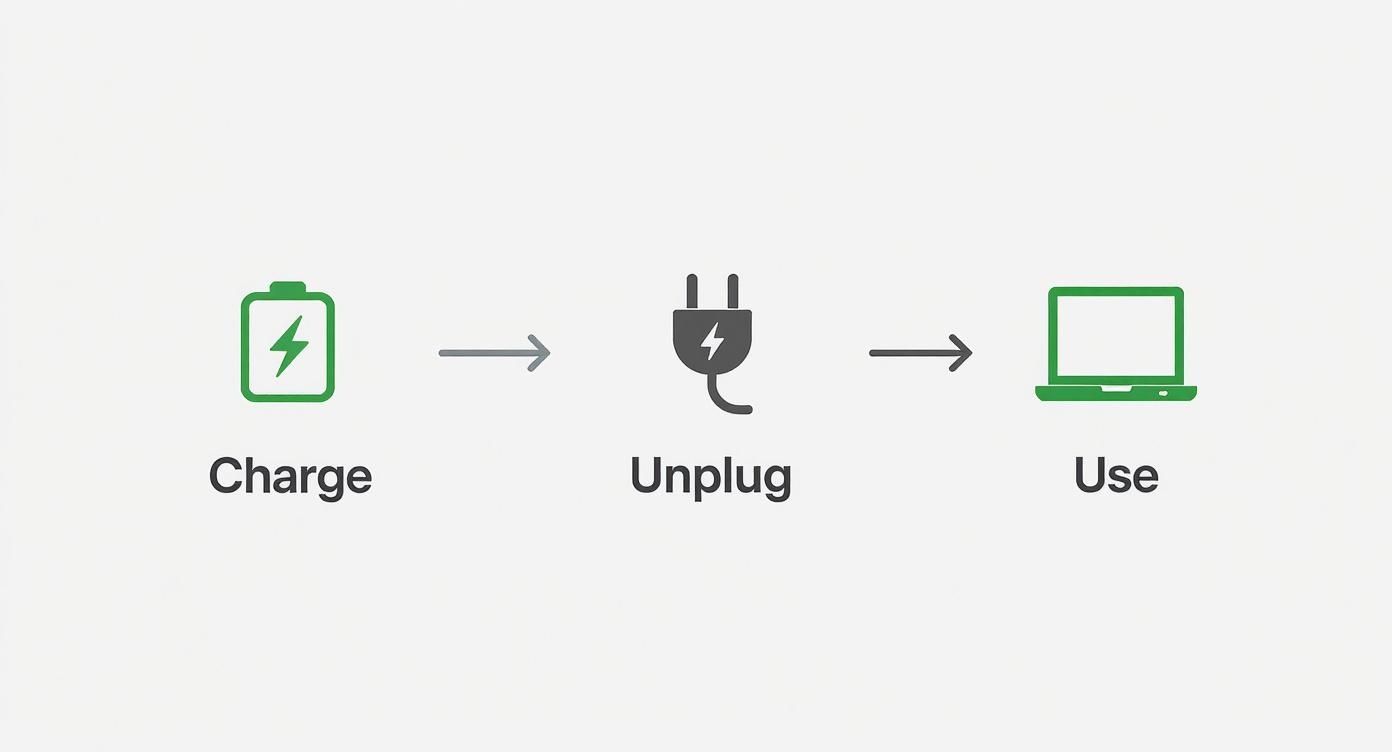
This simple cycle is the core idea of a healthy battery routine: actively manage the process rather than just leaving the device plugged in 24/7.

A diagram illustrating the steps: charge a battery, unplug the power, and then use a laptop.

Automate Healthy Charging with Smart Tools

We’ve already talked about how keeping your battery between 20% and 80% is the sweet spot for long-term health. The problem? Remembering to unplug your laptop at just the right moment is a real pain. It's far too easy to plug it in and completely forget, leaving the battery sitting at a stressful 100% charge for hours—or even days—on end.

This is exactly where a piece of smart hardware can be a game-changer. A device like Chargie was made to solve this specific problem. It's a small USB-C device that sits between your charger and your laptop, acting as a smart gatekeeper for the power flowing into your machine.

Using its app, you can set a hard charging limit—say, 80%. The second your laptop hits that level, Chargie simply cuts the power. It's a true set-it-and-forget-it solution that enforces perfect charging habits for you, day in and day out, preventing the high-voltage stress that wears out your battery over time.

Setting Up Chargie for Optimal Protection

Getting started with Chargie is designed to be super simple. The whole idea is to make healthy charging an automatic background process you never have to think about again.

Here's how you can use the 80% charge limit and other battery-saving features using the device.

Chargie Setup for Optimal Battery Health

Step Action Expected Outcome
1. Connect Hardware Plug the Chargie device into your charger's cable, then connect the other end to your laptop’s USB-C port. The device is now physically in line to control the power flow.
2. Install the App Download and install the Chargie app on your phone or computer. It works with Windows, macOS, and others. You now have the software needed to control the hardware.
3. Set the Limit Open the app and use the slider to set the maximum charge level to 80%. Chargie will now automatically stop charging once the battery reaches 80%.
4. Use Scheduling (Optional) In the app's scheduler, set the battery to stay at a lower level (e.g., 50%) overnight and then top up to 80% before your workday starts. This reduces the time spent at higher charge levels, further easing stress on the battery.

By following these steps, you're not just preventing overcharging; you're actively managing the battery's charge level to keep it in its happiest, healthiest range for as long as possible.

Why Your Choice of Charger Matters

When you lose or break your original charger, it's tempting to go online and grab the cheapest generic replacement you can find. Honestly, this is one of the riskiest things you can do for your laptop's battery.

Your laptop’s original charger isn't just a power cord; it's designed to talk to your device, delivering the exact, stable power the battery was made for. Cheap, uncertified chargers often cut corners on important safety features and quality parts.

An uncertified charger can deliver inconsistent power, sending "dirty" electricity into your battery. This can cause overheating, inefficient charging, and, in the worst cases, permanent damage to both the battery and the computer itself.

Think of it like this: you can survive on junk food, but you’ll feel and perform much better with high-quality food. Your battery feels the same way about the electricity it gets. You can dive deeper into the specifics of how many watts are needed to charge a laptop in our detailed guide, which breaks down why matching your charger to your device is so important.

Energy-Efficient Components and Other Accessories

When it's finally time to buy a new laptop, keep an eye out for models with modern, power-saving computer chips. Chips like Intel's Core Ultra series or Apple's M-series are built to use less power, which directly means more battery time for you. Learning about different battery technologies can also be useful—for instance, understanding the best battery types for trail cameras shows how different types are made for long life in other gadgets.

Finally, be mindful of the accessories you leave plugged in. Docks, external hard drives, and even some fancy USB mice can draw a surprising amount of power. Unplugging them when you're running on battery is a simple but effective trick to save energy and squeeze out a little more time before you need to find an outlet.

Keep Your Laptop in Fighting Shape with Essential Maintenance

Think of your laptop's battery like a car engine. You wouldn't skip an oil change for years and expect it to run smoothly, right? The same logic applies here. A little bit of maintenance goes a long way in preventing those frustrating moments when your laptop suddenly dies, even though the battery meter swore you had 20% left.

You don't need to be a tech expert to do this. By spending just a little time on two key tasks every few months—battery calibration and software updates—you can keep your machine running reliably. These are simple habits that pay off big in the long run.

A laptop displaying a battery calibration icon and progress bar with 'Calibrate & Update' text on a desk.

What Is Battery Calibration (And Why Bother)?

We've all been there. You're working on something important, glance at the battery icon, and see what looks like plenty of power left. Then, boom—the screen goes black. This is the classic sign of a battery meter that's out of sync.

The software that shows you that percentage is really just making an educated guess. Over time, as your battery naturally ages and its maximum power level decreases, that guess gets more and more inaccurate. Calibration is how you "re-teach" the software what "full" and "empty" actually mean for your battery right now.

It’s a simple reset that gives your computer a much more trustworthy estimate of your remaining runtime, stopping those sudden shutdowns.

Think of it like this: calibrating your battery is like resetting the fuel gauge in your car. It doesn't magically add more gas to the tank, but it ensures the gauge you're looking at is telling you the truth about what's left.

Doing a full calibration every two to three months is a solid routine. If you really want to get under the hood and track your battery's condition, our guide on how to check your laptop's battery health is a great next step.

How to Recalibrate Your Laptop Battery

The process itself is pretty simple and just involves running through a full charge cycle. While the exact menu options might be a little different between brands, the core idea is the same everywhere.

Here’s the game plan:

  • Charge It to 100%: Plug in your laptop and let it charge completely to 100%. Don't unplug it right away—leave it on the charger for another hour or two. This makes sure it's truly full and has had a chance to cool down.
  • Drain It Completely: Now, unplug the charger and just use your laptop normally until it shuts down on its own. You have to let it die completely. Pro-tip: you can speed this up by temporarily turning off your sleep and screen-off settings in your power options.
  • Let It Rest: Once it has shut itself down, leave it unplugged for at least three to five hours. This lets the battery fully settle while empty.
  • Recharge to 100% (Without Stopping): Finally, plug it back in and let it charge all the way to 100% in one go, without using it or unplugging it.

That’s it! Your battery meter should now be giving you a much more accurate picture of its real power, helping you better plan your time away from an outlet.

Don't Skip Your Software and Driver Updates

This is probably one of the easiest and most overlooked ways to extend laptop battery life. It might not seem directly related, but developers at Microsoft, Apple, and hardware companies like Intel are always tweaking their software to be more efficient.

These updates aren't just for new features; they often include important bug fixes and performance improvements aimed at reducing power use. An old, un-optimized program for your graphics, for instance, could be making your hardware work way harder than it needs to, secretly draining your battery.

Keep an eye out for these:

  • Operating System Updates: Both Windows and macOS release power-saving improvements all the time.
  • Driver Updates: Make sure the special software for your computer chips and graphics card are current.
  • Application Updates: Even your browser and other daily-use apps get updates that can make them use less power.

Making it a habit to install updates is more than just good for security. It’s a completely free way to ensure your laptop is running as efficiently as possible.

How IT Teams Can Streamline Battery Management

Managing your own laptop's battery is one thing. But when you're responsible for an entire fleet of devices, the challenge gets a lot bigger. For IT managers, the real goal is to extend laptop battery life across many computers. Get it right, and you’re directly protecting the company's hardware investment, cutting down on employee downtime, and getting fewer support tickets.

It's not as simple as sending out an email with a few "best practices." To really make a difference, you need a central, enforceable strategy that doesn't rely on individual users remembering to do anything. This is where special management tools really shine.

Use Central Tools to Enforce Smart Policies

Management tools give IT teams the remote control they need to set up and enforce power-saving rules across every single company-owned laptop. Instead of hoping employees adjust their settings, you can just push out a standard setup that creates a baseline for efficiency.

This approach means every device is optimized automatically, with zero extra effort from your team or the user. Some of the most effective policies you can set up are pretty straightforward:

  • Standardize Screen Timeouts: Set all screens to turn off after 2-3 minutes of inactivity. Have the devices themselves go to sleep after 10-15 minutes.
  • Restrict Background Apps: Block non-essential apps from quietly draining power in the background.
  • Disable Unused Hardware: If a user doesn't need Bluetooth, turn it off remotely. Same goes for other hardware features.

These automated rules create a consistent standard for power management. It takes all the guesswork out of the equation and ensures devices are always operating as efficiently as possible.

Deploy Hardware for Automated Fleet Health

Management policies are great for controlling how devices use power, but they can't touch the biggest factor in battery wear: physical charging habits. This is where a hardware solution like Chargie becomes a game-changer for an entire fleet.

By giving a Chargie to every user, you can automate healthy charging and stop early battery failure across the board. Imagine setting a universal charge limit of 80% across every device. This simple step protects the entire fleet from the high-voltage stress that comes from being left plugged in 24/7. It’s a proactive move that helps you break the costly cycle of replacing batteries—or entire laptops—every couple of years.

And this isn't a small problem. The global laptop battery market is valued at around $8.1 billion and is expected to climb to $12.1 billion in the next decade. That's a clear sign that preserving battery health is a massive priority. You can learn more about the expanding laptop battery market on persistencemarketresearch.com.

For any IT team, keeping a close eye on battery health reports is a must. A battery that's been charged and drained many times is a warning sign that it's aging and about to fail. Identifying these devices early lets you schedule maintenance instead of dealing with surprise failures that kill productivity.

Putting these hardware and software strategies together is a core part of any good device management plan. For a deeper dive, check out our guide on IT asset management best practices. By combining smart policies with automated hardware, IT teams can seriously extend the lifespan of their device fleet, cut replacement costs, and keep everyone working without interruption.

Got Laptop Battery Questions? We've Got Answers

Digging into the world of laptop batteries often feels like you're trying to separate fact from fiction. Everyone seems to have a strong opinion, but getting the real story can make a massive difference in how long your battery actually lasts. Let's clear the air and tackle some of the most common questions people have when they're trying to extend their laptop battery life.

Getting this right isn't just about tech trivia; it’s about building smarter habits that protect your laptop and keep you working away from a power outlet for as long as possible.

Is It Really That Bad to Leave My Laptop Plugged In All the Time?

In most cases, yes, it can be. While modern laptops are smart enough to stop charging once they hit 100%, holding a battery at that full-charge state puts it under constant high-voltage stress. A good comparison is a rubber band that's always stretched to its limit—eventually, it wears out. This state speeds up the aging process inside the battery.

Plus, there’s the issue of heat. A laptop that's always plugged in tends to run a bit warmer, and heat is the worst enemy of battery health, speeding up wear even further. It’s much healthier for the battery to be used a bit and not stay full all the time. If your laptop spends most of its life on a desk, the best thing you can do is use a tool to limit the charge to a healthier level, like 80%, to take that stress off.

How Often Should I Bother Calibrating My Laptop Battery?

Honestly, this isn't something you need to lose sleep over. For most laptops today, running a full calibration once every two or three months is plenty. The main point of calibration isn't to magically improve the battery's physical health, but to re-sync the software that tells you how much power is left.

The classic sign that you need to calibrate is when your laptop suddenly dies on you, even though the battery meter insisted you still had 10% or 20% left. That’s your computer telling you its guess is way off, and it's time for a reset.

Is It Safe to Use a Third-Party Replacement Battery?

It's a bit of a gamble, to be honest. While there are some decent third-party brands out there, the market is also full of low-quality knockoffs. These cheaper batteries often cut corners with lower-quality parts and might be missing the important safety and temperature control features you'd find in an official battery from the manufacturer.

Using a poor-quality replacement can lead to a host of problems:

  • A much shorter lifespan compared to the original.
  • Bad performance and a charge meter that’s never accurate.
  • In a worst-case scenario, it could overheat and damage your laptop's internal parts.

Whenever you can, sticking with an official battery from your laptop's manufacturer is the safest bet. It guarantees you're getting the quality, compatibility, and safety features your machine was designed for.


Tired of micromanaging your charging habits? Chargie is the set-it-and-forget-it solution that safeguards your battery by automatically keeping it at optimal charge levels. Find out how Chargie can extend the life of your devices.

Extend Phone Battery Life with Real Tips That Work

We’ve all been there. You start the day with a phone at 100%, but by lunchtime, you're already looking for a power outlet. That feeling of your phone's battery life slipping away isn't just in your head—it’s a real and frustrating part of owning a modern smartphone.

But here's the good news: you can fight back. The secret to a longer-lasting battery isn't a complicated trick. It's about focusing on a few key areas: taming your screen, getting a handle on apps running in the background, and using smarter charging habits. Simple changes can make a world of difference.

Why Your Phone Battery Drains So Quickly

Today's phones are incredible little computers, but all that power takes a toll on the battery.

The single biggest energy user in your phone is almost always the screen. That bright, beautiful display is fantastic to look at, but it drinks power every single second it's on. Every time you wake your phone just to check a notification, you’re using up a bit of your battery.

But it’s not just what you see. A lot is happening behind the scenes. Apps you think you've closed are often still busy in the background, checking your location, looking for updates, or sending you notifications. Each one of these tiny actions is another small drain on your battery.

The Impact of Modern Features

It doesn’t help that newer technology adds even more strain. Take 5G, for instance. The super-fast speeds are great, but connecting to a 5G network can use 10-20% more power than good old 4G.

Combine that with power-hungry activities like mobile gaming and streaming your favorite shows, and you’ve got a recipe for a rapidly draining battery.

The real challenge is that our phones are designed to do everything at once—stay connected, update apps, and look brilliant. Each feature uses a small amount of your battery, and together they create a significant drain.

Quick Wins for Immediate Improvement

Luckily, you don't need to be a tech expert to get more life out of your phone. Making a few small changes can have a noticeable effect right away. It all starts with understanding the various factors that influence phone battery life and hitting the biggest problems first.

For most people, the biggest battery drainers are surprisingly easy to manage. I've put together a quick table to show you where to start for the fastest results.

Quick Fixes for Common Battery Drainers

This table shows the most common things that drain phone batteries and the quick actions you can take to stop them.

Common Culprit Simple Solution Impact Level
Bright Screen Lower the brightness yourself or turn on auto-brightness. High
Background App Refresh Go into your settings and turn off background activity for apps you don't need running all the time. High
Location Services Set location access to "While Using" for most apps, not "Always." Medium
5G Connectivity If 4G/LTE is fast enough for you, switch off 5G in your phone's settings. Medium
Push Notifications Turn off notifications for apps that don't need your immediate attention. Medium
Vibrations Turn off vibrations for your keyboard and system alerts. Low

By dealing with these main issues, especially the high-impact ones, you can start to extend your phone's battery life immediately without giving up the features you actually need. It’s all about being a little more mindful of your settings.

Optimize Your Screen for Maximum Battery Savings

A smartphone displaying a dark mode interface next to one with a light mode interface, highlighting the contrast in screen power usage.

Your phone's beautiful, bright screen is, without a doubt, its biggest power user. It’s often responsible for more battery drain than anything else. The good news? You have a lot of control over it. A few simple changes to your display settings can make a huge difference in your daily battery life, and you won't even notice the change.

The single most effective thing you can do is manage screen brightness. Most phones have an "Auto-Brightness" feature, but it’s not always the best choice for saving power. These systems tend to set the screen much brighter than you actually need, especially when you're indoors.

A better way is to take control yourself. Find a comfortable brightness level for where you usually are—like your home or office—and just leave it there. You'll probably find that a setting around 30-50% is perfectly fine and saves a surprising amount of power. You can always slide it up quickly if you step out into bright sunlight.

Embrace the Power of Dark Mode

One of the best battery-saving features to come to modern phones is Dark Mode. This is more than just a style choice; if your phone has a certain type of screen (called OLED or AMOLED, which most new phones do), it’s a real power-saver.

Here’s why: on these screens, each tiny dot (pixel) lights up on its own. To show the color black, the dot just turns off. It uses zero power. A bright white screen, on the other hand, forces every dot to light up at full power.

This means that switching to Dark Mode on your phone and in your favorite apps can cut down your screen's power use. The more black you have on your screen, the less energy it's using.

Think of it like this: a bright white screen is like having millions of tiny light bulbs turned on. A dark screen is like switching most of those bulbs off, which naturally saves a lot of electricity—or in this case, battery.

Small Tweaks That Make a Big Difference

Besides brightness and color, a few other small habits can add up to serious savings by the end of the day. These are the "set it and forget it" changes that quietly save your battery in the background.

  • Shorten Your Screen Timeout: This is a big one. Set your screen to turn off after 30 seconds or one minute when you're not using it. Every second your screen stays on for no reason is just wasted power.
  • Ditch the Flashy Lock Screen: Moving wallpapers, live weather updates, and constant notifications on your lock screen all wake the display. Each time it wakes up, it uses a tiny bit of power, but it all adds up. A simple, non-moving wallpaper is by far the most battery-friendly option.

By taking a few minutes to adjust these settings, you're directly tackling the number one cause of battery drain. You'll end up with more screen time for the things you actually want to do.

Take Control of Power-Hungry Apps and Notifications

A smartphone screen showing a list of apps with their battery usage percentages, helping to identify power-hungry apps.

Think of some apps on your phone as sneaky guests who never leave. Long after you’ve closed them, they're still running in the background, quietly draining your battery by getting updates, checking your location, and sending alerts. Getting this wasted power back is a massive step toward making your charge last all day.

First, you have to figure out which apps are the worst offenders. Thankfully, both Android and iOS make this easy. Just go into your phone’s Settings, tap on the Battery section, and you'll get a list of what's been using the most power. You might find some surprises.

Often, it’s not the apps you use the most, but the ones that are poorly made or just very active in the background. Social media apps are famous for this. Once you've found your own battery hogs, you can take action to control them.

Restrict Background App Activity

One of the most powerful things you can do to extend phone battery life is to manage what apps are allowed to do when you're not actively using them. For many apps, there’s simply no good reason for them to be running behind the scenes.

Your phone gives you control over this for each app. You can choose to stop its background activity. This doesn't break the app or stop it from working when you open it, but it does stop it from draining your battery when it’s closed.

Just think about a news app, a weather app, or that game you play sometimes. Do they really need to be constantly active? Probably not. By restricting them, you make sure they only use power when you actually want them to.

The key is to be selective. You'll want important apps like your email or messaging services to run in the background so you get alerts on time. But for almost everything else, stopping background activity is a pure battery-saving win with no real downside.

Limit Location Tracking and Notifications

Another hidden power drain is location services. Many apps ask for access to your location, but very few actually need it "Always." A map app needs your location while you're using it, sure, but does a shopping app need to know where you are 24/7? Absolutely not.

Go through your app permissions and switch the location access for most apps to "While Using the App" or "Ask Next Time." This one simple change stops them from constantly using GPS, which is a major battery drain.

Finally, let’s talk about notifications. Every little buzz and beep wakes up your phone’s screen and uses a tiny bit of energy. When you get dozens—or even hundreds—of these a day from apps you don't really care about, it really adds up.

  • Silence the noise: Turn off alerts for games and shopping apps. These are rarely urgent and are a major source of battery-draining interruptions.
  • Bundle the rest: Some phones let you group less important notifications and deliver them all at once at set times, which drastically reduces how often your screen wakes up.

By being more careful about which apps can run in the background, track your location, and interrupt your day, you take back control. Your battery will thank you for it by lasting significantly longer.

Adopt Charging Habits That Preserve Battery Health

A phone being charged on a wireless pad with a green battery icon indicating a healthy charge level.

How you charge your phone matters just as much as how you use it. We've all heard that old advice to let your phone die completely before plugging it in and charging it to 100%. That might have worked for old-fashioned batteries, but for the modern ones in our phones? It's one of the worst things you can do.

Think of your phone's battery like a rubber band. If you constantly stretch it to its absolute limit (100%) or let it go completely loose (0%), it's going to wear out fast. That constant stress is what makes it lose its ability to hold a good charge over time.

The real secret to making your battery last longer is to avoid those extremes. Keeping it in its comfort zone is the single best thing you can do to slow down the aging process.

The 20-80 Rule for Battery Longevity

The sweet spot for modern batteries is keeping them between a 20% and 80% charge level as much as possible. This simple habit greatly reduces the stress on the battery, helping it hold its charge capacity for much longer.

It might feel a little strange to not use the full 0-100% range, I get it. But the benefit is huge. A battery that lives in that 20-80% zone can easily last longer than one that is fully charged and drained every single day.

Of course, life happens. Sometimes you need that 100% charge for a long flight or a busy day out. That’s perfectly fine! The goal isn't perfection; it's about building smarter charging habits for your everyday routine.

Smarter Charging Over Fast Charging

In our busy world, "fast charging" sounds like a lifesaver. And while it's great when you're in a hurry, regularly using a powerful fast charger creates a lot of extra heat. Heat is the number one enemy of battery health—it literally speeds up the chemical aging inside.

Whenever you can, choose a slower, standard charger, especially if you're plugging in overnight. It creates far less heat and is much gentler on your battery.

The overnight charge is where most of us do the most damage. Leaving your phone plugged in all night forces it to sit at a stressful 100% for hours, which can cause it to get warm and slowly damage its ability to hold a charge.

To fix this, most new phones have a feature like "Optimized Battery Charging." This setting is a game-changer. It cleverly charges your phone to 80% and then waits, only finishing the charge to 100% right before you usually wake up. You should absolutely turn this on if you haven't already.

For even more control, it's worth learning the best ways to charge overnight. A lot of people wonder if you should charge your phone overnight, and the answer is tricky. Smart charging habits are your best defense against a battery that dies too soon.

To make it crystal clear, let's break down the good habits from the bad ones.

Good vs. Bad Charging Habits

Here’s a simple table to help you see the small changes that make a big difference in your phone’s long-term battery health.

Habit to Avoid Recommended Practice Why It Matters
Charging to 100% overnight, every night. Use a smart charging device to stop at 80-90%, or turn on your phone's optimized charging feature. Avoids hours of stress and heat, which are the main causes of battery wear.
Letting your phone frequently drop to 0%. Start charging when the battery gets down to around 20-30%. Draining the battery completely puts a lot of strain on it, causing it to wear out faster.
Always using a fast charger. Use a standard, weaker charger for regular charging, especially overnight. Save fast charging for emergencies. Slower charging creates less heat, which is the number one enemy of a healthy battery.
Leaving your phone in a hot car or direct sun. Keep your phone in a cool, shaded place and never charge it when it's already hot. Extreme heat permanently damages the battery's ability to hold a charge.

By swapping out a few bad habits for these recommended ones, you're not just getting a little more power out of your daily charge—you're making the battery itself last much longer.

Tame Your Connectivity and Power Saving Modes

Your phone is always talking to the outside world. It’s constantly searching for signals—Wi-Fi, cellular, Bluetooth—and every one of these invisible connections quietly uses your battery. By getting smart about how you manage these signals and using your phone’s built-in power-saving tools, you can add hours to your daily battery life without feeling disconnected.

Ever been in a basement or out in the country and watched your battery percentage drop fast? That’s not your imagination. In areas with a weak signal, your phone works extra hard, boosting its power in a desperate, energy-draining search for a stable connection.

This is one of the most common hidden battery killers. When your phone has one bar or keeps jumping between networks, it's burning a massive amount of power just to stay online.

Reign In Your Wireless Connections

The easiest fix for a weak signal is to simply turn on Airplane Mode. It instantly stops the frantic search and saves your battery. You can always turn Wi-Fi and Bluetooth back on separately if you need them, but you’ll have stopped the cellular drain.

It's also just a good habit to switch off other connections when you aren't actively using them.

  • Bluetooth: If you're not connected to headphones or a speaker, there's no reason to leave it on.
  • Wi-Fi: Leaving Wi-Fi on when you're out makes your phone constantly scan for available networks—another small but steady drain. A bad Wi-Fi connection can be just as draining as bad cell service, so it's worth learning about troubleshooting Wi-Fi issues on your device.
  • GPS/Location Services: As we've mentioned, this is a big one. Limiting location access for apps that don't absolutely need it is a huge power saver.

This constant need for more power just to stay connected is a big reason why companies are in a race to build phones with bigger batteries. In May 2025, China was leading the pack with an average smartphone battery size of 5418 mAh—an 11% jump from the previous year. It's a clear sign that people everywhere want phones that can keep up.

Use Low Power Mode Like a Pro

Finally, don’t be afraid to use your phone's "Low Power Mode" or "Battery Saver." Most people wait until their battery hits 20%, but you can manually turn it on any time you know you've got a long day ahead.

When you turn it on, your phone instantly makes a bunch of smart changes to stretch its remaining power. It dims the screen, limits background app activity, pauses automatic downloads, and might even slow down a little. These changes are designed to be as small as possible while saving as much battery as possible. If you want a deeper look at what’s happening, check out our guide on how Android's power-saving mode works.

Your Top Phone Battery Questions, Answered

Even when you have a good charging routine, there are always those questions and myths about what really makes a difference. Let's clear up some of the most common ones.

Should I Be Closing My Background Apps to Save Power?

This is probably the biggest myth in the phone world, and the short answer is no, not really. It feels like you're helping, but you're actually working against your phone's design.

Both iOS and Android are very smart about managing apps. They "freeze" background apps so they use almost no power. Constantly swiping them away forces your phone to do more work. It takes a surprising amount of energy to start an app from scratch, far more than just waking it up from its frozen state.

The only time you should ever force-close an app is if it's completely frozen or not working right.

A much better approach is to manage which apps can update in the background. Head into your settings and be selective. This stops them from waking up and using power when you're not looking, which is way more effective than constantly closing them.

Is It Okay to Use My Phone While It's Charging?

For light stuff like texting or browsing a website, you're totally fine. The real enemy here isn't using the phone itself—it's heat. Heat is the absolute worst thing for your battery's long-term health.

Think about it: demanding tasks like playing a graphics-heavy game or streaming video create a lot of heat on their own. Add the heat from charging, and you have a very warm phone. That combination of heat can seriously speed up the wear and tear on your battery.

If your phone ever feels hot to the touch while it's plugged in, it's a good idea to just let it charge in peace for a bit.

Should I Just Replace My Battery, or Is It Time for a New Phone?

This one really comes down to how old your phone is.

If your phone is only a year or two old and still runs smoothly, a battery replacement is a great, money-saving choice. It can make an old device feel like new again for much less than the cost of a new phone.

On the other hand, if your phone is getting old, has stopped getting important security updates, or just feels very slow, putting money into a new battery might not be the best idea. A newer model will give you a better camera, faster performance, and—most importantly—the latest software to keep you safe.

And when you do decide it's time to get rid of an old phone or battery, please do it the right way. You can look into battery recycling solutions to make sure they are handled in an environmentally safe way.


If you want to take all the guesswork out of healthy charging and make your battery last for years, Chargie is the simplest, most effective way to do it. It automates the whole process, keeping your battery in its healthiest state and protecting your investment. You can learn more over at https://chargie.org.

How to Extend Phone Battery Life: Simple Tips for More Power

If your phone is constantly hitting red before the day is out, you're not alone. It's one of the most common frustrations we all face, but the good news is you have a lot more control over it than you might think. We're going to skip the technical language and focus on the real, practical changes you can start making today to get those precious hours of battery life back.

This all comes down to two things: changing a few key settings and rethinking some of your daily habits. Things as simple as how bright your screen is, which apps you let run in the background, and how you charge at night can make a huge difference.

Your Guide to a Longer Lasting Phone Battery

We'll help you build a smarter relationship with your device. You'll quickly see how small, easy adjustments can lead to big wins in how long your phone lasts on a single charge.

A person holding a smartphone that displays a battery icon with a plus sign, symbolizing extended battery life.

A Quick Word on Battery Lifespan

Before we jump into the tips, it helps to know how your phone's battery actually ages. It’s not designed to last forever. Over time, its ability to hold a full charge naturally gets weaker, which is a big reason so many of us end up replacing our phones.

The average smartphone has a lifespan of about 2.5 years, and you guessed it—dying batteries are a huge factor. The lithium-ion batteries in our phones are typically good for about 300-500 full charge cycles. That’s roughly 16 months of daily charging before you start to notice it just isn't holding up like it used to. You can dig into more insights about the mobile phone battery market to see the full picture.

Key Takeaway: Every single time you charge your phone from 0% to 100%, that counts as one full "cycle." By managing how and when you charge, you can slow down this aging process. This doesn't just extend your daily battery life, but the overall lifespan of your phone itself.

Small Changes, Big Impact

The goal here isn't to get you to stop using your phone. It's about being more mindful of the things that drain power without you realizing it. And honestly, the biggest power drains are often the things we can easily control.

Here's a quick preview of the main power hogs we're going to tackle:

  • Your Screen: The display is, without a doubt, the single biggest power user on your device.
  • Apps Running in the Background: Some apps are known for quietly using power in the background, even when you're not using them.
  • Connection Features: Things like Wi-Fi, Bluetooth, and especially location services are always looking for a signal, and that costs energy.
  • Charging Habits: How you charge is just as important as what you're doing on your phone.

By getting a handle on these key areas, you'll make sure your phone is ready to go when you actually need it most.

Want a head start? Here are a few simple changes you can make right now to see an immediate improvement.

Quick Wins for Immediate Battery Savings

Action Item Why It Works Estimated Impact
Lower Screen Brightness The display is the #1 power drain. Lowering brightness or using "Auto-Brightness" is the fastest way to save power. High
Turn Off Push Notifications Every notification wakes your screen and uses data. Turning them off for apps you don't need stops this constant drain. Medium
Reduce Screen Timeout Setting your screen to turn off after 30 seconds instead of 2 minutes prevents wasted energy when you're not using it. Medium
Disable Background App Refresh Stops apps from constantly updating in the background, which uses both data and battery. High

These are just the starting points. Making these four adjustments can often give you back a surprising amount of battery life by the end of the day.

Master Your Settings for Maximum Battery Efficiency

Your phone's settings menu is a goldmine for extending battery life, and the best part is, it only takes a few simple taps. The changes you make here have a direct effect on the parts of your phone using the most power, giving you an immediate and noticeable boost.

Let's walk through the most important adjustments you can make right now.

A screenshot of the battery saver mode on an Android phone, showing the toggle switch and options.

This is a pretty standard battery-saving screen. Flipping this one switch is probably the single fastest way to give your phone more stamina when the battery icon starts turning red.

Tame Your Screen's Thirst for Power

Your phone’s bright, beautiful display is, without a doubt, its single biggest energy hog. Every little dot of light on the screen draws power, so managing it is your first defense against a quickly draining battery.

Start by just lowering the overall brightness. Instead of blasting it at full power, try setting it to a comfortable level around 50%. Even better, turn on "Auto-Brightness" (or "Adaptive Brightness" on Android). This feature uses a tiny sensor to adjust the screen's brightness based on the light around you, saving power without you even having to think about it.

Another quick win is shortening your screen timeout. Think about it: if your display stays on for two minutes every time you put it down, that’s a ton of wasted energy over the course of a day. I always set mine to 30 seconds or less to make sure the screen shuts off quickly.

Activate Your Phone's Built-in Power Saver

Both iPhones (Low Power Mode) and Androids (Battery Saver) have a built-in emergency switch for your battery. When you flip it on, your phone automatically dials back things you don't need to stretch its remaining charge as far as possible.

Here’s a peek at what’s happening behind the scenes:

  • Background Activity Stops: It stops many apps from getting new data—like emails or social media updates—unless you open them yourself.
  • Visual Effects are Reduced: Those fancy animations and other visual touches get toned down to save power.
  • Performance is Lowered: The phone's brain slows down slightly to use less energy.

You don't have to wait until you're at 20% to use it. If I know I have a long day ahead, I'll often turn on battery saver mode early. It can make a huge difference. For a deeper dive, our guide explains everything about Android's power-saving mode and how it works.

Limit Services Running in the Background

Lots of apps are constantly checking your location or updating their content, even when they're just sitting in the background. This activity is a silent battery killer.

Head into your settings and take a look at your app permissions. For location services, switch any apps that don't need your real-time position (like a weather or shopping app) from "Always" to "While Using the App" or even "Ask Next Time."

Along the same lines, turn off "Background App Refresh" for apps that don’t need to be constantly up-to-the-second. Social media and email apps are the usual suspects here, but you can safely turn this off for most of your apps without really noticing a difference. This one change alone can put a huge dent in that hidden power drain.

Rethink Your App Usage to Conserve Power

The apps on your phone are what make it useful, but let's be honest, they're also the number one reason your battery seems to die so quickly. Learning to be a bit more mindful about how you use them is a seriously powerful way to extend your battery's life, and you don't have to give up the stuff you love.

A little digital housekeeping really does go a long way.

A grid of colorful app icons on a smartphone screen, with a magnifying glass hovering over them, suggesting analysis and management.

First things first, you need to play detective. Both Android and iOS have a built-in battery usage tool—just dig into your "Battery" settings—that shows you exactly which apps are using the most power. You might be surprised by what you find.

More often than not, the main culprits are the apps we can't seem to put down, like social media and video streaming services. Think about it: they're constantly downloading new content, playing videos, and keeping your screen lit up. That's a triple-threat for your battery.

Identify and Tame the Biggest Offenders

Once your phone’s battery tool shows you the top power hogs, you can take action. This doesn't mean you have to delete your favorite apps. It just means managing how they behave. For instance, many social media apps offer "lite" versions or have data-saver modes that greatly reduce their energy use.

Here's another great trick: try using the mobile website for some services instead of their app. Opening Facebook or Twitter in your web browser gives you almost the same experience but with way less background battery drain.

This simple switch stops the app from constantly running in the background. It puts you back in control—the service only uses power when you actually have its website open.

Pro Tip: For those apps you only open once a month, just uninstall them. There's no reason for them to sit on your phone, potentially using power in the background. A cleaner phone is a more battery-friendly phone.

The Hidden Cost of Notifications

Every single buzz, ding, and on-screen alert uses a tiny bit of energy. Each notification wakes up your phone's screen, lights up the display, and uses a little burst of power. One notification is nothing, but hundreds of them throughout the day? That adds up to a serious drain.

Take a few minutes and go through your notification settings with a careful eye.

  • Turn off alerts for apps you don't need: Does that game really need to send you reminders? Probably not.
  • Bundle them up: Many apps now offer a "summary" feature that groups non-urgent alerts into one or two deliveries a day.
  • Disable lock screen notifications: This is a big one. It stops your screen from lighting up for every single message that comes through.

While taming your apps is important, you're also getting a helping hand from modern phones. The efficiency of today's phones is pretty amazing. A device with a large battery can now handle over 20 hours of web browsing or 14 hours of gaming, all thanks to incredibly power-efficient computer chips. This just goes to show how modern phones are built to sip power, even during heavy use. You can read more about the best phones for battery life to see just how far the tech has come. By managing your apps, you’re making sure you get every last drop of performance out of these amazing hardware improvements.

Smart Charging Habits for Long-Term Battery Health

When it comes to making your phone's battery last, how you charge it is just as important as how you use it. You've probably heard old advice like "drain your battery completely before charging," but for the modern batteries in our phones, that's actually terrible advice.

The real secret is a gentler, smarter charging routine. Think of your battery like a muscle—constantly pushing it from 0% to 100% and back again causes way more strain than just keeping it in a comfortable middle range.

A smartphone connected to a charger with a green battery icon, placed on a wooden surface next to a plant.

It really comes down to reducing that stress. A few simple tweaks to your habits can make a massive difference in how long your device lasts.

Embrace the 40-80 Rule

One of the best things you can do is follow the 40-80 rule. The idea is simple: try to keep your battery's charge level between 40% and 80% as much as you can. This sweet spot avoids the intense strain that comes from both very low charges (near 0%) and full charges (at 100%), which are the most damaging for the battery.

Of course, life happens. You don't need to panic if you dip below 40% or go a bit over 80%. The goal is to make this your general habit, not a strict, unbreakable law. Giving your phone a short top-up during the day is much healthier for it than one long, stressful charge from empty to full.

Key Insight: Staying within the 40-80% range reduces wear on the battery's internal parts. This simple habit can significantly slow down the aging process, helping your phone hold a stronger charge for many more months or even years.

Keep It Cool While Charging

Heat is the absolute worst enemy of your battery. High temperatures speed up the chemical reactions inside, which causes permanent damage and shrinks its overall capacity. This is why you should never charge your phone in direct sunlight, on a hot car dashboard, or—a common one—tucked under your pillow.

If you notice your phone getting unusually warm while it's plugged in, it's a good idea to unplug it for a few minutes and let it cool down. I also recommend taking off any bulky or thick cases when charging. They can trap heat and prevent it from escaping properly. Keeping things cool is a simple but critical step.

To put it plainly, good charging habits are about avoiding extremes. Here’s a quick rundown of what to do versus what to avoid.

Charging Dos and Don'ts

Habit The Good Practice (Do) The Bad Practice (Don't)
Charge Level Keep it between 40-80% with short, frequent top-ups. Regularly charge from 0% to 100% or leave it at 100%.
Temperature Charge in a cool, well-aired area. Remove the case if needed. Charge in direct sunlight, in a hot car, or under a pillow.
Overnight Charging Use smart charging features or devices like Chargie to limit charge. Plug it in and let it sit at 100% all night long.
Charger Type Use the original or a high-quality certified charger. Use cheap, uncertified chargers that can cause overheating.

Following these simple "dos" will go a long way in keeping your battery healthy for years to come.

Use Your Phone's Built-In Smart Features

Thankfully, our phones are getting smarter about protecting themselves. Modern smartphones come with intelligent charging features built right in. On iPhones, it's called "Optimized Battery Charging," and on Android, you'll find similar "Adaptive Charging" functions.

These systems are pretty clever. They learn your daily routine and manage the charging process to reduce stress. For example, if you plug your phone in overnight, it will quickly charge to about 80% and then just… wait. It smartly holds the charge there and only tops off the final 20% just before you typically wake up. This greatly cuts down the time your battery spends sitting at a stressful 100% charge.

If you're curious to learn more about how this works, our article on whether you should charge your phone overnight dives much deeper into the topic.

Alright, if you’ve mastered the basics and are ready to really push your phone's battery to its limits, it’s time to get into some next-level strategies. These aren't just simple settings tweaks; we're talking about managing your phone's power with real precision. This is for those who want to get every last drop of performance for daily use while keeping the battery healthy for the long run.

One of the most powerful tricks is also one of the easiest: switching to dark mode. It’s not just for looks. If your phone has a modern OLED or AMOLED screen, dark mode is a genuine battery-saving powerhouse.

Here’s the simple reason why it works so well: these screens light up each dot (or pixel) one by one. When a pixel is supposed to be black, it just turns off completely, using zero power. The more black space you have on your screen, the less energy your phone has to use. That’s a huge win, especially when you think about how much time your screen is actually on every day.

Taming Your Phone's Connections

Your phone is constantly chattering away in the background, looking for Wi-Fi, cell networks, and Bluetooth signals. Getting smart about how you manage these connections can make a noticeable difference in your day-to-day battery life.

A good rule of thumb is to simply turn off what you aren't actively using. For example, if you're at home with good Wi-Fi, you can switch off your cellular data. On the other hand, if you're out and about with no Wi-Fi anywhere, turn off the Wi-Fi. Otherwise, it will just keep scanning for networks it can’t find, needlessly draining your battery.

Key Insight: Sticking to Wi-Fi is almost always better for your battery than using cellular data (4G or 5G). A strong Wi-Fi signal takes a lot less power to hold onto than a cell connection, especially if you’re in a place with bad service where your phone has to work extra hard just to stay connected.

This global need for better battery life is also leading to some incredible new hardware. New materials are letting manufacturers pack more energy into the same tiny space. It's a big reason why newer phones can last longer without getting any thicker. You can read more about this battery performance technology on eu.36kr.com.

Set It and Forget It With Smart Hardware

For anyone who wants to make good battery habits automatic, special hardware is the ultimate solution. While software features like smart charging are a step in the right direction, a physical device gives you much more precise control.

This is exactly where a tool like Chargie comes in. It’s a small gadget that plugs in between your charger and your phone, acting like a smart gatekeeper for your battery.

  • Automatic Charge Limiting: You just tell the Chargie app the max charge level you want—let's say, 80%. Once your phone gets there, Chargie physically cuts the power. No more stress from accidental overcharging.
  • Smart Overnight Charging: It can hold your phone at a healthier, lower charge level (like 50%) for most of the night. Then, it tops it off to your target level right before you wake up.

By making healthy charging habits automatic, a battery charge limiter takes all the guesswork out of the equation. It makes sure your phone stays in that sweet spot for battery health without you ever having to think about it, helping you extend your phone's battery life for years to come.

Your Daily Battery-Saving Routine

Knowing all these tips is one thing, but the real secret to making them work is building them into your daily life. The goal isn't to obsess over your battery percentage. It's about building a simple, repeatable routine that makes battery savings feel completely automatic.

Think of it like this: a few small, consistent actions are what turn knowledge into real results. This approach makes smart battery management a natural part of how you use your phone, keeping it powered up without adding any stress to your day.

Your Morning Kickstart

How you start your day can really set the tone for your phone's battery performance. Instead of grabbing a phone that's been sitting at 100% all night long, you can kick things off with a much healthier approach.

  • Unplug at 80%: If you charge overnight, get into the habit of unplugging your phone when it hits that sweet spot of 80-85%. This simple move avoids the stress that a full charge puts on your battery, which is a major reason it ages.
  • Quick Connection Check: As you're heading out the door, just do a quick mental scan. Hopping in the car? Maybe you need Bluetooth. If not, turn it off. That one action stops your phone from constantly hunting for devices and using power for no reason.

Throughout the Day

Being mindful during the day doesn't mean you have to constantly stare at your battery icon. It’s more about making small, smart choices that really add up by the time evening rolls around.

For instance, when you sit down at your desk, make it a habit to switch from cellular data to Wi-Fi. It’s not only a more stable connection but also much gentler on your battery. In the same way, if you know you won't be using navigation for the next few hours, turning off location services can be a massive power saver.

Making these tiny adjustments throughout the day is like turning off lights when you leave a room. Each individual action is small, but together they add up to a big reduction in wasted energy.

Winding Down in the Evening

Your evening routine is the perfect time to prep your phone for a low-power night, which is just as important for its long-term health as anything you do during the day.

A great final step is to schedule "Do Not Disturb" or "Focus Mode" to turn on automatically. This prevents a flood of notifications from waking your screen all night—a surprisingly large and sneaky battery drain.

By making these simple actions a habit, better battery life just becomes second nature.

Got Questions About Your Phone's Battery? Let's Clear Things Up.

Let's cut through the confusion and tackle some of the biggest questions I hear about keeping a phone battery healthy. Getting these answers straight can help you separate long-standing myths from what actually works.

Is Charging My Phone Overnight a Bad Idea?

While your phone won't be damaged overnight, constantly pushing the battery to 100% and leaving it there for hours is a fast track to aging it more quickly. That long, uninterrupted charge also creates heat, which puts even more stress on the battery's insides.

The sweet spot? Aim to stop the charge around 80%. You can try to rely on your phone's built-in smart charging feature, but for total control, a special tool is the best way to protect its health for the long haul.

Should I Be Closing My Background Apps to Save Power?

This is probably one of the biggest myths out there. The short answer is: no, it usually doesn't help.

Modern phones like iPhones and Androids are incredibly good at "freezing" apps in the background so they use almost no power. Constantly swiping them away actually forces your phone to work harder later, using more battery to relaunch them from scratch. It's almost always better to let your phone manage this on its own, unless you notice an app is clearly acting up and draining your battery.

A factory reset might seem like a drastic but effective fix for battery problems, but I always treat it as a last resort. It's really only for stubborn software glitches. Before you go that far, try identifying and just removing the specific apps that are draining your power—it's a much less disruptive step that often solves the problem.

And when your phone's battery is truly at the end of its life, it's time to think about what comes next. Properly securely disposing of old iPhones is a crucial step for protecting your personal data and being good to the environment.


If you want to take all the guesswork out of building healthy charging habits, that’s where Chargie comes in. It makes the entire process automatic by limiting charges to healthy levels and scheduling top-ups when you need them, ensuring your battery stays in top shape for years. You can learn more about how it works over at https://chargie.org.

How to Extend Laptop Battery Life and Stay Unplugged

It’s that sinking feeling. You’re in the middle of something important, maybe wrapping up a report or on a crucial video call, and that dreaded low-battery warning pops up. We’ve all been there. The good news is you don’t need to be a tech expert to squeeze more life out of your laptop’s battery.

A few smart changes to your daily habits and settings can make a massive difference.

Your Quick Guide to a Longer-Lasting Laptop Battery

A person working on a laptop in a well-lit, modern space, focused on the screen.

The name of the game is using your laptop's power more efficiently. This doesn't just give you more time away from the outlet today—it also helps keep your battery healthy for a long time. Think about it: simple things like dimming the screen, closing apps you aren't using, and turning off Wi-Fi or Bluetooth when you don't need them all add up.

Most modern laptops use Lithium-ion batteries, and these little power packs work better when you manage power smartly. If you're curious about how notebook battery technology has changed over time, you can find a deep dive into its evolution on marketreportanalytics.com.

Immediate Actions for More Battery Power

Let's start with the easy stuff. These are the quick things you can do right now to see an immediate boost in how long your laptop lasts on a single charge. No technical skills required.

If you're in a pinch and need to save power fast, a few clicks can go a long way. Here’s a quick table of the most effective, instant actions you can take.

Instant Battery-Saving Actions

Action Impact on Battery How to Do It (Quick Tip)
Lower Screen Brightness High Use the function keys (often marked with a sun symbol) or the display settings.
Turn on Battery Saver Mode High Click the battery icon in your taskbar (Windows) or menu bar (Mac).
Unplug Extra Devices Medium Simply unplug any USB devices like mice, webcams, or external drives.
Turn Off Bluetooth/Wi-Fi Medium Use the quick settings menu to turn them off when not in use.
Close Background Apps Medium Check your Task Manager (Ctrl+Shift+Esc) or Activity Monitor for power-hungry apps.

These simple changes are your first line of defense against a rapidly draining battery. They take just a few seconds but can add precious minutes, or even hours, to your unplugged time.

  • Adjust Your Screen Brightness: I can't say this enough. Your screen is one of the biggest power users on your laptop. Simply turning down the brightness to a comfortable level is the fastest way to save power.
  • Disconnect Unused Devices: Everything you plug into your USB ports—an external mouse, a hard drive, even a webcam—draws power from your battery. If you aren't actively using it, unplug it.

Dive Into Your Laptop's Power Settings

An illustration showing a laptop with various power setting icons like brightness, battery saver, and processor speed floating around it.

Beyond the quick fixes, your laptop has a special control center for managing its energy use. These built-in power settings are where the real magic happens, but most people never even look at them. By creating your own power plan, you can tell your laptop exactly how to act when it's running on battery.

Think of it like the different driving modes in a modern car. You wouldn't keep it in "Sport Mode" for a quiet cruise; "Eco Mode" is the smart choice. It's the same idea here. You can create a "Low Power" setting that makes your battery last as long as possible for everyday tasks like writing emails or browsing the web.

Fine-Tuning Your Custom Power Plan

Instead of just using the default "Balanced" or "Power Saver" modes, creating your own plan lets you control the details. You can adjust specific parts of your laptop that are known to use a lot of battery.

Here are a few of the most important settings you'll find in the advanced power options:

  • Processor Power Management: This is a big one. It lets you put a speed limit on your computer's brain (the CPU). I’ve found that setting the maximum processor speed to 70-80% when on battery saves a lot of power without any noticeable slowdown for most tasks.
  • Display Timers: Be strict here. Shorten the time it takes for your screen to dim and then turn off when you step away. A few minutes saved each time really adds up over a full day.
  • Hard Disk Settings: If your laptop has an older spinning hard drive, you can tell it to power down sooner when it's not being used.

By making these small, careful changes, you’re not just getting back a few minutes of battery life. You're building a smarter habit that prevents wasted power every single day.

This level of control means your laptop can be very efficient when you're on the go, but it's ready to use its full power the moment you plug it back in.

If you're curious about the other side of things—how your charger actually delivers that power—you can learn all about how many watts it takes to charge a laptop in our detailed guide. Getting a handle on these settings is a massive step toward making your battery last longer.

Smart Habits That Make a Real Difference

Beyond just changing your system settings, the way you actually use your laptop day-to-day has a huge effect on its battery. Think about how you work. Most of us are guilty of keeping dozens of browser tabs open while juggling a handful of demanding apps. Each one of those programs is quietly sipping away at your battery, and that adds up fast.

Making a few simple changes to how you work can literally add hours to your daily battery life.

For example, instead of leaving that video editing program running all day just in case, close it when you’re done. That one simple action stops it from using up processing power and energy in the background. The same idea applies to your web browser—bookmark the tabs you'll need later and be strict about closing the rest.

Tame Your Digital Workspace

Learning how to extend your laptop's battery life is really about becoming the master of your digital space. A cluttered digital workspace is just as inefficient as a messy desk.

  • Choose a Lighter Browser: Some web browsers are known to use a lot of your computer's resources. It’s worth trying a few different options to see which one uses less memory and processing power. Less resource use means more battery power for you.
  • Limit Background Programs: Take a minute to check which apps start automatically when you turn on your computer. You’d be surprised what’s running silently in the background. Turn off anything you don’t need right away.
  • Focus on One Task: When you're really trying to stretch that last bit of power, focus on one thing at a time. It keeps your computer’s workload low and your battery level high. And if you need a boost on the go, it’s a good idea to know how to properly use a power bank for a safe and effective charge.

Your laptop's physical environment is just as important as its digital one. Too much heat is the silent killer of battery health, making it wear out faster over time.

This is why working in a cool, well-ventilated space is so important. You'll want to avoid using your laptop on soft surfaces like a bed or a couch, since the fabric can easily block the air vents and trap heat. It’s a simple habit, but keeping your device cool is incredibly powerful.

In fact, getting both your usage habits and your charging patterns right is the key. Studies have shown that making these kinds of adjustments can extend your daily battery runtime by 20-30% and even double its overall lifespan. You can dig deeper into these insights on the laptop battery market to see the long-term impact.

Adopting a Smarter Way to Charge

How you charge your laptop has a huge effect on its battery's long-term health, but it's something most of us never think about. It seems simple enough, right? Just plug it in.

The common habit is to leave our laptops plugged in for hours, often overnight. While easy, this keeps the battery at 100%, which creates stress from high voltage and extra heat. That constant pressure slowly damages the battery's insides, reducing its ability to hold a good charge. The same thing happens at the other extreme—letting your battery die completely also causes serious wear.

A few small changes to your routine can make a world of difference. It's not just about charging, but also about how you use the machine day-to-day.

Infographic showing a 3-step process for Smart Laptop Habits with icons for closing apps, managing tabs, and keeping the device cool.

As you can see, things like managing your open tabs and making sure your laptop isn't overheating are basic steps. When you combine these good habits with a smarter charging strategy, you're really setting your battery up for a long life.

The 20-80 Rule and How to Automate It

For modern laptop batteries, the ideal range is keeping the charge level somewhere between 20% and 80%. Staying in this zone puts far less stress on the battery and can dramatically slow down the aging process. The big problem, of course, is that nobody wants to watch their laptop, ready to unplug it the second it hits 80%. It’s just not practical.

This is where a special tool completely changes the game. A hardware device like Chargie is designed to handle this whole process for you. It's a small gadget that sits between your charger and your laptop, acting like a smart gatekeeper for the power. You just open the app and set your desired charge limit—say, 80%.

Once the battery reaches that level, Chargie simply cuts off the power. It's the ultimate 'set it and forget it' solution. Your laptop can stay plugged in, running on wall power, without constantly stressing the battery at a full charge.

I've put together a quick table to show just how different this approach is compared to standard charging habits.

Traditional Charging vs. Smart Charging with Chargie

Charging Method How It Works Long-Term Impact on Battery Health
Traditional Charging Plug in and leave connected, often charging overnight to 100%. Keeps the battery in a high-stress state, speeding up damage and significantly reducing its lifespan.
Smart Charging with Chargie Set a charge limit (e.g., 80%) in the app. Power is automatically cut off when the limit is reached. Reduces battery stress by avoiding high-voltage states, preserving its capacity and extending the battery's useful life by years.

The difference is night and day. With traditional charging, you're unintentionally aging your battery faster. With a smart limiter, you’re actively preserving its health every single time you plug in.

This strategy is all about keeping that day-one performance for years to come. You can learn more about how a battery charge limiter works to protect your devices. A little bit of smart tech goes a long way in making sure your laptop's battery doesn't give up on you when you need it most.

Keep Your Software and System Healthy

Think of your laptop's software as its engine. When it's messy and out of date, it has to work a lot harder, burning through more fuel—or in this case, your precious battery. One of the easiest wins for better battery life is simply keeping your system and apps up-to-date.

Developers are always finding ways to make their software run better, and these updates often include serious power-saving improvements. You might be surprised to find that installing the latest system update or a new version of your browser could squeeze an extra 30 minutes of life out of a single charge, all thanks to smarter programming.

Tidy Up Your Startup Programs

Have you ever noticed how many apps seem to launch themselves the moment you turn on your laptop? While it can be handy for a few key programs, each one is quietly using your memory and processing power in the background. It's a constant, low-level drain on your battery.

The good news is you can take back control. Both Windows and macOS have simple tools that let you see exactly what’s launching at startup and shut down anything you don’t need right away.

  • On Windows: Open the Task Manager (Ctrl+Shift+Esc) and go to the "Startup" tab.
  • On macOS: Go to System Settings > General > Login Items to see your list.

Just disabling a couple of apps you rarely use can make a real difference you can feel.

A clean system is a secure system. Nasty malware can drain your battery by running hidden programs you'd never know about. Taking a few minutes to learn about preventing Trojan horse viruses is a smart move for keeping your laptop both safe and efficient.

It also pays to do a little digital spring cleaning now and then. Getting rid of old files and uninstalling software you never touch helps your system run smoother. A clean machine doesn't have to waste energy digging through clutter, and that's another small but important piece of the puzzle when you're figuring out how to extend laptop battery life.

You've Got Questions About Laptop Batteries? We've Got Answers.

The world of battery care is full of myths and "expert" advice that often contradict each other. It's confusing. Let's cut through the noise and answer the questions I hear all the time, so you know exactly what your laptop needs.

"Can I just leave my laptop plugged in all the time?"

This is probably the number one question people have. Your modern laptop is smart enough to stop pulling power once it hits 100%, so you're not going to "overcharge" it. That's the good news.

The bad news? Keeping a battery at 100% is like holding a muscle in a tensed position for days. It creates high-voltage stress that slowly but surely wears down the battery's insides, causing it to age much faster.

"Okay, So When Is It Time to Replace My Battery?"

You'll know it when you feel it. The most obvious sign is when a full charge barely gets you through a meeting or half a movie. That's your battery telling you it's getting old.

For a more technical check, your computer can actually create a battery health report. This little-known feature shows you its current maximum capacity compared to what it was when it was new.

Once your battery's maximum capacity drops below 80% of its original design, the drop in real-world performance becomes impossible to ignore. That's usually the point where a replacement starts to make a lot of sense.

"Is Fast Charging Secretly Killing My Battery?"

Fast charging is a modern miracle when you're in a hurry, no doubt. But that convenience comes at a cost.

Pushing that much power into the battery that quickly creates a lot of heat and puts a real strain on its internal parts. Doing it once in a while is totally fine, but making it your daily routine will absolutely speed up the aging process. For the long-term health of your machine, a slower, gentler charge is always the better option.


Ready to stop guessing and start smart charging? The Chargie device takes all the manual work out of it. It automatically manages your laptop's charge levels, protecting it from the stress of sitting at 100% and helping that battery last for years. Protect your investment by checking out the details at https://chargie.org.

Chargie is a smart charging device designed to extend the lifespan of your phone's battery by limiting overnight charging.

Company

Lighty Electronics SRL
42 Viorelelor st
305500 Lugoj, Romania

EU VAT: RO35245011

© 2019-2026 Lighty Electronics SRL. All Rights Reserved.

Add to cart