

A Guide to Improving Your Battery Health
Let's get one thing straight: battery health isn't about how long your phone lasts on a single charge today. It’s about its total ability to hold power compared to when it was brand new. Think of it as the battery's true, long-term strength.
Decoding Your Device’s True Lifespan
We're talking about the maximum capacity your battery can store, a number that slowly but surely shrinks over its lifetime.
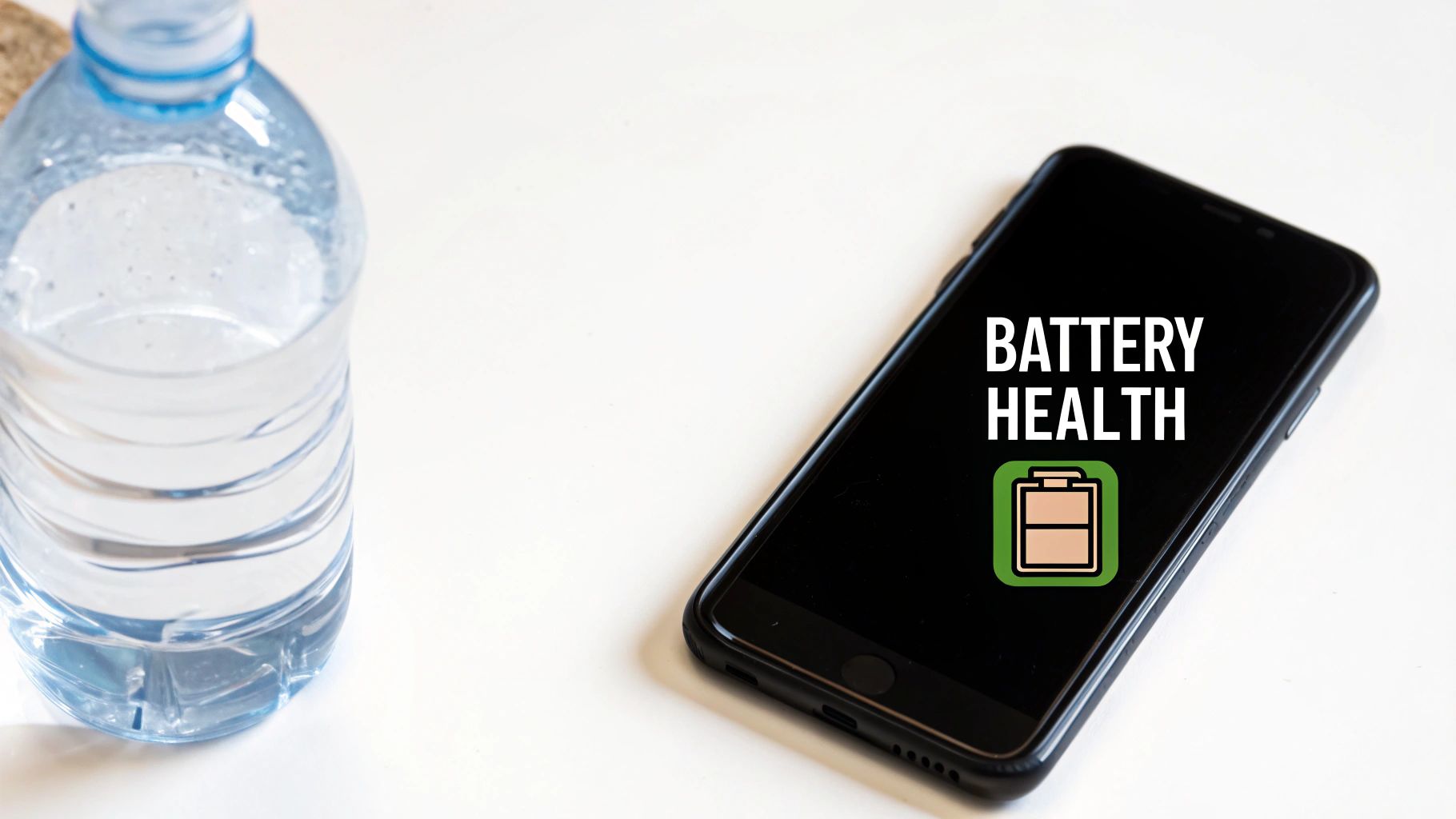
Imagine your new battery is a big water bottle. It holds the maximum amount of water, no problem. But with every use and refill—every charge—that bottle gets just a tiny bit smaller.
After a couple of years, that bottle is noticeably smaller. You can fill it to the top, but it just can’t hold as much water as it used to. This shrinking is exactly what happens to your battery. It's the core of what "battery health" really is.
This matters because a battery with poor health, say at 75% capacity, will only give you about three-quarters of the screen time it did when it was new, even on a "full" charge. It directly hurts your device's daily use and lowers its long-term value.
Once you understand this, you can stop worrying about your daily battery percentage. Instead, you can focus on habits that protect that maximum capacity for years to come. That means a more reliable device, less money spent on replacements, and a little less electronic waste in the world.
To make this crystal clear, let's break down the difference between the two terms people often mix up.
Battery Health vs Daily Battery Life
| Concept | What It Measures | Analogy |
|---|---|---|
| Battery Health | The battery's maximum possible capacity (e.g., 95% of its original size) | The total size of your water bottle. |
| Daily Battery Life | How long a single charge lasts right now (e.g., 8 hours of use today) | How full your water bottle is at any given moment. |
So, while daily life is what you manage hour-to-hour, health is the long-term game you want to win.
Why Your Battery Ages
Every battery in your life—phone, laptop, even your car—can only handle a certain number of charges. A charge cycle is one full 0% to 100% drain and recharge. It doesn't have to happen all at once; using 50% today and another 50% tomorrow adds up to one full cycle.
This aging is just a natural part of how batteries work. Over time, the chemicals inside get less efficient at storing and releasing energy. The good news? While you can't stop time, you can absolutely slow this process down with the right charging habits.
The Bigger Picture in Technology
This isn't just about your phone. In the world of electric vehicles (EVs), battery health is everything. It determines the driving range, performance, and how much the car is worth later on.
Thankfully, the technology is getting better. EV batteries now lose about 1.8% of their health per year on average, an improvement from the 2.3% rate just a few years ago. At this pace, most EV batteries are expected to last a solid 15 to 20 years. If you want to dive deeper, you can discover more insights about EV battery health from recent studies.
By understanding the basics of battery health, you're not just learning to take care of a phone. You're getting essential knowledge for living in a world that's increasingly powered by batteries.
The Hidden Stressors That Weaken Your Battery
Every battery, from the one in your phone to the one in an EV, has a few silent enemies that are constantly wearing it down. These aren't dramatic, one-time events; they're the subtle, everyday habits that cause slow, invisible damage over time. Figuring out what these hidden forces are is the first step toward building habits that actually protect your device.
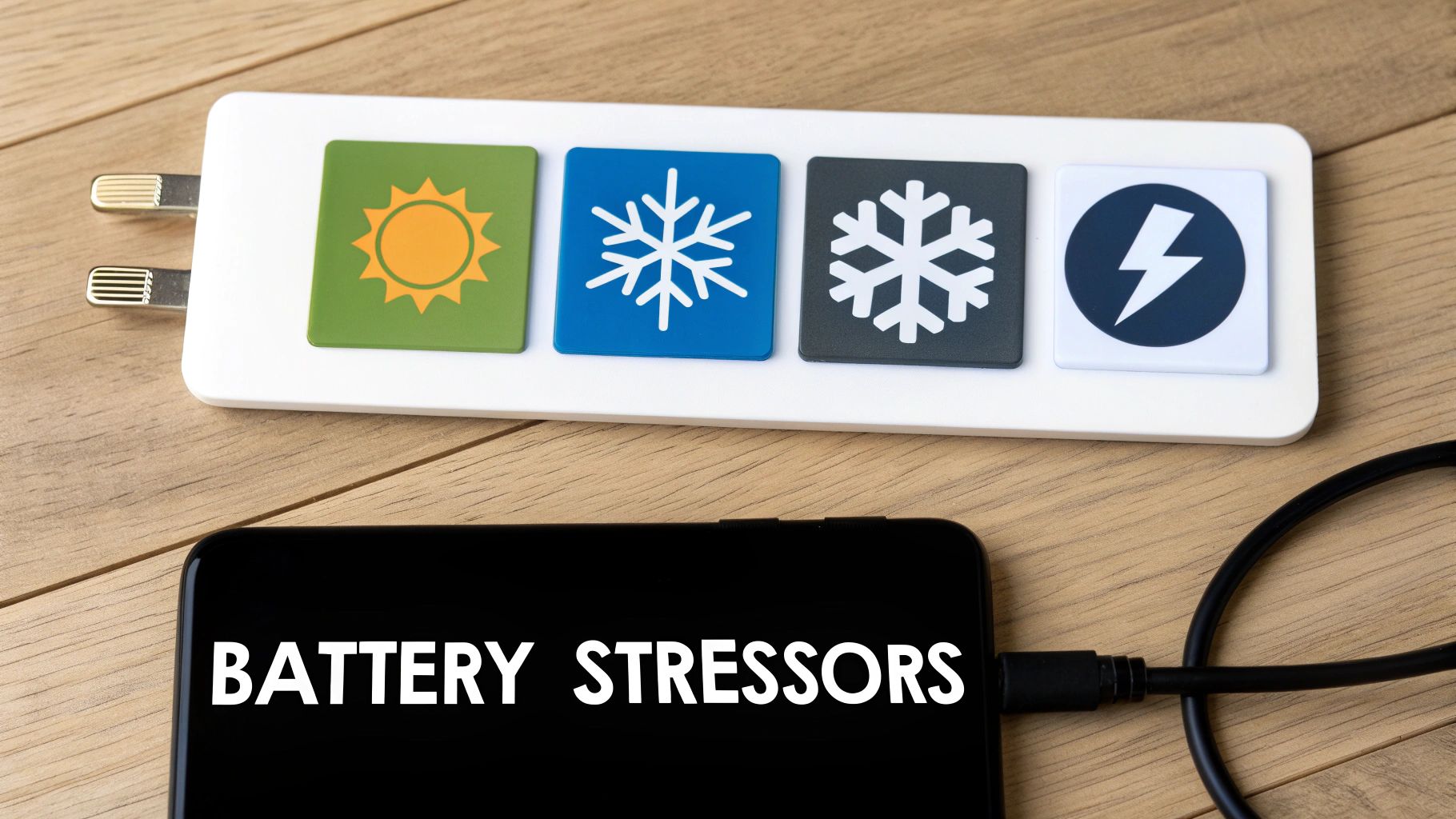
Think of your battery's health like your own. Small, consistently poor choices—like eating junk food every day—add up and cause long-term problems. It’s the exact same story with your battery. Let's shine a light on the main things that speed up its decline.
The Ultimate Battery Killer: Extreme Heat
Heat is, without a doubt, the number one enemy of battery health. It’s that simple. When a battery gets too hot, the chemical reactions inside speed up too much. This causes permanent damage to its internal parts, which means its maximum capacity is permanently reduced.
Ever left your phone on the car dashboard on a sunny day? Or played intense games for hours without a break? Both of these can push its temperature into the danger zone. It's no surprise that EVs in hot climates see a much faster battery decline than those in cooler areas.
A battery is happiest between 68°F and 77°F (20°C to 25°C). Once you regularly expose it to temperatures above 95°F (35°C), you’re causing damage that can't be fixed.
This damage adds up. Every time it gets too hot, you shave a little more off its potential lifespan. Keeping your devices cool is one of the most effective things you can do to protect them.
The Temporary Power Thief: Extreme Cold
While heat causes permanent damage, extreme cold acts more like a temporary power thief. When a battery gets really cold, the chemical reactions inside slow way down. This makes it much harder for the battery to push out power, which is why your phone might suddenly die at 15% on a freezing winter day.
The good news? This effect is mostly temporary. As soon as the battery warms back up to a normal temperature, its performance should return to normal.
But there’s a catch: trying to charge a frozen battery is a huge no-no. It can cause permanent damage. That's why most modern phones and EVs have built-in safety features that simply won't allow them to charge if the internal temperature is too low.
The Overworker: Full Charges and Drains
Constantly pushing your battery to its absolute limits—charging it to 100% and letting it drain down to 0%—puts a ton of stress on it. Think of it like a rubber band. You can stretch it to its maximum length, but if you keep doing it over and over, it will eventually lose its stretch and break.
Keeping your battery within a comfortable mid-range, like between 20% and 80%, is a much gentler approach. This "sweet spot" reduces the strain and can dramatically extend its overall lifespan.
Here's where the stress comes from at the extremes:
- Charging above 80%: Forcing a lot of power into a nearly full battery creates extra heat and puts pressure on its parts.
- Draining below 20%: Letting the battery run completely flat can make its internal chemistry unstable, speeding up wear and tear.
EV makers have known this for years. Many electric cars use software "buffers" to prevent the battery from ever truly hitting 100% or 0%, even when the dashboard says it has. This simple trick has proven very effective at making their batteries last longer.
The High-Pressure Culprit: Fast Charging
Fast charging is super convenient, but relying on it all the time is like trying to fill a water balloon from a fire hose. Sure, it gets the job done quickly, but the intense pressure puts a lot of strain on the balloon itself. In the same way, the strong electric currents used in fast charging create a lot of heat and stress the battery's internal parts.
Using fast charging once in a while won't kill your battery. But making it your daily habit will absolutely speed up its aging compared to standard, slower charging methods. The real problem is the heat it creates—which, as we've already learned, is the biggest threat to battery health. To learn more about this, you can read about why slow charging is essential for your smartphone’s battery health in our detailed guide.
By just being aware of these four hidden stressors, you can start making small changes to your routine that will pay off big time in the long run.
Simple Habits for a Healthier Battery
Knowing what stresses out your battery is one thing, but putting that knowledge into practice is what really counts. So, let's get into the simple, everyday habits you can build to actively protect its health. These aren't complicated technical tricks, just easy tweaks to your daily routine that can add years to your device's lifespan.
Think of these habits as your toolkit for long-term battery care. Each one is designed to ease the strain on the battery, keeping it running smoothly for as long as possible. The goal is to make these practices second nature—so you’re saving your battery without even thinking about it.
Embrace the 40-80 Rule
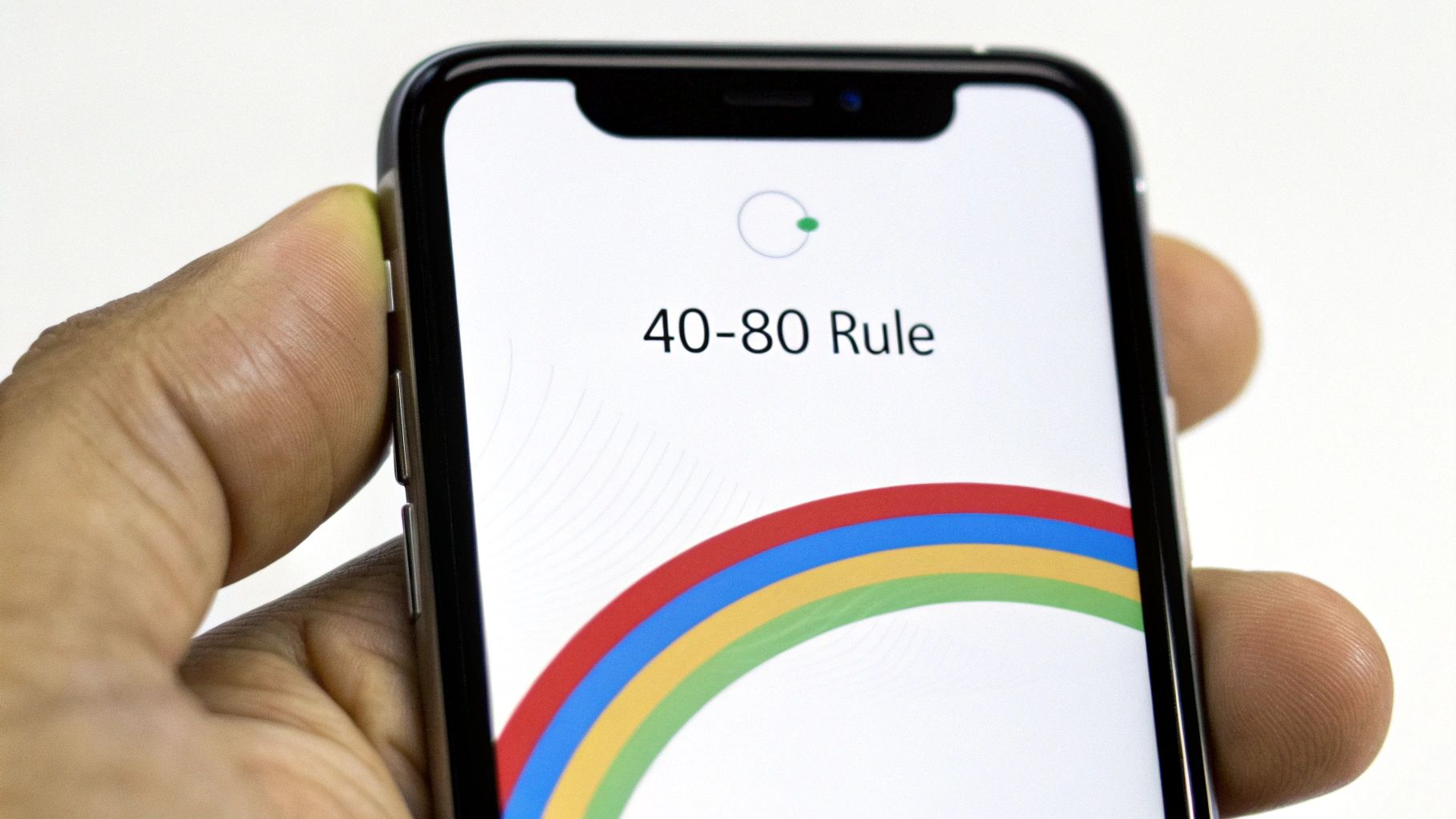
One of the most powerful things you can do for your battery is to follow the 40-80 Rule. It’s simple: try to keep your battery’s charge between 40% and 80% as much as you can. This is the sweet spot where a battery is under the least amount of stress.
Think of your battery like a rubber band. You can stretch it all the way to its limit (100%) or let it go totally slack (0%), but doing that over and over again will wear it out fast. Keeping it in that comfortably flexed state—the 40-80 zone—is what prevents it from getting old before its time.
This one small change dramatically cuts down on the strain from being too full or too empty. It’s a tiny adjustment that pays off big time in the long run.
Rethink Overnight Charging
We all do it. Plug in the phone before bed and wake up to a fresh 100%. It feels right, but it’s actually one of the most damaging habits for your battery. Once your device hits full, the charger is supposed to stop, but the battery naturally loses a tiny bit of power. The charger then kicks back on to top it off, creating tiny, stressful "trickle charges" all night.
This process forces the battery to sit at a high-stress 100% state for hours, generating extra heat and speeding up its aging. Unless you have a smart tool that can cut the power at a healthier level, it’s best to avoid leaving your device plugged in all night.
A much better approach is to charge your device for an hour or so before you go to sleep or first thing in the morning. This simple switch avoids hours of unnecessary strain and heat, making a real difference in your battery’s long-term health.
Choose Slower Charging When You Can
Fast charging is a lifesaver when you're in a hurry, but it shouldn't be your default choice. The powerful current it uses generates a lot of heat, which, as we know by now, is a battery's worst enemy.
Whenever you have the time—like when you’re at your desk or relaxing at home—reach for a standard, slower charger instead. This gentler flow of energy keeps the battery cool and puts way less stress on its internal parts. Making slow charging your go-to and saving fast chargers for emergencies is a great strategy for extending your battery’s lifespan.
For more deep-dive info, check out our guide on how to maintain phone battery health with these actionable tips.
Why These Habits Matter on a Larger Scale
These rules don’t just apply to your phone. They’re true for all similar batteries, from tiny gadgets to massive energy systems. To see these ideas in action elsewhere, it's helpful to explore practical advice like these best practices for maintaining mobility scooter and power chair batteries. The science inside is the same.
In fact, battery health is becoming a huge deal on a global scale. Just look at the rise of giant battery systems that help support our power grids. In just the first four months of 2025, over 42 GWh of this battery capacity was set up worldwide—a massive 62% jump from the previous year. For these giant systems, keeping the batteries healthy is everything; it’s about safety, efficiency, and huge financial investments.
By adopting these simple habits, you’re doing more than just taking care of your phone. You're getting good at a skill that matters more and more in our battery-powered world.
How Smart Tools Can Protect Your Battery
Let’s be honest, remembering to unplug your phone at exactly 80% or making sure you don't leave it charging all night can be a pain. While those habits are great, they require you to constantly pay attention. The good news is that modern technology can step in and handle this for you, taking the guesswork out of keeping your device's battery health in top shape.
Think of these "smart charging" tools as a personal bodyguard for your battery. They work quietly in the background to prevent the most common battery killers, like letting your phone sit at 100% charge for hours—a major reason batteries age way too fast.
Built-In Solutions on Modern Phones
Most new smartphones actually have some form of smart charging built right into their software. These features are designed to learn your daily habits and adjust the charging process to match, making battery care pretty much effortless for most people.
A great example is Apple's Optimized Battery Charging on iPhones. It figures out when you usually wake up. The phone will then fast charge to 80% and wait to finish that last 20% right before your alarm goes off. It’s a clever trick that stops the battery from sitting at the high-stress 100% level all night long.
Android phones have similar features, too, often called "Adaptive Charging" or a simple "Protect Battery" switch that limits the maximum charge to 85%.
These built-in tools are a fantastic first step. They tackle the single most damaging habit for most of us—leaving the phone plugged in overnight—and they do it automatically. You don't have to lift a finger. They essentially put good battery habits on autopilot.
But as helpful as these built-in systems are, they don't offer much in the way of customization. You can’t really fine-tune the charge limit or set a specific schedule. For those of us who want total control over our device’s battery, there are more powerful tools out there.
Taking Full Control with Dedicated Tools
For anyone who wants to go the extra mile, dedicated hardware and software tools offer a much deeper level of control. These tools act as a smart gatekeeper between your charger and your phone, giving you the power to set precise charging rules and automate them perfectly.
One of the standouts here is Chargie, a small hardware gadget that you pair with an app. It physically cuts the power flowing to your device once it hits a specific charge level that you set. This means you can plug your phone in anytime, day or night, and be completely confident it will stop charging at your chosen limit—whether that's 75%, 80%, or 85%.
Here’s how these kinds of tools really improve your battery management:
- Precise Charge Limiting: You get to set the exact percentage where charging stops, letting you follow the 40-80 rule perfectly, every single time.
- Intelligent Scheduling: You can create custom schedules, like keeping the battery at a stable 50% overnight and then having it top up to 80% just before you wake up.
- Temperature Protection: More advanced tools can even stop charging automatically if your device gets too hot, protecting it from its number one enemy.
By using a dedicated battery charge limiter, you shift from passive protection to active, hands-on management. It takes human error and the hassle of manual unplugging completely out of the equation, making perfect charging habits a reality. This level of control is the single most effective way to slow down battery aging and seriously extend the life of your devices, saving you money and cutting down on e-waste in the long run.
Why Battery Health Matters Beyond Your Phone
The lessons we learn about keeping our phone batteries healthy aren't just for the little device in our pocket. As our world runs more and more on electric power, these exact same ideas are shaping the future of everything from the laptops we work on to the cars we drive.
It turns out that understanding how to properly care for a battery is becoming a basic life skill. The very things that kill your phone’s battery—like too much heat, constantly charging it to 100%, or always using fast chargers—do the same damage to much bigger, more important systems.
The only real difference is that the stakes are a lot higher. A worn-out phone battery is an annoyance. But a weak battery in an electric car? That means less driving range, a big drop in its resale value, and a replacement bill that can be very expensive.
Electric Vehicles and Battery Longevity
Nowhere is the battery health conversation more important than in the world of electric vehicles. An EV's battery pack is its heart, and its condition directly controls the car's performance, its reliability, and what it’s worth later. A battery that has lost even 20% of its original capacity can mean a huge reduction in how far you can go on a single charge.
This is a massive deal for both owners and car makers. It's why many modern EVs come with smart battery management systems that already use the same best practices we've discussed, like automatically preventing the battery from hitting a true 100% or dropping to a genuine 0%.
The global switch to EVs is happening fast. In just the first eight months of 2025, global EV battery usage soared to 691.3 gigawatt-hours (GWh). That’s a nearly 35% jump from the year before. As this trend grows, knowing how to take care of these batteries becomes essential public knowledge.
The health of these larger battery systems is just as vital as the one in your phone. You can dive deeper into how different chargers affect battery life by exploring resources on understanding EV charging and battery longevity.
Powering the Future Grid
But it doesn’t stop with cars. The idea of battery health also applies to the enormous grid-scale batteries that are essential for a stable, renewable energy future. These are called Battery Energy Storage Systems (BESS), and they're basically giant facilities that soak up extra power from wind and solar farms.
When the sun goes down or the wind stops blowing, these massive batteries release that stored power back into the grid, keeping our lights on. The lifespan and efficiency of these batteries are critical for grid stability and the financial success of green energy projects.
Just like with your phone, the operators of these systems have to carefully manage charging cycles, temperature, and how much the batteries are drained. It's the only way to squeeze every bit of life out of their multi-million-dollar investments. Proper battery care at this scale is what makes a reliable, green energy grid possible.
When you get right down to it, the habits you build to protect your phone's battery are just miniature versions of the strategies being used to power our entire world. Learning to preserve battery health isn't just a tech tip anymore—it's a core skill for modern life.
Let's Bust Some Common Battery Myths
There's a ton of old, questionable advice about batteries floating around the internet. Following the wrong tips can actually do more harm than good to your phone's long-term battery health. Many of these "rules" are leftovers from old battery technologies that have nothing to do with the modern batteries in our phones and laptops today.
Let's clear the air and finally separate fact from fiction. By swapping these old tales for simple, proven truths, you can start taking care of your battery the right way.
Myth 1: You Have to Drain Your Battery to 0%
The Myth: I can't count how many times I've heard this one. The belief is that you need to let your battery die completely before plugging it in to avoid a "memory effect" that shrinks its capacity.
The Fact: This is a ghost from the past, from old types of batteries. For the modern batteries in your phone, this is not just pointless—it's actively damaging. Draining the battery completely puts a ton of stress on it and makes it age faster. In reality, it’s much healthier to do smaller, partial charges and keep the battery in a comfortable middle range.
Think of it like this: forcing your battery to its absolute limit is like an athlete sprinting until they collapse, day after day. It just leads to faster burnout. Keeping it between 40% and 80% is more like a steady jog—far more sustainable for long-term health.
Myth 2: Third-Party Chargers Will Destroy Your Battery
The Myth: There’s a widespread fear that if you use any charger that didn't come in the box with your phone, you're ruining your battery.
The Fact: It's not the brand name on the plastic that matters; it's the quality and safety certification inside. A well-made, certified charger from a reputable brand like Anker or Belkin is perfectly safe. The real problem is the cheap, uncertified knock-offs you might find at a gas station. Those often lack the proper safety features to manage power and heat, and they can absolutely damage your battery or even create a fire hazard. As long as you stick to trusted brands, you have nothing to worry about.
Myth 3: Leaving Your Phone Plugged In All Night Is Fine
The Myth: "My phone is smart! It stops charging at 100%, so leaving it plugged in all night can't hurt."
The Fact: While your phone does stop pulling a full charge at 100%, that's not the whole story. The problem is that it stays at that high-stress, fully-charged state for hours. As the battery naturally loses a tiny bit of power (say, down to 99%), the charger kicks back in to top it off. This creates tiny but stressful "trickle charge" cycles all night long. This combination of being held at a full charge and the resulting heat is a recipe for faster aging, slowly chipping away at your battery's lifespan.
Unless you're using a smart tool like Chargie to automatically cut the power at a healthier level like 80%, plugging your phone in overnight is a habit you'll want to break for better long-term battery health.
Got a Few More Questions About Battery Health?
Even after getting the basics down, you probably have a few specific questions about your phone's battery health. Let's tackle some of the most common ones we hear from people all the time.
How Can I Actually Check My Phone’s Battery Health?
Thankfully, most modern phones make this pretty simple. If you have an iPhone, just head over to Settings > Battery > Battery Health & Charging. The "Maximum Capacity" percentage you see there is the magic number—it tells you exactly how much power your battery can hold compared to when it was brand new.
For Android users, it can be a bit of a search. Some phone makers put it right under Settings > Battery, but many don't. If you can't find a built-in option, an app like AccuBattery is a fantastic tool for getting a detailed look at your battery's condition and how it's holding up over time.
Checking this number every few months is a great habit to get into. It turns the invisible process of battery aging into a real, tangible score you can track and improve.
Is It Really That Bad to Use My Phone While It’s Charging?
This is a big one. For light stuff like sending a text or scrolling through a webpage, it’s generally not a big deal. The trouble starts when you do something demanding, like playing a graphics-heavy game or streaming a movie while plugged in.
This creates a perfect storm of heat. You’ve got heat from the charging process itself, plus a ton of extra heat from the phone working overtime. As we’ve established, heat is the absolute worst enemy of your battery. So, if you need to use your phone while it’s on the charger, try to keep it light.
Realistically, How Long Should My Phone's Battery Last?
A typical phone battery is built to hold onto about 80% of its original capacity after 500 full charge cycles. For most of us, that works out to about two or three years before you start really feeling the drop in how long it lasts through the day.
But that's just an average. By putting the smart charging habits we've talked about into practice—like keeping your charge level between 40-80% and avoiding extreme temperatures—you can seriously slow down that aging process. You can easily push your battery's useful life well past that three-year mark.
Ready to stop guessing and start protecting your battery on autopilot? Chargie does the heavy lifting for you, taking the manual work out of preserving your battery health. It lets you set precise charge limits and schedules so you don't even have to think about it. Extend your device’s lifespan and save money with Chargie today.