
Clicky

How to Fix a Broken Charger Port: A Simple Guide

We've all been there. That dreaded moment when you plug in your phone, and… nothing. The little charging icon doesn't show up, and the battery percentage stubbornly refuses to climb. Before you panic and start Googling "phone repair near me," take a breath. Most of the time, the fix is way simpler and cheaper than you think.

Believe it or not, these basic checks solve the problem more than 70% of the time, no technical skills required.

What to Do When Your Device Stops Charging

So, your phone, tablet, or laptop is giving you the silent treatment when you plug it in. What's the first move? Don't assume the worst. The port itself is usually the last thing to fail.

Start with the easy stuff. Grab a different charging cable and wall plug that you know are working. Borrow one from a family member, or one from another device. If your gadget suddenly springs to life and starts charging, you’ve found your culprit. Cables and power bricks lead a hard life and break far more often than the ports they plug into.

Rule Out Software Glitches

Still no luck with a new cable? Don't give up just yet. The issue might not be physical at all. Sometimes, a simple software hiccup is all it takes to throw off the charging process.

The fix is as easy as it gets: a full restart. Power your device completely down, let it sit for a minute, and then turn it back on. This quick reboot forces the device's software to reset and can often clear up whatever was causing the charging jam. It’s a surprisingly effective trick that many people skip right over.

Inspect the Port for Obvious Issues

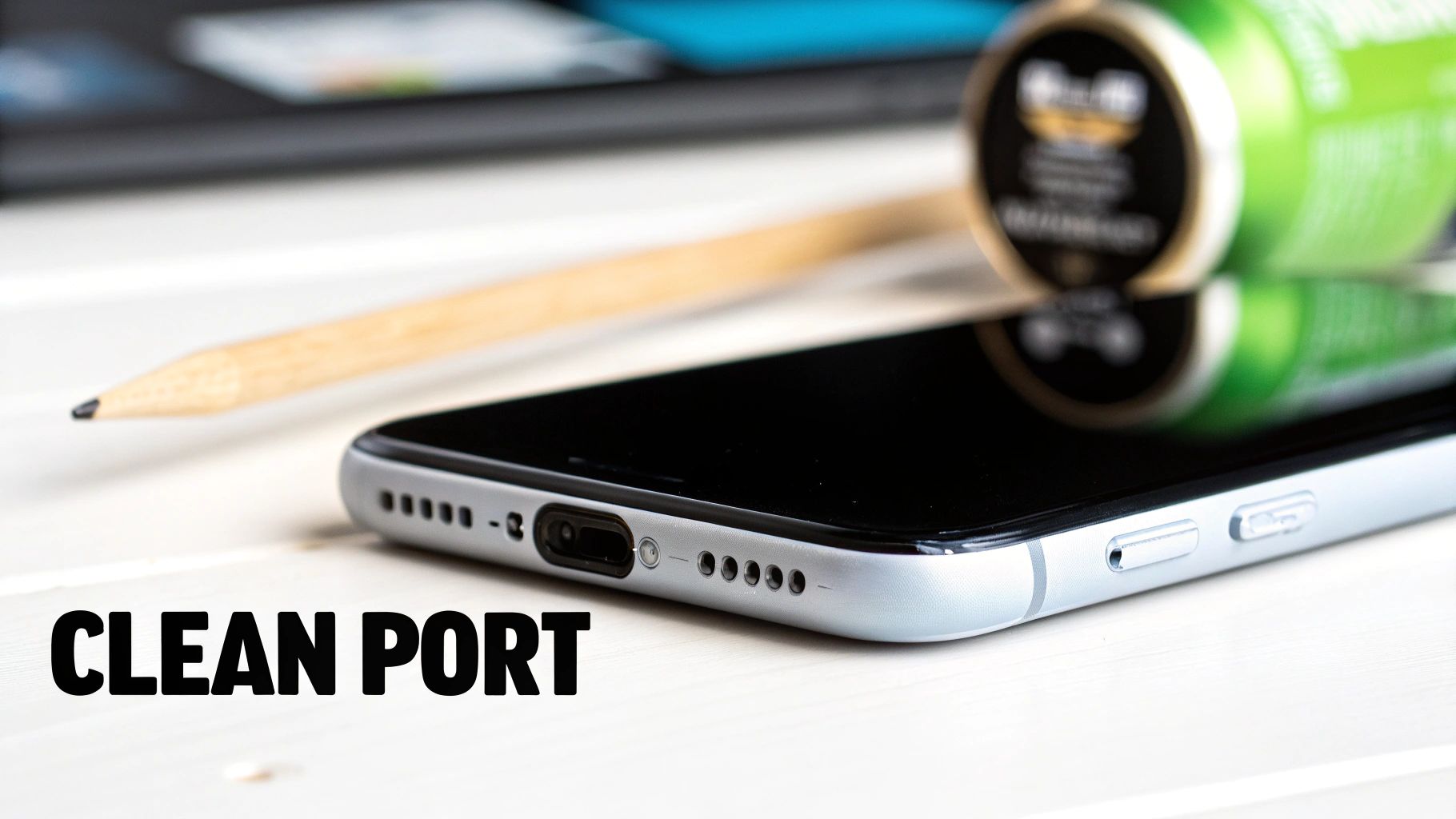
Alright, now it’s time to play detective. Grab a flashlight and get a good, close look inside the charging port. What do you see? It's amazing how much pocket lint, dust, and other gunk can get crammed in there over time. These ports are basically tiny vacuums for whatever is in your pocket or bag.

While you're looking, check for any bent or damaged pins. Those little metal contacts inside the port are delicate, and if one gets bent out of shape or broken, it can't make a solid connection. If the port looks clean and the pins seem straight, you can move on. But if you see obvious physical damage, that’s a pretty clear sign a more hands-on repair is in your future.

This visual guide breaks down these first crucial troubleshooting steps.
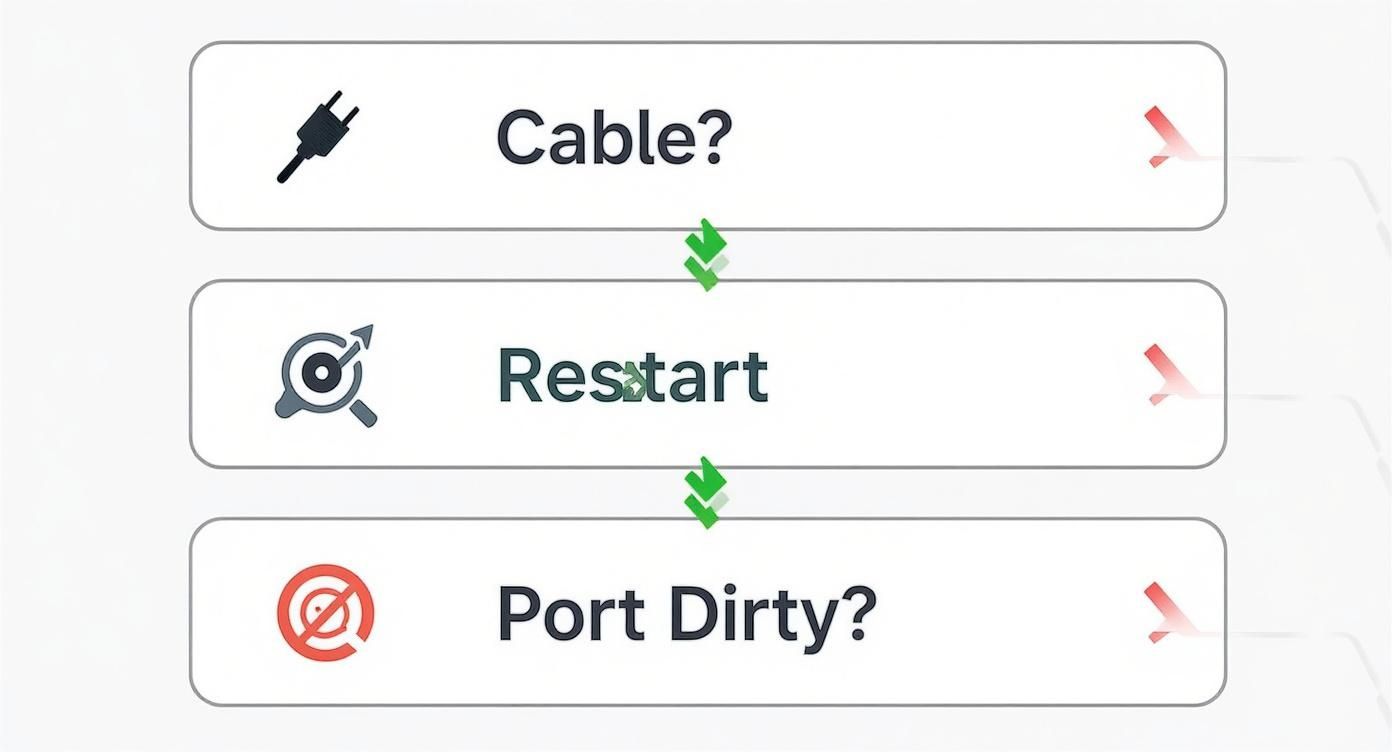
A visual troubleshooting guide showing steps to check cable, restart device, and clean port.

Walking through this logical process—cable, software, then a physical look—is the most efficient way to figure out what's really going on.

If you’ve gone through these steps and determined the problem lies with your accessories, our guide on what to do when your charger is not working can give you some more detailed pointers. By ruling out the easy stuff first, you'll know for sure whether the charger port itself is the real problem.

Safely Cleaning Debris from Your Charging Port
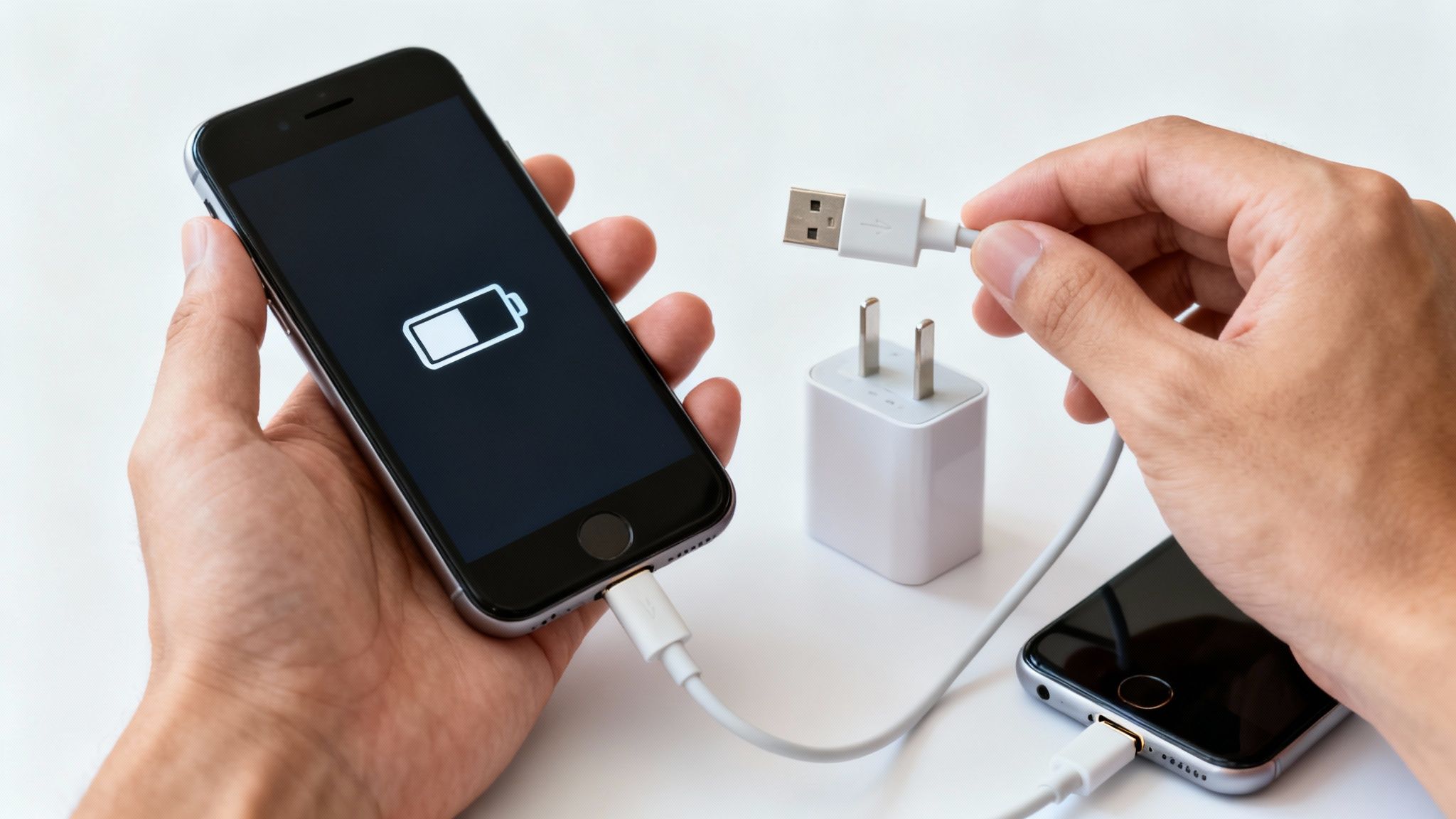
A person's hands connecting a phone charger to a smartphone with low battery display.

It’s an incredibly common scenario: you plug your phone in, and nothing happens. Before you panic and assume the port is fried, consider a much more likely culprit. Over time, your charging port becomes a magnet for pocket lint, dust, and all sorts of tiny gunk. It gets packed in there so tightly that the cable can't make a solid connection anymore.

The good news? A careful cleaning is often all it takes to bring a "broken" port back to life. But I have to stress the word careful. The inside of that port is delicate, and grabbing the wrong tool can quickly turn a simple fix into a much bigger, more expensive problem.

Gathering the Right Tools for the Job

Your mission is to gently remove the debris without scratching or shorting out the sensitive electronics inside. That means you need to resist the urge to grab the nearest pointy metal object. I’m looking at you, paperclips and safety pins.

Metal conducts electricity and is very hard—a terrible combination for this job. You could easily cause a short circuit or permanently bend the contact pins, landing you right where you didn't want to be: needing a professional replacement.

Instead, you want to stick with things that don't conduct electricity and are softer. Here's your go-to toolkit:

  • A Wooden or Plastic Toothpick: This is your main tool for gently scraping out the packed-in gunk. Wood or plastic is soft enough not to damage the delicate metal contacts.
  • A Can of Compressed Air: Perfect for blasting out loose dust before and after you get in there with the toothpick. Just remember to use short, sharp bursts.
  • A Small, Soft-Bristled Brush: A clean, dry toothbrush or a special anti-static brush is great for sweeping away any fine particles left behind.

Crucial Safety Tip: Before you even think about sticking anything in that port, power your device completely off. This is a must. It eliminates any risk of a short circuit, even when you're using the right tools. It's a simple step that could save your device.

The Gentle Cleaning Process

With your device powered down, find a spot with good lighting. Use a flashlight to peek inside the port—you might be surprised by what you see. This quick look helps you see where the gunk is.

First, grab the compressed air. Hold the can upright a few inches away and give the port a couple of quick blasts. This will clear out any loose stuff sitting on the surface and prevent you from accidentally pushing it deeper.

Now, take your wooden toothpick and gently slide it into the port. Your goal is to carefully trace the inside walls, scooping the debris out, not pushing it in. Think of it less like digging and more like a gentle sweeping motion. Work your way around the edges, and you'll probably pull out a shocking amount of lint.

Once you’ve pulled out the main clumps, give it another quick blast of compressed air to get rid of anything you loosened up. For a final polish, a gentle sweep with a dry, soft-bristled brush will take care of any lingering dust.

If you want a more detailed look at different techniques, there are some great guides out there on effective charging port cleaning.

Now for the moment of truth. Power your device back on and plug in the charger. Chances are, you'll see that familiar charging icon pop right up.

DIY Cleaning Toolkit: What to Use and What to Avoid

To make it even clearer, here’s a quick reference guide for what you should—and shouldn't—be using to clean out your charging port.

Tool Recommended Use Why it's Safe (or Unsafe)
Wooden/Plastic Toothpick Gently scraping out packed-in debris. Doesn't conduct electricity and is soft enough not to scratch internal pins.
Canned Compressed Air Blowing out loose dust and particles. Touch-free and effective, but must be used in short bursts.
Soft, Dry Brush Sweeping away fine dust after cleaning. Soft bristles won't damage delicate parts.
Metal Paperclip/Pin Never use. Unsafe: Conducts electricity, can cause short circuits and permanently scratch/bend pins.
Your Breath Avoid. Unsafe: Contains moisture that can lead to rust and damage electronics.
Water or Alcohol Never use. Unsafe: Liquids can seep inside and cause irreversible water damage.

Sticking to the safe tools on this list is the best way to ensure your DIY cleaning session is a success, not a disaster.

Deciding on Your Repair Options and Costs
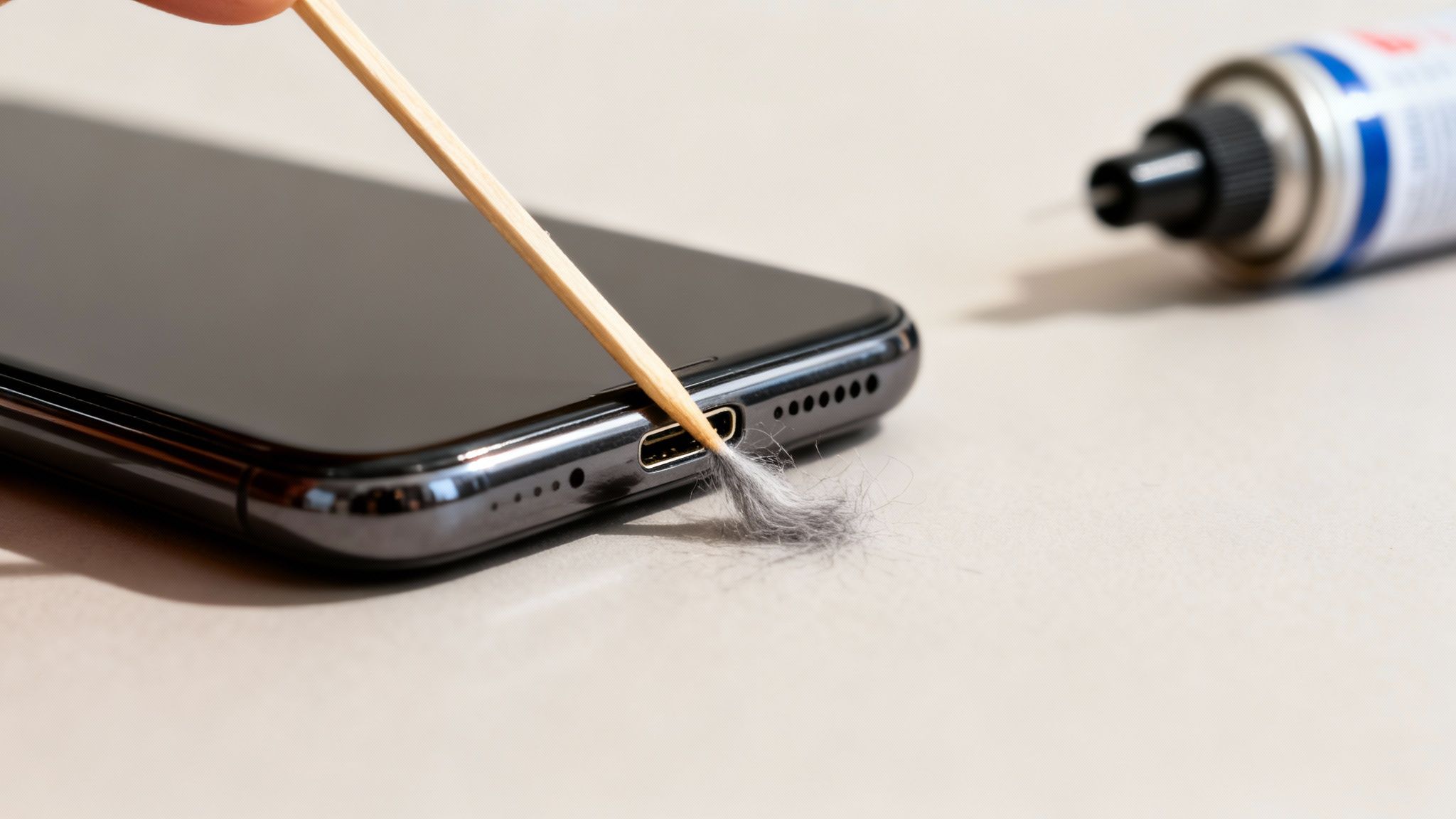
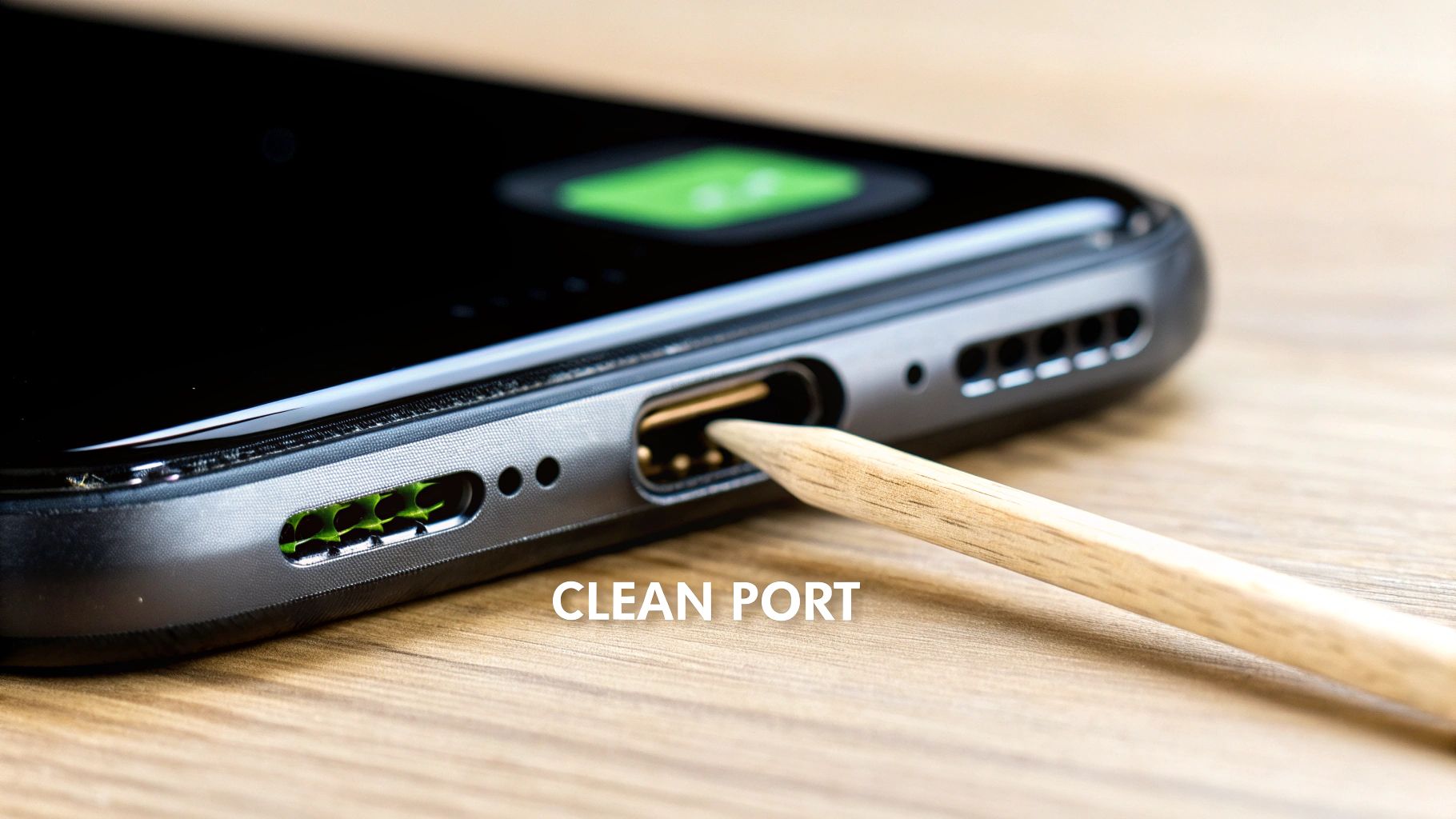
Close-up of a hand using a wooden pick to clean lint from a smartphone's charging port.

If a good, thorough cleaning didn't bring your device back to life, the problem is almost certainly deeper—something is physically broken inside the port. From here, you’re looking at three main paths, and the right one for you comes down to your budget, how fast you need your device back, and your comfort level with taking things apart.

Your choices are pretty straightforward: go to an authorized service center (like the Apple Store), find a local third-party repair shop, or try to fix it yourself. Knowing the real-world differences between them is the key to making a smart call that doesn't waste your time or money.

Authorized Service Centers: The Official Route

Taking your device back to the manufacturer or one of their certified partners is always seen as the safest play. They use genuine, official parts, meaning the new port is a perfect match for the old one. The technicians are specially trained, and you’ll usually get a warranty on the repair work itself, which is great for peace of mind.

Of course, that quality and assurance come with a bigger price tag. Authorized repairs are almost always the most expensive option. You might also have to wait longer if your device has to be mailed out to a central repair location.

Still, if your device is under its original warranty, this is the only path to take. Going anywhere else will likely cancel it.

Local Third-Party Repair Shops: The Sweet Spot of Cost and Convenience

For most people with devices no longer under warranty, a good independent repair shop is the answer. They're almost always cheaper than the official centers and can often finish the repair the same day—sometimes in just an hour or two. That speed is a lifesaver when you can't be without your phone or laptop.

The main trade-off is with the parts and the skill of the person doing the repair. Many shops use high-quality parts that work just fine, but they aren't "official." That’s why it’s so important to pick a shop with a solid reputation and plenty of good reviews. Always ask about their warranty on repairs; any decent shop will stand by their work.

Key Takeaway: The quality of local shops varies wildly. Hunt for businesses with a proven track record, glowing customer reviews, and clear, upfront pricing. A good local tech is a valuable person to know.

When figuring out how to fix a broken charger port, cost is obviously a massive factor. Prices can swing dramatically depending on your device and where you take it. Third-party shops typically charge somewhere between $40 and $150. Cheaper Android phones will be on the low end, while top iPhones or Samsung Galaxy models push the higher end. For those same premium phones, an authorized service center can easily run you $100 to $250. Laptops and tablets can climb even higher, sometimes topping $250 for a professional fix. You can find a more detailed cost breakdown over at computeremergencyroom.com.

The DIY Approach: For the Brave and the Skilled

Your final option is to roll up your sleeves and do it yourself. You can find DIY kits online for $20 to $50 that come with the replacement part and some basic tools. It's by far the cheapest way to go, but it also carries by far the most risk.

Modern gadgets are incredibly dense and delicate. Swapping a charging port often requires special tools, a steady hand, and sometimes even tiny soldering skills—the kind of work done with small parts under a microscope.

Before you even think about ordering a kit, ask yourself this:

  • Is it Soldered or a Flex Cable? Some ports are on a simple ribbon cable that's relatively easy to unplug and replace. Others are soldered directly to the main circuit board, which is a job for an expert.
  • What's the Risk of More Damage? One tiny slip with a hot soldering iron can fry the main board, turning a simple fix into a dead device. It happens all the time.
  • Who Helps You If It Goes Wrong? When you do it yourself, there's no warranty. If you mess it up, you’re on your own.

Honestly, unless you have real experience with electronics repair and have the right gear, the DIY route is a bad idea for something as vital as a charging port. The potential savings just aren't worth the very real risk of causing permanent, expensive damage.

When to Call in a Professional

Knowing your limits is a skill, especially when you’re dealing with the insides of modern electronics. While a good cleaning can solve a surprising number of charging issues, there are definite red flags that mean it's time to put the tools down and call a pro. Pushing forward when you're in over your head is the fastest way to turn a small, fixable problem into a much bigger, more expensive one.

One of the biggest tell-tale signs is a physical one. If you plug in your cable and the port itself feels loose, wobbly, or shifts around inside the frame, that’s a major warning. It means the parts holding the port in place have broken, and it’s no longer securely connected to the main circuit board. No amount of cleaning is going to fix a physically broken mount.

Likewise, if you see any signs of that greenish or whitish crusty buildup, you're likely dealing with rust from water damage. Trying to fix this yourself without the right equipment can easily cause further short circuits and fry the board.

The Dangers of DIY on Soldered Ports

The real game-changer in modern device repair is how the charging port is attached. In older gadgets, the port was often on a separate, flexible cable that you could unplug and replace with relative ease. Those days are pretty much over.

Today, most charging ports are soldered directly onto the main circuit board (or motherboard). This is the brain of your device, and the connections are microscopic. Replacing a soldered port isn't a simple swap; it requires special tools and an incredibly steady hand.

Here’s a peek into what a technician's workbench looks like for this kind of job:

  • Hot Air Rework Station: To melt the old solder without cooking the tiny parts nearby.
  • Microscope: Because the solder points are often completely invisible to the naked eye.
  • Precision Soldering Iron: For applying new solder with pinpoint accuracy.
  • Anti-Static Equipment: To prevent an accidental static shock from killing the entire board.

Trying this at home with a standard soldering iron from the hardware store is a recipe for absolute disaster. You can easily overheat the board, damage the delicate connection points, or create a solder "bridge" that shorts out important parts. A failed DIY attempt on a soldered port can permanently destroy the main board, turning an inexpensive port repair into a bill for a whole new device.

Why Professional Repair Is Often the Smarter Choice

Charging port repair is one of the most common—and most technically demanding—jobs a technician sees. While the replacement part itself might only cost a few dollars, what you're really paying for is the technician’s skill and expensive equipment. They have the experience to spot related issues, like a battery that might have been stressed by the faulty port.

Expert Insight: A damaged charging port can indirectly wreck your battery by feeding it an inconsistent power flow. A good technician will often test the battery's health during a port repair to head off future problems like bulging or reduced battery life, ensuring a truly complete fix.

If you're facing a complex issue or just aren't comfortable attempting a DIY fix, finding a service that specializes in professional battery charging port repair is your best bet. The cost is a small price to pay for the peace of mind that the job is done right, without risking the life of your entire device.

While you're waiting for a repair, a temporary workaround can be a lifesaver. Check out our guide on how to use a power bank to keep your device up and running in the meantime.

You’ve gone through the hassle of fixing your charging port—the last thing you want is a repeat performance. Keeping that tiny port healthy is all about small, consistent habits. Think of it as preventative care for your phone, tablet, or laptop.

These little adjustments can make a huge difference, saving you from future headaches and repair bills. After all, the charging port is a high-traffic area for your device. Every time you plug and unplug, you're causing a tiny bit of wear and tear. Over thousands of times, that adds up.

Master the Art of Plugging and Unplugging

This might sound almost too simple, but how you connect and disconnect your cable matters. A lot. Most people just yank the cord at whatever angle is convenient. That puts a ton of stress on both the cable head and the delicate pins inside the port, which is a fast track to a loose, wobbly connection.

Instead, just remember two things:

  1. Grip the Plug, Not the Cable: Always grab the hard plastic or metal part at the end of the cable. This gives you direct control and stops you from straining the fragile wires where they meet the plug.
  2. Pull Straight Out: Make a conscious effort to pull the cable directly away from the device—not up, down, or sideways. A straight, gentle pull lets the internal pins release cleanly without getting bent out of shape.

Honestly, this one habit is probably the most effective way to prevent physical damage. It takes just a second of thought but can add years to your port's lifespan.

Choose Your Charging Accessories Wisely

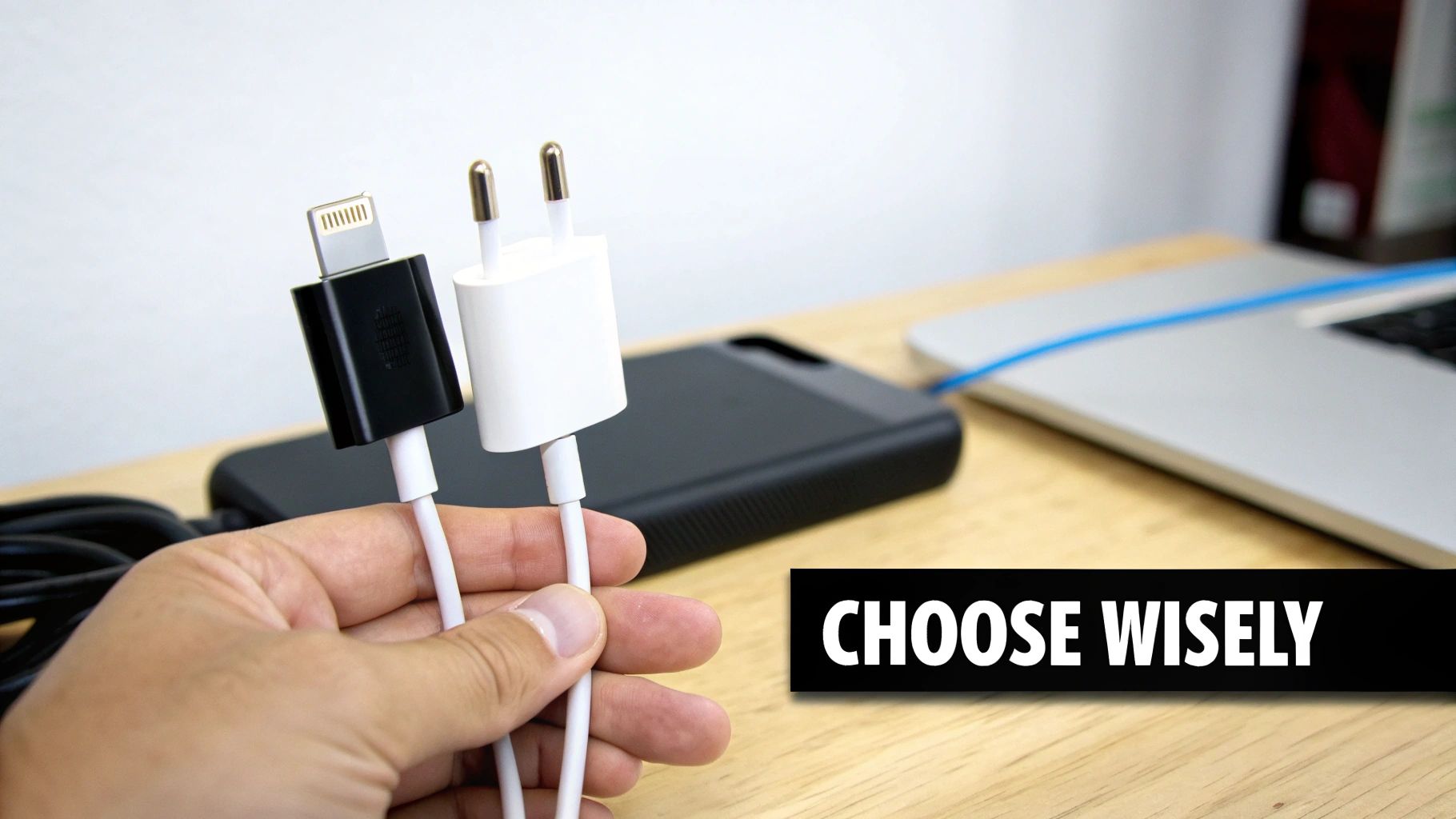
Not all chargers are created equal. I've seen countless ports wrecked by cheap, uncertified cables and power bricks. These knock-off accessories often have poorly made connectors that don't fit snugly, causing that dreaded wobble that wears down the internal contacts over time.

Even worse, they can lack proper voltage control, sending unstable power that can fry not only the port but also the battery and other sensitive electronics. Stick with chargers from your device’s manufacturer or from reputable third-party brands that are properly certified.

A Proactive Approach to Longevity: It’s like getting an oil change for your car. Using quality accessories is simple preventative care for your electronics. A small upfront investment now can easily save you from a costly repair down the road.

Keep Your Environment Clean

Where you charge your device plays a bigger role than you’d think. Dusty, dirty, or damp places are a charging port’s worst enemy.

  • Dust and Debris: If you work in a workshop, on a construction site, or just have a habit of tossing your phone into a bag full of crumbs and lint, that port is at risk. Tiny particles get packed inside and block the connection.
  • Moisture and Humidity: Try to avoid charging in a steamy bathroom or right next to an open window on a rainy day. Moisture leads to rust on those delicate metal pins, causing spotty charging or outright failure.

If you’re often in messy environments, a simple dust plug is a fantastic, cheap investment. These tiny silicone or plastic covers slide right into the port when you're not charging, creating a physical barrier against all that gunk.

Introducing Chargie—A Smarter Way to Charge

Beyond physical damage, the way you charge also impacts your device's health. Leaving your phone plugged in all night, every night, forces the battery to sit at 100% for hours. This puts a ton of stress on the battery and the entire charging system. That stress generates heat, which is the enemy of all electronics, especially the delicate solder points holding your charging port in place.

This is where a little gadget like Chargie comes in handy. It’s a small device that sits between your charger and your cable, letting you control the charging process through an app. You can set it to automatically stop charging at a healthier level, like 80%, which drastically reduces heat and slows down battery aging. It’s a smart way to protect the whole system, from the port to the battery itself.

Taking these preventative steps doesn't just help you avoid another round of figuring out how to fix a broken charger port; it also helps you be more sustainable. The global smartphone repair market is projected to hit a staggering USD 45.52 billion by 2035, driven by our ever-growing collection of complex gadgets. You can dig into the numbers yourself in this detailed smartphone repair market report.

By taking better care of our devices, we extend their lifespan, save money, and shrink our environmental footprint. Preventing common issues like port damage contributes to the larger goal of keeping electronics out of landfills. If you're interested, you can learn more about how to reduce electronic waste and make a real difference.

Got Questions About Your Charging Port? Let's Clear Things Up.

When you’re staring at a phone that won't charge, a million questions can run through your head. It's frustrating, and it's easy to get lost in conflicting advice. Let's cut through the noise and get you some straight answers to the most common questions I hear.
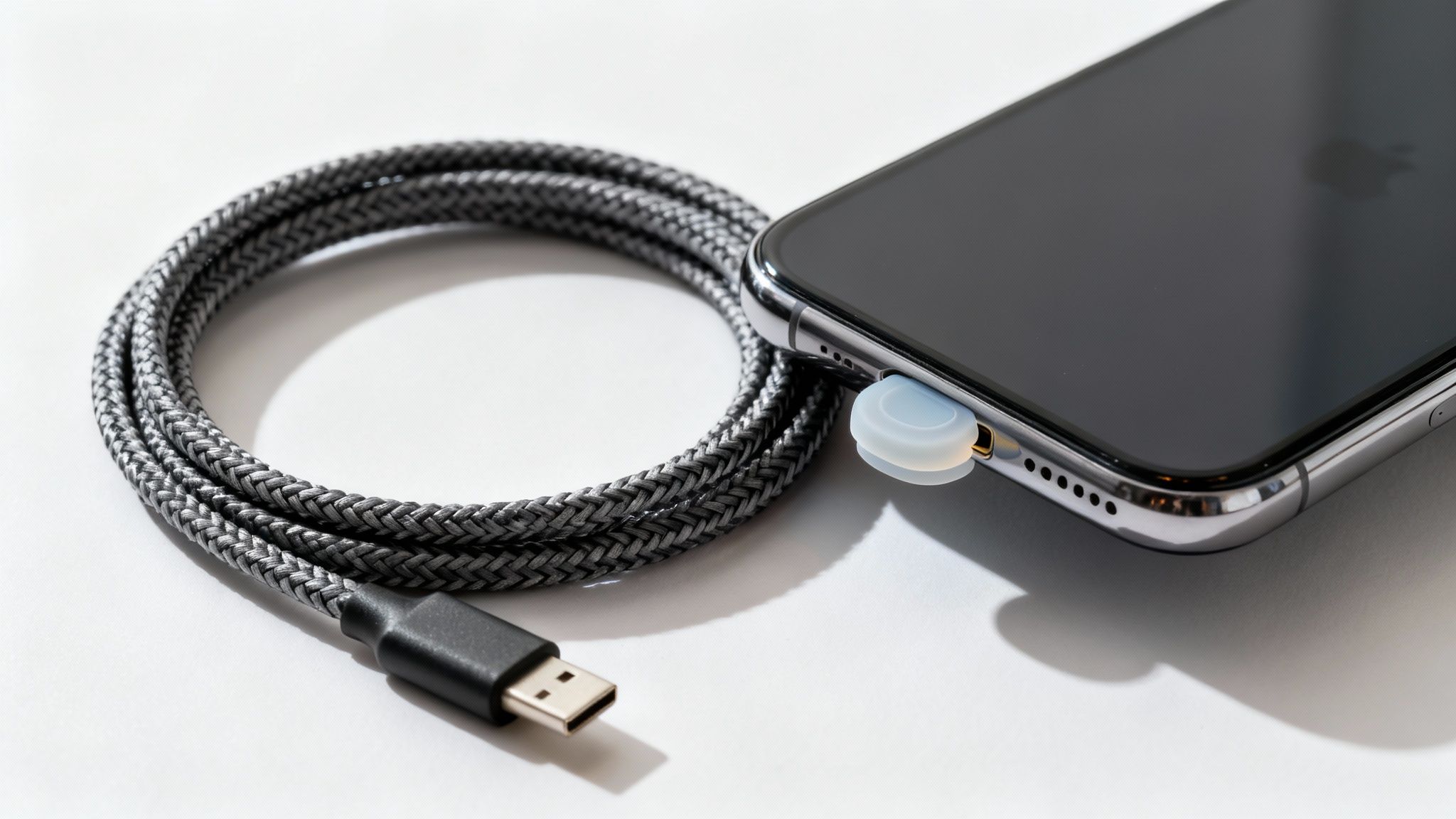
A smartphone with a white dust plug inserted into its charging port, next to a braided USB cable.

If My Port Is Busted, Can I Just Use a Wireless Charger?

You bet. If your device can be charged wirelessly, grabbing a certified charging pad is a brilliant and immediate workaround. This method completely bypasses the broken physical port, letting you power up without rushing into a repair. It's a lifesaver when you just need to get your phone working again.

For some people, this can even become a permanent solution, especially if you rarely use the port for things like data transfers. Just keep in mind that wireless charging is generally a bit slower than plugging in, but the convenience is often a worthy trade-off.

Is It Even Worth Fixing the Port on an Older Phone?

This one is all about the math. Your first move should be to get a repair quote from a shop you trust. Once you have that number, compare it to what your phone is actually worth today.

Here's my rule of thumb: if the repair costs more than half the phone's current value, you're probably better off putting that cash towards a new device. But if your old phone still does everything you need it to do, and you want to keep it around, a repair is almost always a smarter financial choice than buying a whole new one.

Think of it this way: You wouldn't sink $2,000 into an engine for a car that's only worth $1,500. The same logic applies here. If the fix is just a fraction of its value, it's a sound investment.

Why Does My Charging Cable Feel So Loose All of a Sudden?

That wobbly, loose connection is the classic sign of a worn-out charging port. It's the result of wear and tear from plugging and unplugging your cable thousands of times. Over time, the tiny metal pins and retaining clips inside the port bend, weaken, and just plain wear out.

But before you jump to conclusions, give that port a really good cleaning. A surprising amount of pocket lint and gunk can get packed in there, preventing the cable from clicking in securely. If it's still loose after you've cleared out any debris, then the port itself is likely damaged and will need to be replaced by a pro.

Can a Bad Charging Port Actually Damage My Battery?

Yes, and it's a risk you shouldn't ignore. A faulty port can feed your battery an unstable or inconsistent stream of power. This chaotic charging cycle puts a lot of stress on the battery, which can absolutely shorten its lifespan.

While modern phones have safety features to prevent disaster, a short circuit in a damaged port could, in rare cases, lead to bigger electrical problems. Getting that port fixed isn't just about convenience; it’s a crucial step in protecting the long-term health of your battery and the rest of your device. You want the whole charging system working together properly.


Of course, the best strategy is to prevent damage from happening in the first place. This is where the Chargie smart charging system comes in. It actively reduces the heat and stress on your device's entire charging circuit—port and battery included. By intelligently managing your charge levels, it extends the life of your electronics, potentially saving you from these kinds of repairs down the road. You can see how it works at https://chargie.org.
Why Is My Charger Not Working? A Practical Fix Guide

When your phone or tablet just won't charge, that sinking feeling is all too familiar. It’s easy to jump to the worst conclusion—a dead phone. But more often than not, the reason a charger isn't working is surprisingly simple.

The issue usually comes down to one of three things: a problem with the wall outlet, a damaged cable, or a loose charging brick. Before you start worrying about expensive repairs, a few quick checks can often solve the problem in just a few minutes.

Your Quick Guide to Common Charging Problems

That moment of panic when you see your battery icon isn't responding is universal. But trust me, the cause is rarely as dramatic as a completely broken device. My experience has shown that the problem is almost always in one of the simple parts we handle every day: the outlet, the power brick, and the charging cable itself.

Think of this as a process of elimination, starting with the easiest and most obvious things first. You don't need any special skills—just a step-by-step approach to rule out the usual suspects.

Start with the Simple Stuff

Let's walk through the basics that fix this for most people. These steps are incredibly simple and can save you a ton of time and unnecessary stress.

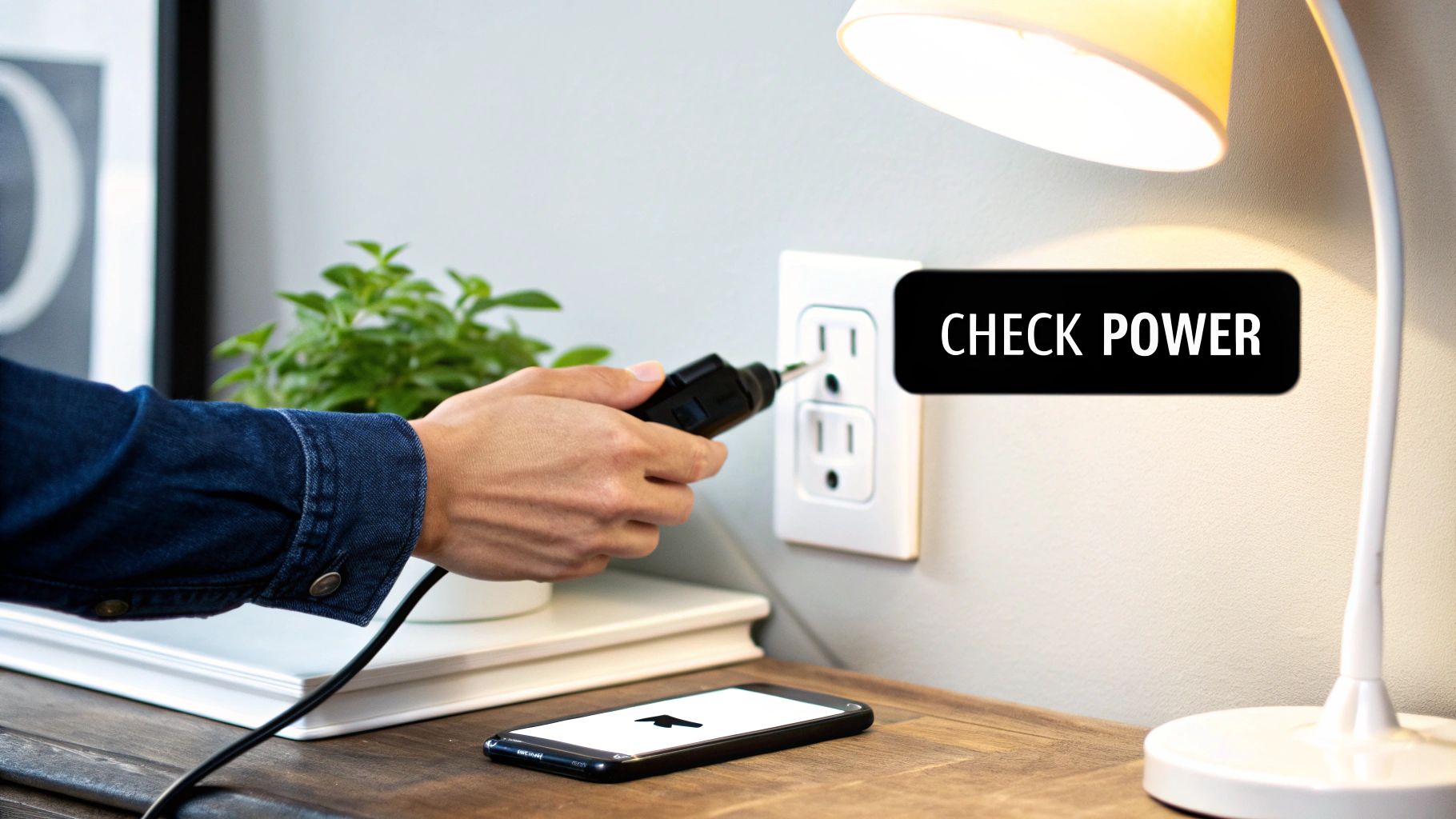
  • Check the Wall Outlet: Is it even working? This sounds obvious, but it’s a common mistake. Plug in a lamp or another small appliance you know works to confirm the outlet has power. A tripped circuit breaker could be the real problem, having nothing to do with your charger.
  • Inspect the Power Adapter: The little block that plugs into the wall can easily get knocked loose. Make sure it's pushed firmly into the outlet. While you're at it, unplug and plug the USB cable back into the block to ensure a solid connection.
  • Examine the Cable: Give your cable a quick look. Look for any clear signs of damage—frayed wires near the ends, sharp kinks, or bent metal parts are all dead giveaways. Even tiny, barely visible damage can stop electricity from flowing.

Before you go any further, running through a quick checklist can help you find the issue without any guesswork.

5-Minute Charger Health Checklist

Use this checklist to quickly run through the most common points of failure when your charger stops working.

Part to Check What to Look For Quick Fix
Wall Outlet Is it supplying power? Test with another device, like a lamp.
Power Adapter Is it firmly plugged in? Unplug and securely plug it back in.
Cable-to-Adapter Is the USB connection tight? Disconnect and reconnect the cable.
Charging Cable Any frays, kinks, or bent pins? Inspect the entire length, especially the ends.
Cable-to-Device Is it securely in the port? Unplug, check for dirt, and plug it back in.

This simple process of checking each point of connection will often reveal the weak link in the chain.

Why Compatibility Matters More Than You Think

Here’s one that catches a lot of people off guard: a mismatch between the charger and the device. This isn't just about the plug fitting; it’s about power. In fact, a surprising 62% of users run into compatibility issues with their phone chargers, making it a leading cause of charging failures.

This happens when a charger’s power output doesn't match what your device needs. The result? Frustratingly slow charging, or worse, no charging at all. If you want to dive deeper, you can learn more about how charger compatibility issues work and find other revealing cell phone charger statistics.

Remember, the goal here is to find the problem. By testing each part—the outlet, the adapter, and the cable—you can quickly figure out what’s wrong without assuming the worst.

Finding the Problem: A Part-by-Part Test

If the quick checks didn't get your phone charging again, it's time to play detective. I've found that when a charger stops working, the problem almost always boils down to one of three things: the wall outlet, the power adapter (the brick), or the charging cable itself. The trick is figuring out which one is the culprit without just buying a whole new setup.

A step-by-step approach is your best friend here. By testing each part one by one, you can confidently find the exact source of the failure. This process of elimination saves you from guessing games and the cost of replacing perfectly good parts.

Start with the Power Source: The Outlet

First things first, let's make sure the wall outlet is even working. This is the simplest test you can do, and it instantly rules out a major problem.

Find something small you know for a fact works, like a desk lamp or a radio. Unplug your charger and plug that appliance into the same socket. If it turns on, the outlet is fine, and we can move on to the charging gear. If it stays dark, you've found your issue—it’s the outlet, not your charger. Your next step should be checking the circuit breaker for that room.

Next Up: Test the Cable and Adapter

With the outlet confirmed as working, the focus now shifts to your charging equipment. The easiest way to test the cable and adapter is to use a "known good" substitute for each part, one at a time. This is how you find the faulty part.

  • Test the Cable: Your USB cable is usually the most fragile part of the system, taking all the bends and twists. To test it, leave your power adapter plugged into the wall and simply swap the current cable for one you know works. If your device starts charging, you've found the problem—a bad cable. Easy fix.

  • Test the Adapter: If a new cable doesn't solve it, the power adapter might be the issue. Take that new, working cable and plug it into a different power adapter. If charging kicks in, your original adapter has likely died.

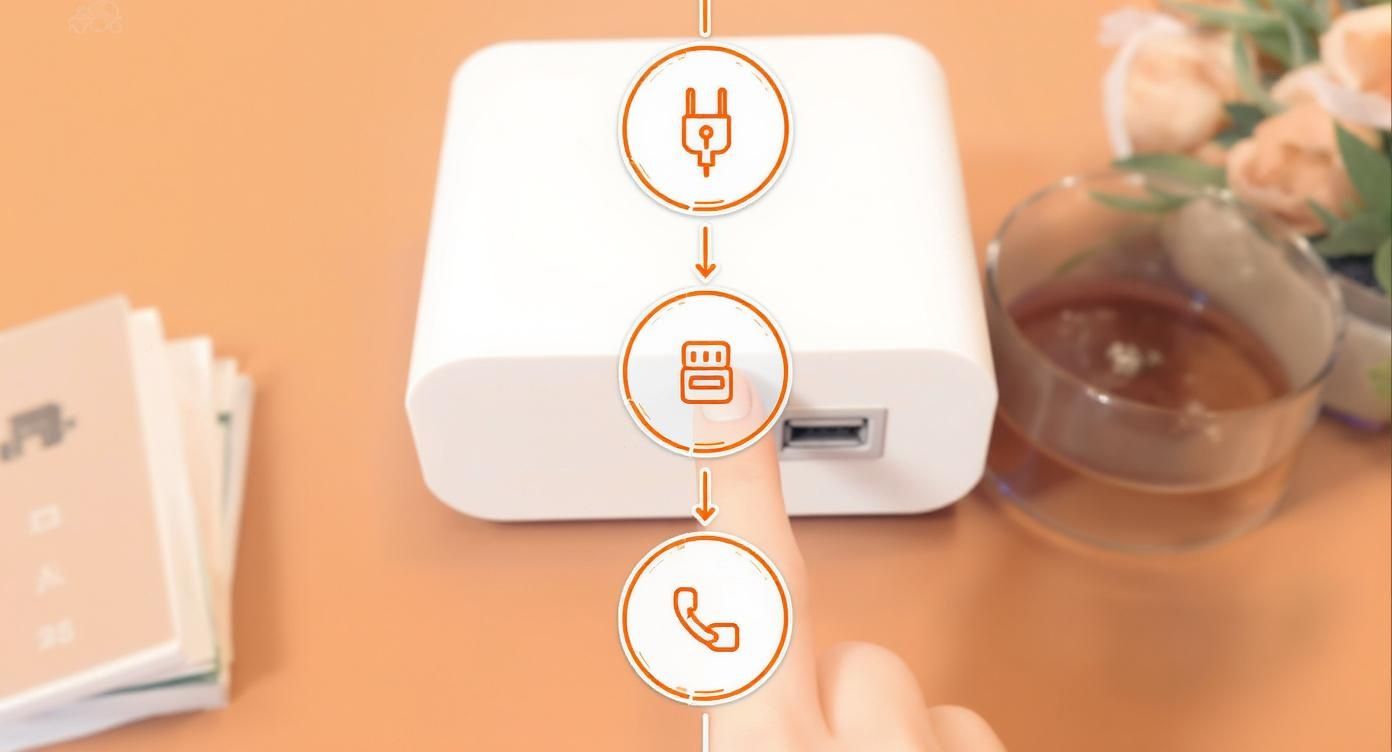
This simple process helps you narrow down the possibilities, guiding you from the wall to the cable and finally to the adapter itself.

Process of connecting a USB cable to a white charger with icons for plug, port, and phone.

By methodically checking each link in the chain, you can avoid tossing a perfectly good charger and only replace the part that's actually broken.

A Different Angle: Testing with a Computer

Don't have a spare adapter or cable handy? No problem. A laptop or desktop computer can be a great testing tool.

Plug your original charging cable directly into a USB port on your computer. If your device starts charging, that's a strong clue your power adapter is the problem. If it still won't charge, the fault is almost certainly with the cable or, as we'll explore next, the charging port on your device.

By swapping parts one by one, you create a simple, effective test. If you change one thing and the problem gets fixed, you've found the cause. From my experience, this step-by-step process is the fastest way to solve the "why is my charger not working?" puzzle.

Checking Your Device: The Overlooked Culprit

A wooden tool cleaning the charging port of a black smartphone on a wooden surface.

So, you've checked the outlet, the adapter, and the cable. Still nothing. It’s easy to get frustrated at this point, but what if the problem has nothing to do with your charger at all? From my experience, the issue is often hiding in plain sight: the charging port on your device. It’s the one thing most people completely forget to check.

Think about where your phone goes all day—pockets, bags, dusty desks. Its charging port acts like a tiny magnet for lint, dust, and all sorts of gunk. Over time, this buildup gets so packed in that it physically stops the charging cable from making a solid connection.

The good news? A little careful cleaning is often all it takes to fix it.

Safely Cleaning Your Device's Charging Port

Before you grab the nearest pointy object, hold on. It’s very important to use the right tool for the job. Never use anything metal, like a paperclip or a pin. Metal can easily scratch the delicate connectors inside the port or, even worse, cause an electrical short that could permanently damage your device.

Here’s a much safer way to do it:

  • Find the Right Tool: A wooden or plastic toothpick is perfect. A can of compressed air is also great for blowing out loose debris first.
  • Power Down Your Device: This is a must. Always turn your phone or tablet completely off before you start cleaning.
  • Gently Scrape and Loosen: Carefully insert the tip of the toothpick into the port. Gently scrape along the bottom and sides—you’re just trying to knock the packed lint loose, not scrub the port clean.
  • Clear the Debris: As you loosen the gunk, carefully scoop it out. You might be shocked at how much lint and dust comes out. A few quick puffs from the compressed air can help clear out the rest.

Once you're done, power your device back on and plug it in. Nine times out of ten, you’ll feel the cable click firmly into place and see that beautiful charging icon pop up.

A blocked charging port is one of the most common reasons a charger seems broken. A quick, careful cleaning with a non-metallic tool like a toothpick often solves the problem in under a minute, saving you the hassle and cost of a new charger.

When the Problem Is Software, Not Hardware

What if the port is spotless and it still won't charge? The issue might be a simple software glitch. Your phone is a mini-computer, and just like a PC that starts acting strange, sometimes all it needs is a simple reboot to clear out any bugs. A forced restart can often fix minor issues that mess with the charging process.

The exact steps for a forced restart can be different for each device:

  • For iPhones (8 and newer): Quickly press and release Volume Up, then Volume Down. Now, press and hold the Side button until you see the Apple logo.
  • For Android Devices (Samsung, Google, etc.): The most common method is to press and hold the Power button and the Volume Down button together for about 10-15 seconds until the device restarts.

This action doesn't delete your data but resets the parts of the software that control power. If your device starts charging again, you know it was just a software hiccup. While this solves the immediate problem, if it keeps happening, it might point to a deeper issue. It’s always a good idea to learn how to check your phone's battery health to see if something more serious is going on.

Wait, Why Isn't This Charger Working?

We’ve all been there. You grab a random charger from a drawer, plug in your phone, and… nothing. Or worse, it charges at a snail's pace. It’s a super common frustration, but the reason is pretty simple: not all chargers, cables, and devices are made to work together.

For everything to work right, your power adapter, your cable, and your device need to speak the same language. If they can't communicate, you've got a problem.

Things used to be a lot simpler. But now, with fast charging technologies, the whole situation has gotten complicated. These newer systems need a digital "handshake" between the charger and the device to figure out the right amount of power to send.

If any single part of that chain—the brick, the cable, or the phone—doesn't support the right standard, the whole system drops to the slowest, safest speed. It’s a built-in safety measure. This is exactly why that cheap gas station charger can’t keep up with your brand-new, power-hungry smartphone.

Not All Cables Are Created Equal

It's tempting to think a USB-C cable is just a USB-C cable, but that’s a huge mistake and a common source of charging headaches.

Some cables are just built for slow, basic charging. Others are made with much thicker internal wires and special chips specifically to handle the high power needed for fast charging.

Using a flimsy, low-quality cable with a powerful fast-charging adapter is like trying to put out a huge fire with a garden hose. It just can't deliver enough power. The cable itself becomes the bottleneck, stopping your device from charging as fast as it can.

Match Your Adapter to Your Device

The power adapter—the "brick" that plugs into the wall—is the brains of the whole operation. It’s what decides the maximum power it can send out.

So, if you plug a brand-new phone that supports 45W fast charging into an old 5W adapter from a decade ago, it's going to charge incredibly slowly. The adapter simply doesn't have the power your device is asking for.

This mismatch is one of the most frequent reasons people think their charger is broken. Technically, it's working, just not very well. This is even more important for bigger devices; you can check our guide on how many watts are needed to charge a laptop to see just how specific those power needs can be.

Beyond the charger itself, it’s always a good idea to have a basic grasp of your home's electrical system to stay safe. Brushing up on understanding electrical safety is a great way to ensure all your gadgets operate safely and you avoid bigger problems down the line.

When to Repair and When to Replace Your Charger

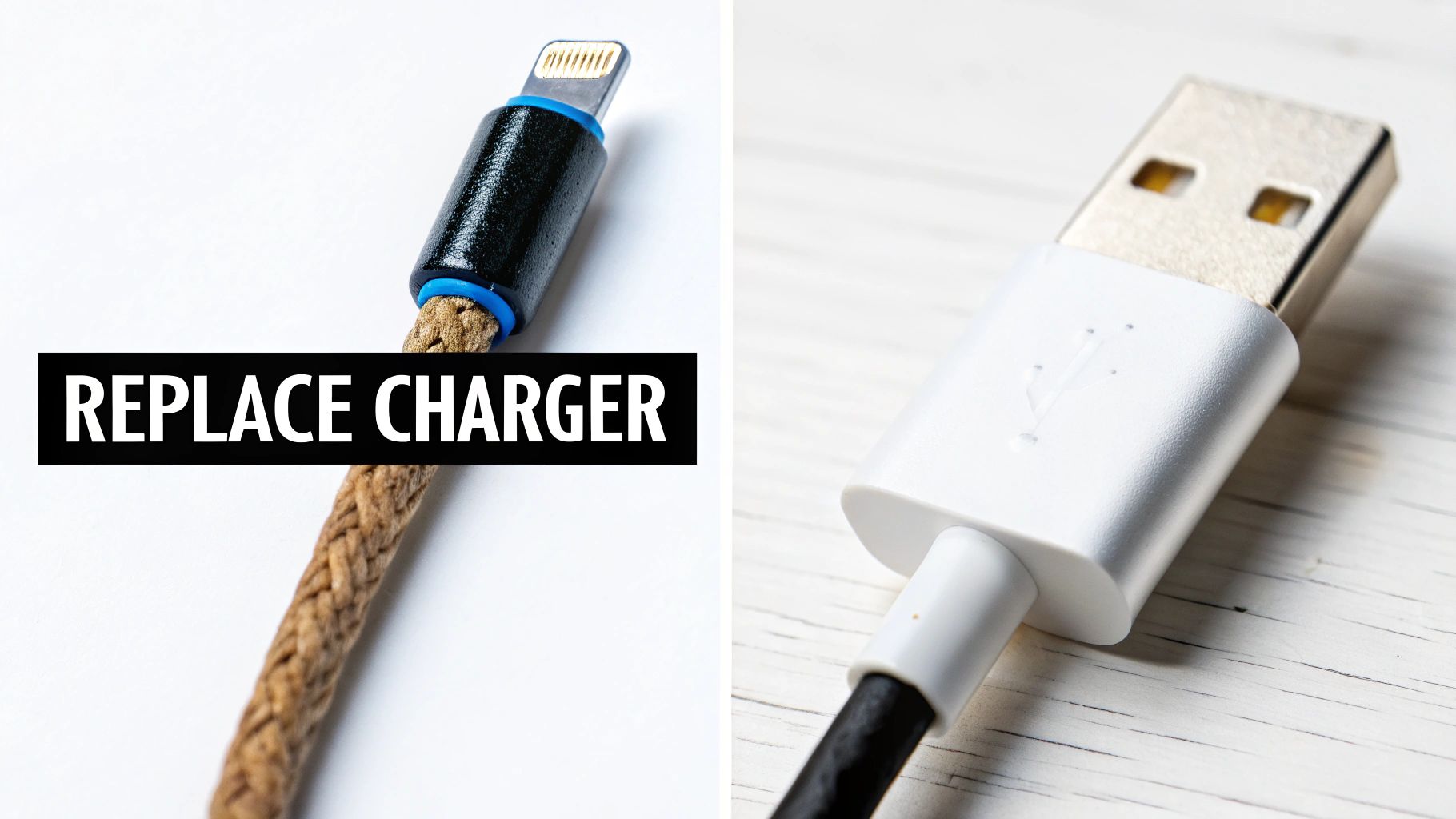
A damaged braided Lightning cable and a white USB-A cable, with a 'REPLACE CHARGER' text overlay.

Alright, you’ve done the detective work and found the problem. Now you have a decision to make: is this something you can fix, or is it time to toss it?

A bit of lint in the charging port is an easy fix. But some problems are more than just a simple issue—they're giant, waving red flags telling you that your charger is done for.

Getting this right isn't just about getting a charge. It's about protecting your phone, your home, and yourself. A faulty charger can cause a lot more trouble than just a dead battery.

Definite Signs You Need a New Charger

Some issues mean the charger is beyond repair. If you spot any of these, stop using the charger immediately and get a new one. Seriously. Trying to patch these up isn't worth the risk.

Here’s what to look for:

  • Frayed or Exposed Wires: As soon as you see the thin, colorful wires showing through the outer plastic, that cable's life is over. It’s a serious fire and shock hazard.
  • A Strange Smell or Overheating: Does the power brick smell like burning plastic? Is it very hot when you touch it? Those are clear signs of failing internal parts that could short out at any moment.
  • Buzzing or Whining Sounds: Your power adapter should be silent. If it starts buzzing, humming, or making any other weird noises, something inside is seriously wrong.
  • Bent or Damaged Connector: That little metal tip is more delicate than it looks. If it’s bent, wiggly, or has broken pins, it could ruin your device’s charging port—and that’s a much more expensive problem to solve.

In my experience, trying to "fix" a physically damaged charger with electrical tape is a bad idea. You're just putting a flimsy bandage on a ticking time bomb that could damage your phone or, worse, start a fire.

Why Quality Matters When Replacing Your Charger

So, it's time for a new charger. It’s tempting to hop online and grab the cheapest one you can find, right? I get it, but this is one area where "saving" money now will absolutely cost you later.

Those super-cheap, uncertified chargers are a huge reason people end up wondering, "why is my charger not working?" all over again.

They often skip the essential safety features that protect your phone from power surges and overheating. Over time, they can damage your battery, shortening its lifespan and forcing you to replace it way too soon.

When you buy a certified charger from a brand you trust, you're paying for peace of mind. You know it meets strict safety and performance standards, which means it will charge your device safely and reliably for years. Making a smart choice here not only protects your phone but also helps you learn how to reduce electronic waste—which is better for both your wallet and the planet.

Got More Charging Questions? Let's Clear Them Up.

Even after trying everything, a few nagging questions can stick around. That's totally normal. We've been there. So, I've rounded up some of the most common things people ask when a charger acts up, with some straight-to-the-point answers to give you that final piece of the puzzle.

Think of this as your quick-hit guide for those tricky "what if" moments.

Can a Charger Just… Die?

Absolutely, and it happens more than you'd think. One minute it's working fine, the next, it's useless. This is almost always a tiny internal part in the power adapter failing, maybe from a small power surge or just plain old wear and tear.

Cables are just as guilty. One too many bends, and a delicate wire inside finally snaps. You won't always see any damage on the outside before it quits on you.

Why Does My Charger Work on One Thing but Not Another?

This is a classic compatibility problem, and it's become super common with all the different fast-charging technologies out there. When you plug in your phone, the charger and device have a quick digital "handshake" to agree on how much power to send. If your phone needs a specific type of power and the charger can't provide it, the handshake fails. No power flows.

It’s really a safety feature to stop your gear from getting damaged, but it can be confusing. The charger isn't broken; it just can't communicate properly with that specific device.

I see this all the time: an old 5-watt charger can power up a simple Bluetooth speaker just fine, but it can't deliver enough juice for a new, power-hungry smartphone. The charger is technically working, just not powerfully enough for everything you own.

Is It a Bad Idea to Leave My Charger Plugged In 24/7?

Leaving the power brick itself plugged into the wall, even without a phone connected, uses a tiny amount of "phantom power." It's not really harmful to the charger, but it's not great for your electricity bill over the long run.

The real problem is leaving your phone plugged in, especially overnight. This is the big one. Keeping a modern battery at 100% charge for hours on end is the single worst thing you can do for its health. This puts a ton of stress on the battery, causing it to lose its ability to hold a charge way faster than it should. Before you know it, you're looking at a phone that can't make it through the day, forcing an expensive replacement.


Protecting your battery from this kind of silent damage is the best thing you can do to make your phone last longer. This is exactly why we built Chargie. It acts like a little guardian for your battery, intelligently managing the charge overnight. It stops the power at a healthy level and then just tops it off right before you wake up. It’s a simple idea that can literally add years to your phone's life, saving you money and cutting down on e-waste. You can learn more about how to extend your battery's life at https://chargie.org.

My Phone Wont Charge: A Simple Fix Guide

That sinking feeling when you plug in your phone and… nothing. The screen stays dark. It's a moment of pure panic for most of us, but the fix is usually much simpler than you think.

More often than not, the problem isn't a major failure inside your phone. It's usually something basic: the power outlet, the charging cable, or even just a bit of pocket lint.

Your First Steps When Charging Fails

Before you jump to the worst-case scenario (like a dead battery or a busted phone), let's walk through the most common culprits. You don't need to be a tech expert; this is just a simple, logical way to figure out the problem.

We'll start with the easiest and most likely fixes first, turning that initial frustration into a clear action plan. Most of the time, the issue isn't the phone itself but one of the accessories trying to give it power.

A Quick Diagnostic Path

To make it even simpler, here's a little chart that covers the first three things you should always check. It’s a great visual reminder of where to start.

An infographic decision tree showing the first steps to take when a phone won't charge, starting with checking the outlet, then the cable, and finally cleaning the port.

This just goes to show how often the problem is outside the phone. By checking the outlet, the cable, and any dirt, you can quickly find and solve the most common charging headaches.

Before diving deeper, here’s a quick checklist to run through. I can't tell you how many times one of these simple checks has saved me from a massive headache.

Quick Fix Checklist When Your Phone Isn't Charging

Before diving deep, run through these common issues. One of these is often the simple fix you need.

Potential Problem Quick Check What It Means
Faulty Outlet Plug a different device (like a lamp) into the same outlet. If the lamp doesn't work, the outlet is the problem. If it does, the outlet is fine.
Dead Power Adapter Try a different power adapter with your charging cable. If the phone starts charging, your original adapter has likely failed.
Frayed/Broken Cable Look at the cable for obvious damage. Try a different cable. A new cable immediately solves the issue if your old one was the weak link.
Dirty Charging Port Gently clean the port with a non-metal tool like a toothpick. Lint and dirt often block a good connection. A quick clean can fix it instantly.

Running through this table first will solve the issue for most people, saving you a ton of time and worry. You don't need to be a tech wizard—just methodical.

When your phone refuses to charge, it's easy to think that the phone itself is broken. But hold on a second. More often than not, the real problem is one of the accessories feeding it power.

I like to think of it as a chain: the wall outlet, the power adapter, and the charging cable all have to do their part. If just one of those links is weak, the whole system fails, and your phone stays dead.

Inspecting Your Charging Gear from Wall to Phone

Let's start our detective work at the very beginning: the wall outlet. It sounds almost too simple, but you'd be surprised how often this is the problem. The quickest check is to unplug your phone charger and plug in something you know works, like a lamp or a fan. If the lamp doesn’t light up, you've found your problem without even touching your phone's gear.

Check the Wall Adapter

If the outlet is working, the next piece of the puzzle is the wall adapter—that little block that plugs into the wall. These things aren't invincible. They can fail from power surges or just plain old wear and tear.

The best way to check it is to simply swap it out. Grab a different wall adapter you trust, maybe from another device, and connect your usual charging cable to it. If your phone suddenly wakes up and starts charging, bingo. You've found the issue. The old adapter is likely broken and needs to be replaced.

The Cable Is a Common Culprit

Now we get to what is, in my experience, the most fragile part of the whole setup: the charging cable. These things take a beating. We bend them, twist them, yank them out of the wall, and cram them into bags. All that stress can cause tiny breaks in the wires inside, especially right near the ends where the cable bends the most.

Give your cable a careful look, checking for any obvious signs of damage:

  • Fraying: Are any wires poking through the outer cover, especially near the plastic ends?
  • Kinks: Any sharp, permanent bends can mean damage inside, even if the plastic looks fine.
  • Bent Pins: Look inside the USB connector itself. If a metal pin is bent or missing, it's not going to make a good connection.

Even a cable that looks perfect on the outside can be broken on the inside. The best test, once again, is to swap it with a good cable you know works. If your phone starts charging with the new cable, you know the old one is done for. A damaged charger isn't just an annoyance; it can be a real hazard. For a deeper look, check out our guide on what to do when your charger is not working.

Here’s a key takeaway from years of dealing with this: not all chargers are created equal. A cheap, uncertified cable or a weak adapter can make it seem like your phone won't charge, even when nothing is technically broken.

This is a bigger issue than most people realize. One consumer survey found that 62% of people have run into problems with charger compatibility, and a massive 70% felt confused about which charger was even right for their device. What's more, the same survey found 69% of users had their chargers become unsafe, which is a direct path to charging failures. This just goes to show how widespread the frustration with phone chargers really is. Sticking with high-quality, certified accessories is one of the smartest things you can do for reliable charging.

How to Safely Clean Your Phone's Charging Port

A close-up of a phone's charging port being cleaned with a small tool.

If your cables and charger are working just fine, the next thing to check is often the charging port itself. Over time, that tiny opening on your phone becomes a black hole for pocket lint, dust, and all sorts of gunk. You’d be surprised how tightly it can get packed in there, physically blocking your cable from making a solid connection. It’s one of the most common reasons people suddenly find themselves saying, "my phone won't charge."

Before you start digging around, the very first thing you need to do is power down your phone completely. Seriously, turn it off. This simple step reduces the risk of accidentally causing a short and a much bigger problem.

Once it's off, grab a flashlight and peek inside the port. You might be shocked at what you find.

Safe Tools for the Job

When it comes to cleaning this delicate spot, your choice of tool is everything. The wrong object can cause permanent damage, turning a five-minute fix into a trip to the repair shop. You need to stick with soft things that don't conduct electricity to gently fish out the debris.

Here are a few things that work great:

  • A wooden or plastic toothpick: These are perfect. They're soft enough not to scratch the sensitive metal pins while you gently scrape the inside walls of the port.
  • A can of compressed air: A few quick blasts are excellent for blowing out loose dust and debris. Just be sure to keep the can upright and use short bursts to avoid spraying any liquid inside.
  • A small, soft brush: An old (and clean!) toothbrush or a special anti-static brush can also work wonders for sweeping out loosened particles.

Crucial Safety Tip: Never, ever use metal objects to clean your charging port. I'm talking paper clips, safety pins, or tweezers. Metal conducts electricity and can easily short-circuit the pins, frying your phone's main board for good. Don't risk it.

The Gentle Cleaning Process

With your phone powered off and your safe tools at the ready, it's time to get to work.

Start with the toothpick. Gently scrape around the inside of the port, focusing on the "back" wall opposite the row of charging pins. Think of it like scooping lint out—be gentle and careful.

After you've loosened things up, grab the compressed air. Hold the can a few inches away from the port and give it a couple of short blasts. A little cloud of dust and lint should come flying out.

Repeat this little scrape-and-blow process a few times until the port looks clear. Once you're satisfied, power your phone back on and try plugging in the charger again. More often than not, this simple cleaning is all it takes to get things working perfectly again.

Ruling Out Software Glitches and App Conflicts

A person restarting their smartphone to fix a software glitch.

So, you’ve checked the outlet, the charger, and the port, and everything seems fine. Now it’s time to look inward—at your phone’s software. It’s easy to forget that charging isn't just about plugging something in; your phone's operating system is the brains behind the whole operation. When that software gets confused, you can end up with a phone that refuses to charge, even when all the hardware is perfect.

These software hiccups are surprisingly common. Think about it: what's the first thing IT support always tells you to do when your computer acts up? "Have you tried turning it off and on again?" The exact same logic applies here.

The Power of a Simple Restart

Before you start digging into more complex fixes, the single most effective trick is a simple restart. This one action clears out your phone's temporary memory and shuts down all the background processes and apps that might be causing problems. It’s like giving your phone a clean slate without losing any of your data.

Just press and hold the power button until the option to restart or power off pops up, and choose restart. If your phone is totally frozen, you might need to do a "force restart." This usually involves holding a combination of buttons (like the power and volume-down keys) for about 10-15 seconds.

Once your phone boots back up, plug it in again. You'd be amazed how often this is all it takes. If it still won't charge, the next place to look is your system updates.

A software glitch can fool your phone's battery sensor, causing it to report the wrong charge level or even refuse to accept power. A restart basically resets these sensors and gets everything talking to each other correctly again.

Checking for Critical Software Updates

Phone manufacturers are constantly releasing software updates, and they aren't just for new emojis. These updates often contain important bug fixes for things like power management and battery performance. The very problem you're facing could be a known bug with a fix already waiting for you.

Here’s how to check on most phones:

  • For Android: Head to Settings > System > System update (sometimes called Software update).
  • For iPhone: Go to Settings > General > Software Update.

If you see an available update, download and install it right away. Running on outdated software is a common source of all sorts of mysterious issues. A quick scan of any tech forum will show you countless stories of people whose charging problems vanished after a simple software update.

Is a Rogue App the Problem?

If a restart and an update don't do the trick, an app you installed could be the culprit. A poorly made or buggy app can absolutely cause chaos with your phone’s basic functions, including its ability to charge properly.

The easiest way to test for this on an Android phone is to boot into Safe Mode. This special mode temporarily disables all your downloaded apps, leaving only the essential system software running. If your phone charges perfectly in Safe Mode, you’ve found your smoking gun: an app is causing the conflict.

To fix it, just restart your phone to get out of Safe Mode. Then, start uninstalling your most recently added apps one by one, plugging in the charger after each removal to see if the problem is gone. It's a bit of a process, but it's the surest way to find and get rid of the app that's causing all the trouble.

Sure, you’ve got your phone charging again for now. But what about preventing this whole "my phone won't charge" headache from happening in the first place? It's time to shift from frantic fixes to smart habits that keep your battery healthy for the long haul. A lot of us, without realizing it, are slowly killing our batteries with our daily routines.

Let's bust a common myth right away: you shouldn't always charge your phone to 100%. I know, it feels satisfying to see that full bar, but modern phone batteries are actually happiest when their charge is kept between 20% and 80%.

Constantly pushing your battery to its absolute maximum puts a ton of stress on it, wearing it out much faster. It's like a rubber band—if you stretch it to its limit every single time, it’s going to lose its snap way quicker than if you only gave it a moderate stretch.

Don't Let It Get Too Hot (or Cold)

Heat is a battery’s worst enemy. Leaving your phone sizzling on a car dashboard or out in the freezing cold can cause real, permanent damage. It permanently messes with its ability to hold a charge.

Batteries do their best work at room temperature. Forcing them to charge when they're too hot or cold is a recipe for disaster. For example, charging a freezing-cold phone can cause permanent damage that will seriously shorten your battery’s lifespan.

Let Your Phone Help with Optimized Charging

Thankfully, modern phones have gotten a lot smarter. Apple and Google have built-in features like "Optimized Charging" or "Adaptive Charging." These clever systems actually learn your daily schedule.

They'll charge your phone up to 80% and then patiently wait, only topping it off to 100% right before you typically wake up. This drastically cuts down on the time the battery spends sitting at that stressful full-charge level overnight. If your phone has this feature, turn it on. It's one of the simplest things you can do.

For those of us who want even more control over the process, our deep dive into whether you should charge your phone overnight gives you the full scoop on managing those nightly power-ups.

It’s no surprise that the global mobile charger market is exploding. It's expected to jump from $18.5 billion in 2023 to over $41.3 billion by 2032, largely thanks to fast charging tech. But all this innovation has a downside—a confusing mess of new standards and special cables that can make older chargers obsolete or just plain incompatible, which is a direct cause of charging problems for so many people. You can find more details on this evolving market over on DataInsightsMarket.com.

Building smarter charging habits isn't just about avoiding a dead phone. It's about protecting the investment you made in your device. A healthier battery means a phone that performs better, lasts longer, and ultimately saves you money while cutting down on e-waste. A few small changes today can prevent some major frustrations down the road.

Knowing When It’s Time for Professional Help

So, you’ve tried everything. You’ve cleaned the port, swapped cables, rebooted, and you’re still staring at a phone that refuses to charge. If you've run through all the usual suspects and are still stuck, the problem might be deeper than a simple fix.

At this point, you're likely dealing with an internal hardware failure. This is where you have to be honest with yourself—poking around inside your phone without the right tools and knowledge can turn a repairable problem into a permanent one. When you've exhausted all your DIY options, it's probably time to call in a pro with specialist IT support. Recognizing the signs of a serious issue can save you a lot of time, frustration, and money.

A technician carefully examining the internal components of a smartphone.

Telltale Signs of Internal Damage

Keep an eye out for these symptoms. They’re often red flags pointing to a failing battery or, worse, a motherboard issue:

  • Getting Way Too Hot: Your phone feels unusually hot to the touch while it's plugged in, but the battery percentage isn't going up. A little warmth is normal, but excessive heat is a major warning sign.
  • Draining While Plugged In: You see the charging icon, but the battery percentage is actually dropping. This is a classic sign that the power isn't making it to the battery correctly.
  • Completely Unresponsive: The phone is a total brick. No screen flicker, no vibration, no signs of life at all, no matter what you do.

With older phones, a worn-out battery is often the culprit. But modern smartphones are sealed up tight, making a simple battery swap a delicate operation. Certified technicians have the specific tools needed to open the device without damaging the screen or other components. It’s a job best left to them.

This whole situation has gotten more complicated since manufacturers stopped including chargers in the box. This trend, which started around 2020 to cut down on e-waste, has a downside: many of us are now using old, mismatched, or low-quality chargers that can actually damage our phones over time. You can read more about why phones come without chargers to understand the full picture.

Your Top Phone Charging Questions, Answered

Even after getting things working again, you probably have a few questions. The whole "my phone won't charge" headache can pop up in some weird and confusing ways. Let's tackle the most common situations I hear about all the time.

My Phone Says It’s Charging, but the Percentage Isn’t Going Up

This one is incredibly frustrating. You see the little lightning bolt, but the number stays put. More often than not, this points to a weak power source. The charger is providing just enough juice to light up the screen and show the charging icon, but not enough to actually fill the battery. I see this a lot when people use an old, low-power adapter or a flimsy, low-quality cable.

The first thing to try is plugging your phone directly into a wall outlet using a powerful, certified adapter. It's also worth remembering that software can get confused sometimes, so a quick restart is always a solid first step before you start worrying.

Can I Just Use Any Charger for My Phone?

Technically, many cables might fit, but it's a really bad idea. Using the wrong charger—or a cheap knockoff—can lead to painfully slow charging. Even worse, it can cause real, long-term damage to your battery. For the best performance and to keep your phone safe, always try to stick with the charger that came in the box or a certified one from a brand you trust.

Key Takeaway: Uncertified, cheap chargers are a leading cause of charging problems and battery damage. They often can't deliver a stable current, which puts a ton of stress on your phone's delicate internal parts.

My Phone Only Charges When I Wiggle the Cable

Ah, the classic "charging angle" problem. If you have to prop up your phone or wiggle the cable just right to get a connection, you're dealing with physical damage. It’s almost always one of two things: either the cable itself is worn out, or the charging port on your phone is loose or damaged.

Your first move should be to try a brand-new, high-quality cable. If the problem sticks around, the port is the likely culprit. At that point, it’s time to have it looked at by a professional. The condition of your gear directly impacts how long it takes for your phone to charge, which we cover in more detail in our full guide.


For the ultimate in battery protection, Chargie is a small but powerful device that automatically manages your phone's charging cycles to prevent wear and tear. It intelligently stops your phone from sitting at that stressful 100% charge level for hours on end, which can significantly extend its lifespan. Find out more at https://chargie.org.

Charger Not Working? Quick Fixes to Get Power Again

That sinking feeling when you plug in your phone and… nothing happens. We’ve all been there. Your first thought might be that the charger is dead or, even worse, your device is broken. But hold on. Most of the time, the problem is surprisingly simple and something you can fix yourself in under a minute.

Before you rush out to buy a new charger, let’s walk through a few quick checks. A step-by-step approach can save you a lot of time, frustration, and the cost of a replacement you might not even need.

First Steps When Your Charger Gives Up

Think of this as basic detective work. We're going to check for the most common suspects one by one, starting with the easiest stuff first.

Check Your Power Source and Connections

This might sound obvious, but you'd be surprised how often the wall outlet is the real problem. Grab a lamp or any other small appliance you know works and plug it into the same socket. If it doesn't turn on, you’ve found your problem. Try another outlet or check your home's fuse box.

If the outlet is fine, let's look at the connections. A slightly loose plug can be all it takes to stop the flow of power.

  • At the Wall: Is the power adapter pushed all the way into the socket? Give it a firm push.
  • Adapter to Cable: For most of us using USB chargers, the cable can come loose from the power brick. Unplug it and plug it back in, making sure it clicks into place.
  • Cable to Device: Wiggle the connector in your device's charging port. It should feel snug, not loose. A wobbly connection is a classic reason a charger seems broken.

Inspect Your Gear and Reboot Your Device

Next, give your equipment a quick look. Take a close look at the cable, especially near the ends where it connects to your phone and the power brick. These areas get the most stress from bending and twisting. Do you see any frayed wires or cracks in the plastic?

Image

Also, peek inside the metal connector. Are any of the little pins bent or broken? Any visible damage is a clear sign that you need a new cable or adapter.

Sometimes, the hardware is perfectly fine, but a software glitch is messing things up. Your phone's operating system can get confused and fail to recognize a perfectly good charger. A quick restart is often all it takes to clear out these temporary errors and get things working again.

Believe it or not, the problem isn't always the hardware. A simple software hiccup can stop a device from realizing it's plugged in. Restarting your phone, tablet, or laptop can clear those temporary bugs and often fixes the issue right away. For those trickier situations where the battery will not charge at all, our more in-depth guide has extra solutions you can try.

To make this even easier, I've put the first few checks into a simple table.

Quick Diagnostic Checklist

When your charger first fails, run through these simple points before doing anything else. It covers the most common issues and can get you back up and running in minutes.

Check Point Action to Take What It Solves
Wall Outlet Plug a working lamp into the same outlet. Finds a dead outlet or a tripped fuse.
All Connections Unplug and replug the adapter, cable, and device connector. Fixes loose or incomplete connections.
Cable & Adapter Look for fraying, cracks, or bent pins. Catches obvious physical damage.
Device Software Perform a simple restart of your phone or tablet. Clears temporary software glitches that prevent charging.

Following these steps will solve most "my charger isn't working" panics without you having to spend a dime.

Inspecting and Cleaning Your Charging Port

If you've already ruled out the charger and the cable, it's time to check the device itself. More often than not, the culprit is hiding in plain sight: the charging port. Just think about where your phone lives—deep in a pocket or rattling around in a bag. It's constantly collecting dust, lint, and all sorts of other gunk.

A person using a wooden toothpick to gently clean out a smartphone's charging port

Every time you plug in your cable, you're unknowingly packing that dirt down. Eventually, it forms a stubborn, invisible barrier that keeps the metal parts from making a clean connection. It’s one of the most common reasons a perfectly good charger not working seems to have given up.

How to Safely Clean Your Port

First things first: power your device completely off. This is a must-do step to prevent any accidental damage. And please, never use anything metal, like a paperclip or safety pin. It’s a surefire way to scratch the sensitive internal pins and cause permanent, expensive damage.

Here are a couple of safe and surprisingly effective methods I’ve used countless times:

  • Compressed Air: This is always the best place to start. Grab a can of compressed air, hold it upright, and give the port a few short, controlled bursts. Don’t stick the nozzle right up against the port; a little distance is all you need to blow out any loose dirt.

  • A Wooden or Plastic Toothpick: If the air didn't do the trick, it's time for a more hands-on approach. A non-metallic tool is key. Gently insert a toothpick and carefully scrape along the inside walls of the port. Go easy. You'll probably be shocked at how much pocket lint comes out.

Once you're done, try plugging the charger back in. You should now feel a satisfying, solid "click" when the cable is properly plugged in.

Pro Tip: As you're cleaning, grab a flashlight and peek inside the port. See any greenish or whitish crust on the metal parts? That's a sign of moisture damage. If that’s the case, you’re dealing with a bigger problem and might need to learn how to fix battery corrosion.

Finally, give the port a gentle wiggle test. If the cable feels super loose or wobbles a lot when it's plugged in, the internal parts might be damaged from simple wear and tear. Unfortunately, a hardware issue like that is usually a job for a professional repair shop.

Why Even Good Chargers Fail Over Time

Ever had that moment where your trusty phone charger, the one that came in the box, starts acting up after a year or so? One day it's working fine, the next it’s flaky and unreliable. You're not imagining things. Even the best-made chargers have a limited lifespan, and their performance will eventually get worse.

It’s not always a dramatic, sudden failure where the charger isn't working at all. More often, it's a slow, gradual decline. This happens because the tiny parts inside are under constant stress. Every time you plug it in, they heat up and then cool down. This constant cycle, repeated hundreds of times, causes wear and tear you just can't see. Over time, these parts just don't work as well, which leads to slower charging or a connection that keeps dropping.

The Real-World Impact on Reliability

This isn't just about the little power bricks for our phones; it’s a massive issue for public things like electric vehicle (EV) charging stations. There's a key measurement they use called the First-Time Charge Success Rate, which is just a fancy way of measuring how often a charger actually works the first time you plug in.

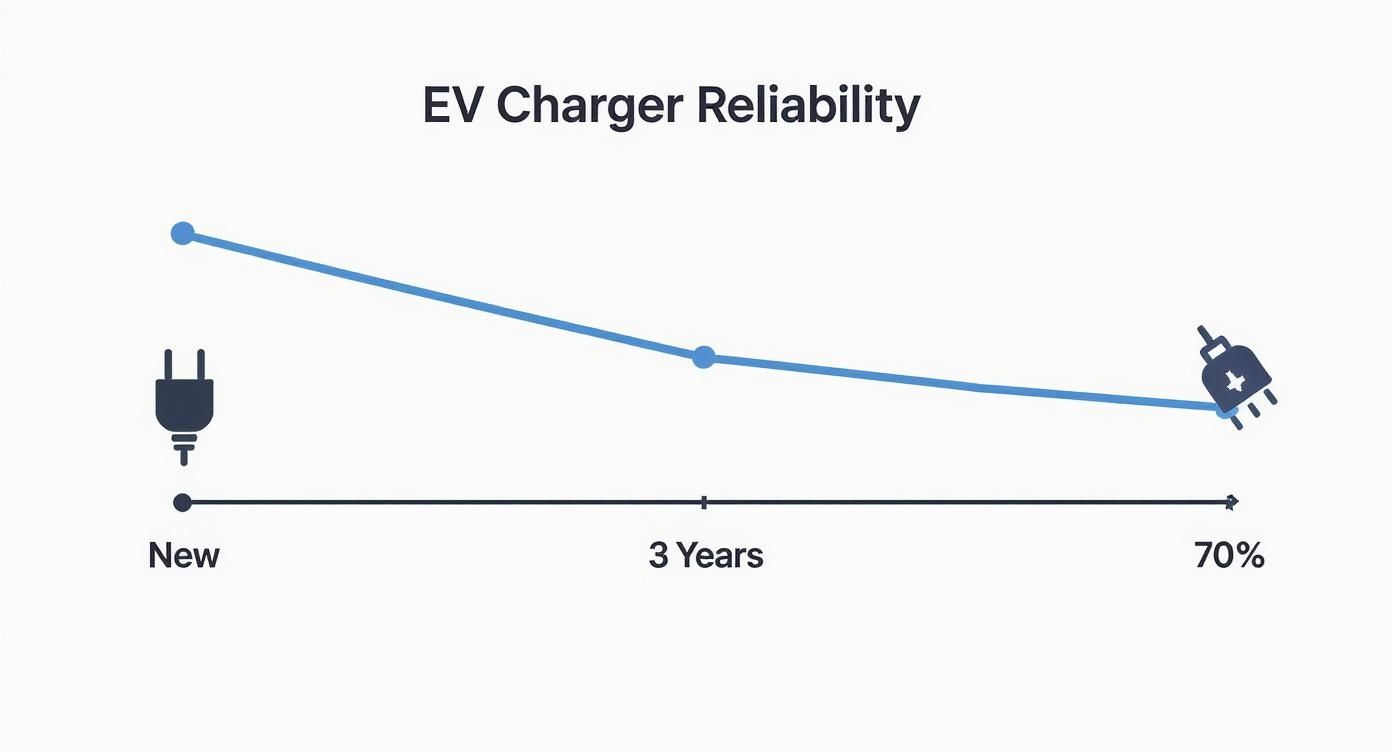
The data here tells a pretty clear story about how chargers age. The 2025 EV Charging Reliability Report found that brand-new stations have a solid success rate of about 85%. But give them just three years, and that success rate drops to below 70%. It’s a perfect example of how a station can be technically "on" but still fail to deliver a reliable charge. You can dig into more of this data in the full 2025 Annual Reliability Report.

Understanding that chargers wear out helps set realistic expectations. It’s not a matter of if a charger will fail, but when. Investing in durable, well-made charging gear from the start is the smartest way to ensure you get consistent and safe performance for the long haul.

Factors like temperature play a huge role in this aging process. A charger left to bake in a hot car or freeze in a cold garage experiences way more stress than one used in a normal room. This environmental abuse speeds up the wear on both the charger and the battery it's connected to. We've written a detailed guide on the impact of temperature on battery degradation if you want to learn more.

The Problem with EV Charger Availability Data

We’ve all been there. You pull up to an EV charging station, your app cheerfully reporting it's 'available,' only to find it’s completely useless. It's a uniquely frustrating experience, and it's not just a string of bad luck—it’s a data problem.

The heart of the issue is how charging networks define reliability. They love to talk about ‘uptime,’ which sounds great on paper. But often, 'uptime' just means the charger is powered on and can communicate with the network. It says nothing about a busted connector, a frozen payment screen, or some other software problem that prevents it from actually starting a charge.

Uptime vs. Reality

Here's the problem: a charger can have 99% uptime and still be a total dud when you need it. This is why a much more honest measurement is the charging success rate—it simply tracks how many charging attempts actually worked versus how many failed. It's the real-world number that matters to drivers.

And the difference between these two numbers is huge. A recent study found that while the EV charging industry claims a nearly 99% uptime, the real-world charging success rate is a poor 71%. That means almost a third of all charging attempts are failing, even when the app gives you the green light. You can dive deeper into why success rate is the only number that really counts in the 2025 EV Charging Reliability Report.

This visual really drives the point home, showing how quickly EV charger reliability drops. A station can start with an 85% success rate, but that can fall below 70% in just three years.

Infographic about charger not working

This sharp decline shows how simple wear and tear takes its toll—something that a simple "uptime" percentage completely hides.

Understanding this data gap helps you manage expectations on the road. An 'available' station is never a guarantee. My advice? Always have a backup charging spot in your plan, just in case the data doesn't match the reality on the ground.

How Cost and Reliability Impact Your Charging Experience

A person paying for EV charging with a credit card at a public station

Finding a charger that actually works is only one piece of the puzzle. The cost of that power is a whole other story, something every electric vehicle driver knows all too well. While the tech is always improving, frustration is growing right alongside the price at the plug.

This isn't just an EV problem, though. The same thing happens with the chargers we use for our phones and laptops every single day. It's easy to just grab the cheapest cable you can find, but that small saving upfront can come back to bite you. A poorly made charger can mean painfully slow charging, constant failures, or even long-term damage to your device’s battery.

Balancing Price and Performance

The real goal is to find that sweet spot between a good price and performance you can count on. Sure, a certified charger might cost a bit more, but it’s an investment in your device's battery health. It’s the difference between a phone that lasts for years and one that needs an expensive battery replacement way too soon.

Just look at the public EV charging world for a real-world example. Even as the network gets more reliable, driver satisfaction is somehow dropping. Why? Recent data shows user satisfaction with the cost of charging fell by a huge 16 points in just one year. It's a clear sign that price has a big impact on the overall experience.

The financial side of keeping your EV charged is a huge part of the ownership experience. Digging into electric car charging costs helps you understand the bigger picture. Making smart choices can save you from getting ripped off while making sure your car gets the power it needs.

A Few Common Questions When Your Charger Gives Up

A dead charger can bring your entire day to a screeching halt. We’ve all been there. Here are some quick answers to the most common questions that pop up when your phone just won't charge.

Can a Cheap Cable Really Damage My Phone?

Yes, absolutely. It's a classic case of "you get what you pay for." Those uncertified, bargain-priced cables often cut corners by leaving out key safety features that manage power.

This can easily lead to overheating, which is bad news for your phone's charging port and can even damage your battery, shortening its lifespan. Sticking with chargers from your device's manufacturer or a well-known, certified brand is always the safer, and cheaper, bet in the long run.

My Charger Works on Other Devices, Just Not Mine

Okay, so you've plugged the charger and cable into a friend's phone, and it works perfectly. This is a good sign, because it almost certainly means the problem is with your device, not the charging gear.

The number one culprit here is usually a dirty charging port. Over time, pocket lint and dust can get packed in there, preventing a solid connection. Try cleaning it out gently. If that doesn't do the trick, a simple restart can sometimes clear up software weirdness that's stopping your device from recognizing the charger.

If you've cleaned the port and restarted the phone with no luck, the next step is figuring out if it's the battery or something more serious. It could be a failing battery or a deeper hardware issue.

Is It the Charger or the Battery?

The quickest way to figure this out is to do a little swap test. Find a different charger and cable that you know for a fact are working and plug them into your device. If your phone suddenly springs to life and starts charging, you’ve found your problem—your original charger is broken.

But what if your device still won't charge with the new setup? Then the issue is almost certainly with the device itself. It's likely either the battery has died or there's a problem with the internal charging port. If you’ve tried all the basic tricks and suspect something is wrong deep inside your device's electronics, it might be time to look into professional electronic board repair services.

One last, crucial piece of advice: never use a charger with a frayed or damaged cable. Those exposed wires are a massive safety hazard. We're talking risk of electric shock, fire, and completely ruining your device. A new cable is always a whole lot cheaper than a new phone.


You can avoid a lot of these charging headaches and extend the life of your batteries with Chargie. It’s a smart little device that prevents overcharging—the #1 cause of battery wear—which saves you money and cuts down on e-waste. Protect your gear by visiting https://chargie.org.

Why Your Battery Will Not Charge and How to Fix It

We've all been there. You plug in your phone or laptop, and… nothing. That sinking feeling hits when you see the plug icon, but there's no lightning bolt or charging signal. Before you start frantically searching for repair shops, let's walk through the simple checks that solve this problem more often than not.

These first few steps are your best defense against a major headache and can save you a lot of time and worry.

I once spent an entire morning convinced my expensive laptop charger had finally died. Turns out, the power brick had just come slightly unplugged from its own cable—a tiny detail I completely missed in my initial panic. It's often these little things that are the real problem.

What to Do First When Your Device Is Not Charging

Before you assume the worst (like a dead battery or a broken charging port), always start with the absolute basics. Electricity comes from the wall, so that's where we'll start, too.

For a quick rundown, here's a checklist of the first things you should try.

Quick Fix Checklist When Your Battery Won't Charge

This table breaks down the easiest and most common solutions when your device refuses to charge. Running through these steps can often fix the issue in minutes.

Troubleshooting Step What to Check Why It Works
Check the Outlet Plug something you know works (like a lamp) into the same outlet. This immediately tells you if the problem is with the outlet or your charging gear.
Inspect Power Strips Make sure the power strip is turned on and its reset button hasn't popped out. Power strips can fail or be accidentally turned off, cutting power to everything plugged in.
Reboot Your Device Do a simple restart on your phone, tablet, or laptop. A software glitch can sometimes stop the device from realizing it's connected to power.

Following this checklist helps you rule out the simple stuff first, preventing you from jumping to more complicated (and expensive) conclusions.

Start With The Power Source

It might sound obvious, but you’d be surprised how often the wall outlet is the problem. It's the easiest thing to check and a very common reason for failure.

  • Confirm the Outlet Works: Grab a lamp or any other small appliance you know is working and plug it into the outlet you were using. If it doesn’t power on, you’ve found your issue. Time to try a different outlet.
  • Check Power Strips: If you’re plugged into a power strip, double-check that the main switch is on. Some also have a small reset button that might need to be pushed.

This quick check helps you narrow down the problem. If the outlet is fine, you can move on to your charging equipment with confidence.

The Reboot Rule

Never underestimate the power of a good old-fashioned restart. Software can be tricky, and a minor background glitch can easily stop your device from sensing a charger.

Rebooting clears out the device's temporary memory and forces all its software to start fresh. It's like giving your phone or laptop a quick nap to reset itself.

Infographic about battery will not charge

This simple chart shows that checking your power connection and doing a quick reboot are the most effective first moves. If your device still isn't charging, we can move on to checking the hardware itself. Dirt, damage, and even rust can hide in plain sight. Sometimes, a little buildup is all it takes to block a connection, which is why it's good to know how to fix battery corrosion if you spot any.

Give Your Charging Gear a Once-Over

A person inspecting a USB charging cable and power adapter.

It’s easy to jump to conclusions and blame your device when it refuses to charge. But more often than not, the real problem is the simple charging cable or the power adapter plugged into the wall. Before you start dreading a costly repair, it’s time to investigate your charging setup.

The quickest and best way to figure this out is to just swap it out. Seriously. Grab a cable and adapter that you know are working—borrow one from a family member or a coworker—and see what happens. If your device suddenly springs to life and starts charging, congratulations! You've found your problem in about 30 seconds.

Check Your Cable for Damage

Your charging cable has a tough life. It gets bent, yanked, twisted, and stuffed into bags day after day. All that wear and tear can cause tiny, almost invisible breaks in the wires inside, especially near the ends.

Take a good, hard look at the entire length of your cable. Here’s what to focus on:

  • Frayed Wires: Look closely where the cable meets the plastic end. This is where they almost always break first.
  • Sharp Bends or Kinks: Any permanent-looking creases are bad news and can easily damage the delicate wires inside.
  • Loose Connectors: Does the metal tip wiggle? It shouldn't. A loose connection means unstable power, if any at all.

A damaged cable isn't just unreliable; it can be a real safety risk. If you spot any of this, it’s time for a new one. No questions asked.

Clean Out That Charging Port

Think about where your phone or laptop has been—pockets, purses, the bottom of a backpack. These places are full of lint, dust, and other gunk that gets crammed into the charging port every single time you plug it in. Eventually, that buildup can physically block the cable from making a good connection.

To fix this, grab something non-metallic and gentle. A wooden or plastic toothpick is perfect for carefully digging out the packed-in dirt. A quick puff from a can of compressed air can also work wonders on looser dust.

Safety First: Be gentle! Never, ever use metal objects like paper clips or pins to clean a port. You can easily short out the sensitive parts inside and cause permanent damage.

Inspect the Power Adapter and Connections

Don't forget the power adapter itself—the "brick" that plugs into the wall. Just like your device, its USB port can get clogged with dust. Give it a look and make sure the prongs that go into the outlet aren't bent or loose.

Beyond physical damage, using the right gear is important. It’s always best to use safe charging units and to match the adapter to your device's needs.

This isn't just a phone problem, either. The same idea applies to massive systems. In the electric vehicle world, for instance, a surprising 1 in 10 charging attempts fails simply because of a bad connection between the station and the car. It just goes to show how important a clean, secure connection really is, whether it's for your phone or an EV.

When Software Stops Your Battery From Charging

A person restarting a smartphone to fix a charging issue.

It sounds strange, but more often than you'd think, the reason your battery will not charge has nothing to do with the battery, the cable, or the charger. The real problem is buried in the software—the brain of your device. A minor, temporary glitch in the system can stop it from recognizing that a charger is even plugged in.

Think of it like a computer freezing up. The hardware is all there and working, but a software error has brought everything to a halt. The classic fix? A quick reboot. It clears out the device's short-term memory and gives every background program a fresh start, solving a surprising number of charging mysteries in the process.

The Magic of a Simple Restart

Before you start hunting for a new cable or worrying about a dead battery, the very first thing you should always try is a standard restart. It’s completely safe, takes less than a minute, and works surprisingly well.

On most phones and laptops, this is as simple as holding down the power button and tapping "Restart" or "Reboot."

If the screen is frozen and won't respond, a force restart is your next move. This is a deeper reset that basically cuts the power and forces the system to start over from scratch, but don't worry—it won't delete any of your data. The method is a little different depending on what you're using:

  • iPhone (8 and newer): Quickly press and release Volume Up, then Volume Down. Then, press and hold the side button until you see the Apple logo.
  • Most Androids: Press and hold both the power button and the volume down button at the same time for about 10-15 seconds. You’ll feel a vibration when it reboots.
  • Laptops: Just press and hold the physical power button for 15-30 seconds until the machine shuts down completely. Then, power it back on.

Using Safe Mode to Find the Problem

What if a restart doesn't do the trick? A misbehaving app could be the villain. Sometimes a badly made app, or even a recent update to a good one, can interfere with basic functions like charging. To figure this out, you can boot your device into Safe Mode.

Safe Mode is a special startup mode that loads only the essential, factory-installed software, leaving all your downloaded apps turned off. It’s a temporary state that lets you see if your added apps are causing the problem.

If your device charges perfectly fine in Safe Mode, you’ve found your culprit. An app you downloaded is causing the problem. All you need to do now is start deleting your most recently added or updated apps one by one until the charging issue goes away.

This dance between software and hardware isn't unique to our phones. The global EV market, with sales expected to hit nearly 22 million units, faces similar challenges. Charging reliability is a huge deal, and problems often come down to software conflicts between the car and the charging station. You can find more fascinating insights into the global EV market on energynewsbeat.co.

Checking Your Battery's Health

If you've checked the usual suspects—cables, chargers, and software—and your battery will not charge, it might be time to look at the battery itself. Like the tires on your car, the battery in your phone is a part that wears out. Over time, it loses its ability to hold a charge effectively.

https://www.youtube.com/embed/t0SSGKbU75M

This isn't a defect; it's just how lithium-ion batteries work. Every single time you charge and use your phone, tiny, permanent changes happen inside the battery, slowly reducing its maximum capacity. A phone that’s brand new might have 100% battery health, but after two or three years of daily use, that number will have dropped noticeably.

How to Check Battery Health on Your Phone

Thankfully, both Apple and Android give you a way to see your battery's current condition. It's the best first step to figure out if your battery is simply getting old.

  • For iPhones: Go to Settings > Battery > Battery Health & Charging. The "Maximum Capacity" number is what you're looking for. This tells you how much of a charge the battery can hold compared to when it was new. If you see a number below 80%, that's a pretty strong hint that you'll need a new one soon.

  • For Android Phones: This one can vary. Samsung users can find detailed info in the Samsung Members app. For other Androids, going to Settings > Battery will usually give you some basic health info, though it’s often not as clear as on an iPhone.

This doesn't just happen in phones. The same thing happens in much larger batteries. For instance, data from over 10,000 electric vehicles shows that the average EV battery loses about 1.8% of its capacity each year. Things like frequent fast charging, especially in hot weather, can speed that process up—a good lesson that our charging habits matter, no matter the device.

Signs of a Failing Battery vs. a Charging Issue

Sometimes it's hard to tell if you're dealing with a worn-out battery or just a stubborn charging problem. The signs can be similar, but there are clues to look for.

Symptom Likely a Charging Issue If… Likely a Battery Issue If…
Device won't turn on It shows a charging icon when plugged in but won't power up. The device is completely dead, even when connected to a good charger.
Shuts down unexpectedly It only happens when the battery level is very low (e.g., 1-2%). It shuts down randomly, even with 20% or 30% charge left.
Gets hot It only gets warm while actively fast charging. It gets unusually hot during normal use or even when it's not being used.
Charging is slow It charges normally with a different cable or power adapter. Charging is slow no matter which charger you use.
Phone case/screen bulging N/A (this is never a charging issue). You notice any physical swelling. This is a critical safety warning.

A bulging battery is the most serious red flag. If you see your screen lifting or the case splitting apart, stop using the device immediately. Don't even think about plugging it in.

Warning Signs of a Failing Battery

Beyond what the software tells you, a dying battery often sends out physical signals. Learning to spot them can save you a lot of headaches.

One of the most common complaints I hear is a phone that suddenly dies, even when the battery meter says there’s 20% or 30% left. This is classic behavior for an old battery that can no longer supply steady power, forcing the phone to shut down to protect itself.

Another telltale sign is your device getting uncomfortably hot while charging or even just sitting on your desk. A little warmth is fine, but a lot of heat is a definite warning.

If the checks and symptoms all point to a failing battery, it's probably time to call in the professionals. Looking into reputable battery replacement services can safely bring your device back to life. And for a deep dive into keeping your next battery in top shape, check out our guide on how to maintain phone battery health with these tips.

Knowing When to Throw in the Towel and Get Professional Help

A repair technician looking at the internal components of a smartphone.

There comes a point in every do-it-yourself troubleshooting mission where you just hit a wall. You've swapped every cable, tested every outlet, and restarted your device more times than you can count, but still—nothing. Your battery will not charge. This is the moment to take a step back and consider that the problem might be deeper than a simple fix you can do at home.

Knowing your limits is a good thing. Poking around inside a device with a serious internal issue can easily turn a fixable problem into a permanent, expensive paperweight. Sometimes, the smartest (and cheapest) decision is to hand it over to a pro.

Red Flags That Scream "Get an Expert"

Some symptoms are dead giveaways that you're dealing with something more than a software bug or a frayed cable. A physically broken charging port is a classic example. If you have to wiggle the cable just right to get a connection, or if you look inside the port and see bent or broken pins, it’s time for a professional repair.

Another big one is a potential problem with the main circuit board. Is your device completely lifeless? No lights, no sounds, no flicker of response, even with a charger you know for a fact works? This could point to a problem with the internal parts that handle power. Trust me, trying to fix this without the right tools and knowledge is a recipe for disaster.

And then there's the ultimate red flag: any sign of water damage. Most phones have little white stickers inside the SIM card tray or other ports. If that sticker is now red or pink, it means moisture got in. You need to get it to a professional immediately before rust sets in and does even more damage.

One of the most dangerous signs is a swollen or bulging battery. If you notice your screen pushing outward or the case separating at the seams, stop using the device right away and do not plug it in. This is a serious battery failure and needs to be handled by a professional who knows how to dispose of it safely.

How to Find a Trustworthy Repair Shop

Once you’ve decided to get help, finding the right technician is key. Not all repair shops are created equal, and you don’t want to hand your device over to just anyone. A great place to start is by asking friends for recommendations or checking out recent online reviews from local sources.

When you find a shop, don't be shy about asking questions. A good technician will be open and clear about their process.

Here are a few things I always ask:

  • Do you offer a free check or estimate?
  • What kind of warranty do you provide for your repairs and the parts you use?
  • How long will the repair take?

You also need to understand the repair price they give you. It should clearly break down the cost of parts and labor. If the price is getting close to the value of the device itself, you might need to have a tough conversation about whether it's more practical to just consider a replacement. Getting a clear, upfront estimate saves you from surprise costs and helps you make a smart decision.

Got More Questions About Charging Problems?

Even after trying all the usual fixes, you might still be scratching your head about why your battery refuses to charge. It happens. Let's dig into a few of the most common—and frankly, most annoying—situations people run into.

Why Does My Phone Say It's Charging, but the Percentage Is Stuck?

This is a classic puzzle. You see the little lightning bolt, the phone thinks it's charging, but the battery level just won't go up. Nine times out of ten, it’s one of two things.

First, your power source might just be too weak. Think about it: if you're trying to charge a big tablet or laptop from a tiny phone charger or a low-power USB port on an old computer, it's like trying to fill a bucket with a leaky eyedropper. The charger can't supply enough juice to fill the battery faster than your device is using it.

The other likely cause is a cheap or damaged cable. A frayed cable might make just enough of a connection to trigger the charging icon, but inside, the wires are too damaged to deliver the actual power needed. The fix is simple: grab a high-quality cable and a powerful wall adapter that you know works properly.

Can I Charge My Phone if the Charging Port Is Wet?

Absolutely not. Don't even think about it. Plugging in a device with a wet port is a sure way to cause a short circuit, which can permanently fry the delicate electronics inside. It's a recipe for a very expensive paperweight.

The good news is that most modern phones are smart enough to protect themselves. They have built-in moisture detectors that will flash a warning on your screen and turn off charging until the port is completely dry.

If you see that warning pop up:

  • Unplug everything immediately.
  • Gently tap the phone against your palm with the port facing down to shake out any water droplets.
  • Let it air dry for several hours. Pointing a cool fan at it can help speed things along.

A Word of Caution: Whatever you do, don't use a hairdryer or stick a cotton swab in there. High heat can damage internal parts, and cotton swabs are known for leaving behind fibers that will cause even more problems later.

Is It Really That Bad to Leave My Phone Plugged in Overnight?

This is an old question. The short answer is no, it's not going to make your phone explode. Modern devices have protection built-in that stops them from drawing power once the battery hits 100%, so you don't have to worry about "overcharging."

However, from a battery health perspective, it’s not the best idea. Lithium-ion batteries get stressed when they're kept at a 100% charge for long periods. That overnight stretch, where your phone sits at full capacity for hours, speeds up the chemical aging process inside the battery.

This is exactly why a smart charging tool is such a great idea. By automatically stopping the charge at a healthier level, say 80% or 90%, you completely avoid that high-level stress. It's a simple change in habit that can greatly extend the overall lifespan of your battery, keeping it from wearing out before its time.


We often get asked more specific questions about battery quirks and best practices. Here are a few common ones we hear all the time.


Frequently Asked Questions

Question Answer
Why is my battery draining so fast all of a sudden? A sudden drop in battery life is often caused by a faulty app running in the background or a recent software update. Check your battery usage stats in settings to find the problem app. If nothing stands out, a simple restart can often fix it.
Can a virus cause my battery not to charge? While it's possible for a virus to mess with the software that controls charging, it's extremely rare. It's far more likely that the issue is with your hardware (cable, adapter, port) or a simple software glitch.
Does "fast charging" damage my battery? Not necessarily. Modern fast charging is designed to be smart about heat and power. However, it does create more heat, which is the main enemy of long-term battery life. For everyday charging (like overnight), using a standard charger is gentler on your battery's health.
How can I tell if my battery just needs to be replaced? Most phones have a "Battery Health" section in their settings. If it shows the maximum capacity has dropped a lot (usually below 80%), it's a good sign the battery is getting old. Other signs include the phone shutting down unexpectedly or the battery percentage dropping in big chunks.

Hopefully, these quick answers help clear things up and get you back on track!

Protecting your battery from day one is the best way to avoid charging headaches down the road. The Chargie system gives you full control over your charging habits, allowing you to set automatic limits and schedules to keep your battery in its healthiest range. By preventing the wear and tear from overnight charging, you can dramatically extend your device's lifespan and save money. Learn how to take control of your battery health.

Chargie is a smart charging device designed to extend the lifespan of your phone's battery by limiting overnight charging.

Company

Lighty Electronics SRL
42 Viorelelor st
305500 Lugoj, Romania

EU VAT: RO35245011

© 2019-2026 Lighty Electronics SRL. All Rights Reserved.

Add to cart