
Clicky

Stop Charging at 80 Percent to Double Your Battery’s Lifespan

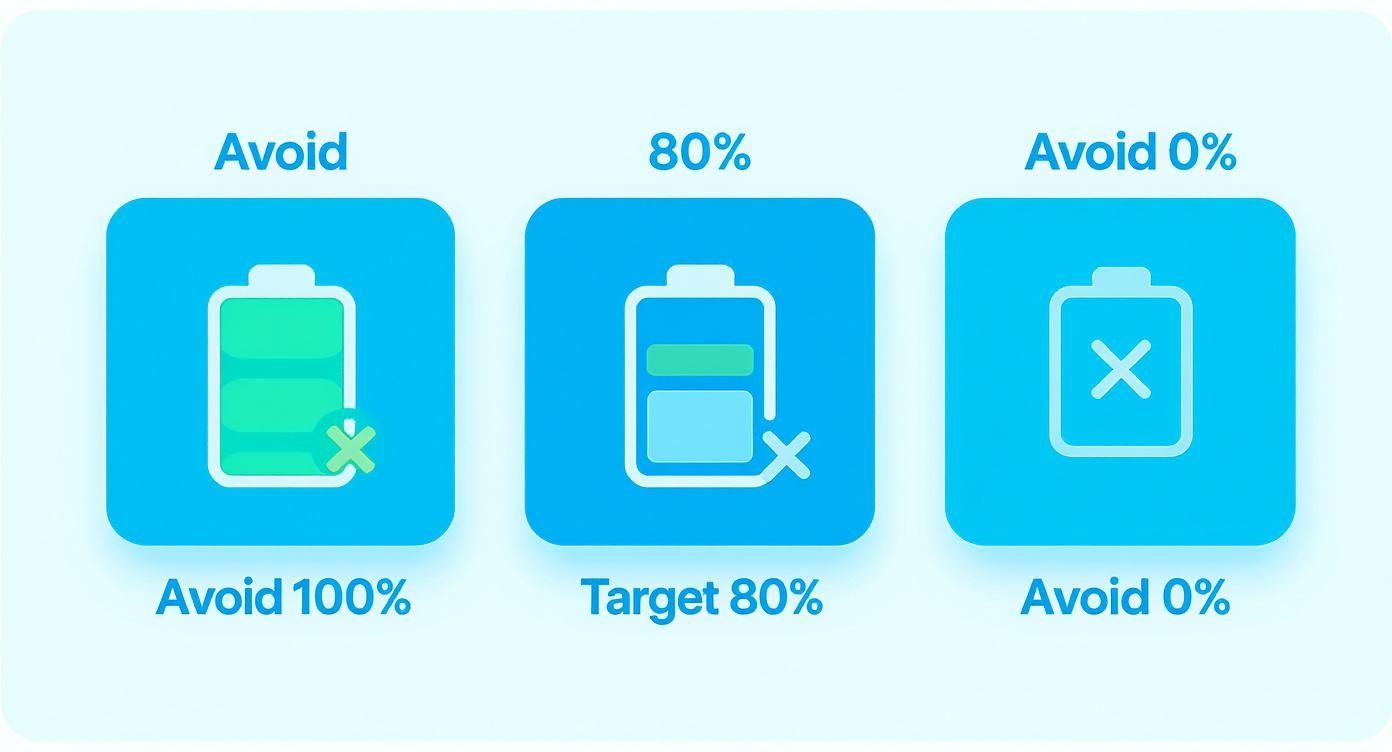
If you want your battery to last as long as possible, the single best habit you can adopt is to stop charging at 80% for your daily top-ups. Pushing a battery all the way to 100% might feel productive, but it puts a ton of stress on its insides, creating heat and speeding up wear and tear. It’s a small change that pays off big time in the long run.

The 80 Percent Rule: Why Full Charges Hurt Your Battery

Ever left your phone plugged in overnight and wondered if it’s actually good for it? Turns out, that common habit of pushing your device to a full 100% charge is one of the fastest ways to wear out its battery. This isn't just a myth; it's based on the science of the batteries that power nearly everything we rely on today.

Understanding Battery Stress

Think of your device's battery like a rubber band. You can stretch it to about 80% of its total length with little effort. But getting that last 20% requires a lot more force and puts the most strain on the material. Your battery goes through a similar process.

That final charging phase, from roughly 80% to 100%, is the hardest part. It forces tiny particles into an increasingly crowded space, which creates extra heat and puts physical stress on the battery's internal parts.

This isn't just a theory; the strain causes real damage over time. For a closer look at the factors understanding overall battery longevity, it becomes clear that charging habits are key. By simply capping your daily charges at 80%, you can:

  • Slow Down Aging: Less stress means the battery’s parts wear down much more slowly, helping it hold a solid charge for longer.
  • Keep Things Cool: Gentler charging cycles produce less heat, which is a battery’s number one enemy.
  • Get More Out of Your Device: A healthier battery means you won't be looking for a replacement or a new device nearly as soon.

Charging Habits At a Glance: 80% vs 100%

To make it crystal clear, let's break down the real-world difference between these two charging approaches.

Metric Charging to 80% (Recommended) Charging to 100% (Conventional)
Battery Stress Low to moderate High, especially from 80-100%
Heat Generation Minimal Significant, especially with fast charging
Long-Term Capacity Preserves original capacity for longer Faster decline and capacity loss
Typical Lifespan Significantly extended Shortened by up to 30-50%

The numbers don't lie. Adopting the 80% habit is a straightforward way to protect your investment and keep your devices running strong for years, not months.

The Long-Term Payoff

We see solid proof of this in the electric vehicle industry, where battery health is everything. One study showed that EV owners who consistently followed the 80% rule still had 95% of their original battery capacity after a lot of driving. In contrast, those who regularly charged to 100% saw their capacity drop to just 85% over the same period.

The key takeaway here isn't to never charge to 100%. Think of a full charge as something you do for a long flight or a day away from an outlet. The goal is to make 80% your daily routine and 100% the exception. This simple shift is the most effective way to fight premature battery aging.

Using a dedicated hardware battery charge limiter like Chargie automates this entire process, making it effortless. In this guide, I’ll walk you through exactly how to set this up on all your devices.

How to Set an 80 Percent Charge Limit on Your Smartphone

Getting started with the 80% rule is a lot easier than you might think. Most modern smartphones have this feature built right into their software, so you can start protecting your battery's health in just a few taps. Let's walk through how to find and flip these switches on your iPhone or Android.

This simple diagram breaks it down perfectly: charging from 0% to 80% is low-stress for your battery. It's that final push from 80% to 100% that creates the high-stress environment leading to long-term damage.
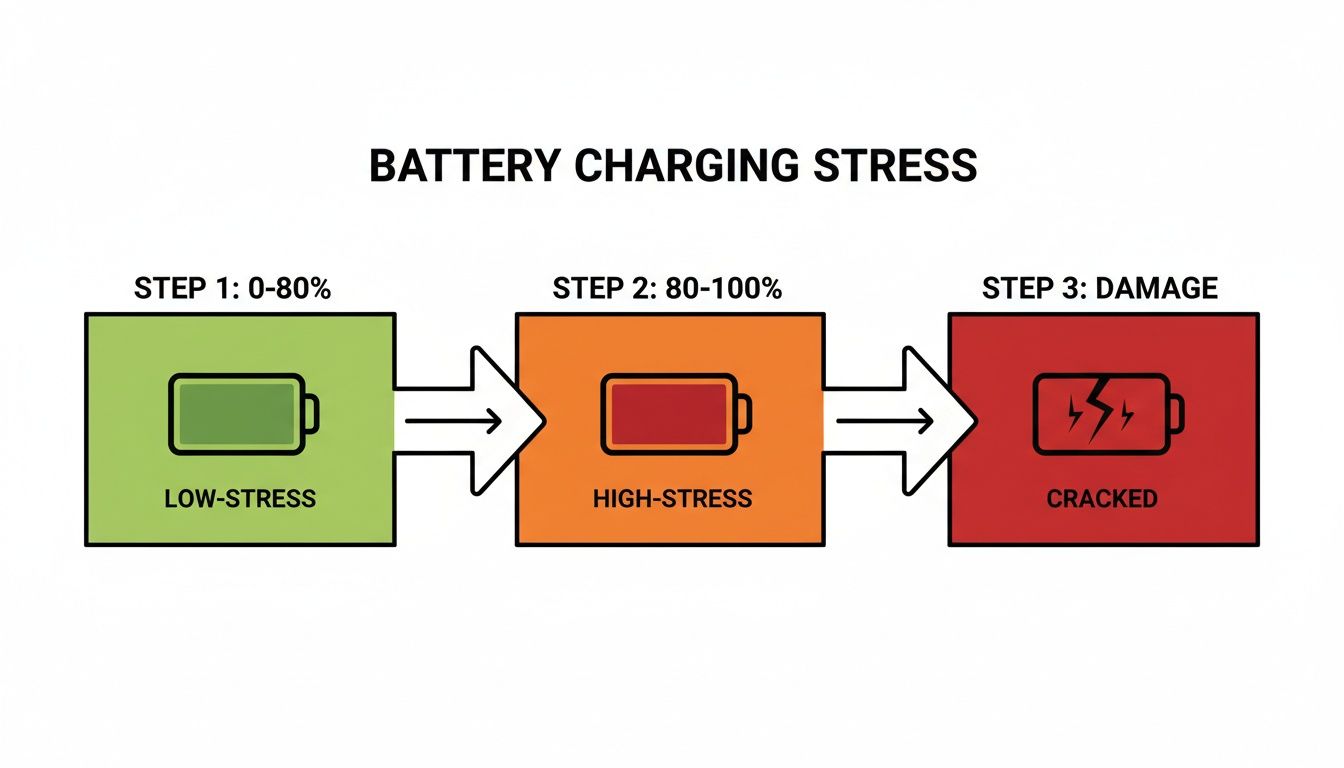
Diagram illustrating battery charging stress across three stages: low-stress (0-80%), high-stress (80-100%), and damage.

As you can see, that last 20% of the charge cycle is where the real strain happens. That makes it the most important phase to manage if you want your battery to last.

Taming Your iPhone's Charge

Apple has made it incredibly straightforward to stop charging at 80 percent, especially on their latest devices. If you're rocking an iPhone 15 model or newer, there's a direct setting waiting for you.

Here's how to get there:

  1. Jump into the Settings app.
  2. Scroll down a bit and tap on Battery.
  3. Head into Battery Health & Charging.
  4. Select Charging Optimization and just choose the 80% Limit option.

Once you enable that, your iPhone will automatically cut off the charge right at the 80% mark. Simple as that.

For those with older iPhones, you'll find a feature called Optimized Battery Charging. This is a bit different. It cleverly learns your daily routine and holds the charge at 80% overnight, only topping it off to 100% just before you typically grab it in the morning. While it's not a hard cap, it's still a fantastic way to reduce unnecessary battery strain.

Finding the Right Setting on Android

The Android world is a bit of a mixed bag since every manufacturer puts their own spin on the software. The good news is that the most popular brands have started to include similar battery-saving features.

On newer Samsung Galaxy phones, look for a feature called 'Protect battery'. You can usually find it by navigating to Settings > Battery and device care > Battery > More battery settings. Toggling this on caps your charge at 85%, which serves the same purpose of easing the stress on your battery's cells.

If you're a Google Pixel user, the feature is called 'Adaptive Charging'. It works a lot like Apple's optimized charging, learning your usage patterns to delay that final top-off. It's not a strict limit, but it’s designed to keep your phone from sitting at 100% for hours on end.

Keep in mind, the exact path to these settings can differ based on your Android version and phone model. Don't be afraid to use the search bar in your settings—just typing "battery" will almost always get you where you need to go.

What If Your Phone Lacks a Built-in Limit?

No built-in setting? No problem. If your phone doesn't have a native way to stop charging at 80%, you can still make it a habit with a few clever workarounds.

One of the most effective solutions is using an external hardware device that takes control of the power flow for you. For example, you can get very precise control and scheduling with the Chargie app, which works with a small physical device to enforce your charging rules perfectly.

If you prefer a low-tech approach, you've got options there too:

  • Set a Timer: When you plug your phone in, just set a timer for around 60-90 minutes. In my experience, that's often enough to get you near the 80% sweet spot without going over.
  • Use a Smart Plug: A simple smart plug can be programmed to switch off automatically after a certain amount of time, giving you a set-it-and-forget-it way to cut the charge.

Limiting Your Laptop Charge on Windows and macOS

Unlike our phones, laptops spend a huge amount of time plugged into a power outlet—sometimes for days on end. This constant connection makes them prime candidates for battery stress. When a laptop sits at 100% charge for long stretches, the battery wears out much faster.

Thankfully, both Windows and macOS have ways to get this under control and stop charging at 80 percent.

Making this one simple adjustment can dramatically extend the life of your laptop's battery. You'll thank yourself in a couple of years when your machine isn't dead the second you unplug it.

Setting Charge Limits on Windows Laptops

The world of Windows is a diverse one, so how you limit the charge usually comes down to your laptop's brand. Most manufacturers build their own power management software right in, giving you a direct way to control the battery’s maximum charge.

These apps are typically pre-installed, but if you can't find them, a quick trip to the manufacturer's support site will usually have the download you need. Here's a rundown of the usual suspects:

  • Dell: You're looking for an app called Dell Power Manager. Dive into the 'Battery Information' or 'Battery Health' section, and you should find settings to customize charging, including setting a max percentage.
  • Lenovo: The go-to tool here is Lenovo Vantage. Head over to the 'Power' section and switch on 'Conservation Mode.' This will cap the charge at a much healthier level, typically somewhere between 60-80%.
  • HP: For many HP models, this setting is hiding in the HP Support Assistant app. If not, you might have to check the BIOS/UEFI settings under power management when you first boot up.
  • ASUS: Fire up the MyASUS application. It has a feature called 'Battery Health Charging' that lets you pick a mode to limit the max charge to 80% or even 60% if you really want to maximize its lifespan.

What if you can't find a special app? The setting might be built into the laptop's startup system, known as the BIOS or UEFI. You get there by pressing a key like F2, F10, or Del right after you turn on your machine. Once you're in, look around for a 'Power Management' or 'Advanced' tab where you might find a battery charge limit option. This is great because it sets a limit that works no matter what Windows is doing.

For a deeper dive into these methods, you can learn more about how to preserve your laptop battery with these brand-specific tools.

Managing Your Charge on macOS

Apple handles things a bit differently with its 'Optimized Battery Charging' feature on MacBooks. It’s a smart, automated system that tries to learn your daily routine to manage battery health for you. The whole point is to delay charging past 80% until right before it thinks you’ll need a full battery.

Let's say you plug in your MacBook every night and unplug it around 7 a.m. macOS will see this pattern. It'll charge to 80% quickly, then pause, only resuming to hit 100% just before your morning alarm goes off. This trick dramatically reduces the time the battery spends under the high stress of a full charge.

To make sure this is working, head to System Settings > Battery. Click the little 'i' icon next to 'Battery Health' and confirm that 'Optimized Battery Charging' is toggled on.

While Apple’s system is fantastic for most people, it doesn't give you direct manual control to set a hard 80% limit. If your schedule is all over the place or you just prefer a fixed ceiling, you'll need a third-party app. Tools like AlDente are built for this, giving you the power to set a specific maximum charge percentage and take a more hands-on approach to protecting your MacBook’s battery.

Applying the 80 Percent Rule to Your Electric Vehicle

That habit of capping your charge at 80%? It’s even more important when you’re talking about the massive—and massively expensive—battery in your Electric Vehicle (EV). This isn't just some minor life hack; it's a core practice pushed by pretty much every major EV maker out there, from Tesla to Ford, to protect your long-term investment.

Just like your phone or laptop, an EV battery gets put under the most stress during that final sprint to a full charge. Pushing it to 100% every day for your regular commute creates a ton of unnecessary heat and speeds up the aging process that slowly eats away at your total driving range.
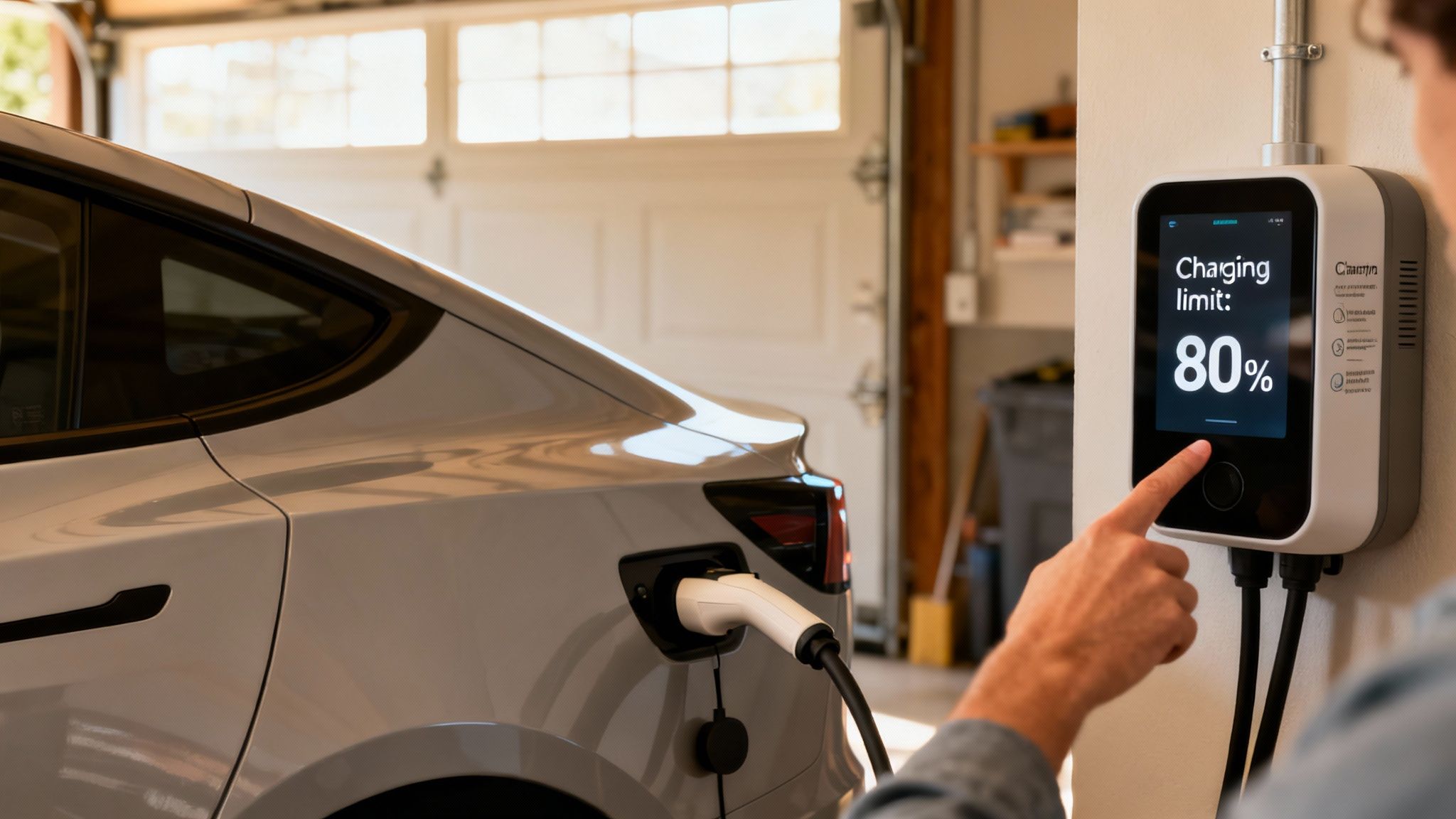
Person sets an electric car's charging limit to 80% on a wall-mounted charger in a garage.

Simply making it a habit to stop charging at 80 percent is your best line of defense against premature battery wear. It’s what keeps your car performing like it should for years and years.

How to Set Your EV's Charge Limit

The good news is, carmakers have made this incredibly easy. You can usually set your charge limit in one of two places, and once you set it, you can mostly forget it.

  • From the In-Car Display: Hop in your car and go to the vehicle settings on the main touchscreen. You're looking for a "Charging" or "Battery" menu. Inside, you’ll find a slider or a box where you can set your max charge level. For daily driving, just slide that down to 80%.
  • Through the Companion App: Every modern EV has a smartphone app these days. Open it up, find the charging section, and you’ll see the exact same controls, letting you adjust the limit from your couch.

This whole process is dead simple, whether you're driving a Tesla, a Ford Mustang Mach-E, or a Hyundai Ioniq 5. The exact words might change a bit from car to car, but the goal is the same: tell your car when to stop. When it comes to an electric vehicle, especially for things like off-grid use, maximizing battery life starts with selecting the best RV battery for boondocking.

Why This Protects Your Investment

Stopping the charge at 80% is a huge deal for preventing heat-related stress, especially when you're hooked up to one of those ultra-fast DC chargers. Jamming the battery all the way to full on a fast charger risks overheating, which can slash its potential lifespan by as much as 40%.

Stick to an 80% limit, and you can reduce that natural aging by 30%. More importantly, you dramatically lower the chances of needing a painfully expensive battery replacement down the road, which can run anywhere from $15,000-$20,000.

Of course, there are times when you absolutely need that extra range. Before a long road trip, go ahead and charge to 100%. The key is to make 80% your default for everyday commutes and local driving. This simple habit preserves your EV’s range, its longevity, and ultimately, its future resale value.

Smarter Charging Habits for Everyday Life

While the big goal is to stop charging at 80% in your daily routine, think of it more as a guideline than a strict, unbreakable law. Life happens, and your charging habits need to be flexible. See the 80% limit as your go-to default setting, not another thing to stress about.

For example, charging to 100% is totally fine when you know you're going to need every last drop of power. Got a long flight coming up? Heading to an all-day conference or a road trip where outlets are a mystery? By all means, juice it up all the way. The real damage to batteries comes from the constant stress of being held at full charge day after day, not from the occasional, necessary top-up.

Beyond the 80 Percent Rule

Just as important as how much you charge is how low you let it go. Constantly running your battery down to 0% is just as hard on it as always pushing it to 100%. When a battery is totally drained, it can enter a deep-drained state, which makes it harder to revive and can even cause permanent damage.

A good rule of thumb is to plug your device in when it gets down to the 20-30% range.

By keeping your battery between roughly 30% and 80%, you’re letting it operate in its happiest, most stable, and lowest-stress zone. This one simple habit reduces wear and tear on the battery’s insides and can seriously extend its useful life.

Another huge factor is temperature. Batteries absolutely hate extreme heat and cold. Charging your phone on a sun-baked car dashboard or leaving it in a freezing car overnight can cause irreversible damage to its capacity. Always try to charge your devices in a comfortable, room-temperature spot to keep them healthy.

Your Charging Toolkit

The gear you use matters more than you might think. It's always best to stick with the original charger that came in the box or a high-quality, certified alternative from a reputable brand. Cheap, uncertified chargers can be a disaster—they often provide uneven power, lack proper safety controls, and can create a ton of excess heat. All of that is terrible for your battery.

Finally, let’s talk about slow vs. fast charging. While zapping your phone back to life in minutes is convenient, it also creates a lot more heat. If you're just charging overnight, there's really no need to use a powerful fast charger. A standard, slower charger will get the job done with far less heat stress, making it the healthier choice when you aren't in a rush.

Here is a quick cheat sheet to help you build better habits for all your devices.

Quick Guide to Healthy Battery Habits

Do This Avoid This
Charge to 80% for daily use. Leaving your device plugged in at 100% for hours.
Plug in when the battery hits 20-30%. Letting your battery drain completely to 0%.
Use the original or a certified charger. Using cheap, uncertified chargers and cables.
Charge at room temperature. Charging in extreme heat (like a car) or cold.
Use a slower charger for overnight charging. Relying on fast charging for every single charge.

Following these simple tips can make a massive difference in how long your device's battery performs at its peak. It's not about being perfect, but about being mindful.

Got Questions About Capping Your Charge at 80%?

Making the switch to the 80% rule always brings up a few questions. Trust me, you're not the first person to wonder about the details. Let's tackle some of the most common ones so you can feel good about this battery-saving strategy.

Is It Really Bad to Charge My Phone to 100% Every Once in a While?

Not at all. Think of the 80% rule as your daily routine, not a strict law you can never, ever break. Charging to 100% occasionally isn't going to cause any harm.

The real damage comes from the repeated, daily stress of keeping your battery stuck at that full-charge state, day in and day out.

So, if you know you've got a long day ahead—maybe you're catching a flight or heading out on a road trip—go ahead and top it off completely. Just make 80% your default for normal days, and your battery will thank you for it in the long run.

Will Stopping at 80% Actually Make a Difference I Can Notice?

Yes, absolutely. While you won't see a dramatic change overnight, the long-term payoff is huge. A battery that's consistently charged to 80% wears down far more slowly, which means it holds its charge much better over the years.

Fast forward two or three years. The device that was always charged to 80% will still have a respectable battery life that gets you through the day. In contrast, the one that was constantly pushed to 100% will likely be struggling to make it past lunchtime. It's a small investment in your device's future.

What if My Device Doesn't Have an 80% Limit Setting?

Don't worry, you're not out of luck. If your device lacks a built-in feature to stop charging at 80%, you can still make it a habit pretty easily. You don't need fancy software to make a big difference.

Here are a couple of simple, effective tricks I've used myself:

  • Set a Quick Timer: When you plug in your phone, just ask your smart assistant or manually set a timer for about 60 to 90 minutes. For most phones, this is enough to get you right into that 80% sweet spot without overshooting.
  • Use a Smart Plug: This is a fantastic "set it and forget it" solution. A basic smart plug can be programmed to shut off automatically after a set amount of time. It's perfect for overnight charging without the guesswork.

Does Leaving My Device Plugged In Overnight Damage the Battery if It Stops at 80%?

If your phone or laptop reliably stops charging at 80%, leaving it plugged in is worlds safer than letting it charge to 100% and sit there all night. Once the limit is hit, the system cuts the main power flow, preventing that high-stress state.

That said, the absolute best practice is still to unplug it once it's charged. This eliminates any minor "trickle" charging and prevents the small amount of heat from the charger itself from affecting the battery over time.

Think of it like this: 100% all night is bad. 80% all night is good. Unplugging when it's done is best.


Ready to make the 80% rule effortless? Chargie is a smart hardware device that automatically manages your charging schedule for you, ensuring your batteries stay healthy without you having to think about it. Protect your devices and extend their lifespan by visiting the official Chargie website today.

Maximize Your Chromebook Battery Life With These Simple Tips

On paper, a Chromebook should give you anywhere from 8 to 12 hours of battery life from a single charge. But as you've probably noticed, that number can be a bit… optimistic. Real-world use, with all its different tasks, often tells a different story.

Simple things like making the screen super bright, keeping a dozen tabs open, or even just sitting in a spot with a weak Wi-Fi signal can cut down that unplugged time in a big way.

What's Really Draining Your Chromebook Battery?

Ever have one of those days where your Chromebook's battery seems to last forever, only to have it die before lunch the next day? You're not alone. Figuring out what's actually eating up your power is the first step to getting more time out of every charge.

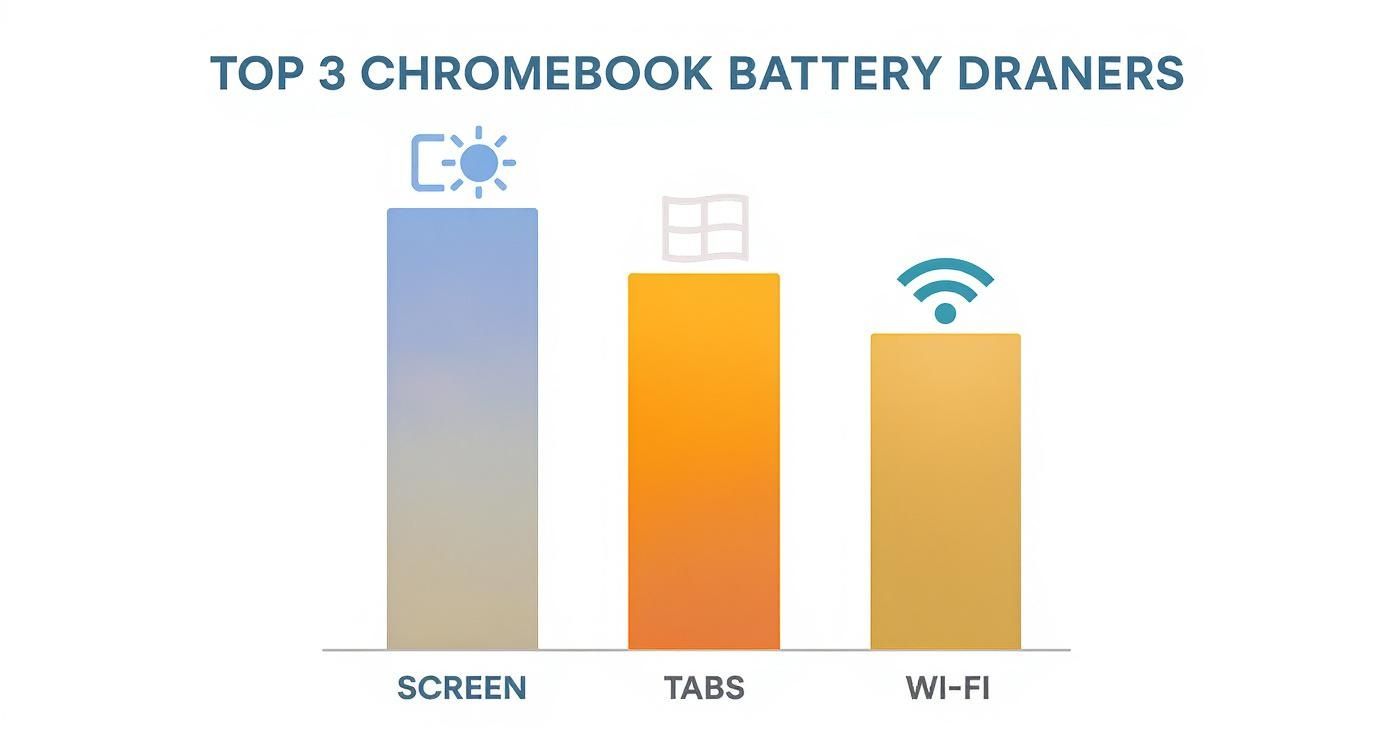
The number one power hog is almost always the screen. That beautiful, bright screen takes a surprising amount of energy to keep lit. It’s a lot like a lightbulb—the brighter you make it, the more power it uses. Your Chromebook's screen is no different.

Running a close second is how you browse the web. Every single Chrome tab you open is like a tiny app, asking for its own piece of memory and processing power. Let that tab count creep up, especially with sites that have auto-playing videos or flashy ads, and you're forcing the device's brain to work overtime. And a hard-working brain gets thirsty for power.

This chart breaks down the usual suspects that drain your battery the fastest.

Bar chart illustrating the top 3 Chromebook battery drainers: screen, tabs, and Wi-Fi.

As you can see, just getting a handle on your screen, tabs, and connection can make a huge difference day-to-day.

To give you a clearer picture, here's a quick rundown of common activities and how they tend to affect your battery.

Common Battery Drainers and Their Impact

Activity Typical Impact on Battery Quick Fix
Streaming Video (e.g., Netflix, YouTube) High Lower the screen brightness and video quality.
Running Android Apps High Close apps you aren't actively using.
Video Conferencing (e.g., Zoom, Meet) High Turn off your camera when not needed.
Having Many Tabs Open Medium to High Close tabs you don't need or bookmark them.
Using a Weak Wi-Fi Signal Medium Move closer to your router if possible.
Listening to Music (Screen Off) Low No fix needed; this is very power-friendly.
Typing in Google Docs Low Keep brightness at a comfortable, medium level.

This table isn't an exact science, but it gives you a good idea of where your power is going. A few small adjustments to your high-impact activities can really stretch your battery life.

The Processor's Role in All This

The "brain" of your Chromebook, its processor, also has a massive say in your battery life. Some processors are built for pure speed, while others are designed with saving power as the main goal. It's a trade-off that directly affects how long you can stay unplugged.

Lately, processors known as ARM-based chips have really been shining in the power-saving department.

A processor's power-saving ability is just as important as its speed. A power-saving chip can perform daily tasks using less energy, leading to hours of extra battery life without slowing you down.

For example, Chromebooks with the latest MediaTek ARM processors have set a new standard for battery performance compared to many of their Intel-based cousins. In some pretty heavy testing, these machines kept about 6 hours of battery life even at 90% charge under a heavy load. During lighter use, that estimate shot right back up to 12 hours.

Even better, this power-saving ability is often paired with fast charging, letting a battery jump from 10% to over 80% in just an hour. You can see how these chips perform in real-world tests on YouTube to get a feel for the difference.

The Hidden Power Hogs

Finally, there are the silent battery vampires working in the background. You never see them, but they're always there, sipping away at your charge.

These are the background jobs keeping your Chromebook up-to-date and in sync:

  • Constant syncing: Your Chromebook is always talking to Google Drive, making sure your files are backed up.
  • Update checks: ChromeOS is regularly calling home to look for the latest software updates.
  • A struggling Wi-Fi connection: If your signal is poor, the Wi-Fi has to work much harder just to stay connected, which burns a surprising amount of power.

Once you know where all the power is going, you can start making smarter choices to keep your Chromebook running all day long.

Instant Fixes to Boost Your Battery Life Today

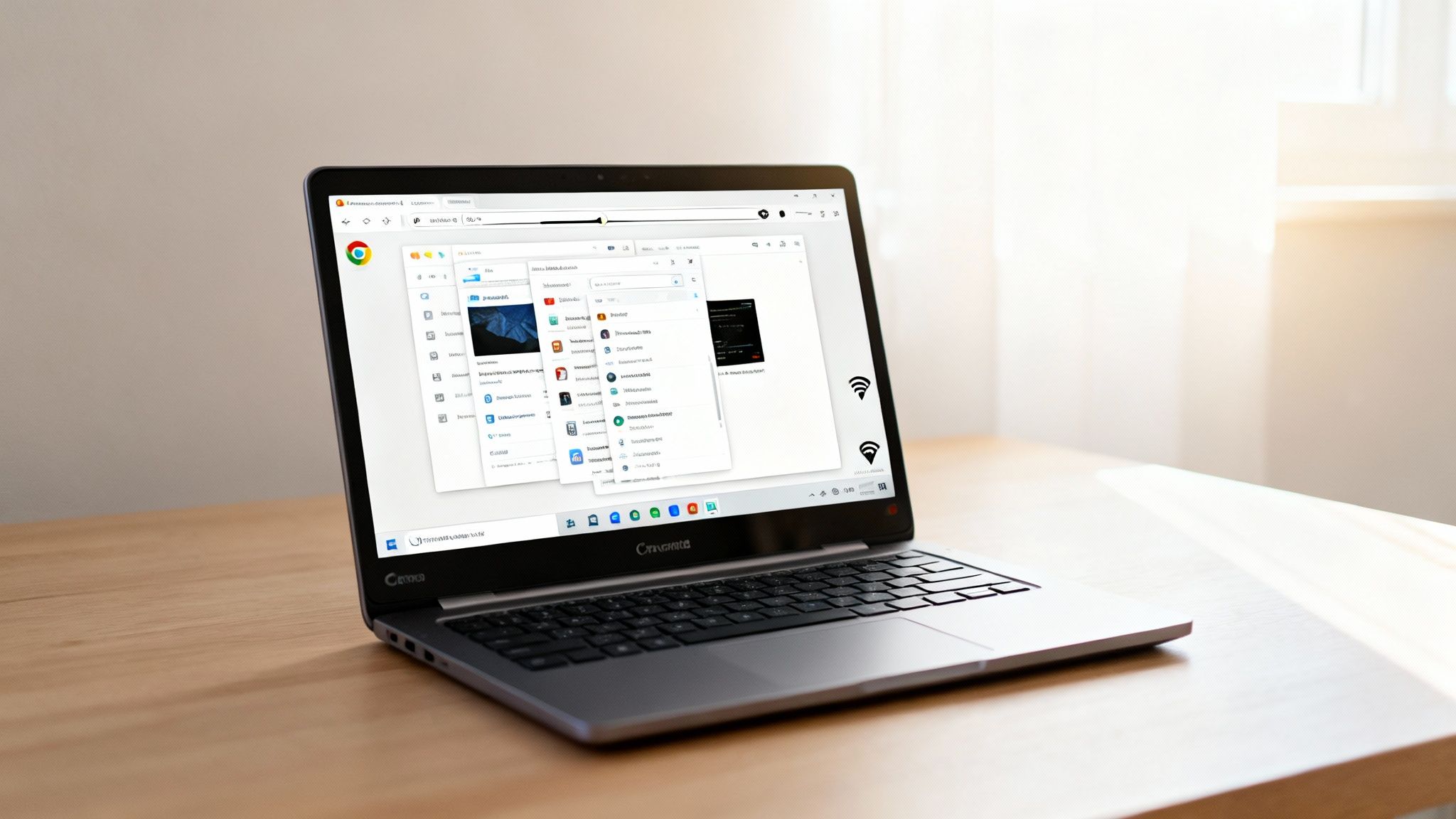
An open black and silver Chromebook laptop displaying multiple windows on a wooden desk.

If you're hunting for some quick wins to boost your Chromebook battery life, you're in the right spot. These are simple, practical adjustments you can make right now that, when combined, can have a surprisingly big impact. No tech genius required—you just need to know where to look.

The changes that give you the most immediate results almost always involve your screen and how you manage your online activity. A few tweaks to some key settings can often get you back hours of unplugged time without really cramping your style.

Master Your Display Settings

Your Chromebook’s screen is, by a long shot, the single biggest power user. The good news? It's also the easiest thing to control. A couple of small adjustments here can make a world of difference.

First up, lower the brightness. Most of us have our screens turned up way brighter than we actually need. Give it a shot—drop it down to around 50-60% and see if you even notice after a few minutes. Unless you're outside in direct sunlight, that’s usually enough.

Next, get your sleep settings in order. You want to tell your Chromebook to turn off its screen and go to sleep much faster when you’re not actively using it.

  • Turn off the display: Try setting this to 5 minutes of no activity.
  • Put the device to sleep: Set this to 10 minutes of no activity.

These settings are perfect for preventing the screen from burning power when you step away to grab a coffee or take a quick call. It's a "set it and forget it" fix.

Tame Your Tabs and Extensions

Think of every open tab and running extension as a tiny leak in a bucket. One or two might not seem like a big deal, but when you have dozens, they create a constant drain on your memory, the device's brain, and ultimately, your battery. Sooner or later, that bucket runs dry.

Time to be ruthless. Go through your browser extensions and get rid of anything you don't use. If you installed something a year ago on a whim and haven't touched it since, it needs to go. Many extensions run in the background even when you aren't using them, silently chipping away at your Chromebook battery life.

A simple approach to tabs and extensions is one of the best ways to get the most battery life. Closing what you don't need frees up power and lets your Chromebook run more smoothly.

Get into the habit of closing tabs when you're done with them. Don't let them pile up. If you need to save a page for later, that's what bookmarks are for. This simple change in habit can have a noticeable effect on both your Chromebook's performance and how long it lasts on a single charge.

Cut Out Unnecessary Connections

Your Chromebook is always trying to talk to the outside world, and these wireless connections all sip power. Turning off the ones you aren't actively using is a simple but effective way to save some juice.

Start with Bluetooth. If you're not connected to wireless headphones or a mouse, just switch it off. This stops it from constantly scanning for nearby devices. It's a small change, but it adds up.

Another easy win is the keyboard backlight. It's fantastic in the dark, but during the day, it's just a battery drain with no benefit. Most Chromebooks have a simple shortcut key to dim or turn the backlight off completely. Use it. Little adjustments like this are what give you that extra hour away from the wall outlet.

Smart Charging Habits for Long-Term Battery Health

Squeezing a few more hours out of a single charge is great, but that's just a short-term win. If you want to master your Chromebook battery life, you need to think about the long game. This means adopting habits that keep your battery healthy for years, not just for today. It’s all about protecting its ability to hold a strong charge over its entire lifespan.
Think of your Chromebook's battery like a muscle. Constantly pushing it to its absolute limits—charging to 100% and then running it down to 0%—is like overtraining. It causes stress and wears the battery out faster. That's what kills your battery's overall lifespan, forcing you to hunt for an outlet more and more as the months and years go by.

Avoid the 100 Percent Trap

It feels almost natural to leave your Chromebook plugged in, letting it sit at 100% for hours. But this is one of the fastest ways to wear out a modern battery. Keeping it at that full charge puts a constant, high-level strain on it.

A much healthier approach is what many of us call the "80/20 rule." Try to keep your battery between 20% and 80% whenever you can. This is the sweet spot that reduces stress and can dramatically extend the number of charge cycles your battery can handle before it starts losing power.

Keeping a battery at a 100% charge is like holding a rubber band stretched to its absolute limit—eventually, it just loses its spring. Charging to 80% is more like stretching it just enough, preserving its strength for much, much longer.

Smart Charging Tools and Features

Let's be real: unplugging your Chromebook the second it hits 80% isn't always easy. Who has time for that? Thankfully, there are some clever tools out there designed to do this for you. One of the most popular is a smart charging dongle like Chargie, which basically acts as a gatekeeper between your charger and your Chromebook.

Here's how this little gadget can help you take control of your charging routine.

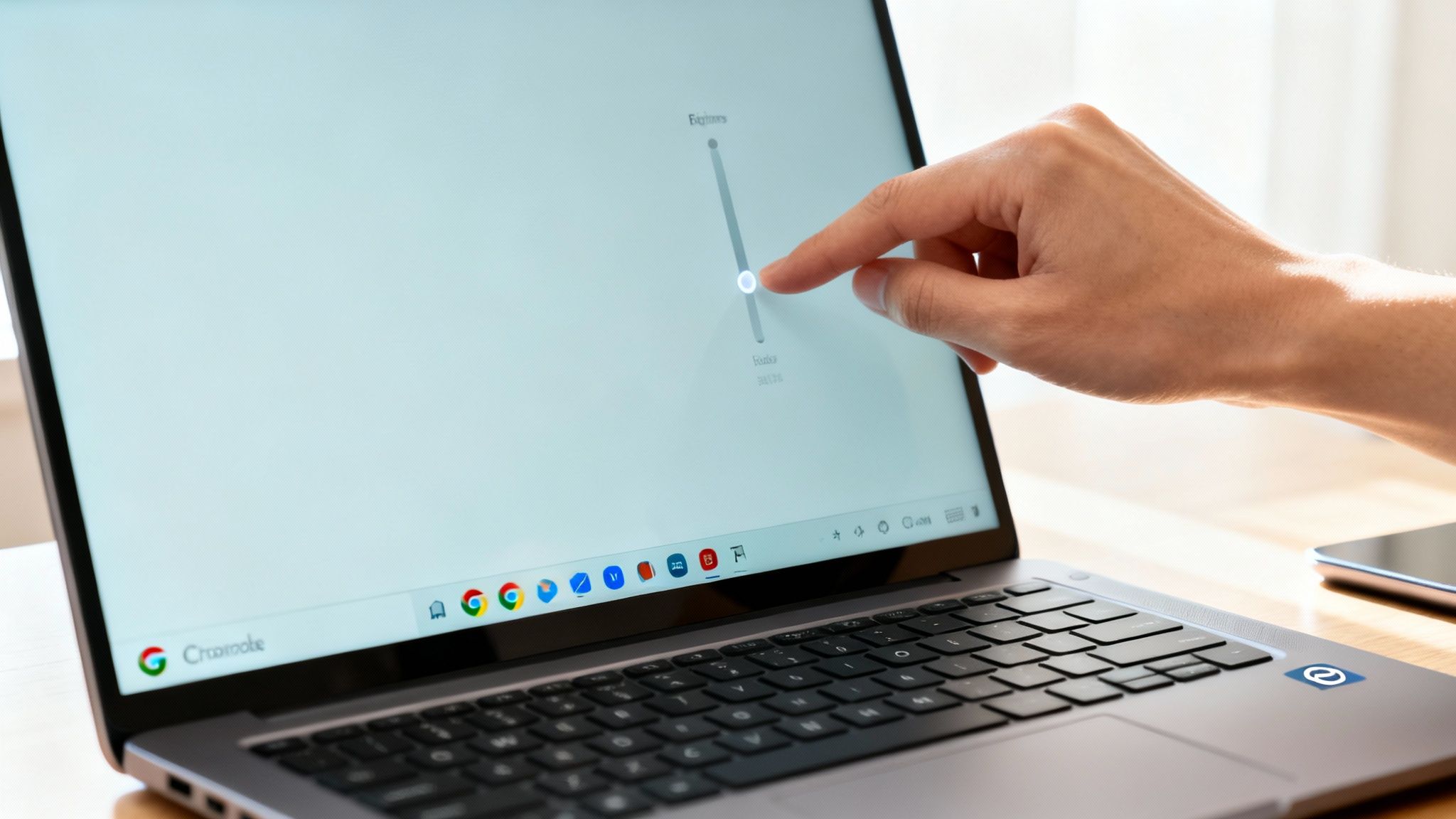
Close-up of a hand adjusting screen brightness on a silver Chromebook laptop.

Hardware like this lets you set a specific charging limit, say 80%, and it automatically cuts the power once your device hits that level. It takes the guesswork out of it. If you're curious about the science, it's worth understanding how to charge your lithium-ion battery for a longer life.

Google's Built-In Protections

Google gets it, too. Battery lifespan is a huge deal, especially for big users like schools where making a device last from four to six years can save a fortune. The tech managers in these places often use built-in ChromeOS features to enforce smart charging rules, like stopping the max charge at 80% to focus on long-term health.

Many newer Chromebooks also come with a feature called Adaptive Charging. It's pretty smart—it learns your daily routine and adjusts the charging speed to make sure your battery hits 100% right when you need it, not hours beforehand. This prevents it from sitting at that stressful full charge overnight. It's a simple, background feature that quietly works to protect your device.

How to Check Your Chromebook Battery Health

We’ve all been there. Your trusty Chromebook, which once lasted all day, suddenly starts looking for a charger by lunchtime. It’s easy to blame the battery and assume it's getting old. But is it really wearing out, or have your daily habits just gotten more power-hungry?

Before you start shopping for a new one, it’s worth getting some real facts. Thankfully, ChromeOS has a handy, built-in tool that gives you a clear and simple report card on your battery's actual condition. It cuts right through the guesswork.

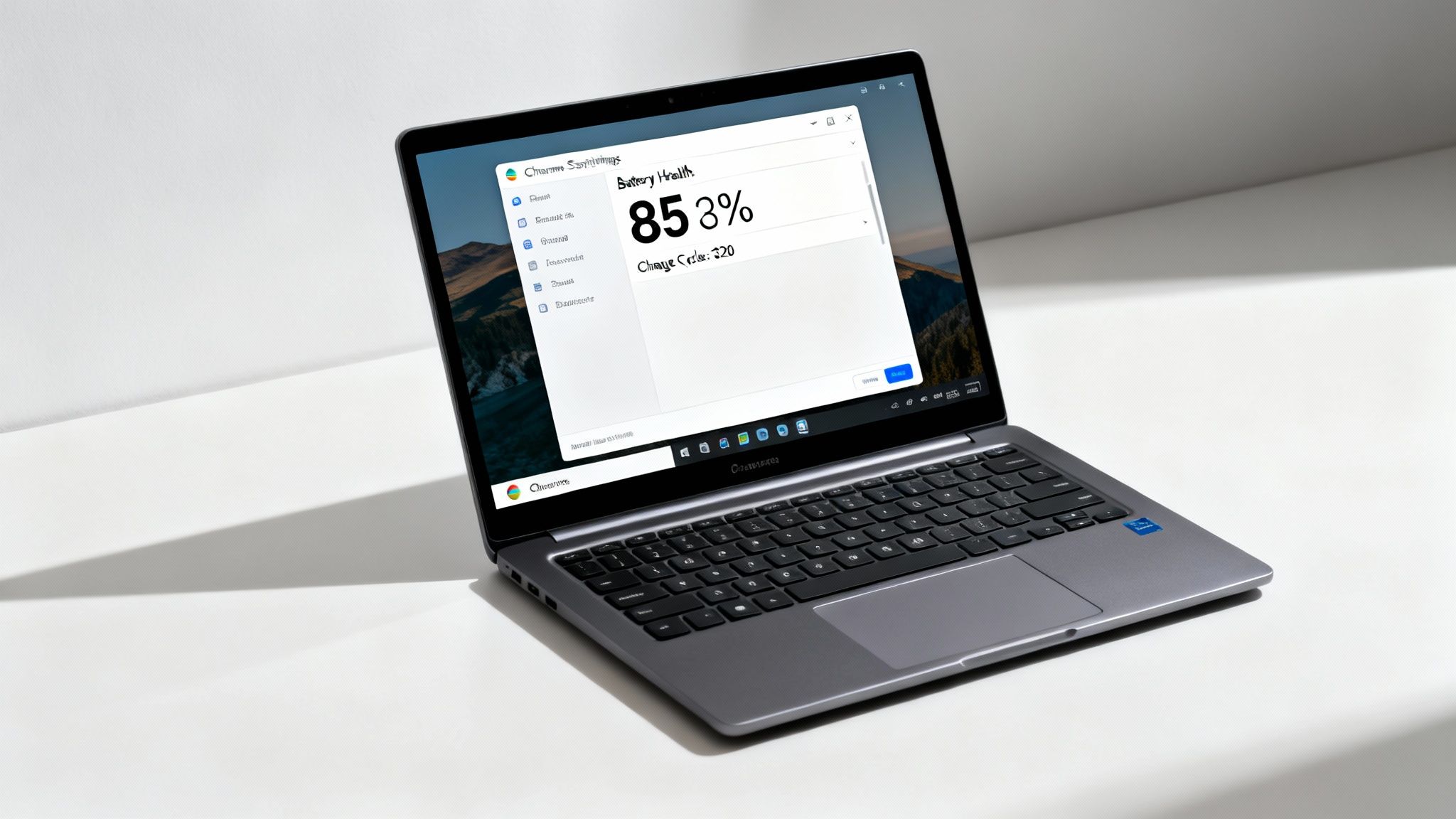
This tool shows you two key numbers that tell the real story: the battery's current health percentage and its charge cycle count. Knowing this helps you figure out if your Chromebook battery life is just getting shorter with age or if there’s a more serious problem.

Accessing Your Battery Report

Getting to this information is surprisingly easy—no tech skills required. It's tucked away in a simple diagnostic app that gives you a quick snapshot of your system’s main parts.

Here’s how you find it:

  • Click the clock in the bottom-right corner of your screen to open the Quick Settings panel.
  • Next, click the little gear icon to open the main Settings menu.
  • In the search bar at the top, just type "Diagnostics" and open the app when it appears.
  • Inside the Diagnostics window, you'll see a Battery section with the stats you need right on display.

This is by far the fastest way to get an honest look at what’s going on with your battery.

What the Numbers Actually Mean

Once you're in the app, you'll see a few numbers, but the two you really want to pay attention to are Battery health and Cycle count.

  • Battery health: This is a percentage that shows your battery's current maximum ability to hold a charge compared to when it was brand new. If it says 95%, that means it can only hold 95% of its original charge. A lower number here is a clear sign of wear.

  • Cycle count: This number tracks how many full charge-and-recharge cycles the battery has been through. A single cycle is counted every time you use up 100% of the battery's power—it doesn't matter if you do it all at once or in smaller chunks, like using 40% today and 60% tomorrow.

A healthy battery will typically stay above 80% health for its first 300-500 charge cycles. If your cycle count is still low but your health percentage has taken a nosedive, it could point to a bigger problem.

The lifespan of these batteries can vary quite a bit by brand. While the average Chromebook lasts about 7.6 years, some interesting data shows Lenovo devices often keep 82% of their battery capacity after three years. In contrast, brands like Samsung might dip to around 70% in that same timeframe. You can see more details in this in-depth analysis of Chromebook lifespans.

And if you want a more general overview, we also have a guide on how to check battery health on different devices.

Choosing Hardware for the Best Battery Experience

A sleek silver laptop displays a 'Battery Health' window showing 85% health and 320 charge cycles.

If you're shopping for a new Chromebook, the choices you make before you even buy can save you from a world of battery headaches later. Not all Chromebooks are built the same, and the parts inside play a huge role in how long you can actually stay unplugged.

Honestly, picking the right machine from the start is probably the single most effective thing you can do for a great battery experience.

The part that has the biggest impact on your Chromebook battery life is easily the processor. This is the brain of your device, and just like with people, some brains are built for sprinting while others are made for marathon running. Understanding this difference is key to picking a machine with real staying power.

ARM vs. Intel Processors

For years, Intel chips have been the go-to for laptops, known for their raw power. But another type of chip, known as ARM, has completely changed the game when it comes to battery life.

Think of it like this: an Intel chip is often a sprinter, burning a ton of energy in short, powerful bursts. An ARM chip, on the other hand, is a marathon runner, designed for incredible power-saving and endurance over the long haul.

This is exactly why you'll find that Chromebooks with ARM-based processors, like those from MediaTek, often have ridiculously long battery life. For everyday stuff—browsing the web, writing documents, streaming some Netflix—they just sip power instead of guzzling it. We recently saw a MediaTek-powered model that pushed well past 13 hours of real-world use on one charge.

If your absolute top priority is spending as much time away from an outlet as possible, you should actively hunt for a Chromebook with an ARM processor. The difference you'll feel day-to-day can be massive.

That’s not to say Intel-powered Chromebooks are bad—far from it. They usually pack more punch for demanding tasks like running complex apps or juggling dozens of open tabs. It's just a classic trade-off between power and endurance. If you're weighing your options, this excellent guide on how to choose the right laptop is a great resource for sorting through these kinds of decisions.

When it comes to picking a processor for your Chromebook, the choice boils down to what you value more: sheer performance or all-day battery life. Here's a quick breakdown to help you decide.

Processor Type and Expected Battery Performance

Processor Type Best For Typical Battery Life Impact
ARM-based (e.g., MediaTek, Snapdragon) Everyday browsing, streaming, light tasks, and maximum time unplugged. Excellent. These chips are designed to save power, often delivering the longest battery life.
Intel Core i3 / i5 / i7 Heavy multitasking, running demanding apps, and desktop-like performance. Good to Fair. More power means more energy use. Expect solid but not top-of-the-line battery life.
Intel Celeron / Pentium Basic tasks, budget-friendly models, and moderate use. A balance between cost and performance. Good. Generally more power-friendly than their Core i-series siblings, offering a decent middle ground.

Ultimately, there's no single "best" processor—only the one that's best for you. If you're a student who just needs to take notes and browse, an ARM chip is a no-brainer. But if you're a developer who needs serious power, you'll be glad you opted for the extra muscle of an Intel Core i5.

Choosing the Right Charging Gear

The hardware story doesn't stop once you've picked the Chromebook. The accessories you use to charge it are just as important for both daily convenience and the long-term health of your battery. Using a cheap, low-power charger from a gas station is a recipe for painfully slow charging times.

On the flip side, a high-quality charger that's properly matched to your Chromebook will deliver power safely and efficiently. Always check the power (wattage) your specific model needs. Most modern Chromebooks use USB-C, but that doesn't mean every USB-C charger is the same. A little charging brick designed for your phone will barely make a dent in your laptop's battery.

Here are a few key things to look for in a charger or power bank:

  • Enough Power (Watts): Make sure the charger's output (in watts) is at least what your Chromebook requires. Going a little over is fine; going under is not.
  • Power Delivery (PD) Support: Look for chargers that mention they support USB Power Delivery (PD). This lets the charger and your Chromebook talk to each other to find the fastest, safest charging speed.
  • Trusted Brands: Please, stick with well-known, trusted brands. A poorly made charger isn't just a waste of money—it can be a safety risk.

Getting a handle on how many watts are needed to charge a laptop will help you find the perfect power accessories, ensuring you're never stuck with a dead battery when you need it most.

A Few Lingering Questions About Chromebook Batteries

Even with all the best practices covered, you might still have a few specific questions bouncing around in your head. I get it. Sometimes it's those "what if" scenarios that really matter for day-to-day use. Let's tackle some of the most common ones I hear.

Think of this as your quick-reference guide. Getting these details right can make a huge difference, not just for your daily work but for the long-term health of your Chromebook's battery.

Is It Really That Bad to Leave My Chromebook Plugged In All the Time?

This is probably the number one question, and the short answer is: yeah, it's not great. While your Chromebook is smart enough to stop charging once it hits 100%, leaving it plugged in keeps the battery in a state of high stress.

Imagine holding a rubber band stretched out for days on end. Eventually, it loses its springiness. It's the same idea with a battery constantly held at full charge—it causes unnecessary wear that makes it age faster.

For the best results, you really want to live in that sweet spot between 20% and 80% charge. If your Chromebook spends most of its life on your desk, a tool that can automatically stop the charge at 80% is a game-changer for protecting its lifespan.

Can I Just Use Any Old USB-C Charger I Have Lying Around?

Technically, it'll probably fit. But that doesn't mean you should use it. Grabbing the USB-C charger from your phone is a common mistake, but it likely doesn't have enough power (wattage) to charge your Chromebook well. You'll end up with painfully slow charging, or worse, the battery might even drain while it's plugged in.

Your best bet is always to use the charger that came in the box. If you need a replacement or a spare, look for a high-quality one that checks these boxes:

  • Matches the original wattage: Look at your original power brick. If it says 45W or 65W, get a charger that matches or exceeds that number.
  • Supports Power Delivery (PD): This is the technology that lets your Chromebook and the charger talk to each other to figure out the fastest and safest charging speed. It's a must-have.
  • Comes from a brand you trust: A cheap, no-name charger from a gas station is a huge gamble. It could damage your battery or other internal parts, and it's just not worth the risk.

I've Tried Everything, and My Battery Still Drains Super Fast. What Gives?

So you've dimmed the screen, managed your tabs, and even checked the battery health report, but it's still dropping like a rock. Frustrating, I know. At this point, it's time to play detective and look for a problem app.

Often, it's a single Android app or a misbehaving Chrome extension running wild in the background, eating up your processing power. Try uninstalling any apps or extensions you've added recently, one by one, to see if the problem vanishes.

If you've done all that and your battery health report shows a capacity below 80% with a high cycle count (think 500 or more), it might just be that the battery is nearing the end of its natural life. It happens to all of them eventually, and it might be time to look into a replacement.


Ready to stop worrying about your battery's long-term health? The Chargie smart charging system automatically stops charging at a healthy 80%, drastically extending your Chromebook’s lifespan and saving you money on costly replacements. Protect your investment and learn more at https://chargie.org.

Discover the best way to charge battery for longer device life

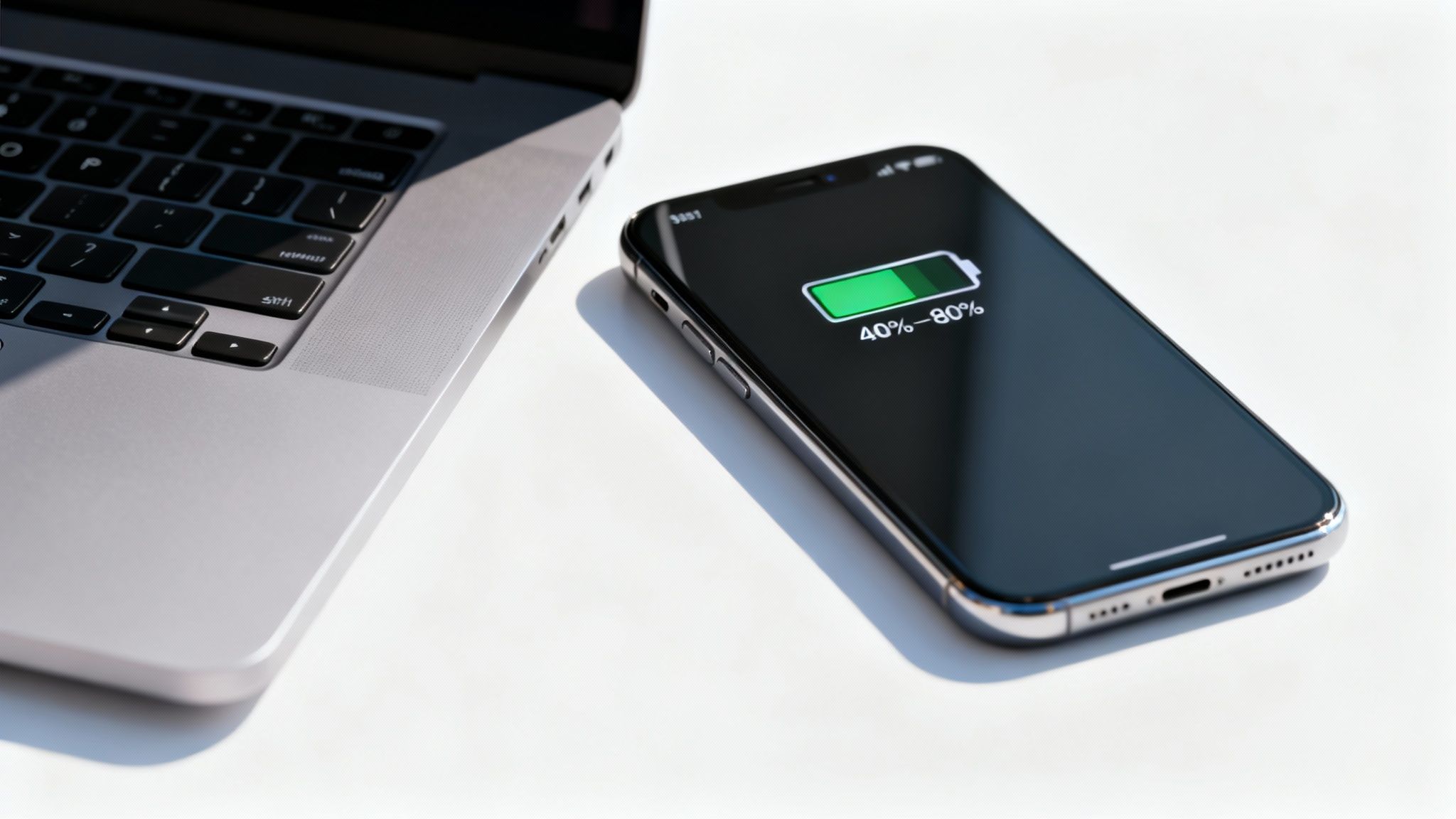
If there's one single takeaway for making your phone or laptop battery last longer, it's this: keep it charged between 40% and 80%. Forget everything you heard in the past about charging to 100%. For the modern batteries we all use now, this simple habit reduces stress on the battery and helps it last longer.

The Most Important Rule for Modern Battery Charging

A smartphone displaying 40-80% battery charge sits next to a laptop on a white surface.

Let's be honest, most of us are still stuck on charging habits from a decade ago. We let our phones get very low, then plug them in all night to wake up to a full 100%. While this used to be the right move for older battery types, it’s actually damaging the batteries in your devices today.
The real key to a long, healthy battery life is to simply avoid the extremes. Constantly pushing a battery all the way to 100% or letting it drain completely to 0% puts a ton of strain on it. Think of it like a muscle—if you constantly push it to its absolute limit without any rest, it's going to wear out much faster.

Adopting a Healthier Charging Cycle

A much better approach is to be gentler with your battery. Instead of one huge charge from empty to full, aim for shorter, more frequent top-ups throughout the day. Plugging your phone in for 20 minutes here and there to keep it in that 40-80% sweet spot is far better for its long-term health.

This method, often called partial charging, prevents the high-stress conditions that cause batteries to wear out over time. It’s a small change to your daily routine, but it can make a huge difference in how long your devices last, saving you from slow performance and the cost of an early battery replacement.

The goal isn't to be perfect, but to be consistent. Simply avoiding the extremes of 0% and 100% on a regular basis will make the biggest difference in keeping your battery healthy over the years.

Old Habits vs. Modern Methods

To really make this clear, let's look at how the old advice most of us grew up with compares to the smart methods that work for today’s technology. The difference is pretty big, and understanding it is the first step toward charging smarter.

This table shows those old, harmful habits next to the new rules that will actually make your battery last longer.

Modern vs. Outdated Battery Charging Habits

Charging Habit Outdated Method (Harmful) Modern Method (Recommended)
Charge Target Always charge to 100% to "get the most out of it." Aim for an 80% charge limit for daily use.
When to Charge Wait until the battery is almost dead (below 10%). Start charging when the battery drops to around 40%.
Charging Duration Leave it plugged in overnight for a full charge. Unplug once it hits the target, or use a smart charging tool.
Overall Strategy One long charge cycle from nearly empty to full. Short, frequent top-ups to stay in the ideal range.

As you can see, the modern approach is all about moderation. By ditching the all-or-nothing mindset, you can keep your device’s power source in great shape for much, much longer.

Why the 40-80% Range Is a Game-Changer

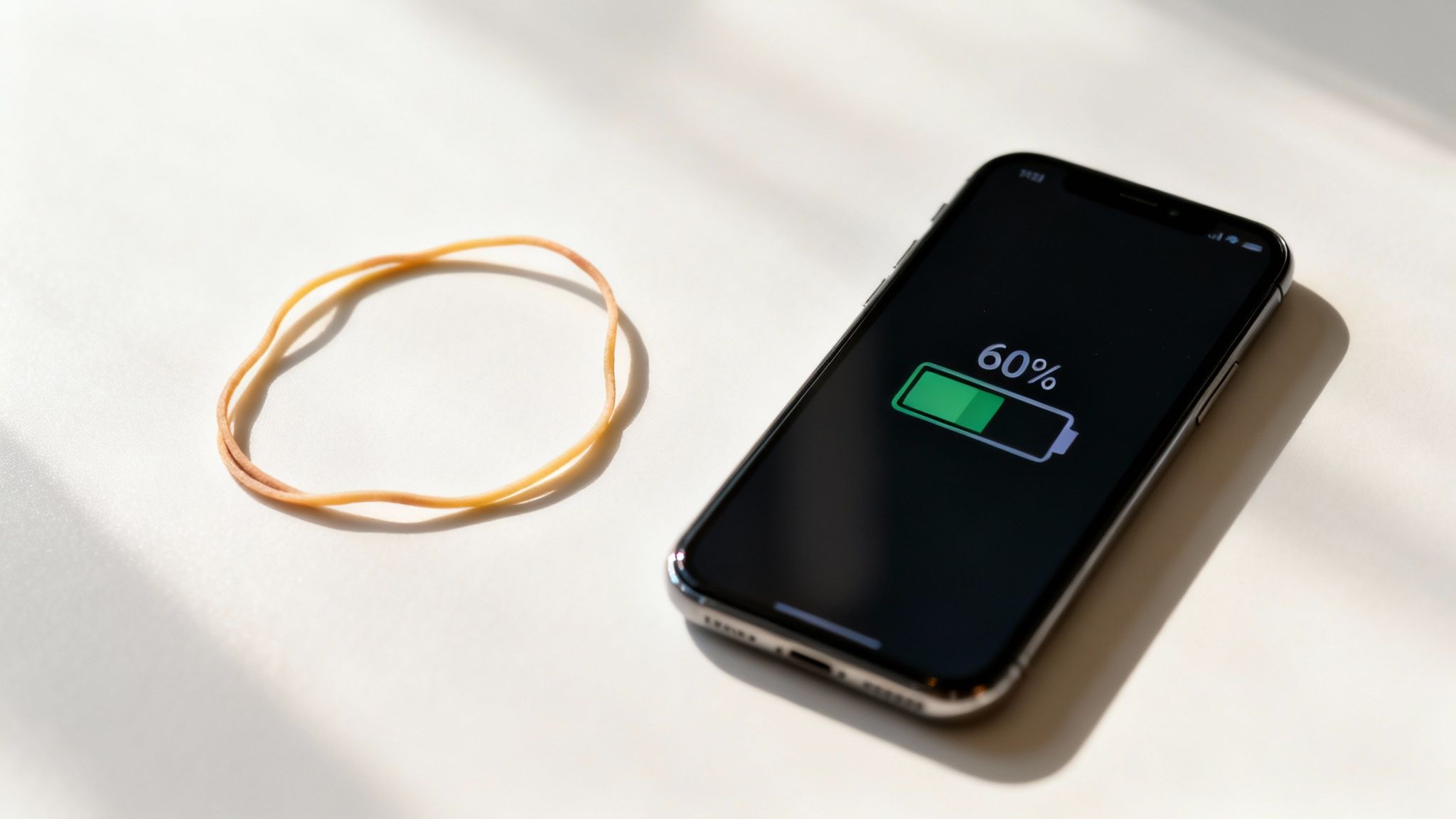
A smartphone displaying 60% battery charge next to a rubber band on a white surface.

So, why is it so important to keep a battery between 40% and 80%? It might sound a bit nitpicky, but there's a simple reason it works so well.

Forget the complex science for a moment and think about a rubber band.

If you have a brand-new rubber band, you can stretch it a little, let it go, and do this thousands of times without any problems. It just works.

But what if you stretched that same rubber band as far as it could go and held it there for hours? Or, what if you constantly let it go completely loose? It wouldn't take long for it to lose its snap, get weak, and eventually break. It’s the extremes that do the real damage.

Your phone's battery works in a surprisingly similar way. Pushing it all the way to a 100% charge or letting it die completely to 0% puts it under a lot of stress. The 40-80% range is that comfortable middle ground, the low-stress zone where your battery can live a long and happy life.

The Problem with Hitting 100%

When you charge your battery to its maximum, the parts inside have to deal with high electrical pressure and rising temperatures. Leaving it plugged in at 100%—especially overnight—is like holding that rubber band at full stretch for eight hours straight.

This constant stress wears down a critical part of the battery that holds the charge. Over time, this damage permanently shrinks your battery's total capacity. You’ll eventually notice that a "full" charge just doesn't last like it used to. Finding the best way to charge battery really just means avoiding this high-stress state whenever possible.

On the other hand, letting the battery drain completely is just as bad. Letting the battery hit 0% can cause problems inside that make it harder for the battery to hold a charge in the future.

Staying within the 40-80% zone isn't about being perfect; it's about being smart. By avoiding the punishing extremes of 0% and 100%, you dramatically slow the aging process and keep your battery holding a strong charge for years, not months.

Understanding Charge Cycles and Longevity

Every battery is rated for a certain number of "charge cycles" before it starts to fade. A full cycle is one complete drain from 100% to 0%. But this doesn't mean you only have a few hundred charges before your phone is useless.

Partial charges are much, much gentler. In fact, charging from 40% to 80% uses only a small fraction of a cycle compared to a full 10% to 100% charge.

Here's an easy way to think about it:

  • Shallow Charges: Little top-ups here and there (like going from 50% to 70%) cause almost no wear.
  • Moderate Charges: Sticking to the 40-80% rule is a sustainable, low-stress strategy for daily use.
  • Deep Charges: Regularly going from nearly empty to completely full is what causes the most rapid aging.

This is exactly why topping up your phone a bit during the day is a far better strategy than the old "let it die, then charge it all night" habit. You get more total use out of your battery's lifespan by treating it gently.

The Role of Modern Battery Management

This isn't just a clever user tip; it's a key idea for the entire battery industry. The global battery market is built on advanced charging tech designed to make batteries safe and long-lasting.

Industry research has confirmed again and again that keeping a battery within certain electrical limits is key to its survival. Modern systems constantly watch the battery's charge level to prevent the damaging effects of overcharging or deep draining—the two main reasons batteries lose power. You can see how this is an industry-wide focus in deep dives into battery technology.

This is the science behind finding the best way to charge battery. It’s not guesswork. When you adopt the 40-80% habit, you're basically using the same rules engineers rely on to make batteries last, helping your devices perform well for as long as you own them.

How Heat and Fast Charging Secretly Harm Your Battery

Charge levels are only part of the story. Two silent problems are constantly working against your battery's health: heat and the super-convenient fast charging. If you've ever picked up your phone while it was plugged in and felt it was uncomfortably warm, you've experienced the number one cause of battery damage firsthand.

Think of your battery as a tiny, sensitive engine. When you push it too hard—either by charging too fast or using it in a hot place—it creates extra heat. That heat speeds up the chemical processes inside, causing the internal parts to break down far faster than they should. Honestly, finding the best way to charge battery often just means keeping it cool.

Simple Ways to Keep Your Device Cool

You don't need a complicated solution to manage heat. A few small changes to your charging habits can have a massive impact on your device's long-term health. The goal is simple: give your battery a chance to breathe while it powers up.

Here are a few practical tips you can start using today:

  • Remove the Case During Charging: Phone cases are great for protection, but they're also great at trapping heat. Taking the case off before you plug in lets the heat escape much more easily, keeping the battery in its happy zone.
  • Avoid Direct Sunlight: This one seems obvious, but it's easy to forget. Never leave your phone, tablet, or laptop charging on a sunny windowsill or, worse, in a hot car. The combination of charging heat and outside heat is a recipe for faster battery aging.
  • Pause Heavy Tasks: Try to avoid playing demanding games or streaming high-quality video while your device is plugged in. These activities make the processor work hard, which creates its own heat and adds to the warmth from charging.

The most important thing to remember is that heat is the number one enemy of a healthy battery. A cool battery is a happy battery, and even small changes to lower its temperature during charging can add years to its usable life.

The Hidden Cost of Fast Charging

Fast charging feels like a modern miracle, especially when you're in a hurry. Getting a 50% boost in just 30 minutes is incredibly convenient, but that speed comes at a price. Pushing that much power into a battery so quickly creates a lot of heat and puts immense stress on it.

I like to think of it like filling a water balloon. You can fill it slowly and gently with no problem. But if you turn on a fire hose and blast it, the balloon's material stretches violently and is far more likely to weaken or burst. Fast charging has a similar, though less dramatic, effect on your battery over time.

This technology has become essential for people who need quick power-ups, and its growth is huge. The fast charge battery market is projected to skyrocket from USD 25.58 billion in 2024 to USD 124.39 billion by 2035, driven by newer methods that try to balance speed with safety. You can read more about the trends in the fast charge battery market to see just how quickly this space is evolving.

When to Use Fast Charging (and When to Avoid It)

So, does this mean fast charging is always bad? Not at all. It’s a tool, and the key is knowing when to use it. The best approach is to use it only when needed—save it for those moments when you genuinely need a quick top-up before heading out the door.

For your daily, routine charging—especially overnight—a slower, standard charger is a much healthier choice. The gentle, low-temperature charge it provides is far less stressful on the battery, helping it last longer. You can learn more about why slow charging is essential for your smartphone's battery health in our detailed guide on the topic.

By being mindful of both heat and charging speed, you take back control over two of the biggest factors in battery damage. This balanced approach—using fast charging only when you really need it and prioritizing cool, slow charging for regular use—is a key part of keeping your battery in great shape for years.

Using Smart Tools to Automate Perfect Charging

Let's be real: trying to manually unplug your phone the second it hits 80% is a huge pain. It's just not practical for most of us. The good news is, you don't have to watch your devices anymore. Modern tech can do the heavy lifting for you, making smart charging an automated, set-it-and-forget-it process.

Device makers know that leaving a phone plugged in at high-stress levels kills batteries. That's why they've started building smart charging solutions right into their software, working quietly in the background to save your battery from aging too quickly.

Built-In Smart Charging Features

Your smartphone probably already has a feature designed to solve the overnight charging problem. Both Apple and Google have created systems that learn your daily routine to charge your phone more intelligently while you're asleep.

Instead of rushing the battery to 100% and letting it sit there for hours, these systems charge up to about 80% and then hit pause. They wait until just before you usually wake up to finish the job, so it hits 100% right around the time your alarm goes off.

  • Apple's Optimized Battery Charging: This is standard on iPhones and uses the device's software to figure out your charging patterns and daily schedule.
  • Android's Adaptive Charging: Google's version does pretty much the same thing, timing the charge to be full just as you're starting your day.

These tools are a great first step against battery damage. They dramatically cut down the time your device spends maxed out at that stressful 100% state, which is a huge win for its long-term health.

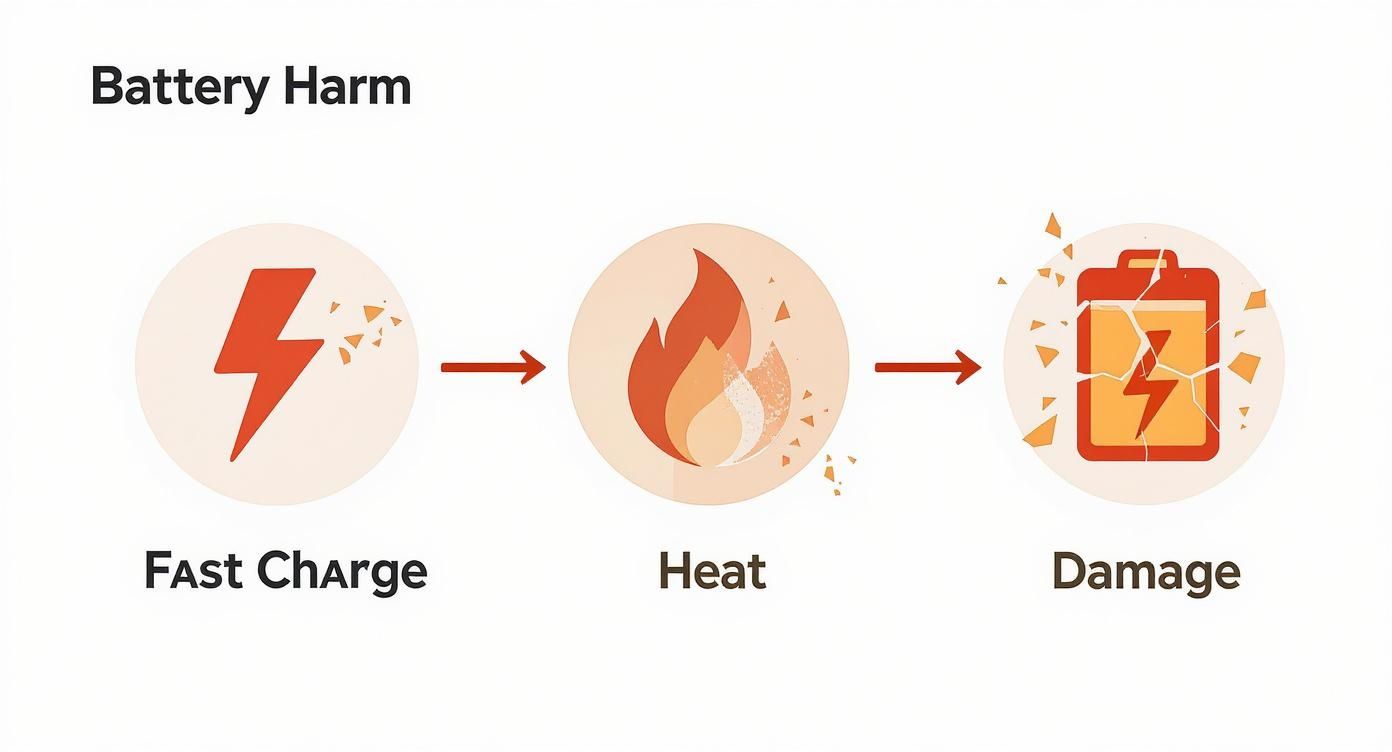
But even with these features, fast charging can still create a lot of heat—the number one enemy of a healthy battery.

An infographic illustrating how fast charging can lead to battery overheating and damage.

This simple graphic shows how the rush to get a quick power-up often creates extra heat, which is the main thing that makes batteries wear out faster.

Taking Control with Third-Party Tools

While the built-in features are a great start, they don't give you much control. You can’t tell your iPhone to stop at 85%; you just have to trust the software. For those who want more precise management, special third-party tools offer a much more powerful and customizable approach.

This is where a tool like Chargie comes in. It's a small hardware device that acts as a smart switch between your charger and your phone. Paired with an app, this little gadget lets you set an exact charging limit—say, 82%—and it will automatically cut the power once your phone reaches that level.

This level of control makes it effortless to stick to the 40-80% sweet spot. It completely automates the process, so you can plug your phone in at night and forget about it, knowing it won't be overheating at 100% for hours.

Why Automation Is the Future of Battery Care

At the end of the day, automation is what makes proper battery care actually happen. Relying on yourself to unplug your phone at the right time is likely to fail, but letting smart hardware and software handle it ensures you're always doing it right. A dedicated battery charge limiter like the one from Chargie can also do things that go way beyond a simple percentage cap.

For example, the Chargie app lets you schedule your charging sessions. You can set it to keep your phone at a very low-stress 50% for most of the night, then have it automatically top up to 80% just before you wake up. This gives you the best of both worlds: smart timing combined with a precise charge limit.

Whether you stick with your phone's built-in features or grab a dedicated tool, automating your charging habits is the single most reliable way to extend your battery’s life and keep it performing like new for years to come.

Common Charging Mistakes Almost Everyone Makes

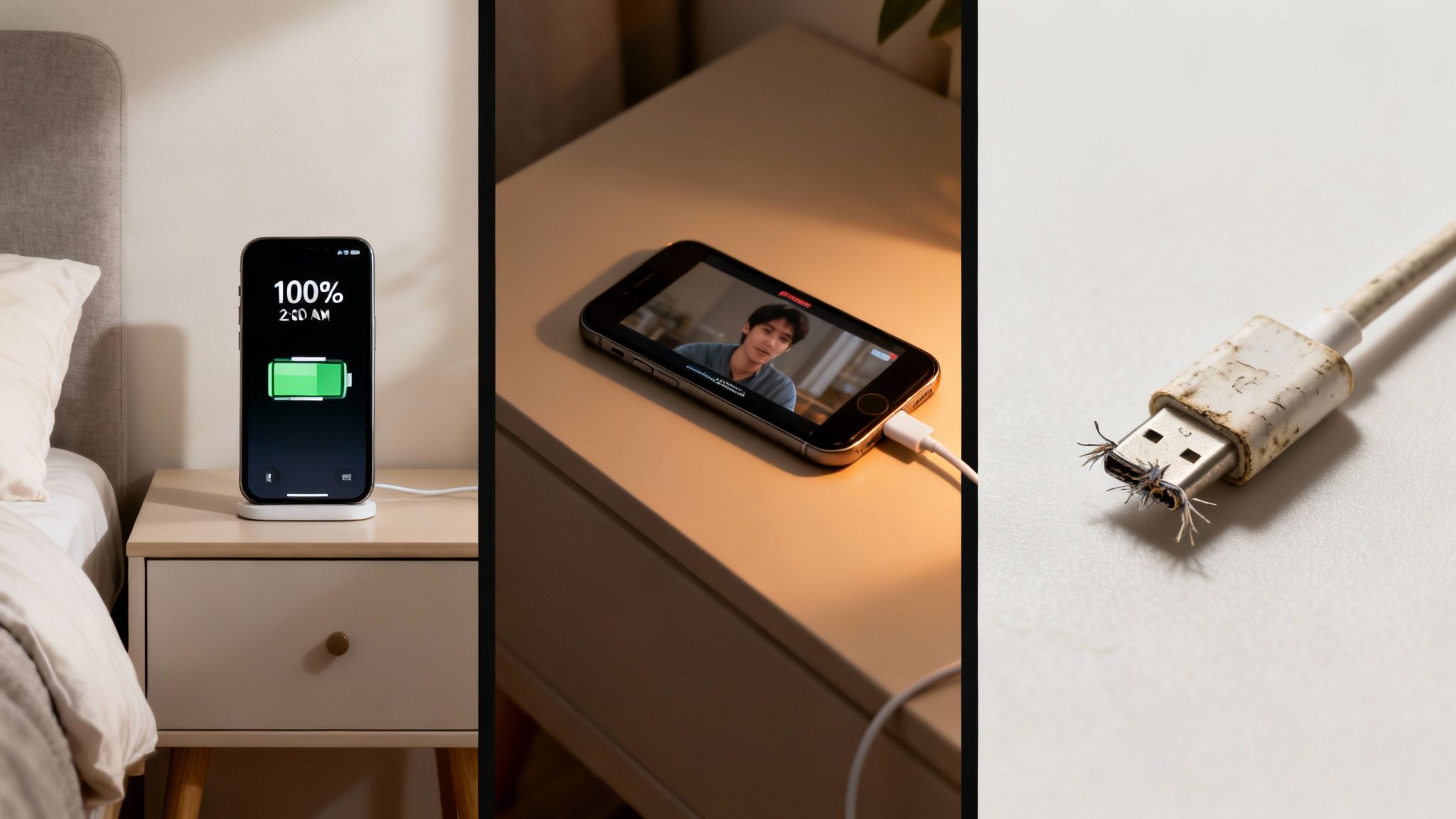
A multi-panel image displaying a fully charged phone, a phone during a video call, and a frayed charging cable.

Knowing how to care for your battery is one thing. Actually spotting our own bad habits? That’s where the real change happens. So many of us fall into charging traps without even realizing it, slowly wearing down our device's lifespan one day at a time.

These common mistakes often feel harmless, but their combined effect over time is what leads to a battery that just can't hold a charge anymore.

Let's look at a few classic examples you might recognize. By finding these patterns in your own routine, you can make simple changes that add years to your battery’s health.

The Dedicated Overnight Charger

This is probably the most common habit of them all. You plug your phone in at 10 PM, it hits 100% by midnight, and then it spends the next seven hours "trickle charging." It's constantly getting little top-offs to stay at that maximum level, which is incredibly stressful for the battery.

Keeping a battery at 100% creates high electrical pressure and heat. It’s like holding a muscle in a tensed position for hours on end—it causes unnecessary strain and makes it wear out faster.

While modern phones have safety features to prevent dangerous overcharging, they can't stop the gradual damage from being in a high-stress state for too long. If you want to learn more, you can read about why you should reconsider charging your phone overnight.

The fix is surprisingly simple. Use your phone's built-in "Optimized Charging" or "Adaptive Charging" features. For even better control, a smart charging device like Chargie that physically cuts the power at 80% is the best solution.

The Heavy-Duty Multitasker

We’ve all been there. You're on a long video call or deep into a gaming session when the low battery warning pops up. You plug in the charger and keep going, but your phone starts getting uncomfortably warm. This is a classic recipe for a high-heat situation that’s terrible for your battery.

When you use your device for intense tasks, the processor works hard and creates heat. At the same time, charging produces its own heat. Combining these two activities creates a perfect storm for battery damage.

Charge it or use it, but try not to do both heavily at the same time. If you absolutely must charge while using your phone, stick to lighter tasks like browsing or listening to music. Giving your device a break during charging is one of the easiest ways to protect its long-term health.

The Bargain Cable Shopper

It's so tempting to grab that cheap, no-name charging cable from the gas station or a random online seller. But honestly, using uncertified, low-quality chargers and cables is one of the riskiest things you can do. These products often lack the proper safety parts to control the flow of electricity.

This can lead to a whole host of problems:

  • Inconsistent Power: The charger might deliver a jumpy, unstable current that stresses the battery.
  • Overheating Risk: Poorly made chargers can overheat themselves and your device, creating a real fire hazard.
  • Port Damage: Flimsy connectors can physically damage the charging port on your phone or laptop over time.

The fix is straightforward: always use the original charger that came with your device or a high-quality, certified one from a brand you trust. Look for certifications like MFi (Made for iPhone), UL, or CE on the packaging. Spending a few extra dollars on a quality cable is cheap insurance for your expensive electronics.

To make it even clearer, here’s a quick rundown of some common charging mistakes and how to avoid them.

Troubleshooting Common Charging Problems

Common Mistake Why It's Harmful The Simple Fix
Leaving it plugged in at 100% for hours. High electrical pressure and heat speed up aging, reducing the battery's lifespan. Unplug once it's full, or better yet, use a tool to stop charging at 80%.
Using the device heavily while it's charging. This combines heat from the processor and heat from charging, cooking the battery. Let your device rest while it charges, especially during heavy tasks like gaming.
Draining the battery completely to 0%. Draining the battery completely puts a lot of strain on the battery cells. Try to plug in when your battery is around 20-30%.
Using cheap, uncertified cables and chargers. They can deliver unstable power, overheat, and even damage your device's port. Stick to the original charger or certified third-party brands (look for MFi, UL, CE).
Charging your phone in a hot car or direct sunlight. Outside heat sources add to the heat created during charging, which is a killer for battery health. Always charge your device in a cool, well-ventilated area.

By being mindful of these small habits, you can make a massive difference in how long your battery performs at its peak. It's not about being perfect, but about avoiding the worst mistakes.

Your Questions About Battery Charging, Answered

Even after getting the basics down, a few questions always seem to pop up when you're trying to figure out the best way to charge your specific phone, tablet, or laptop. Think of this as a final run-through, where we'll tackle the most common questions with simple, no-nonsense answers. The goal is to get you feeling completely confident in your new charging habits.

Let's clear up some of the most frequent questions we hear.

Is It Really That Bad to Leave My Phone Charging All Night?

Yes, it generally is. While modern phones are smart enough to stop pulling power once they hit 100% (so you don't have to worry about a dangerous "overcharge"), that's not the real problem. The real issue is stress.

When your battery stays at 100% for hours, it's held under high electrical pressure. This puts a constant strain on it, speeding up the aging process.

A much healthier approach is to use your phone's built-in optimized charging feature. This usually brings your battery up to around 80% and then cleverly waits to add the last 20% until just before you normally wake up. If your device doesn't have this feature, your battery will thank you for either unplugging it before bed or using a smart tool like Chargie to manage it for you.

Should I Let My Battery Drain to 0% Before I Plug It In?

Absolutely not. This is probably the most stubborn and damaging myth still around from the old days of different battery types. For the modern batteries in all your current gadgets, a deep dive to 0% is one of the most stressful things you can do to it.

Draining the battery completely can cause permanent damage, leading to a permanent drop in its total capacity. It's so much better to do frequent, shallow charges. Topping it up a bit here and there throughout the day keeps it in its happiest, healthiest state.

Key Takeaway: The "let it die completely" rule is officially dead. Avoid draining your battery to 0% whenever you can. A quick top-up when it hits 30% or 40% is always a better strategy for long-term health.

Does Fast Charging Ruin My Battery?

It won't "ruin" it in one go, but it definitely causes more wear and tear than slower charging. The main problem here is heat. Fast charging works by pushing a massive amount of power into the battery very quickly, which naturally creates a lot more heat. And as we've already covered, heat is the number one enemy of a healthy battery.

It’s perfectly fine to use a fast charger when you're in a pinch and need power now. But for your regular, everyday charging—especially the overnight session—sticking with a standard, slower charger is a much better choice. That gentle, cooler charge puts way less strain on the battery.

Do I Have to Use the Charger That Came in the Box?

While using the original manufacturer's charger is always the safest bet, you aren't strictly locked into it. High-quality, certified chargers from reputable third-party brands are perfectly fine and safe. The key word here is certified.

Steer clear of those super-cheap, unbranded chargers you find at a gas station or from a random online seller. These products often cut corners on safety features, which can lead to unstable power, damage your battery, or even become a fire hazard. Always look for safety certifications like UL (Underwriters Laboratories) or CE on the charger and its packaging.

Beyond just battery care, taking a broader approach to making your devices last longer is smart. For more on extending the overall usable life of your gadgets, exploring tips on maximizing the life of electronic devices can offer some great insights.


Ready to automate perfect charging and make your batteries last up to four times longer? The Chargie smart charging system gives you complete control, allowing you to set precise limits, schedule top-ups, and eliminate the battery stress caused by overnight charging. Protect your investment and reduce e-waste by visiting https://chargie.org to get yours today.
How to Save Your iPhone Battery Today

If you want to get more life out of your iPhone battery without a lot of trouble, the best things to do are often the simplest. Things like turning down your screen brightness, switching on Low Power Mode when you're running low, and being a bit stricter about which apps can run in the background can make a huge difference. Honestly, these little changes can add hours to your day.
Quick Wins for a Longer Lasting iPhone Battery

When you're staring at that low-battery warning, you don't have time to look through lots of settings. You need fixes that work right now.

The good news? Some of the biggest battery drainers on your iPhone are also the easiest to fix. These are the quick wins—the emergency tools for your battery that can get you through the rest of the day.
Control Your Screen Brightness

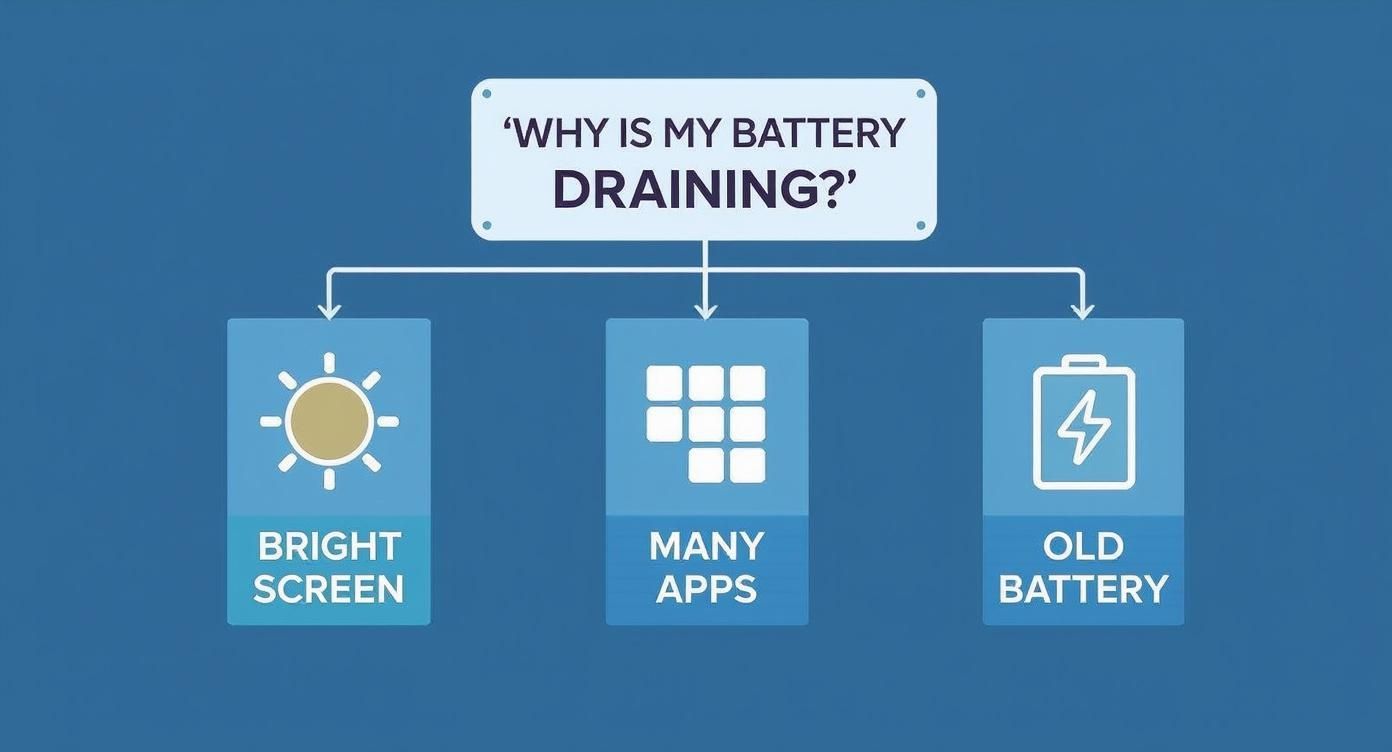
Your iPhone's beautiful screen is, without a doubt, the part that uses the most power. It's a simple fact: the brighter the screen, the faster your battery drains. The quickest way to save power is to just swipe down to open the Control Center and manually lower the brightness.

For an easier approach, let your iPhone handle it by turning on Auto-Brightness. This feature uses a light sensor to adjust the screen's brightness for you, keeping it easy to read without wasting power. It’s a classic "set it and forget it" solution. Based on real-world tests, just lowering your screen brightness from 100% to 50% can make your battery last up to 30% longer during heavy use. You can see the full details of these iPhone battery performance tests on reboxed.co.

Use Wi-Fi Whenever Possible

Ever notice how your battery dies quickly in places with bad cell service? That's your iPhone working extra hard, constantly searching for a good signal. It's a surprisingly fast way to drain your battery.
A simple yet powerful habit to build is connecting to a trusted Wi-Fi network whenever you can—at home, the office, or your favorite coffee shop. Wi-Fi uses much less power than cellular data, making it one of the easiest battery-saving tricks in the book.
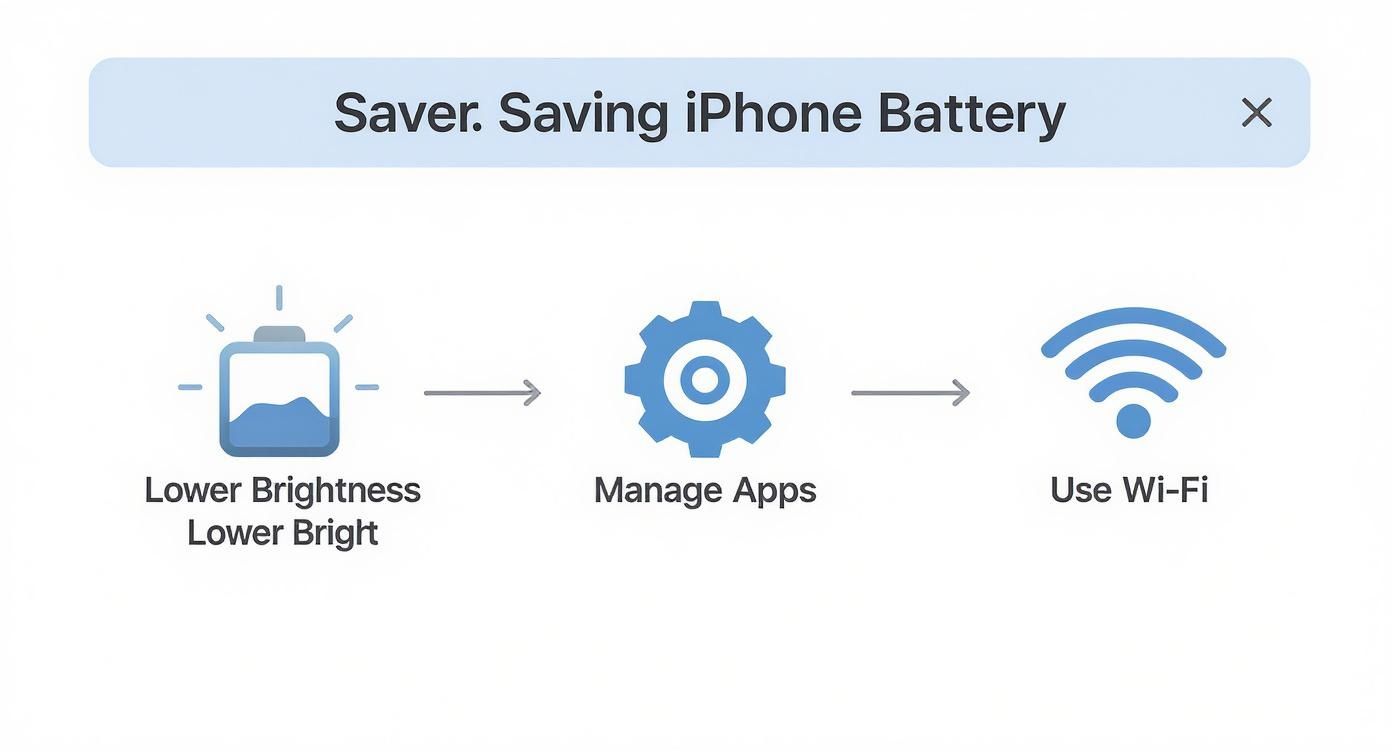
These are just a few of the basic tips, but they're very effective. The picture below sums up the key areas to focus on for a quick improvement.

A visual guide illustrating three steps to save iPhone battery: lower brightness, manage apps, and use Wi-Fi.

It really comes down to managing your screen, your apps, and how you connect. Get those right, and you're on your way to better battery life.

If you're short on time, here are the five most helpful changes you can make right now.

Top 5 Quick Battery Saving Actions

Action What It Does Estimated Battery Savings
Enable Low Power Mode Reduces background activity, email checking, and fancy visuals. Up to 50%
Lower Screen Brightness Reduces the power used by the display. Up to 30%
Switch to Wi-Fi Uses less power than cellular data for internet. 10-20%, depending on signal
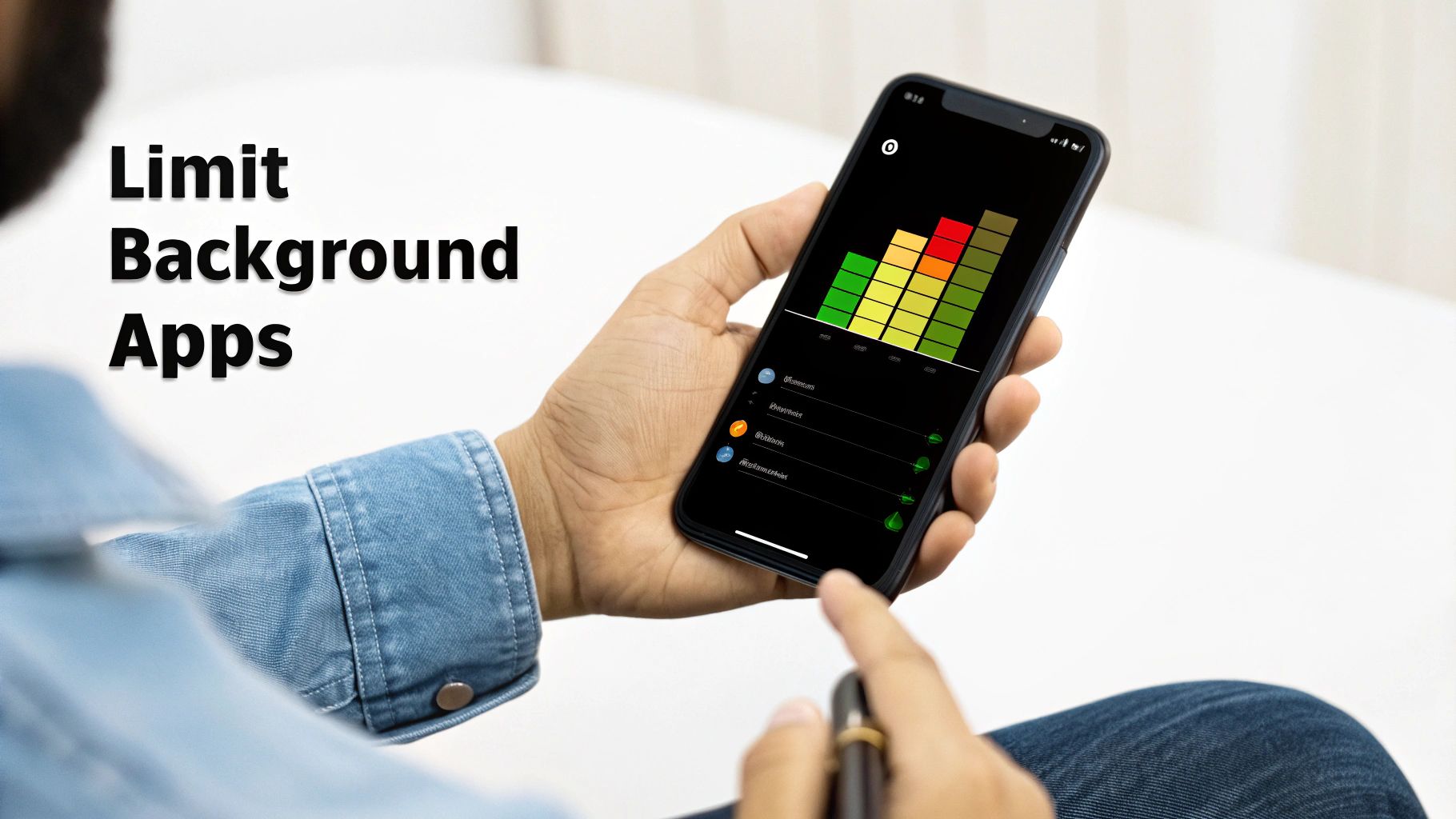
Disable Background App Refresh Stops apps from updating content when you're not using them. 5-15%
Turn Off Push Mail Stops your phone from constantly checking for new emails. Up to 10%

Doing even a couple of things from this list will give you an immediate and noticeable boost in how long your iPhone lasts between charges.

Tweak These Settings to Stop Battery Drain

Besides the obvious stuff, your iPhone is running dozens of tasks in the background. A lot of these features are made for convenience, but that convenience costs you battery life. They're constantly sipping power, all day long.

The good news is you can go into your Settings app and make a few specific changes that have a huge impact. This isn't about turning your powerful smartphone into a basic phone; it's about making it work smarter, not harder. You'll probably be surprised by how many of these power-hungry features you can easily live without.

A hand holds an iPhone wirelessly charging on a stand, displaying 'Quick Battery Tips' text.

Tame Your Location Services

One of the sneakiest battery drainers is Location Services. It’s absolutely needed for apps like Maps, but countless other apps ask for your location when they have no good reason to. Really think about it—does that game you play or your social media feed really need to know where you are 24/7?

Every time an app checks your location, it uses a lot of power. You can easily take back control.

  • Go to Settings > Privacy & Security > Location Services.
  • Just go through the list and set as many apps as you can to Never or, at most, While Using the App.
  • Avoid the Always setting unless it's for something you truly need, like a weather widget that updates on your home screen.

Being a little more selective here can dramatically cut down on this background activity. It’s a simple change that saves a surprising amount of power without you even noticing a difference in your day.

Stop Unnecessary Background Refreshes

Another feature that loves to eat your battery is Background App Refresh. This lets apps pull in new content in the background so everything is up-to-date the moment you open them. It sounds great, and it is for things like messaging apps. But it's often turned on for apps that just don't need it.

For example, do you really need a news app updating itself every few minutes? It's burning through power for content you might not even look at. Some reports suggest that background refresh can be responsible for up to 15-20% of your battery drain over a single day. In one test, an iPhone with this feature fully enabled lost about 25% of its battery overnight—that number dropped to just 5-7% after it was turned off. You can discover more insights about iPhone battery drain on Vegerpower.com.

By turning off Background App Refresh for apps that aren't important, you're basically telling your iPhone to stop wasting energy on things you aren't actively looking at. This one change can solve a lot of "mystery" battery drain.

Fine-Tune Your Notifications

Every single notification you get wakes up your screen. It might only be for a few seconds, but when you're getting alerts hundreds of times a day from social media, news, and promotional emails, that screen time adds up fast.

Each buzz, chime, and screen wake-up uses a tiny bit of power. Take a minute to choose which apps are actually allowed to interrupt you.

  • Head to Settings > Notifications.
  • Scroll down your app list and just turn off notifications for anything that isn't essential.
  • For the apps you want to keep, you can get even more specific by turning off Sounds or disabling alerts on the Lock Screen.

This not only saves your battery but also helps cut down on digital noise. Making these simple, thoughtful adjustments is one of the most powerful ways to keep your iPhone's battery going when you really need it.

Better Charging Habits for a Healthier Battery

How you charge your iPhone is just as important as the settings you choose. Getting into the right habits can seriously extend your battery’s overall lifespan, keeping it healthy for years, not just a few months. It's all about working with your battery instead of fighting against it.

Let's talk about the big one: is charging your iPhone overnight really that bad? The simple answer used to be a definite yes, but Apple has built a pretty clever solution right into its software.

The Myth of Overnight Charging

The old worry about overnight charging was that leaving your phone at 100% for hours puts a lot of stress on the battery. Think of it like holding a muscle in a tense position for way too long—it’s just not healthy. That long period at a high charge is what makes the battery get older faster.

This is where Apple’s Optimized Battery Charging feature comes in.

When you turn this on, your iPhone starts learning your daily routine. It'll charge up to 80% fairly quickly and then just… wait. It cleverly pauses the charge, only adding that last 20% right before you typically wake up and grab your phone. This means your battery only sits at that stressful 100% level for a very short time. If you want to get into the details, you can learn more about how Apple's Optimized Battery Charging works in our guide. It's a real game-changer.

Embracing the 40-80% Sweet Spot

While Optimized Battery Charging is great for when you're asleep, the single best habit you can adopt for daily use is the "40-80% rule." The batteries in your phone are happiest when they’re kept in this middle zone, avoiding the extremes of a full charge or a complete drain.

Constantly pushing your battery to 100% or letting it die to 0% is what causes the most wear and tear. By keeping it within the 40-80% range as much as you can, you'll dramatically slow down how fast it ages.

This doesn't mean you have to watch your battery percentage all day. Just try to build a couple of simple habits:

  • Plug in around 40%: Instead of waiting for that low-battery warning, give your phone a quick charge during the day.
  • Unplug around 80%: If you’re charging at your desk, just try to remember to unplug it before it gets full.

It takes a little bit of awareness, but this approach pays off big time in keeping your battery healthy for longer. Small, regular top-ups are so much better for your battery than long, stressful full charges.

Use Quality Chargers and Cables

Finally, the gear you use actually matters. A lot. Not all chargers and cables are made the same, and using cheap, uncertified accessories can lead to uneven power that can quietly damage your battery over time.

You should always look for MFi (Made for iPhone) certified cables and stick to power adapters from well-known brands. These are designed to meet Apple's own safety and performance standards, giving you a stable and safe charge. If you want to keep things organized and charge multiple devices, a good multi-functional Magsafe wireless fast charging dock can be a great option. Using certified gear protects your phone and makes sure your battery gets the clean power it needs.

Why Keeping Your iPhone Cool Is Essential

If there's one villain in the story of your iPhone's battery life, it's heat. Heat is, without a doubt, the single most destructive thing for your battery.

Think of your battery as a tiny, sensitive power plant. When it gets too hot, the parts inside start to break down. And unlike a bad day you can recover from, this damage is permanent.

This isn't just about your phone feeling warm during a heavy gaming session. It's about the slow damage that builds up over time. Each time your iPhone overheats, it loses a tiny bit of its total ability to hold a charge. Over months and years, those small hits add up, leaving you with a battery that just can't make it through the day.

A smartphone charges on a white dock on a wooden nightstand in a bedroom, promoting smart charging habits.

Common Heat Traps and How to Avoid Them

The most common cause of overheating is also the most obvious: the sun. Leaving your iPhone on a car dashboard, even on a mildly warm day, can make its internal temperature shoot up into the danger zone—well past 95° F (35° C), the upper limit Apple considers safe.

But the sun isn't the only thing to watch out for. Other common heat traps include:

  • Charging with a thick case: Those heavy-duty, super-protective cases are great for drops, but they can be terrible for heat. They basically wrap your phone in a blanket, trapping the heat made during charging and slowly cooking the battery. It's a great habit to take off a bulky case before plugging in.
  • Intense tasks in direct sunlight: Trying to use GPS navigation or playing a demanding game while sitting in the sun is a perfect recipe for overheating.
  • Placing it near other heat sources: It might seem harmless, but don't leave your phone on top of a running laptop, a game console, or a cable box. That combined heat can be surprisingly damaging.

The link between heat and battery health is very important. High temperatures speed up the chemical processes inside a battery, causing it to wear out much faster than it would under normal conditions.

If you really want to get into the science, you can explore the impact of temperature on battery degradation in our detailed guide.

Don't Forget About the Cold

While heat is the main enemy, extreme cold isn't great, either.

Ever been outside on a freezing day and watched your phone suddenly die, even though it showed 30% battery just a minute ago? You've seen this happen firsthand.

Cold temperatures temporarily reduce a battery's ability to deliver power. The good news? This effect usually isn't permanent. Once your phone warms back up to a normal temperature, its battery should work normally again.

The key takeaway here is simple. Treat your iPhone like you'd treat a pet—don't leave it in a hot car, and bring it inside when it's freezing. Simply managing its temperature is a free and very effective way to protect your battery for the long run.

How to Find Which Apps Drain Your Battery

Your iPhone has a built-in detective, and it's located right inside your Settings app. This tool tells you exactly where every bit of your battery power is going, showing you which apps are behaving and which ones are secretly draining power behind your back. Learning to read this screen is the first step to taking back control.

Think of it like a detailed receipt for your battery. Instead of just seeing the final total, you get to see every single item.

To start your investigation, just head over to Settings > Battery. The first thing you'll see is a graph showing your battery level over the last 24 hours or the last 10 days.

This graph is more than just a line; it’s the story of your day. See any steep drops? Tap on that part of the graph, and the app list below will instantly update to show you exactly what was running during that time. This is how you connect a sudden battery drain to a specific activity, like that long video call or a navigation app you forgot to close.

Reading the App Usage List

Below the graph is where the real evidence is: a detailed list of every app that has used your battery. Each entry shows a percentage, which is that app's share of the total power used.

Don't panic if your most-used apps are at the top—that's totally normal. If you spend three hours on YouTube, it's going to use a lot of power. The real red flags are the apps you barely use, yet they're still showing up high on the list.

Interpreting Your Battery Usage Screen

To really make sense of this screen, you need to know what you're looking at. It's packed with useful information if you can understand it.

This table breaks down the key parts of the battery usage screen.

Metric/Graph What It Shows What to Look For
Last 24 Hours / Last 10 Days Switches the view between a short-term and long-term battery usage report. Use the 10-day view to spot sneaky, ongoing battery drainers.
Battery Level Graph A visual timeline of your battery percentage over the chosen period. Steep downward slopes, which show moments of rapid power use.
Activity Graph Bars showing when your screen was on versus when it was off. High activity when your screen was off—a clear sign of background tasks.
Battery Usage by App (%) A ranked list of apps and how much of the total battery they used. Apps with high percentages that you rarely use or that say "Background Activity" underneath.

Think of this screen as your main tool for finding battery problems before they get out of hand.

Spotting a Problem App in Action

Let’s walk through a real-world example. Imagine you check your battery stats and see that a social media app you only opened for five minutes somehow used 25% of your battery. Right under the app's name, you see the words "Background Activity." This is your proof.

This tells you the app was running constantly in the background, probably getting new content, tracking your location, or doing something else you never asked it to. This isn't normal usage; it's a problem app taking over your power.

Once you’ve found a power-hungry app, you've got a few options. You can go into its specific settings to turn off Background App Refresh or limit its access to Location Services. If that doesn't fix it, sometimes just deleting and reinstalling the app can clear up a bug that was causing the drain.

Ultimately, this simple screen gives you all the evidence you need to make smart choices and keep your iPhone's battery healthy.

Common Questions About iPhone Battery Life

Close-up of a hand touching an iPhone screen displaying battery settings and a usage graph.

Even after learning about all the best practices, you probably still have a few questions. That's totally normal. Let's answer some of the most common concerns people have about their iPhone's battery so you can feel confident you're doing the right thing.

Does Closing Apps Really Save Battery Life?

This is one of the biggest debates in the iPhone world, and the truth might surprise you. Apple's official answer is a clear no—you should only force-quit an app if it’s frozen or not working right. The apps you see when you swipe up are mostly just paused, not actively draining your battery.

Now, there is a small exception. If an app is acting up and running in the background when it shouldn't, closing it will absolutely help. You can usually find the problem app by checking your battery usage in Settings. But for most of us, constantly swiping away every app is not only pointless but can actually use more battery, since the phone has to restart them from scratch every single time.

Will Using Low Power Mode All The Time Harm My Battery?

Not at all. Think of Low Power Mode as a perfectly safe way to get more juice out of your battery whenever you need it. It won't cause any physical damage to the battery's health, whether you turn it on at 90% or 20%.

Low Power Mode just temporarily turns down a few features that aren't essential. It reduces background app updates, tones down some fancy visuals, pauses automatic downloads, and might limit 5G. The only "catch" is a slight dip in performance, but it's a fantastic tool for saving power when you need it.

What Is Optimized Battery Charging And Should I Use It?

Yes, absolutely. If you do nothing else, make sure Optimized Battery Charging is turned on. This clever little feature learns your daily routine to reduce the time your battery spends sitting at a stressful 100% charge.

For instance, if you plug your phone in overnight, it will quickly charge to 80% and then just… wait. It smartly holds off on charging that final 20% until just before you usually wake up. This simple delay makes a huge difference in slowing down battery aging over time.

This is one of the most effective ways to protect your battery without lifting a finger. You can check that it's active by heading to Settings > Battery > Battery Health & Charging. Learning how to check battery health is a great first step to understanding what's going on inside your device.

Why Does My Battery Drain So Fast After An iOS Update?

If you've noticed your battery life gets worse right after a major software update, don't panic. Your battery hasn't suddenly failed. Your iPhone is just working overtime in the background, handling a bunch of one-time tasks.

It's busy with things like:

  • Re-organizing all your files for the search feature.
  • Scanning your entire photo library for new features.
  • Re-learning how to manage the battery itself.

This intense background work can last anywhere from a few hours to a day or two, making the phone run warmer and use more power. The best thing you can do is be patient. Keep it plugged in when you can, stay on Wi-Fi, and just let it finish its job. Your battery life should return to normal within a couple of days.


If you're serious about taking your battery management to the next level and want to automatically use healthy charging habits, Chargie can help. It's a smart little device that stops charging at a level you set, protecting your battery from the stress of sitting at 100% overnight and greatly extending its lifespan. You can learn more about taking control of your charging at https://chargie.org.

How Long Does a Cell Phone Battery Last? Tips to Extend Its Life

When you ask, "how long does a cell phone battery last?" you're really asking two different questions.

First, you want to know how long a single charge will last through the day. And second, you’re wondering how many years the battery will actually hold a good charge before you have to replace it. One is about daily use, and the other is about its total lifespan.

Your Phone's Two Battery Clocks

Think of it like a car. The first "clock" is like its gas tank—how far can you drive on a full tank of gas right now? This is your daily battery life, which might give you anywhere from 10 to 20 hours depending on what you're doing.

The second "clock" is the car's engine health. How many years will that engine run well before it starts having problems? This is your battery's lifespan, and it’s a completely different thing.

Understanding this difference is the first real step to making your phone last longer. One is about managing your daily habits, and the other is about protecting the battery's long-term health from the inside out.

Daily Charge vs. Total Lifespan

Your daily charge is pretty simple. It's the time from when you unplug your phone at 100% until it hits 0%. This can change a lot from day to day based on whether you're just texting or watching a movie marathon.

Total lifespan, on the other hand, is measured in charge cycles. A charge cycle is one full drain and recharge, from 100% down to 0% and back up again. This doesn't have to happen all at once; if you use 50% today and 50% tomorrow before plugging in, that still counts as one complete cycle. You can learn way more about what a battery cycle count is in our detailed guide.

A typical phone battery can handle about 300 to 500 full charge cycles before its ability to hold a charge starts to noticeably drop. After that, you'll find yourself looking for an outlet way more often.

This aging process is exactly why a two-year-old phone might only last half a day, even when it used to easily get through a full one. The battery's ability to hold power has permanently shrunk.

To quickly recap these two ideas, here's a simple breakdown.

Phone Battery Life At a Glance

Battery Metric Typical Duration What It Means
Daily Charge 10 – 20 hours The time your phone runs on a single full charge before needing to be plugged in.
Total Lifespan 300 – 500 cycles The total number of full recharges the battery can handle before it starts to wear out.

Understanding both is key, because what you do every day directly affects how long the battery lasts over the years.

How Long Should a Phone Realistically Last?

While many things play a part, the unfortunate trend is that the average lifespan of a smartphone is getting shorter. Globally, a phone's useful life is now estimated at just 2.53 years, and its battery is a huge reason for that.

Of course, brands matter. Apple devices tend to last longer, often staying usable for 4 to 10 years, while Samsung phones average between 3 to 6 years before performance and battery problems become too frustrating to ignore.

What Really Ages Your Phone's Battery

Ever notice how a brand-new phone feels like it lasts forever, but a year later you're looking for a charger by 3 PM? That’s not just in your head. Your battery is physically getting older, and a few key things are speeding up the process. Once you understand them, you can start fighting back.

At its core, a phone battery is a chemical device. Think of it like a banana you bring home from the store—it starts getting ripe right away. In the same way, your phone's battery begins a slow, permanent aging process from the moment it's made. This is called chemical aging, and it happens whether you use the phone or not.

This diagram breaks down the two timelines we’re juggling: how long the battery lasts day-to-day versus how many years it stays healthy.

A concept map showing how daily phone charging impacts a smartphone battery's lifespan.

As you can see, what you do every day has a direct impact on how many years you'll get out of your battery before it wears out.

Charge Cycles: The Paperclip Analogy

Besides its natural shelf life, the single biggest factor wearing down your battery is its charge cycles. As we covered, one cycle is a full charge from 100% down to 0%.

Here’s a simple way to think about it: bend a paperclip. The first time, it’s fine. Bend it back and forth ten, twenty, fifty times, and you’ll feel the metal getting weaker. Eventually, it just snaps. Every single charge cycle does something similar to your battery on a tiny level, causing small amounts of damage that add up.

This is exactly why a battery that’s been through 500 cycles holds way less juice than one that’s only seen 100. The damage adds up and, unfortunately, is permanent.

Heat: Your Battery's Worst Enemy

If charge cycles are like bending the paperclip, heat is like holding a lighter to it. High temperatures speed up the chemical reactions inside the battery, causing it to wear out at a shocking speed.

Leaving your phone on a hot car dashboard is a classic example. That intense heat is like leaving a stick of butter in the sun—it causes damage that can't be undone. The same thing happens when you game for hours while plugged in, making the phone hot to the touch.

Consistently exposing your phone's battery to temperatures above 95°F (35°C) can permanently reduce its capacity. This damage happens silently, invisibly, and it adds up every time it gets too hot.

It’s also why you hear people say to avoid fast charging all the time. Sure, it’s convenient, but those high-speed chargers create more heat, putting extra stress on the battery’s insides.

The Problem with 100% and 0%

It feels natural to charge your phone all the way to 100% and then run it down until it dies, right? The thing is, these extreme states are the most stressful for a modern phone battery.

  • Staying at 100%: A fully charged battery is like a stretched rubber band. Holding it in that high-tension state for hours—like overnight while you sleep—causes it to lose its stretchiness much faster. This is especially damaging when mixed with the heat from charging.

  • Dropping to 0%: Hitting empty can be even worse. When a battery is fully drained, it can fall into a very low power state, which can sometimes make it unable to ever hold a charge again.

For the best health, your battery loves to live in the middle. Keeping your charge between 20% and 80% is the sweet spot that reduces stress and can dramatically extend its useful life. By avoiding the extremes, you're helping that "paperclip" bend less severely each time, saving its strength for years, not months.

The Sneaky Culprits Draining Your Daily Charge

We've talked about the long-term health of your phone's battery, but what about just getting through the day? You can follow all the best practices for a long life, but still find your phone dying by 3 PM. What gives?

The truth is, a handful of sneaky energy hogs are quietly using up your charge all day long. Getting a handle on these is the real secret to understanding how long your battery will last on any given day. Once you spot them, you can take back control and stop looking for a charger.

A smartphone on a wooden table displaying app icons next to a white coffee cup in a cafe.

Your Screen: The Undisputed Power Hog

Make no mistake: your screen is the single biggest drain on your daily battery. That bright, beautiful display needs a surprising amount of juice to light up millions of tiny dots. The brighter you set it and the longer it stays on, the faster you'll see that battery percentage drop.

Think of screen brightness like the volume knob on a stereo. You can keep it at a comfortable level, or you can crank it to the max—but that's going to use a whole lot more power.

Actionable Fix: The easiest win here is to turn on Auto-Brightness. Your phone will do the work for you, adjusting the screen's brightness to your surroundings. You'll save a ton of power without even thinking about it. Also, go into your settings and shorten the screen timeout to 30 seconds or one minute.

The Problem of Poor Signal

Ever notice your phone gets warm and the battery drains like crazy when you're in a basement or out in the middle of nowhere? That's not a coincidence. Your phone is working overtime.

When the cell signal is weak, your phone has to boost its power, constantly searching for the nearest tower. It’s like trying to have a conversation in a loud concert—it takes a lot of energy. If you're in a known dead zone for a while, this becomes a massive, hidden drain.

  • Actionable Fix: If you know you're in an area with bad or no service, just turn on Airplane Mode. This tells your phone to stop searching, instantly cutting off this major power drain.

Background Apps Snacking on Your Battery

Most apps don't actually close when you switch away from them. They hang out in the background, checking for new emails, refreshing your social media feed, or finding your location. This feature, known as Background App Refresh, is like having dozens of tiny programs constantly snacking on your battery all day.

While it’s convenient, it can be a real power-drainer, especially with apps like Facebook and Instagram. Things like constant GPS tracking on iPhones are especially tough on the battery.

  • Actionable Fix: Go into your phone’s settings and get selective. Turn off Background App Refresh for any app that doesn't absolutely need to be updated in real-time. Your weather app or that game you play once a week can wait.

Push Notifications Waking Your Phone

Every single buzz, ding, and on-screen alert forces your phone to wake up from its power-saving sleep, light up the screen, and use a little burst of power. One notification is nothing, but hundreds of them throughout the day really add up.

Each alert is like someone tapping your phone on the shoulder, preventing it from staying in a low-power mode. It’s a death-by-a-thousand-cuts for your battery. It's no wonder that while an older iPhone 8 might last 6 to 10 hours, newer models can stretch that to 10 to 13 hours partly because they're better at managing these little interruptions.

  • Actionable Fix: Be ruthless with your notifications. Turn them off for any non-essential app. You probably don’t need an instant alert every time someone you barely know posts something.

How to Check Your Phone's Battery Health

Knowledge is power, especially when it comes to your phone's battery. Instead of just guessing why your phone is dying so fast, you can look at a specific number that tells you exactly how much life it has left. This is the first step toward taking back control.

This magic number, usually called Battery Health or Maximum Capacity, is a direct measure of wear and tear. It shows how much juice your battery can hold today compared to the day you bought it. Think of it like a water bottle. When it’s brand new, it holds a full 16 ounces. But after a couple of years of use, tiny dents mean it can only hold 13 ounces. Its maximum capacity has permanently shrunk.

Checking Battery Health on an iPhone

Apple makes this incredibly easy. You don't need any special apps or secret codes; the info is built right into your phone's software.

Here’s how to find it in seconds:

  1. Open the Settings app.
  2. Scroll down a bit and tap on Battery.
  3. On the next screen, select Battery Health & Charging.

You’ll see a screen with the number you're looking for.

The most important number here is Maximum Capacity. A new iPhone will show 100%, but this number will slowly go down over time with every charge cycle.

As a general rule, once your battery’s maximum capacity drops below 80%, you'll start to feel it. Your phone might not reliably make it through the day, and that's usually the point where getting a new battery is worth considering.

What About Android Phones?

This is where things get a little tricky. Unlike iPhones, there isn't one standard way to check battery health that works for every Android model. Some phone makers, like Samsung, are good about including a battery health number in their settings, often in a "Device Care" or "Battery" menu.

But for many other Android phones, the number is completely hidden. In those cases, you’ll need an app to get a good estimate. Apps like AccuBattery can watch your charging habits over time to figure out an estimated health percentage. It’s not as exact as a built-in number, but it gives you a great idea of where your battery stands.

For a deeper dive, check out our complete guide on how to check battery health on different devices.

By regularly checking this single number, you can see the direct impact of your charging habits. It puts you in charge, helping you make smarter decisions that protect your phone's lifespan and save you from the frustration of a battery that just can't keep up.

Adopt Smarter Charging Habits Today

Taking real control of your phone's battery health is way easier than it sounds. It just comes down to forgetting a few old myths and picking up some new, smarter habits. The batteries in our phones today have totally different needs than the old batteries from a decade ago, and getting to know them is the secret to making your device last.

The single most powerful trick you can learn is the 40-80 Rule. It helps to think of your battery like a muscle—it gets seriously stressed when it's either fully flexed (at 100%) or completely worn out (at 0%). The sweet spot, where it's most relaxed, is right in the middle. If you can keep your battery's charge level between 40% and 80% as much as possible, you drastically cut down on that stress.

This one habit reduces wear and tear at a chemical level, which is what saves your battery's ability to hold a solid charge for years, not just a few months.

A smartphone charging on a wooden nightstand next to a smart speaker, illustrating smart charging technology.

Why Overnight Charging Is a Problem

We've all done it. Plugging your phone in overnight feels convenient, but it's one of the surest ways we accidentally harm our batteries. When your phone hits 100% and just sits there for hours, it’s stuck in that high-stress, fully-tensed state. This creates a tiny but constant amount of heat, which, as we know, is the number one enemy of a battery.

Night after night, this routine speeds up the aging process. Sure, modern phones have software to slow things down, but they still end up sitting at that damaging 100% mark for far too long.

Your Charger Matters More Than You Think

Here's another simple but effective strategy: think twice about your charger. Fast charging is a lifesaver when you're in a hurry, but all that high-speed power creates extra heat. Whenever you can, using a slower, standard charger is much gentler on your battery.

Think of it as sprinting versus jogging. Sprinting gets you there faster, but it puts way more strain on your body. For the long haul, a steady jog is always a better choice.

By making small tweaks—like not leaving your phone plugged in all night and using a slower charger when you have the time—you're tackling the two biggest stressors on your battery: high charge levels and excess heat. These simple changes can seriously extend how long a cell phone battery will last.

To get a deeper dive, you can explore some of the best lithium-ion battery charging best practices in our complete guide.

Making Smart Charging Effortless with Hardware

Let's be real: nobody wants to set an alarm for 3 AM to unplug their phone at 80%. That's where smart hardware comes in to do the work for you. A device like Chargie acts as a personal bodyguard for your battery.

You just plug it in between your charger and your phone cable, then use the app to set a charging limit—say, 80%. Simple. Once your phone hits that level, Chargie automatically cuts the power. Your phone is saved from the stress of sitting at 100% all night, and you don't even have to think about it.

Here’s a quick look at how typical charging habits stack up against smarter, automated ones.

Charging Habits Good vs. Bad

It's easy to fall into bad habits that wear out your battery without you even realizing it. Here's a comparison of common mistakes and the smarter alternatives that will keep your battery healthy for the long run.

Charging Habit Impact on Battery Lifespan Smarter Alternative
Charging to 100% overnight High stress and heat speed up battery aging, reducing its capacity over time. Use Chargie to automatically stop the charge at a healthier level like 80%.
Letting it drop to 0% often Puts the battery at risk of deep discharge, which can cause permanent damage. Try to plug it in before it dips below 20-30% whenever possible.
Always using a fast charger Creates excess heat that wears down the battery's internal parts faster. Use a standard, slower charger for overnight charging to keep temperatures low.
Manually trying to stop at 80% Inconsistent and easy to forget, leading to accidental overcharging. Let a hardware limiter like Chargie handle it for consistent, worry-free results.

By turning these best practices into a set-and-forget routine, you take all the guesswork out of battery care. A smart tool like Chargie ensures your phone is always charged in the healthiest way possible, actively extending its life and saving you from the frustration—and cost—of a premature battery replacement.

A Few Common Battery Questions

Even after getting the basics down, you probably still have a few questions. Let's tackle some of the most common ones so you can make smarter choices for your phone's battery.

Is It Bad to Charge My Phone Overnight?

Yes, leaving your phone plugged in all night, every night, isn't great for it. Once the battery hits 100%, it stays there for hours, creating a high-stress, high-heat situation that speeds up its aging. Your phone has some built-in protections, but they can't completely stop that slow-and-steady damage.

A much healthier habit is to stop the charge well before it hits that full mark. Just making that one small change dramatically reduces the time your battery spends under maximum strain, adding months or even years to its life.

Does Fast Charging Hurt My Battery?

Fast charging is a lifesaver when you're in a hurry, but there's a trade-off. Pushing all that power in so quickly creates a lot more heat than a standard, slow charge. Since heat is very bad for batteries, making a habit of fast charging will wear your battery out much faster.

Think of fast charging as a tool for emergencies. For your daily routine, especially overnight, sticking with a slower charger is a far gentler and healthier option for your battery in the long run.

When Should I Replace My Phone Battery?

A good rule of thumb is to start thinking about a replacement once your phone's Maximum Capacity (or battery health) dips below 80%. Around that point, you'll probably notice a real drop in how long a charge lasts. Your phone might even start shutting down unexpectedly when you're doing something that uses a lot of power.

But honestly, the right time is simply when the battery can't keep up with your day anymore. If you feel like you're constantly stuck to a wall outlet, a new battery will make your phone feel brand new again.

You can't just "reset" a battery's physical health. The wear and tear on a phone battery is a one-way street—it's a permanent chemical change. Those "recalibration" tricks you see online don't restore any lost capacity; they just help your phone get a more accurate reading of its current, worn-out state.

By getting a handle on these common issues, you can take the mystery out of battery care. It's really the small, daily habits that make the biggest difference over time.


Take the guesswork out of smart charging with Chargie. This simple device automatically stops your phone from charging at a healthier level you set, preventing overnight overcharging and extending your battery's life by up to 4x. Protect your investment and stop buying new phones so often by visiting https://chargie.org.

How long do cell phone batteries last: A quick guide

When you ask, "how long do cell phone batteries last?" you’re really asking two different questions at once. One is about today, and the other is about the next few years.

On a single charge, any new smartphone should get you through a full day of normal use. But the battery's total lifespan—how long before it gets tired and can't hold a charge anymore—is a different story. You're usually looking at about two to three years for that.

Two Sides of Battery Life: Daily Use vs. Total Lifespan

A smartphone on a charging stand on a wooden nightstand with a bed and window, featuring 'ALL-DAY BATTERY' text.

It’s easy to mix these two up, but knowing the difference is the secret to making your phone last longer. One is a sprint; the other is a marathon.

Think of it like a new pair of running shoes. Their daily performance is how far you can comfortably run today. Their total lifespan is how many miles you can rack up before the soles wear out and you have to buy a new pair. Your phone’s battery ages the same way.

To make this crystal clear, let's break it down.

Metric Average Timeframe What It Means
Daily Battery Life ~10-20 hours This is your phone's stamina on a single charge. It's how long you can scroll, text, and stream before you need to find an outlet.
Total Battery Lifespan ~2-3 years This is the battery's overall health. It’s the total time before it wears out and can't hold a decent charge anymore.

Understanding both sides of this coin is the first step toward better battery habits.

Daily Battery Life (Per Charge)

This is the one we worry about every day. It's the countdown from a 100% charge down to that dreaded 0%. Phone makers love to advertise "all-day battery life," and for the most part, they deliver—if your day involves texting, some web browsing, and a few photos.

But the moment you start a demanding game, stream Netflix for hours, or use Google Maps for a road trip, you'll see that battery meter drop much, much faster. This is your battery's daily runtime, and it changes completely based on what you’re doing right now.

Total Battery Lifespan (In Years)

Now for the long game. A battery’s total lifespan isn't measured in hours; it's measured in charge cycles, which add up over years.

A single charge cycle is one full drain and recharge—going from empty all the way up to full. This can happen in one go or over a few partial charges. The battery in a typical smartphone is built to last for around 300 to 500 of these full cycles. Once you pass that mark, its ability to hold a charge starts to noticeably weaken.

For most of us, that translates to about two or three years of real-world use before the battery just can't keep up anymore.

This predictable wearing out is a huge reason people feel forced to upgrade their phones. The average lifespan of a smartphone is around 2.5 years globally, and the battery getting weaker is a primary cause. You can see more data on how battery health drives phone upgrades over at BankMyCell.com.

This brings us to the most important takeaway: your daily charging habits have a direct and powerful impact on how quickly you use up those precious cycles. It’s not just about getting through today; it’s about making sure your battery is still healthy a thousand days from now.

Why Every Phone Battery Eventually Weakens

Ever notice how a brand-new phone feels like it can run forever, but a year later, you’re hunting for a charger by 5 PM? That’s not you doing something wrong—it's just a simple truth of modern batteries called battery aging. It's completely normal, and it happens to every single device.

Think of your battery like a brand-new water bottle. When you first get it, it holds a specific amount. You can fill it to the top and get that full amount out every single time.

Now, imagine that with every refill (charging) and every sip (usage), the bottle's material changes just a tiny bit. You don't notice it at first. But after hundreds of refills, that once-perfect bottle might only hold half as much. That’s exactly what's happening inside your phone.

The Science of a Shrinking "Tank"

Your phone is powered by a lithium-ion battery. It works by moving tiny charged particles from one side to the other. When you plug it in, the particles move to the "full" side. When you use your phone, they travel back to power your screen and apps.

But with every round trip, a few of those particles get lost or stuck. These tiny failures build up over time, causing permanent changes that reduce the battery’s total ability to store energy.

The result is a slow but steady loss of maximum capacity. A battery that started with a 4,000 milliamp-hour (mAh) capacity might only hold 3,200 mAh after a couple of years. It’s now effectively at 80% of its original stamina.

This is why an older phone doesn’t just seem to drain faster—it literally can't hold as much juice as it could when it was new.

Charge Cycles: The Real Measure of Battery Age

A battery’s age isn't best measured in years, but in charge cycles. One complete cycle is counted every time you've used a full 100% of its capacity. It doesn't have to happen in one go.

For instance:

  • Draining your phone from 100% all the way down to 0% is one full cycle.
  • Using it from 100% to 50%, charging back to full, and then using it down to 50% again also counts as one full cycle (50% + 50% = 100%).

Most smartphone batteries today are built to keep about 80% of their original capacity after 300 to 500 full charge cycles. For the average person who plugs in their phone every night, that works out to about two to three years before the decline really starts to get annoying.

It Happens to Every Battery

This aging process is just a part of how these batteries work. It’s happening in your phone, your laptop, and even in the massive batteries that power electric cars. You can't stop it, but you absolutely can slow it down. Understanding the factors that influence phone battery life is the first step to keeping your device healthy for the long haul.

Ultimately, it helps to think of your battery as a part that wears out, just like the tires on your car. It’s not meant to last forever, but with a little bit of care, you can make sure it gives you great performance for as long as possible.

The Four Biggest Enemies of Your Battery Health

Every battery ages and loses strength over time—that’s just chemistry. But some habits can drastically speed up that decline. Think of your battery’s health like a block of ice on a hot day; certain conditions will make it melt way faster than it should.

Understanding what causes this faster aging is the first step toward making your phone last longer. Four main culprits are silently wearing down your battery's ability to hold a charge. Let's dig into what they are and how you can fight back.

1. Extreme Heat

Heat is, without a doubt, the number one enemy of your phone's battery. Just like leaving food out in the sun makes it spoil, exposing your battery to high temperatures causes permanent damage.

We’ve all done it: left our phone on the car dashboard, on a sunny windowsill, or maybe used it for an intense gaming session while it was plugged in. These situations can easily push the internal temperature into the danger zone. Anything above 95°F (35°C) puts serious stress on a battery, causing it to wear out much faster.

Key Takeaway: Heat forces the parts inside your battery to work too hard, wearing them out early. Keeping your phone cool is the single most effective thing you can do for its long-term health.

This is a major reason why batteries in hotter climates often give up much sooner than those in cooler regions.

2. Harmful Charging Habits

How you charge your phone matters a lot more than you probably think. It’s tempting to just plug it in overnight and let it hit 100%, or run it all the way down to 0% before scrambling for a charger. But these habits put the most strain on the battery.

Think of it like repeatedly stretching a rubber band as far as it can go. It'll work for a while, but it will lose its stretchiness and snap much faster than if you were gentle with it.

  • The 20-80 Rule: The best range for a phone battery is keeping its charge between 20% and 80%. Staying in this range reduces stress and can dramatically slow down the aging process.
  • Avoiding the Extremes: Constantly pushing the battery to 100% or letting it die at 0% contributes to faster wear and tear on the delicate chemistry inside.

Diagram illustrating battery aging, showing a new battery undergoing charge cycles to become an old battery with reduced capacity.

This image nails it. Each full charge cycle is a small step toward a battery that just can't hold a charge like it used to.

3. The Double-Edged Sword of Fast Charging

Fast charging feels like magic when you're in a hurry, but it comes with a hidden cost. Forcing a high amount of power into the battery quickly generates a ton of heat—and as we just covered, heat is the ultimate battery killer.

Imagine filling a water balloon. You can turn the hose on full blast and get it done quickly, but you're putting a lot of pressure on the balloon itself. A slower, gentler flow is much less stressful.

Relying on a fast charger every single day, especially if you're in a warm room, will absolutely contribute to faster aging. The convenience you get today might mean you're buying a new battery (or a new phone) a year from now.

4. Leaving Your Phone at 0% or 100%

Storing your phone at either extreme of its charge level for long periods is another sure way to cause permanent harm. Both states put the battery in a highly stressed condition.

  • Leaving it at 0%: When a battery is left completely dead for too long, it can fall into a "deep discharge" state. From there, it can be difficult or even impossible to bring back to life.
  • Leaving it at 100%: Keeping a battery at a full 100% charge, like when it’s plugged in all night, is like holding a muscle in a tensed position for hours. This constant high-power state speeds up the loss of its ability to hold a charge.

Your daily habits play a huge role in your battery’s lifespan. Even with the massive batteries in modern phones, poor charging habits can slash their effective runtime. While most batteries are designed to keep about 80% of their capacity after hundreds of cycles, factors like heat and poor charging habits can speed that decline up dramatically. If you want to dive deeper, NGXP Tech has some great insights. By getting a handle on these four enemies, you can keep your battery going strong for much longer.

How to Check Your Phone's Battery Health

A person's hands holding a smartphone displaying a battery icon and 'Check Battery Health' text.

Sometimes, you can just feel it. Your phone's battery just isn't what it used to be. But is it just having an off day, or is it genuinely on its last legs? Knowing how to check your phone's battery health means you can stop guessing and start getting some real answers.

Before you even think about digging into your phone’s settings, you can often spot the warning signs just by paying attention. Think of these symptoms as your phone's way of telling you its power source is getting tired.

Telltale Signs of a Worn-Out Battery

A weakening battery doesn't just hold less juice; its performance gets flaky and unpredictable. It can start to cause some seriously frustrating problems in your daily routine.

Here are a few of the most common red flags to watch for:

  • Sudden Shutdowns: Your phone just dies out of nowhere, even when the battery meter says you have 20% or more left. This is a classic sign the battery can no longer provide stable power.
  • Constant Overheating: If your phone feels unusually warm during simple tasks like scrolling social media—not just intense gaming—the battery could be struggling to keep up.
  • Takes Forever to Charge: An old battery can have trouble accepting a charge, leading to painfully long charging times compared to when it was new.
  • Noticeably Shorter Life: This is the big one. You used to get through the day with power to spare, but now you're looking for an outlet by mid-afternoon.

If any of this sounds a little too familiar, it's time to play detective and check the actual health data stored on your phone.

Finding Your Battery Health on an iPhone

Apple makes it incredibly easy to see exactly where your battery stands. They give you a clear percentage that represents your battery's current maximum capacity compared to when it was brand new.

Here’s how to find it:

  1. Open the Settings app.
  2. Scroll down and tap on Battery.
  3. Select Battery Health & Charging.

Right there, you'll see a percentage next to Maximum Capacity. A new phone will show 100%. Apple generally considers a battery to be worn out once this number drops below 80%. It’s a simple, powerful number that tells you exactly how much your battery has weakened.

Your phone's battery health is a direct reflection of its chemical age. Knowing this number helps you understand how long your cell phone batteries last in real-world conditions and whether your charging habits are helping or hurting.

Checking Battery Health on an Android

Things are a bit different in the Android world. Unlike iPhones, most Android phones don't have a simple, built-in "Maximum Capacity" percentage. You can still find useful information, but you might need an app to get the full picture. For a detailed walkthrough, you can learn more in our comprehensive guide on how to check battery health on Android and iPhone devices.

Here's the general path you'd take on most Androids:

  1. Go to Settings.
  2. Tap on Battery or Device Care.
  3. Look for a section about battery usage.

This screen usually shows which apps are the biggest power hogs, but sometimes it will give you a general status like "Good" or "Needs attention." For a more precise reading like the one on an iPhone, third-party apps like AccuBattery can provide detailed health estimates after monitoring your charging patterns for a few cycles.

Practical Ways to Make Your Battery Last Longer

A flat lay shows a smartphone, charging cable, adapter, and notebook on a white and wood surface, with 'Extend Battery Life' text.

Knowing what kills your battery is one thing, but actually doing something about it is another. The good news? You don't need to be a tech expert to keep your battery healthy. A few small tweaks to your daily routine can dramatically slow down the aging process and keep your phone running like new for years.

Think of this as your playbook for better battery health. We'll break it down into simple, easy-to-follow tips that you can start using today. Each piece of advice directly counters one of the battery enemies we talked about, putting you back in control.

Smarter Charging Habits

This is the big one. How and when you charge your phone has the single biggest impact on its long-term health. Moving away from the old "plug it in all night" habit can genuinely add years to your battery’s life.

  • Embrace the 20-80 Rule: The absolute best range for a battery is between 20% and 80% charge. Keeping it in this zone minimizes the stress that happens at the extremes of fully charged or completely dead.
  • Enable Optimized Charging: Your iPhone or Android likely has a feature called "Optimized Battery Charging" or "Adaptive Charging." Turn it on. The phone learns your schedule and will hold the charge around 80% for most of the night, only topping it off to 100% just before you wake up. This massively cuts down on time spent at the high-stress, fully-charged state.
  • Avoid Draining to 0%: Letting your phone die is a bad habit left over from old battery tech. For modern batteries, it’s actually damaging. Whenever you can, try to plug it in before it dips below 20%.

These simple shifts help you avoid using up your battery's limited number of charge cycles. For a deeper dive, you can explore more expert advice on lithium-ion battery charging best practices.

Screen and Display Tweaks

Your phone’s screen is a known power hog. Thankfully, a few quick setting changes can make a huge difference in how long you last on a single charge, without really affecting your experience.

  • Turn on Dark Mode: If your phone has an OLED or AMOLED screen (which most modern phones do), Dark Mode is your best friend. These screens work by lighting up individual dots of color. So, when a dot is black, it's simply off—using zero power.
  • Lower Your Brightness: It sounds almost too simple, but max brightness is a massive battery killer. Use the auto-brightness setting to let the phone adjust for you, or just get in the habit of keeping it as low as you comfortably can.
  • Shorten Your Screen Timeout: Set your screen to turn off after 30 seconds or a minute of inactivity. It’s a tiny change that stops you from wasting power every time you put your phone down and forget to lock it.

By making these simple tweaks, you reduce the daily workload on your battery. This means you won’t have to charge it as often, which in turn slows down how quickly you use up charge cycles and extends its overall lifespan.

Smart App Management

You’d be surprised how many apps are using power in the background without you even knowing it. Taking a minute to manage what's running behind the scenes is a crucial step.

  1. Restrict Background App Refresh: Lots of apps are constantly checking for new data even when they're closed. Pop into your settings and turn this off for anything that doesn’t need to be updated 24/7, like games or utility apps.
  2. Turn Off Unnecessary Notifications: Every single notification wakes up your screen and uses a little bit of power. Taming your notifications isn't just good for your battery; it's good for your focus, too.
  3. Update Your Apps and OS: Developers are always finding ways to make their apps more efficient. Keeping your apps and phone software up to date ensures you’re benefiting from the latest battery performance improvements.
  4. Manage Location Services: GPS is a major power drain. For most apps, change location access to "While Using the App" instead of "Always." For apps that don't need your location at all, turn it off completely.

To really nail down your battery's longevity, don't forget your gear. When you invest in secure charging units, you protect against damage and ensure your phone gets clean, efficient power. It’s this complete approach—from software settings to hardware choices—that really makes a difference.

As we look toward 2025, smartphone batteries are getting bigger. Top models often land between 5,000mAh and 7,300mAh. Take the OnePlus 15; its massive 7,300mAh battery can last an incredible 25 hours and 13 minutes in standard tests. Even budget models like the Moto G 2025, with a 5,000mAh battery, can still pull an impressive 18.5 hours on a single charge.

Got Questions About Your Phone's Battery? Let's Clear Things Up.

Even with everything we know about battery health, a few common questions always seem to pop up. Years of conflicting advice and changing tech have created some stubborn myths that are hard to shake. It’s time to clear the air and give you straight answers.

By tackling these head-on, you can finally separate fact from fiction and build charging habits based on how modern batteries actually work, not how they used to.

Is It Bad to Charge My Phone Overnight?

This is the big one, the classic battery question. The answer has changed over the years. For modern smartphones, leaving your phone plugged in all night is not as destructive as it once was, but it’s still not the best idea.

Your phone is pretty smart. Once the battery hits 100%, safety features stop the charger from pumping in more power. The battery then dips slightly, and the phone "trickle charges" it back to full, a little cycle that repeats all night long.

The real enemy here is time. This process keeps your battery at a high-stress 100% state for hours, which generates a bit of heat and speeds up the aging process. While it won't kill your battery in a month, it's a major reason for that slow, steady decline. Using your phone's built-in "Optimized Charging" feature is a good first step to minimize this damage.

Does Fast Charging Ruin My Battery?

Fast charging is an amazing convenience, but it comes with a trade-off. While it won't instantly destroy your battery, making it your go-to charging method will almost certainly shorten its overall lifespan.

Fast charging works by pushing a lot of power into the battery very quickly, and that process generates a lot of heat. As we've learned, heat is the number one enemy of battery health. The hotter your battery gets, the faster its internal parts break down.

Think of it this way: slow charging is like sipping a glass of water, while fast charging is like chugging the whole bottle. You get hydrated either way, but one method is a lot more intense. Whenever you're not in a rush, using a standard, slower charger is one of the simplest things you can do to protect your battery for the long haul.

Should I Let My Battery Drain Completely Before Charging?

This is a harmful piece of advice left over from the old days of different battery types, which had a weird "memory effect." For the modern lithium-ion batteries in your smartphone, this isn't just outdated—it's actively damaging.

Letting your battery drain all the way to 0% puts a massive amount of stress on its internal parts. A full discharge can even push a battery into a deep sleep state where it struggles to wake back up.

The best practice today is the complete opposite. You should try to plug your phone in before it drops below 20%. This simple habit helps you avoid the most stressful state for your battery and can easily add months, or even years, to its useful life.

Do I Really Need to Use an Official Charger?

You don't necessarily need the exact charger that came in the box, but you absolutely should use a high-quality, certified charger from a brand you trust. Those cheap, no-name chargers you see at gas stations or checkout counters are a huge gamble.

Here’s why it matters so much:

  • Unstable Power: Cheap chargers often deliver shaky, inconsistent power. This can damage the delicate charging parts inside your phone and put a ton of strain on the battery itself.
  • No Safety Net: Certified chargers have built-in protections against overheating, overcharging, and other electrical problems. Uncertified ones almost always skip these critical safety features to save a few cents.
  • Poorly Made: They're often made with flimsy materials that can break easily or, in the worst-case scenario, become a serious fire hazard.

Spending a little extra on a quality charger is cheap insurance for a device that costs hundreds, if not thousands, of dollars. It’s a small investment in your phone's safety and the long-term health of its battery. Getting these common questions answered helps clarify how long cell phone batteries last and what you can actually do about it.


Take complete control of your battery's health with Chargie. This smart device and app system lets you set automatic charging limits, preventing the overnight damage and high-stress states that wear out your battery. Extend your phone's life and stop worrying about replacements by visiting https://chargie.org to learn more.

What Is Optimized Battery Charging & How It Works

Optimized battery charging is a feature that protects your phone's battery. It's smart about how it charges, especially when you plug it in overnight. Instead of rushing to 100% and staying there for hours, it pauses the charging around 80%. Then, it finishes charging to full just before you usually wake up. This simple trick helps your battery last much longer.

What Is Optimized Battery Charging and How Does It Work?

A person touches a plant while a smartphone wirelessly charges on a bedside table, promoting gentle charging.

Think of your phone’s battery like a muscle. If you hold a heavy weight for hours, your muscle gets tired and strained. Leaving your phone's battery at a full 100% charge does something similar—it puts the battery under constant stress, causing it to wear out much faster.

Optimized battery charging acts like a personal trainer for your phone. It learns your daily habits, especially when you plug it in for the night and when you grab it in the morning.

The 80% Rule

The secret behind this technology is avoiding the most stressful part of charging. For the batteries in our phones, that final push from 80% to 100% creates the most heat and strain.

Optimized charging avoids this by pausing at the 80% mark for most of the night. This lets the battery rest in a comfortable, low-stress state for hours. Then, based on your morning routine, it figures out the perfect time to start charging again, making sure it hits 100% right as your alarm goes off.

To give you a quick idea, here’s how normal charging compares to this smarter method.

Standard Charging vs Optimized Charging At A Glance

This table shows the main differences between just plugging your phone in and letting it charge smartly.

Feature Standard Charging Optimized Battery Charging
Charging Goal Reach 100% as fast as possible. Make the battery last longer.
Overnight Behavior Stays at 100% for hours, causing stress. Pauses at 80% and finishes just before you wake up.
Heat Generated Higher, especially during the last 20%. Lower, because charging is managed and timed.
Battery Lifespan Wears out faster due to long-term stress. Slows down aging, making the battery last longer.

Basically, optimized charging trades a little bit of speed for a lot more battery life.

Optimized battery charging is a protective step. It doesn't charge your phone faster; it charges it smarter to keep it healthy and extend its overall life.

This kind of smart technology is becoming more important. The demand for solutions that make our devices last longer is clear. The global market for battery chargers, including these smart systems, was valued at USD 26.9 billion in 2024. It's expected to grow to USD 39.8 billion by 2033, which shows how much people want to protect their devices. You can learn more about the growing battery charger market on imarcgroup.com.

The Main Goals of Smart Charging

At its heart, this smart approach has a few key goals:

  • Spending Less Time at 100%: It greatly reduces the time your battery spends at its most stressful, fully charged state.
  • Creating Less Heat: Slower, more careful charging for the final stage makes less heat, which is a big enemy of battery health.
  • Slowing Down Battery Aging: By handling both high-charge stress and extra heat, it slows down the natural breakdown inside the battery.

So, what is optimized battery charging? It’s a simple, automatic system built to make your battery last a lot longer—all without you having to do anything.

Understanding Why Your Phone Battery Wears Out

Have you ever noticed how a new rubber band is super stretchy, but after you use it a lot, it gets a little saggy? It loses its springiness. Your phone’s battery goes through a similar process, slowly losing its ability to hold a strong charge with every use.

This slow decline is a totally normal process called aging. It happens to every battery in the world. But here's the catch: some of our daily habits can speed up this process. Figuring out those habits is the first step to understanding why a smarter way of charging is so important.

The Main Things That Age Your Battery

Three things are especially bad for your battery's health. Each one puts a lot of strain on the sensitive parts inside, causing it to wear out way faster than it should.

  • Too Much Heat: Heat is the absolute worst enemy. Leaving your phone on a hot car dashboard or playing a demanding game while it's plugged in creates heat that messes up the battery's insides. That damage is permanent.

  • High-Charge Stress: Keeping your battery at 100% is like holding that rubber band stretched to its limit for hours. This high-charge state puts a ton of strain on the battery’s parts, leading to much faster wear and tear. Plugging it in overnight is the most common way this happens.

  • Running it Down to 0%: On the other hand, constantly letting your battery die is also a bad idea. Draining it completely can make the battery unstable, shortening its total lifespan.

Often, these problems happen together. Think about fast-charging your phone all the way to 100%. That creates both high heat and high-charge stress, creating a perfect storm for early battery aging. You can learn more about these factors that influence phone battery life on chargie.org.

Why Charge Cycles Aren't the Whole Story

You’ve probably heard that phone batteries are good for a certain number of "charge cycles"—usually around 500. A single cycle is counted every time you use up 100% of the battery's power. That could be one long use from 100% down to 0%, or it could be two separate uses, like going from 75% down to 25% twice.

But here’s the thing: it’s not just about the number of cycles, but how you use them.

A battery that lives its life mostly between 20% and 80% will last much longer than one that’s constantly pushed from 100% all the way down to 0%. The real damage comes from the stress of hitting those high and low extremes.

This is exactly where the idea of optimized battery charging comes in. It’s all about smartly managing those cycles by avoiding the most damaging levels of charge. By simply keeping the battery out of that high-stress zone above 80% for long periods, you can seriously slow down the aging process.

In the end, your daily charging habits have a direct and powerful impact on how long your phone’s battery stays useful. By avoiding the big three—heat, high charge, and running it to zero—you can keep it healthy and get a lot more life out of your device.

How Optimized Charging Works: Software vs. Hardware

When we talk about "optimized charging," we're not talking about one single thing. It’s a clever strategy that comes in two main types.

The first, and most common, is the software approach that’s already built into your phone. Think of it as a quiet guardian inside your phone's system, making smart decisions about how and when to fill up your battery.

The second approach uses an external hardware device—a physical gadget that manages the flow of electricity. This gives you much more direct, hands-on control. Both methods have the same goal—to slow down battery aging—but they get there in different ways.

The Software Approach: Learning Your Routine

Built-in features like Apple’s Optimized Battery Charging and Android’s Adaptive Charging are perfect examples of the software method. These systems work by watching your daily habits. They learn when you usually go to bed, when your alarm goes off, and when you grab your phone to start the day.

Using this information, the software makes a smart guess. For instance, if you plug in at 11 PM and your alarm is set for 7 AM, it will quickly charge your battery to 80% and then pause. It holds the charge at this "happy" level for most of the night, only starting again to top it off to a full 100% just before you wake up. To get this timing right, many of these systems use tools like predictive analytics to guess what you'll do next.

This is all designed to fight the main battery killers: heat, sitting at a full charge, and being completely empty.

Diagram illustrates heat energy affecting a battery, leading to a 0% empty and discharged state.

As you can see, the whole point is to keep the battery out of these high-stress states for as long as possible. That’s the key to its long-term health.

The Hardware Approach: Taking Direct Control

While the software approach is smart and easy, it has one big limit: it’s all based on guesses, and it can’t physically stop the electricity. It just asks the charger to stop. This is where hardware solutions like Chargie come in. A hardware device acts like a smart gatekeeper between your charger and your phone, giving you exact, direct command over the power.

Instead of your phone’s software politely asking for a pause, a hardware device simply cuts the power once a limit you’ve set is reached. No questions asked. This offers a much more reliable and guaranteed way to prevent your battery from sitting at 100%.

Software makes suggestions based on routines, but hardware enforces rules. A physical battery charge limiter provides a definite stop to the charging process, offering a level of protection that software alone cannot guarantee.

This direct control is incredibly powerful. You can set a strict limit—say, 85%—and the hardware will ensure your device never goes over, no matter your routine or how long you leave it plugged in. It puts you back in charge.

A Deeper Look Into Hardware-Based Solutions

While the optimized charging features built into your phone are a good first step, they’re more like a polite suggestion than a strict rule. They rely on learning your habits, which is clever, but not always perfect. When you want absolute, rock-solid control over your battery's health, nothing beats a physical hardware solution.

Let's look at a real-world example like Chargie. Instead of software simply asking the battery to stop taking power, a hardware limiter acts like a physical switch on the power cord. Once your battery hits the charge level you’ve set, the hardware simply cuts the electricity. It's a complete stop.

It’s the difference between asking the power to stop and literally turning off the faucet. This gives you a level of accuracy and reliability that software alone can't ever quite match.

Setting Firm Charging Limits

One of the most powerful things a hardware solution lets you do is set firm charging limits. Imagine drawing a "do not fill past this line" mark on your battery. You get to decide exactly how full it gets—whether that’s 80%, 85%, or another level that keeps it out of the high-stress zone where batteries age the fastest.

Once you pick a limit in the app, the hardware takes over. It watches the charge level, and the moment it hits your target, it completely disconnects the power from the charger. This simple but incredibly effective action prevents your battery from ever sitting at a damaging 100% for hours, no matter how long you leave it plugged in.

Hardware-based charging limits provide a guaranteed stop. They enforce your charging rules by physically cutting the power, ensuring the battery never goes above the safe, low-stress levels you set.

This kind of control is key if you're serious about managing battery health. If you want to dive deeper into the tech that makes this possible, you can learn more about what a Battery Management System (BMS) is and why it matters.

Using a Smart Top-Up Scheduler

The other huge advantage of a hardware system is smart scheduling that works around your life without hurting your battery. Chargie’s Top-Up Scheduler, for example, is like a smart alarm clock for your battery.

You can set it to hold your phone at a healthy, low-stress level (say, 60%) for most of the night. Then, you just tell it what time you need a full charge. The system does the math and figures out the perfect moment to start charging again, making sure your phone hits 100% right as you're about to wake up.

This approach gives you the best of both worlds:

  • Maximum Protection: The battery spends most of the night relaxing in a safe, non-stressful state.
  • Total Convenience: You still wake up to a fully charged phone, ready for the day.

It completely gets rid of the hours of damaging "trickle charging" that happens when a phone stays plugged in all night after it's already full. This kind of just-in-time power management is what makes hardware-based optimized charging so effective. By physically controlling the flow of electricity, it gives you a much deeper layer of protection and the final say over your device's long-term health.

To make it even clearer, let's look at how Chargie’s key features help your battery.

Chargie's Key Features And Their Benefits

Chargie Feature What It Does (Simple Explanation) Main Benefit
Charging Limits Lets you set a maximum charge level (e.g., 80%) and physically stops power when it's reached. Prevents high-charge stress, which is a major cause of battery aging.
Top-Up Scheduler Charges to a safe level overnight (e.g., 60%) then tops up to 100% just before you wake up. Reduces time spent at 100%, avoiding hours of damaging trickle charging.
Smart Pause & Resume Allows a small, natural drop in charge (e.g., from 80% to 77%) before starting to charge again. Stops the constant, tiny "mini-charges" that wear out the battery when left plugged in.
Physical Power Cut-off The hardware itself disconnects the electricity, it doesn't just rely on software commands. Provides a 100% reliable, guaranteed way to enforce your charging rules.

Ultimately, each feature is designed to fight a specific cause of battery wear, giving you a complete system for preserving your device's lifespan.

Where Optimized Charging Really Shines

A bedside table with a digital clock showing 12:30, a smartphone charging, and a white pillow.

The idea behind all this is solid, but where does it actually make a difference in our daily lives?

The most common example is something millions of us do every single night: overnight charging. We plug our phones in before bed and don't touch them again for seven or eight hours. That's a long time for a battery to be under stress.

Instead of letting the phone sit at a damaging 100% all night long, an optimized system steps in. It keeps the battery in a much safer, low-stress state for most of that time, preventing the slow damage that kills batteries early. You wake up to a full charge, but without having quietly harmed your device for hours.

Beyond the Bedside Table

But this goes way beyond just our personal smartphones. Think about all the devices in our lives that are always plugged in. These are perfect for optimized charging, since they're constantly being stressed at a high charge level.

  • Home Hubs and Smart Displays: Those tablets or smart screens that act as the brain for your smart home? They're always on and always charging.
  • Retail and Kiosk Systems: Point-of-sale tablets in a coffee shop or self-service kiosks at the airport are plugged in 24/7. Their batteries need help.
  • Fleet and Delivery Vehicles: The phones and tablets used for navigation in company vehicles are constantly plugged into a power source, leading to short device lifespans and high replacement costs for businesses.

For every one of these, optimized battery charging is a practical tool that turns a disposable item into a long-lasting one. It saves money and cuts down on electronic waste. By preventing these always-on devices from sitting at 100%, you can greatly extend their useful life. A hardware limiter with a feature like Chargie's new top up scheduler is a perfect fix for these situations.

Powering the Future of Transportation

The rules of optimized charging are most important in the electric vehicle (EV) world. An EV's battery isn't just another part; it's the heart of the vehicle, affecting its range, performance, and how much it's worth later.

The global shift to EVs makes this clear. In 2023, nearly 14 million electric vehicles were sold worldwide, making up 18% of total car sales. These numbers show just how important battery life has become in the car world. You can dig deeper into the rise of battery management systems on grandviewresearch.com.

Just like your phone, leaving an EV plugged in at 100% for long periods can seriously damage its expensive battery. That’s why smart charging systems in EVs often let owners set a charging limit—usually around 80%—for daily driving, saving a full charge only for long road trips.

This single strategy protects the most valuable part of the car.

From the phone in your pocket to the EV in your driveway, optimized charging isn't a gimmick. It’s a key technology for a more sustainable electronic future.

Got Questions About Optimized Charging? Let's Clear Things Up.

Even after you get the main idea of what optimized battery charging is, a few practical questions always seem to pop up. That's totally normal. We're talking about changing a habit as old as the smartphone itself—plugging it in and forgetting about it.

So, let's clear up the confusion and answer some of the most common questions people have. My goal is to explain how all this works in the real world so you can feel confident you're doing the right thing for your phone's battery.

Should I Just Leave Optimized Charging On All the Time?

For most of us, the answer is a big, loud yes. The whole point is to slow down battery aging, and who doesn't want that? If you have a fairly regular daily routine, and especially if you charge your phone overnight, leaving the feature on is an easy choice. You get serious long-term protection without doing a thing.

But there are exceptions. If your schedule is unpredictable or you often need to charge your phone as fast as possible, you might want to turn it off sometimes. For everyday, normal use, though? Keeping it on is the smartest move for your battery's health.

Is This Going to Make My Phone Charge Slower When I’m in a Rush?

This is probably the biggest worry people have, but you can relax. The answer is almost always no. Optimized charging is smart enough to know when to slow down. It's designed to turn on during those long, predictable charging times, like when you plug in before bed.

If you plug your phone in for a quick top-up in the middle of the afternoon, the system is clever enough to know this isn't a long charging session. It will let the power flow at the fastest speed your phone and charger can handle.

Optimized battery charging doesn't just slow down every charge. It specifically targets those long, idle periods where your battery would otherwise sit at a stressful 100% for hours.

This really gives you the best of both worlds: gentle, protective charging when it makes sense, and full-speed power when you're in a hurry.

Does It Matter What Kind of Charger I Use?

Nope! The software-based optimized charging built into your iPhone or Android phone works with pretty much any standard charger and cable. All the smarts are happening inside the phone's software; the phone itself is making the decisions, not the charger.

Now, when you use a hardware-based solution like Chargie, you get even more freedom and control. It works with any device that charges over USB, which is a lifesaver for gadgets that don't have a fancy built-in software feature. It gives you direct, physical control over the flow of electricity, no matter what charger you're using.


Ready to take real control over your device's long-term health? The Chargie hardware limiter gives you the power to set precise charging limits, schedule top-ups, and physically stop battery-damaging overcharging in its tracks. Extend your battery's life and cut down on e-waste by visiting https://chargie.org to get yours today.

What Is Battery Cycle Count Explained

You’ve probably heard the term "battery cycle count," but what does it actually mean for your phone or laptop?

Think of it as an odometer for your battery. A single battery cycle count is logged every time you use up 100% of its power. This number is a simple way to track how much "mileage" your battery has, giving you a clear idea of its wear and tear.

Decoding the Battery Cycle Count

Smartphone displaying battery cycle count gauge meter on screen next to laptop keyboard

It’s easy to misunderstand this. A cycle isn't just one trip from the charger to empty. It’s not about how many times you plug your device in.

Instead, a cycle is one complete use of 100% of your battery's available power. Your device is smart enough to add up all your partial charges to figure this out.

So, you don’t need to drain your battery from a full 100% down to 0% in one go to complete a cycle. If you use 60% of your battery today and then another 40% tomorrow, those two uses combine to equal one full cycle.

How Partial Charges Add Up

There's a common myth that plugging your phone in often will ruin your cycle count. The truth is, it’s the total amount of energy you use that matters. One full cycle is simply the act of using up 100% of the battery's power, no matter how many separate sessions it takes.

Most modern batteries are built to handle between 300 and 500 of these full charge cycles before their ability to hold a charge starts to noticeably drop.

In simple terms, a higher battery cycle count means an older, more used battery—one that just won't last as long as it used to. Understanding this number is the first step toward better battery health.

Let's look at how your daily habits contribute to the overall cycle count. This is a key part of keeping your device’s battery in good shape.

How One Battery Cycle Is Counted

Usage Scenario Percentage Used Total Cycles Used
Day 1: Use 75%
Day 2: Use 25%
100% (75% + 25%) 1.0 Cycle
Day 1: Use 40%
Day 2: Use 40%
Day 3: Use 20%
100% (40% + 40% + 20%) 1.0 Cycle
One Day: Use 100% 100% 1.0 Cycle

As you can see, it all adds up. Whether you use your battery in a single day or spread that usage across a few, once you've used a total of 100%, you’ve officially added another cycle to the count.

Why Your Battery Cycle Count Matters So Much

Electric vehicle with depleted smartphone battery on road illustrating battery lifespan concerns

If you want to know the real story behind how long your device will last, you need to know its battery cycle count. Think of it like the tread on a car tire. A new tire has deep grooves and grips the road perfectly. But with every mile you drive, a tiny bit of that rubber wears away.

A battery cycle works the same way. Every time you use up 100% of your battery's power—a full cycle—its ability to hold a charge gets a little bit weaker. At first, you won't notice it. But after hundreds of cycles, that wear and tear adds up, and you'll find yourself reaching for a charger more often.

This number is one of the most honest measures of a battery's true condition. Forget the simple "battery health" percentage, which can sometimes look better than it is. The cycle count tells the real story of how much work that battery has done.

From Numbers to Real-World Impact

A high cycle count isn't just a number; it's the reason your phone dies before you get home from work. Remember when your phone was brand new and lasted all day? The slow decline you've noticed since then is the direct result of all those cycles adding up.

Knowing your device's cycle count is powerful. It helps you:

  • Predict when your battery will weaken: It’s a good forecast for when your battery will start struggling.
  • Assess resale value: A low cycle count is a huge selling point for a used device, proving the battery still has plenty of life left.
  • Make smarter decisions: It gives you the info you need to decide if it's time for a battery replacement or if you should start saving for a new device.

Basically, each cycle brings your battery one step closer to retirement. For an idea, most smartphone batteries are built to keep around 80% of their original capacity after about 500 full cycles. Once you cross that number, the decline often gets more noticeable.

A high cycle count is the main reason a battery can't keep up anymore. It's the built-up wear from daily use, telling you exactly how much life your battery has left.

By keeping an eye on this number, you get a clear picture of your battery's past, present, and future. It turns the vague idea of "battery wear" into a solid number you can track, giving you the power to see problems coming before you're left with a dead phone.

How to Find the Cycle Count on Your Devices

Think of your battery's cycle count as a hidden health report. It tells you exactly how much "mileage" your battery has. The good news is, you don't need to be a tech expert to find this number.

With just a few clicks, you can get a clear picture of your device's battery health. It’s the first step to taking better care of your device. Let’s walk through how to do it on MacBooks, Windows laptops, iPhones, and Android phones.

Checking the Cycle Count on a MacBook

Apple makes finding your battery cycle count surprisingly easy. It's tucked away inside a detailed system report.

Here’s how to find it:

  1. Click the Apple menu in the top-left corner of your screen.
  2. Now, hold down the Option (⌥) key. You'll see "About This Mac" change to "System Information…". Click that.
  3. A new window will pop up. In the left-hand menu, look under the "Hardware" section and find "Power."
  4. Select "Power," and the main window will show you all the details about your battery. You'll find the "Cycle Count" listed under the "Health Information" heading.

This is what you'll see—a clear screen showing the cycle count and the overall condition of your battery.

What’s great is that Apple puts the cycle count right next to the battery's condition, giving you the full story in one look.

Finding the Cycle Count on a Windows Laptop

Windows makes you do a little more work. The cycle count isn't displayed out in the open, but you can create a detailed battery report with a single command. This report gives you the cycle count and a history of your battery's capacity over time.

  1. Open the Start Menu and type "cmd" to bring up the Command Prompt.
  2. Right-click on Command Prompt and choose "Run as administrator." This is important.
  3. A black window will appear. Type this exact command and hit Enter: powercfg /batteryreport
  4. The system will create a report and tell you exactly where it saved it, usually in your main user folder.
  5. Find that "battery-report.html" file and open it in any web browser. Look for the "Cycle Count" under the "Installed batteries" section.

This report is very useful. It doesn't just give you a number; it shows you the trend of your battery's health by tracking how its full charge capacity has gone down over time.

Uncovering the Cycle Count on iPhone and Android

When it comes to our phones, things can be tricky. Apple has made it easier with recent updates, but the Android world is less consistent.

  • For iPhone (iOS 17 and newer): Apple finally made this simple. Just go to Settings > Battery > Battery Health & Charging. The Cycle Count is listed right there. On older iPhones, this info was often hidden, making it nearly impossible for a regular person to find.

  • For Android Phones: Unfortunately, there's no single, universal method. Some phone makers hide it in a secret menu, but that rarely works. Your best bet is to use a trusted app like AccuBattery. It won't know your past history, but once installed, it will start tracking your usage to estimate cycles and monitor battery health from that point on.

What a Good Cycle Count Looks Like for Different Devices

Not all batteries are the same. A cycle count that's bad for your phone might be perfectly fine for an electric car. Understanding these differences is key to having realistic expectations for your devices.

Think about it: the battery in your iPhone doesn't need to be as tough as the one powering a Tesla. Manufacturers balance cost, weight, and lifespan to match how a device is used. Your phone is likely replaced every 2-3 years, while a car is a much longer-term investment.

This means a "good" battery cycle count is relative. What looks healthy on one gadget could be a major red flag on another.

Common Lifespans for Smartphones and Laptops

For the devices we use every day, the numbers are pretty straightforward. Most are designed to work well for a few years before the battery life takes a noticeable dive.

  • Smartphones: A typical iPhone or Android is generally designed for about 500 full charge cycles. After that, you can expect the battery to hold around 80% of its original capacity. Apple is improving this, though—newer models like the iPhone 15 are built to last longer, aiming for 1,000 cycles before hitting that same 80% mark.

  • Laptops: The standard is a bit higher for laptops. A modern MacBook, for instance, is designed for 1,000 cycles before it’s considered "consumed." Knowing this can help you make smarter charging choices. For more on that, check out our guide on how to extend laptop battery life.

Checking the cycle count on your device is easier than you might think. This graphic shows you where to look on the most common platforms.

Three devices showing MacBook laptop, Windows logo, and iPhone to check battery cycle count

As you can see, the specific steps might be different, but the data is there for you on macOS, Windows, and iOS if you know where to look.

The World of High-Cycle Batteries

When you look beyond personal electronics, the engineering and expectations change a lot. Devices built for the long haul—things that need to endure heavy, repeated use—require batteries that can handle thousands of cycles.

Take electric cars. Battery lifespan is a huge selling point. A typical electric vehicle battery is designed to last somewhere between 1,000 and 1,500 full charge cycles before its capacity dips to the 70-80% range. To put that in perspective, Tesla's Model 3 and Model S batteries are rated for about 1,500 cycles, which translates to an incredible 300,000 to 500,000 miles of driving.

To get a sense of how these numbers compare, here’s a quick look at what you can generally expect from different types of devices.

Typical Battery Cycle Life by Device Type

Device Type Typical Cycle Count Lifespan (at ~80% Capacity) Real-World Lifespan Estimate
Smartphones (Standard) 500 cycles 2-3 years
Smartphones (Premium) 800-1,000 cycles 3-4 years
Laptops (MacBook) 1,000 cycles 4-6 years
Electric Vehicles (EVs) 1,000-1,500+ cycles 8-15 years (or 300,000+ miles)
Power Tools 500-1,000 cycles Varies by use
E-Bikes 700-1,000 cycles 3-5 years

This table shows that a battery’s expected lifespan is designed for its job. A smartphone's 500-cycle limit is perfectly fine for its typical 2-3 year life. An EV, on the other hand, needs a much stronger battery to stay on the road for a decade or more.

This is why you can't apply a one-size-fits-all rule to what makes a "good" cycle count. It all depends on the device.

Practical Ways to Preserve Your Battery Health

Smartphone charging on desk with calendar and charger to extend battery life and optimize cycle count

Once you understand what a battery cycle count is, you can take steps to slow that counter down. You can't stop it completely, but you can adopt simple habits that reduce strain on your battery and keep it healthier for longer.

The goal isn't to worry about every single charge. It's about building a few easy routines that protect your device. These practical strategies to extend battery life apply to almost any device you own and make a real difference.

Avoid the Extremes in Charging

One of the worst things for a modern battery is constantly draining it to 0% or leaving it plugged in at 100% for hours. It's best to think of your battery as having a "comfort zone."

The sweet spot for long-term battery health is between 20% and 80%. Staying in this range is the easiest way to reduce the stress that causes batteries to wear out.

Going from 0% to 100% all the time adds unnecessary wear and tear, aging the battery and racking up cycle counts faster than needed. If you want to make it easy, a hardware battery charge limiter can automatically keep your battery in this healthy range.

Manage Heat and Temperature

Heat is the silent killer of batteries. Exposing your phone or laptop to high temperatures—whether it’s direct sunlight, a hot car, or intense gaming while plugged in—causes it to wear out much faster.

You can save your battery from an early end with a few simple tricks:

  • Take the case off when you charge. Some cases trap heat, so letting your device breathe can make a big difference.
  • Don't fast charge unless you have to. It's convenient, but fast charging creates more heat. Stick with a standard charger when you're not in a rush, like overnight.
  • Keep it out of the sun. Never leave your gadgets on a car dashboard or a sunny windowsill.

Use Smart Charging Features

Most modern phones and laptops have built-in software designed to protect their own batteries. Look for features like "Optimized Battery Charging" on iPhones or "Adaptive Charging" on Android devices.

These systems learn your daily routine. For example, your phone might charge to 80% quickly and then wait to top off the final 20% right before you wake up. This clever trick reduces the time the battery spends sitting at the stressful 100% level. Check your battery settings and make sure these features are turned on.

Still Have Questions? Let’s Clear Things Up

Even after you get the hang of what a battery cycle count is, a few common questions and myths tend to stick around. Let's tackle these head-on, so you can separate fact from fiction.

We'll cover everything from the debate about overnight charging to whether time or usage is the bigger battery killer.

Does Charging Overnight Rack Up Cycles?

This is a classic myth. The short answer is no. Modern devices are smart. Once the battery hits 100%, they stop charging. Leaving it plugged in all night doesn't add cycles, because a cycle only counts when you use the battery’s power.

The real downside of overnight charging is a little bit of heat. Staying at 100% while plugged in can generate warmth, which isn't great for long-term health. This is why many new phones have "Optimized Charging." They’ll charge to 80% and then wait to add the final 20% just before your alarm. It’s a much healthier routine.

Is a Low Cycle Count the Only Thing That Matters?

A low cycle count is a great sign, but it’s not the whole story. The other major factor is simply age.

A one-year-old battery with 150 cycles will almost always be healthier than a five-year-old battery with the same 150 cycles. Over time, the chemicals inside break down, whether you use the device or not.

On top of that, things like exposure to extreme heat and physical damage can hurt a battery’s performance, no matter how few cycles it has.

Do All Those Little Top-Ups Add Up to a Full Cycle?

Yes, they do. Your device keeps a running total of all the power you use. It doesn't care if you charge in one big session or a dozen small ones; it tracks your total usage.

Here’s how that works in the real world:

  • Using 50% of your battery today and another 50% tomorrow? That’s one full cycle.
  • Draining your battery by 25% four separate times before plugging it in? That also adds up to one full cycle.

The system is smart enough to measure the total amount of energy you’ve used.

So, When Should I Actually Replace My Battery?

There’s no single magic number, but manufacturers give us a good guideline. Apple, for instance, says a battery is "consumed" once it passes its rated cycle count (like 500 cycles for many iPhones) and its maximum capacity drops below 80%.

Honestly, the best time to replace it is when it just can't keep up with your day anymore. If you find yourself looking for a charger by mid-afternoon and your battery health screen shows a number below that 80% mark, it’s probably time for a new one.


Protecting your battery and making it last longer doesn't have to be a chore. With the right approach, you can build healthy charging habits without even thinking about it. Chargie is a smart little device that lets you set your own charging limits, keeping your battery in that optimal 20-80% zone and avoiding the stress of all-night charging sessions. Find out how you can get up to 4x more life from your batteries at https://chargie.org.

Why Your Battery Drains Fast & How to Boost Its Life

If your phone's battery drains fast, it's usually not one single problem but a combination of things working together. We're talking about screen settings, power-hungry apps running in the background, a weak signal, and of course, an old battery. These common issues team up to use up your battery's power much quicker than you'd like.

What Really Makes Your Battery Drain So Fast

We've all been there—that sinking feeling as you watch your battery percentage drop. But before you panic and think your phone is broken, it helps to know what’s actually happening. It’s rarely one huge failure; more often, it’s a bunch of small drains that add up to a big problem.

Think of your phone's battery as a bucket of water. Every feature you use, every app you open, takes a small sip. Some things, like a bright, beautiful screen, take a huge gulp every time you turn your phone on. Others, like a social media app constantly checking for new messages, are taking tiny, non-stop sips in the background.

When your battery drains fast, it just means too many things are drinking from that bucket at once.

This simple chart can help you figure out what's most likely causing the problem with your phone.

Infographic about battery drains fast

As you can see, the most common issues are often the easiest to check: screen brightness, which apps are running, and how old your battery is.

To help you get a clearer picture, here is a quick table that shows the biggest battery hogs. This gives you a quick look at what might be going on and a preview of the simple fixes we'll talk about next.

Top Reasons Your Battery Is Draining and What to Do

The Problem How It Drains Your Battery A Quick Fix
Bright Screen & High Refresh Rate The screen is the #1 power user. A very bright screen and super-smooth motion use a lot of energy. Change your display settings: lower the brightness, use Auto-Brightness, and think about using the standard 60Hz setting.
"Vampire" Apps Apps that are always running in the background, getting new data, using your location, and sending you notices are a big, often hidden, drain. Check your apps. We'll show you how to find the problem apps and stop them from running in the background or just uninstall them.
Weak Cell or Wi-Fi Signal Your phone has to work extra hard, boosting its power just to stay connected, which burns through the battery. When you're in an area with a bad signal, switch to Airplane Mode and use Wi-Fi if it's available and steady.
An Old, Worn-Out Battery Phone batteries wear out over time. An older battery simply can't hold as much power as it did when it was new. Check your battery's health. If it's very worn out, it might be time for a new one.

This table covers the big four, but as we get into the details, you'll see how they are all connected. Now, let's look at these power users one by one.

The Biggest Power Consumers

Make no mistake: your phone's screen is the single biggest energy user. Those beautiful, clear screens are amazing, but they need a lot of power to light up. This gets even worse with high refresh rates, which make scrolling look very smooth. For example, a phone running at 120Hz can use up to 30% more battery compared to the standard 60Hz setting when you're using it.

You can learn more about how screens and other parts affect your battery in our deep dive on the factors that influence phone battery life.

But the screen isn't the only thing to watch. Other major drains include:

  • Apps Running in the Background: Apps that are always getting new data, tracking your location, or sending you notifications are always sipping power, even when you’re not using them.
  • Poor Signal: Ever notice your phone gets warm and the battery dies quickly in a place with bad reception? That’s because it's turning up its antenna power to search for a good cell or Wi-Fi signal, and that uses a lot of energy.
  • Battery Age: This one is unavoidable. All batteries get older and lose their ability to hold a charge over time. A battery that’s two or three years old simply can't hold the same amount of power it did on day one.

By focusing on these main problems, you can start making smart fixes. It’s not about giving up the features you love, but about managing them better to get hours of battery life back.

Tuning Your Screen Settings to Save Power

Your phone's screen is, without a doubt, the single biggest power hog you need to control. Every pixel, every scroll, and every second it stays lit uses up your battery. The good news is that a few simple changes in your settings can make a huge difference, often giving you back hours of use.

The easiest change is just managing your screen's brightness. A screen turned up to the maximum can easily use more power than everything else in your phone combined. While you might need it that bright outside, keeping it at max inside is just wasting battery for no good reason.

The fix is simple: pull down your control center and just lower the brightness slider. Better yet, turn on Adaptive Brightness (on Android) or Auto-Brightness (on iPhone). This feature uses your phone’s light sensor to automatically adjust the screen's brightness for you, saving power without you having to think about it.

Dialing Down the Refresh Rate

Another sneaky power drain is your screen’s refresh rate. A lot of new phones have these beautiful, high-refresh-rate screens—like 90Hz or 120Hz—that make everything look incredibly smooth. While it looks nice, it makes the screen redraw itself up to 120 times per second, which burns through your battery.

Switching back to a standard 60Hz refresh rate can really help your battery last longer. For most things we do every day, like reading emails or browsing the web, you'll barely even notice the difference.

Here’s a quick guide on where to find this setting:

  • On most Android phones: Go to Settings > Display > Advanced (or Motion Smoothness) and select Standard or 60Hz.
  • On iPhones with ProMotion (like iPhone 13 Pro and newer): Go to Settings > Accessibility > Motion and turn on Limit Frame Rate.

This one change can be a real game-changer if you notice your battery draining fast during normal use. For anyone looking to save even more power, there are plenty of other settings to explore. You can learn more by checking out our guide on how Android Power Saving Mode works to see how your phone can automatically manage these features for you.

Other Simple Screen Tweaks

Besides brightness and refresh rates, a few other settings can help save power. These might seem like small changes, but they really add up over a day.

1. Reduce Your Auto-Lock Time
Setting your screen to turn off quickly when you're not using it is just common sense. It stops the screen from staying on and wasting power for no reason.

  • Find it here: Settings > Display > Screen Timeout (Android) or Settings > Display & Brightness > Auto-Lock (iPhone).
  • My recommendation? Set it to 30 seconds or 1 minute. A shorter time means your screen is off more often, saving that precious battery.

2. Use Dark Mode
If your phone has an OLED or AMOLED screen—and most modern ones do—using Dark Mode can save a surprising amount of power.

  • Here's why it works: Unlike older screens, OLED displays don't have one big light in the back. Instead, every single dot of light (pixel) makes its own light. To show the color black, the pixels simply turn completely off, using zero energy.
  • The impact is real: The more black you have on your screen, from your wallpaper to your apps, the less power your screen is actually using. It’s an easy win for both your battery and your eyes.

Finding and Managing Power-Hungry Apps

A smartphone screen showing an app's battery usage details.

After you've fixed your screen settings, the next big win for your battery is managing your apps. Think of some apps as silent battery killers. They're constantly working in the background—getting new data, checking your location, sending notifications—long after you've closed them.

All this hidden activity is a major reason why your battery drains fast.

The first step is to play detective. You need to find out exactly which apps are using the most power. Luckily, both Android and iPhones have great built-in tools that make this very easy. You don't need to download anything special; the proof is waiting for you right in your phone's settings.

This built-in tool gives you a ranked list of every app that's been using power over the last 24 hours. It's normal to see your most-used apps at the top. But the real problems are the apps you barely use that are still showing up with a high percentage of battery use.

How to Check App Battery Usage

Finding this information only takes a few taps. It's a little different depending on your phone, but the goal is the same: find which apps are using too much power.

  • For iPhone users: Just go to Settings > Battery. As you scroll down, you'll see a detailed list of apps and the percentage of battery each one has used. You can even see how much it was used on-screen versus in the background.
  • For Android users: Go to Settings > Battery > Battery usage. This screen gives you a similar list, showing what’s been using power since your last full charge.

Once you have this list, you can start making some smart decisions. If that game you played for two hours is at the top, that's normal. But if a social media app you only opened for five minutes has somehow used 15% of your battery, you've found a problem.

You're looking for the odd ones out—apps with high background usage compared to their on-screen time. These are the "vampire" apps that are draining power when you're not even looking.

Taking Action on Power-Hungry Apps

Alright, you've found the apps making your battery drain fast. Now it's time to take back control. You don't always have to delete them. Often, just limiting what they can do is enough to solve the problem. A great place to start is learning how to track and treat battery-draining apps on Android.

Here are the three most effective changes you can make right now:

  1. Stop Background Activity: This is your most powerful tool. For apps that don't need to be constantly updated (like a photo editor or a simple game), you can stop them from running in the background at all. On Android, you can usually do this by tapping the app in the battery usage list and selecting "Restricted." On an iPhone, this is controlled under Settings > General > Background App Refresh.
  2. Manage Location Services: The GPS in your phone uses a lot of power. Many apps ask for your location but don’t actually need it to work. Go to Settings > Privacy & Security > Location Services (iPhone) or Settings > Location > App permissions (Android). Go through the list and ask yourself if each app really needs your location. If not, change its permission to "Never" or "While Using the App."
  3. Turn Off Unnecessary Notifications: Every single notification that lights up your screen wakes your phone and uses a little bit of power. When you get hundreds of pointless alerts a day from shopping apps and games, it really adds up. Go into your notification settings and be tough. Turn off anything that isn't urgent or important to you.

Uncovering the Hidden Battery Killers

A phone screen showing a warning symbol over a battery icon, indicating hidden issues.

So, you’ve changed your screen settings and managed your apps, but your battery drains fast anyway. What's going on? It’s time to dig a little deeper, because the real problems are often the invisible things we never think about.

One of the biggest secret battery villains is a poor cell signal. When your phone has a weak or unstable connection, it turns up the power to its antenna, desperately searching for a stronger signal. Think of it like shouting in a crowded room—it takes way more energy than a quiet conversation.

If you’re in a building with bad reception or driving through the countryside, your phone is working extra hard just to stay connected. This is why you might see your battery level drop quickly during your commute or while sitting in that one bad-signal corner of the office. The fix is simple: if you know you're in a dead zone, just turn on Airplane Mode and use Wi-Fi if there's a good network nearby.

When Good Updates Go Bad

We’re all told to install software updates right away, and for good reason—they bring new features and important security fixes. But every now and then, these updates can cause nasty bugs that can destroy your battery life. An update meant to improve your phone can become the very reason your battery drains fast.

It happens more often than you'd think. A recent security update for Google Pixel phones, for example, caused a serious battery drain problem for tons of users. Phones that easily lasted a full day were suddenly struggling to make it a few hours. You can read about how that normal update created such a mess in this story on the Google Pixel battery drain incident.

If you notice a sudden, big drop in battery life right after an update, the update itself is the likely cause. Your best bet is to go online and check forums or tech news sites to see if others are reporting the same thing. Usually, once the company finds the problem, they will release another update to fix it.

Your Battery’s Environmental Enemies

Your phone's battery is a bit like Goldilocks—it doesn't like things too hot or too cold. Extreme temperatures are one of the fastest ways to hurt your battery’s health and cause immediate problems.

Leaving your phone on a hot car dashboard or out in the freezing cold can cause serious, sometimes permanent, damage to the battery. High heat is especially bad, as it makes the battery age faster and can make it lose its ability to hold a full charge for good.

Here are a few other silent killers to watch out for:

  • Constant Bluetooth Scanning: Even when you aren't connected to a device, leaving Bluetooth on means your phone is always looking for things to connect to, sipping power all the while.
  • GPS on Standby: Many apps use your location in the background. If you’re not actively using maps, it's worth checking which apps really need to know where you are 24/7.
  • Widgets and Live Wallpapers: That cool animated wallpaper or the weather widget on your home screen? They need power to stay updated, which quietly drains your battery all day long.

By being aware of these less obvious drains, you can get a much clearer picture of what’s really eating your battery and take the final steps to make it last longer.

Building Smarter Charging Habits for Long-Term Health

Fixing the immediate causes of a fast-draining battery is a great first step, but the real secret to a long-lasting battery comes from building smarter daily habits. For years, we were all told to charge our phones to 100% and let them die completely. It turns out, that's terrible advice for the modern batteries in our phones.

Think of your battery like a rubber band. If you constantly stretch it to its absolute limit (100%) and then let it go completely slack (0%), it's going to wear out fast. That repeated stress causes it to lose its stretchiness—or in the battery's case, its ability to hold a good charge.

Charging to 100% every single time, especially leaving it plugged in overnight, is one of the worst things you can do. The final push from 80% to 100% creates a lot of heat and puts a ton of strain on the battery.

Finding the Battery Sweet Spot

So, what’s the trick? Avoid charging to 100% or letting it drop to 0%.

Battery experts all agree that the "sweet spot" for a modern battery is keeping its charge level somewhere between 20% and 80%. Staying in this range causes less stress and can seriously extend its usable life.

You don't need to be perfect about hitting these numbers every time. But if you can make it a general habit, you'll see a big difference in the long run.

Keeping your battery between 20% and 80% is the single most effective habit for preventing long-term damage. It avoids the high-stress conditions at both ends of the charging cycle, keeping it healthier for years.

This whole idea is about preventing the wear and tear that happens at very high and very low charge levels. It's a simple, preventative step that ensures your battery doesn't just last through the day, but lasts for many years.

Making Smart Charging Effortless

Of course, nobody wants to watch their phone and unplug it the second it hits 80%. That’s where smart charging tools come in. They handle the whole process for you, turning a boring chore into a simple, set-and-forget routine.

These tools make sure your device never sits at a stressful 100% charge for hours on end, which is exactly what happens when you charge overnight.

For example, a dedicated battery charge limiter like Chargie can automatically stop the power flow once your phone hits a level you set, like 80%. It’s a physical device that cuts the power for you, protecting your battery even when the phone is off. It's the easiest way to build healthy charging habits without having to think about it.

Answering Your Top Battery Questions

A person holding a smartphone with a question mark bubble above it, representing common battery questions.

Even after fixing your settings, you probably still have a few questions about your phone’s battery. Let's go over some of the most common ones we hear and clear things up so you can feel confident you’re doing the right thing.

Does Fast Charging Damage My Battery Over Time?

It's a classic debate: quick convenience vs. long-term health. Fast charging is a lifesaver when you're in a hurry, but it definitely creates more heat. That extra heat, over time, causes the battery to age a bit faster than it would with standard, slower charging.

Modern phones are pretty smart about managing this, but it's a law of physics you can't avoid. My advice? Think of fast charging as a tool for emergencies, not for every day. Making a habit of using a slower charger, especially when you plug in overnight, is one of the best things you can do for your battery's long-term health.

Is It Okay to Use My Phone While It Charges?

For light stuff like scrolling social media or sending a text, you're generally fine. The real trouble starts when you do something demanding—like playing a game or watching a high-quality video—while plugged in.

Your phone's processor is working hard and getting warm, and at the same time, the battery is heating up from being charged. This "double heat" puts a ton of stress on the battery. If your phone ever feels noticeably hot to the touch, that’s your sign to give it a rest until it’s finished charging.

The thing to remember is to avoid "double-duty heat." If an activity makes your phone warm on its own, adding charging on top of it just makes the problem worse and helps the battery age faster.

Why Does My Battery Drain So Fast When I'm Not Using It?

Ah, the classic mystery of the battery draining overnight. This is almost always due to "vampire drain" from apps and services running in the background. Even with the screen off, your phone is far from asleep.

Apps are constantly checking for notifications, email is syncing, and if you're in an area with a weak signal, your phone is working extra hard just to stay connected.

The best way to hunt down these problems is to go back into your battery settings, just like we covered earlier. You can see exactly which apps are using the most power in the background and start limiting what they can do. You'd be surprised which seemingly innocent apps are the reason your battery drains fast while you sleep.


Ready to stop worrying about battery health for good? The Chargie device is the ultimate set-and-forget solution. It physically stops your phone from overcharging overnight, automatically keeping it in that healthy 20-80% range to dramatically extend its lifespan. Protect your investment and enjoy a healthier battery for years by visiting https://chargie.org.

How to Charge Your Lithium Ion Battery for a Longer Life

The secret to a longer-lasting battery isn't a complicated trick. It’s all about a few simple, smart habits. The main idea behind lithium ion battery charging best practices is to stay away from the extremes—don't let your battery drain to 0% or leave it on the charger at 100% for hours. These small changes can make a big difference for your phone, laptop, and even your electric car.

The Simple Truth About Charging Your Batteries

Let's get straight to what works. Think of your battery like a sponge. It soaks up energy best when it's not totally dry or completely full. Pushing it to its limits, either full or empty, puts a lot of stress on its insides, causing it to wear out much faster.

This guide is built on one core idea: small changes to your charging routine lead to big long-term benefits. You don't need to be a battery expert to make your devices last two or even three times longer. It just comes down to a few key ideas that prevent unnecessary strain.

Why Small Habits Matter So Much

Every time you charge and use your battery, it wears down a tiny bit. That might not sound like a big deal, but over hundreds of charges, it adds up. The result? A battery that just doesn't hold a charge like it used to. The goal of smart charging is to make each of those charges as gentle as possible.

This isn't just for one type of device; it applies to everything powered by lithium-ion batteries, including:

  • Smartphones and Tablets: Your daily devices that will last longer if you don't leave them plugged in at 100% all night.
  • Laptops: These are often left plugged in, which can be surprisingly harmful if not managed the right way.
  • Electric Vehicles (EVs): With EVs, a healthier battery means a longer driving range and a better resale value for your car.

Speaking of EVs, their charging needs are a bit different, but the basic ideas are the same. For a more detailed look, you might want to check out a comprehensive electric vehicle charging guide for more specific tips.

If you remember only one thing, make it this: the best strategy is to keep your battery in a comfortable "middle ground." This simple change in thinking is the key to everything we're about to cover.

To give you a quick summary, the table below lays out the golden rules. We’ll explain each of these ideas in more detail throughout the guide, telling you not just what to do, but why it works so well.

Quick Guide to Smart Battery Charging

Best Practice The Simple Rule Why It Matters for Battery Life
Manage Charge Levels Avoid 0% and 100%; aim for a 20-80% range. Reduces the stress that wears out the battery.
Control Temperature Charge at room temperature; avoid hot or cold. Prevents damage from extreme heat or cold.
Choose Charging Speed Use slower chargers when you have time. Creates less heat and puts less strain on the battery.

Think of these three rules as the foundation for a healthy battery. Stick to them, and you're already doing a great job of making your device last longer.

Why Staying Between 20 and 80 Percent Works Wonders

If you only take one piece of advice from all the lithium ion battery charging best practices out there, let it be this one. The 20% to 80% rule is the most powerful habit you can adopt to give your battery a longer, healthier life. It might not sound like much, but the impact is huge.

Think of your phone's battery like a rubber band. You can stretch it all the way out (charging to 100%) and let it go completely slack (draining to 0%), but doing that over and over again will wear it out. The rubber loses its spring and eventually snaps. A battery isn't so different; constantly pushing it to its limits creates internal stress that permanently weakens its ability to hold a charge.

Keeping your battery in that comfy 20% to 80% range is like using the rubber band gently. You’re avoiding the points of maximum tension, which keeps wear and tear to a minimum. This simple trick keeps the battery's insides stable and happy.

The Science Behind the Sweet Spot

So what’s really going on inside your battery when it hits 100% or 0%? In simple terms, a lithium-ion battery works by moving tiny charged particles between two layers. When you charge to 100%, you’re cramming as many particles as you can into one of those layers. This creates high pressure and stress—like overpacking a suitcase until the seams are groaning.

On the flip side, when the battery drains to 0%, the other layer becomes completely empty. This can make the internal parts unstable and cause them to break down over time.

By staying in the 20-80% zone, you're keeping the battery in a state of low stress. It’s like a relaxed state, where none of the parts are being pushed to their breaking point. This one habit is your best defense against early battery aging.

This infographic breaks the whole idea down into three simple rules for better charging.

Infographic about lithium ion battery charging best practices

As you can see, the goal is pretty clear: stay away from the extremes and aim for a comfortable limit of 80% to keep that battery healthy.

Real-World Data Confirms the Benefits

This isn't just a theory; it's backed by a lot of research and real-world data. One of the biggest discoveries in battery science is how much a partial charge—specifically between 20% and 80%—can extend its life. For example, a study of over 10,000 electric cars showed that batteries consistently charged in this range kept up to 95% of their original capacity after 1,000 charges.

What about the batteries that were regularly charged from 0% to 100%? They held on to only 70% of their capacity over the same period. You can dig deeper into these findings on battery performance to see just how much smart charging habits matter.

What this means for you is that by simply avoiding the top and bottom 20% of your battery's capacity, you can keep it running strong for way longer. You get more useful life out of every single device you own.

Practical Steps to Follow the 20-80 Rule

Putting this rule into practice doesn't have to be a chore. Modern devices and smart tools are making it easier than ever to build healthy charging habits.

Here are a few ways to get started:

  • Set Charging Limits: Many smartphones (like iPhones under "Battery Health & Charging") and electric cars let you set a charge limit, usually at 80%. Just turn on that setting and let your device do the work.
  • Use a Smart Charger: A device like Chargie is like a guard for your power outlet. You can set it to cut off the power once your battery hits a certain level, like 80%, which makes overnight charging totally safe for your battery.
  • Practice "Snack Charging": Instead of one long 0-to-100% charge, give your battery short bursts of charging throughout the day. Plugging in for 15-30 minutes here and there is much gentler on its internal parts.

Ultimately, the 20-80 rule is about changing your mindset from "full is best" to "stable is best." Sure, you might give up a tiny bit of runtime on any given day, but the long-term payoff is a battery that performs reliably for years, not just months.

Keeping Your Battery at a Comfortable Temperature

A thermometer showing a moderate, safe temperature for charging a lithium-ion battery.

Just like the 20-80% rule, getting the temperature right is a huge part of healthy charging. Batteries are a lot like us—they have a comfort zone where they work best. Push them too far outside that zone, whether it's too hot or too cold, and you're asking for trouble. It's one of the fastest ways to cause permanent damage.

Think of it as the "Goldilocks" rule for batteries. You want the temperature to be just right. For most lithium-ion batteries, that sweet spot is between 20°C and 25°C (68°F and 77°F), which is basically room temperature. Charging outside this range puts the battery's insides under serious stress, which is a sure way to speed up wear and tear.

The Dangers of Charging in the Cold

You might be surprised to learn that charging a battery when it's freezing cold is incredibly harmful. Once the temperature drops below freezing (0°C or 32°F), the chemical reactions inside the battery slow way down. If you try to force a charge in these conditions, something bad can happen inside the battery.

Think about trying to spread butter that's straight out of the fridge. It doesn't spread smoothly; it just clumps up and tears the bread. That's a good way to picture what happens. Instead of the tiny power particles moving smoothly into place, they can build up on the surface as metal. This damage can't be undone.

This buildup permanently cuts the battery's total capacity and can even create tiny internal problems, which is a major safety risk. Seriously, just a few times of charging in freezing temperatures can take a noticeable chunk out of your battery's lifespan.

The consequences are real. Data from manufacturers shows that charging below 0°C can cut a battery’s lifespan by up to 30% after only 200 charges.

Why Heat Is a Battery's Worst Enemy

While cold is bad news, heat is the enemy your battery faces far more often—and it's just as destructive. High temperatures act like a fast-forward button, speeding up all the bad chemical reactions that cause a battery to wear out over time. Every single degree above that ideal range puts extra stress on the battery, causing it to age much faster than it should.

This is exactly why you should never leave your phone charging on the dashboard of a hot car or stuff it under your pillow at night. In those spots, the heat from charging gets trapped, causing the battery's temperature to shoot up.

The link between heat and battery health is clear. Studies have shown that for every 10°C jump above the recommended range, a battery's life can be cut by as much as 25%.

Simple Tips for Temperature Management

The good news is that keeping your battery cool doesn't require any fancy equipment. It's mostly about being aware of your device's surroundings, especially while it's charging.

  • Avoid Direct Sunlight: This one’s easy. Don't charge your phone, laptop, or EV in direct sun. The combined heat from the sun and the charging process is a recipe for disaster.
  • Ensure Good Airflow: Give your devices some breathing room. Charging under blankets, pillows, or inside a cramped bag traps heat and is a very bad idea.
  • Remove Thick Cases: Some of those super-tough cases are great for drop protection but terrible for letting heat escape. If you notice your phone getting warm while charging, take the case off for a bit.
  • Let It Cool Down: If your device is hot to the touch after a heavy gaming session or using navigation, give it a few minutes to cool off before plugging it in.

Beyond just getting the most out of your battery, managing temperature is a critical safety issue. For more on battery and fire-safety considerations, especially for your home, there are some great resources available. Following these simple steps will go a long way in protecting your devices and keeping their batteries healthy for years.

Why Slow and Steady Charging Is Often Better

In a world obsessed with speed, it’s no surprise that fast charging feels like the best choice. It’s quick, it’s convenient, and it gets your phone ready to go in minutes. But when it comes to the long-term health of your battery, one of the best things you can do is go slow whenever you have the time.

Think of it like filling a glass of water. You could blast it with a firehose or fill it gently from the tap. The firehose gets the job done faster, but it's a messy, aggressive process. Slow and steady charging is like using the tap—it’s a much calmer, more controlled method that puts way less stress on your battery’s insides.

High-speed charging works by pushing a huge amount of electricity into the battery as quickly as possible. While that's great for a quick top-up, it creates a ton of heat. And as we already know, heat is the number one enemy of a healthy battery, as it speeds up the chemical reactions that cause it to wear out for good.

The Hidden Cost of High-Speed Charging

The damage from fast charging isn't just about heat. Shoving all that power in at high speeds also puts physical strain on the battery's internal parts. Over time, this repeated stress causes tiny amounts of damage that add up, slowly chipping away at the battery's ability to hold a charge.

It’s like slamming a door versus closing it gently. Both get the door closed, but one method is going to wear out the hinges and frame a whole lot faster. The exact same principle applies to your battery. Every fast-charging session adds a little more wear and tear than a slow one would.

Fast charging is a great tool for emergencies or when you're in a hurry. But it shouldn't be your go-to for everyday charging, especially overnight. A slow, gentle charge is always the healthier choice for your battery.

This is exactly why using a standard, lower-power charger is one of the smartest moves you can make, particularly when you’re plugging in for a long time, like before bed.

Finding the Right Charging Balance

You don’t have to give up fast charging forever. The trick is to be smart about when you use it. Modern phones are built to handle rapid charging, but using it less often will absolutely pay off in the long run.

Here are a few simple ways to work slower charging into your routine:

  • Use the Right Tool for the Job: When charging overnight, grab a basic 5-watt charger instead of that powerful 25-watt or 45-watt one. Your phone will be full by morning, and its battery will thank you for the gentle treatment.
  • Charge from a Laptop: A standard USB port on a computer pushes out power much more slowly than a wall charger. This makes it a perfect option for a stress-free charge.
  • Turn Off Fast Charging Features: Some phones let you turn off fast charging right in the settings. This tells the device to only accept a slower, healthier charge.

The proof is in the data. For instance, charging methods have gotten smarter. A 2023 study of electric car fleets in Europe found that vehicles using smarter charging retained 90% of their battery capacity after 800 charges. In contrast, those using basic chargers were down to just 60%.

If you want to dig deeper, you can discover more insights about maximizing battery life to see how this can lead to a 50% longer useful life for the battery. It’s a powerful example of how a controlled, steady charge preserves battery health over time.

By choosing a slower charge when you can, you’re not just following a tip—you’re actively protecting your investment and making sure your device’s battery stays reliable for years.

Common Battery Charging Myths Debunked

Bad advice about charging is everywhere, and a lot of it is out of date. To really understand lithium-ion battery charging best practices, we need to forget the old habits that might be hurting our devices. Let's clear the air and set the record straight.

This isn't about complicated science. It's about separating fact from fiction. So many of us are still following rules that made sense for old-school batteries, but they just don't apply to the modern lithium-ion ones in our phones, laptops, and EVs.

Myth 1: You Must Drain Your Battery to 0% Before Recharging

This is probably the most common myth out there, and for today's batteries, it's completely wrong. This advice comes from older battery types that had a "memory effect"—if you didn't fully drain them, they'd start to "forget" how much power they could hold.

Lithium-ion batteries have no memory effect. At all. In fact, running them down to 0% is one of the worst things you can do. As we've covered, a deep drain like that puts a ton of stress on the battery's insides, speeding up its decline. It's much, much healthier to give it shorter, more frequent top-ups.

Myth 2: Leaving Your Phone Plugged in Overnight Will Overcharge It

This one is a little tricky because it's part true, but mostly misleading. Modern phones are smart enough to stop pulling power once they hit 100%. Your device has built-in protection to prevent it from "overcharging" in a way that would cause it to fail immediately. So, is it going to explode? No.

But that doesn't mean leaving it plugged in all night is a good idea. Once the battery reaches 100%, the charging stops, but the phone immediately starts using a tiny bit of power. When it drops to 99%, the charger kicks back in to top it off. This creates a constant cycle of tiny "trickle charges" all night long.

This constant state of being topped up to 100% keeps the battery at a high-stress level for hours. While not an immediate danger, this long-term stress is a major reason why batteries lose their ability to hold a full charge.

This is exactly why so many people are looking for a better way. If you're curious, you can learn more about whether you should charge your phone overnight and what's really happening. A far better approach is using a tool like Chargie that physically cuts the power at a healthier limit, like 80%.

Myth 3: You Should Always Fully Charge a New Device Before Using It

Here's another myth from the past, a leftover from old battery technology. New lithium-ion batteries come from the factory with a partial charge, usually around 40-50%, because that's the best and most stable state for storage. You can pull your new gadget out of the box and start using it right away without causing any harm.

There's absolutely no need for a long first charge. Just use it like you normally would and start applying healthy charging habits from day one—like keeping it in that sweet spot between 20% and 80%. That’s how you set your new battery up for a long and healthy life.

Putting It All Into Practice

A person setting a charging limit on their smartphone to 80%

Knowing the ideas behind smart charging is one thing. Actually using these rules in your busy life is what really counts. This is where knowledge becomes action. Let's break down the main points of lithium-ion battery charging best practices into some simple checklists you can use right away.

These tips are designed to fit into your daily routine without much fuss. Whether it's a quick setting change on your phone or getting a device ready for storage, these practical steps will get you started with healthier charging habits immediately.

Your Smartphone and Laptop

These are the devices we use the most, and they often suffer from bad habits like being left on the charger all night. A few small changes can make a world of difference for their long-term battery health.

  • Turn on the 80% Limit: Most modern phones and laptops have a built-in feature to stop charging at 80%. Look in your battery settings and turn it on. It’s the single easiest and most powerful thing you can do.
  • Use a Slow Charger Overnight: If you have to charge while you sleep, grab a low-power charger. An old 5W phone charger or a standard computer USB port works great. This creates way less heat and puts less strain on the battery.
  • Avoid Charging in Bed: Seriously, don't charge your device under pillows or blankets. This is a recipe for trapping heat—a battery's worst enemy—and will shorten its life.
  • Practice "Snack Charging": Instead of letting your battery get very low, give it short 15-20 minute top-ups throughout the day when it's convenient. This keeps the battery in its happy place, between 20-80%.

For anyone who wants to just set it and forget it, a dedicated battery charge limiter is a total game-changer, making overnight charging completely worry-free.

Your Electric Vehicle (EV)

An EV's battery is its most expensive and important part. Taking care of it is key to protecting its value and your driving range. The rules are the same as for your phone, just on a much bigger scale.

The real secret to a long-lasting EV battery is consistency. A daily charging routine that respects the battery’s limits will pay you back for years, helping your car hold onto as much of its original range as possible.

Just follow these simple rules for your daily EV charging:

  1. Set a Daily Charge Limit: For your regular commute and driving around town, limit your vehicle's charge to 80%. Only push it to 100% when you know you're heading out on a long road trip and will need all the range.
  2. Stick to Level 2 Charging: Whenever you can, use a Level 2 (240V) charger at home or work. Save the DC fast chargers for road trips, as their high power and heat can cause extra wear if used too often.
  3. Charge in a Sheltered Spot: If possible, plug in your EV inside a garage or under a carport. This helps protect the battery from extreme summer heat or bitter winter cold while it's charging.

Long-Term Device Storage

Putting an old tablet, phone, or laptop away for a few months? Don't just toss it in a drawer and forget about it. How you store it really matters.

  • Aim for a 50% Charge: Never store a device with a totally full or completely dead battery. A charge level around 50% is the sweet spot—it’s the most stable state and puts the least amount of stress on the battery over time.
  • Keep It Cool: Find a cool, dry place for storage. You'll want to avoid attics or basements where the temperature can change a lot.
  • Check In Every So Often: Every few months, it's a good idea to turn the device on and top the battery back up to around 50% just to keep it healthy.

Still Got Questions About Charging?

Even with all the best practices laid out, a few common questions always seem to pop up. Let's tackle some of the most frequent ones to clear up any confusion.

"Is It Bad to Top Up My Phone Multiple Times a Day?"

Not at all. In fact, it’s one of the best things you can do for your battery.

These little "snack charges" are much healthier than letting your phone drain way down and then charging it all the way back to 100%. Think of it as keeping your battery in its happy place—that sweet spot between 20% and 80%. Short, frequent top-ups reduce the stress inside the battery.

So go ahead, plug it in for 15 minutes here and there. Your battery will thank you for it with a much longer, healthier life.

"Should I Turn My Phone Off While It Charges?"

It’s not absolutely necessary, but it definitely helps. Why? One word: heat.

Using your phone for anything demanding while it's plugged in—like gaming or streaming video—creates a ton of extra heat. And as we've covered, heat is the number one enemy of battery health.

By turning it off (or even just switching to airplane mode), you let the battery charge in a cool, stress-free state. It's a simple move that prevents a lot of unnecessary heat damage over time.

"What Exactly Is a Charge Cycle, and How Do These Tips Help?"

A charge cycle is just a way of measuring battery wear. It represents one full drain from 100% down to 0% and back up again. This doesn't have to happen all at once—charging from 50% to 100% twice counts as one complete cycle.

Every lithium-ion battery can only handle a certain number of cycles before it starts to get much weaker. Your average smartphone battery is good for about 300-500 full cycles before its ability to hold a charge drops off a cliff.

This is where all our tips come into play. By practicing partial charging and avoiding those extreme highs and lows, you’re basically reducing the "wear and tear" of each charge. You use up your limited cycles much, much more slowly.

The end result? You get way more useful charges out of your battery before it hits that limit, stretching its lifespan and keeping your phone feeling new for longer.


Take complete control of your battery health with Chargie. Our smart charging device makes it effortless to implement these best practices, automatically stopping your charge at a healthy 80% to prevent overnight damage and extend your device's life by up to 4x. Learn more and protect your battery at https://chargie.org.

Chargie is a smart charging device designed to extend the lifespan of your phone's battery by limiting overnight charging.

Company

Lighty Electronics SRL
42 Viorelelor st
305500 Lugoj, Romania

EU VAT: RO35245011

© 2019-2026 Lighty Electronics SRL. All Rights Reserved.

Add to cart